> ## Documentation Index
> Fetch the complete documentation index at: https://help.raindrop.io/llms.txt
> Use this file to discover all available pages before exploring further.
# Articles
> Read saved articles in a clean, ad-free view
When you [save a bookmark](/bookmarks), Raindrop detects articles automatically and lets you read them in a clean built-in preview — just the content, nothing else.
The same preview works for videos, PDFs, EPUBs, and images.
## Reading an article
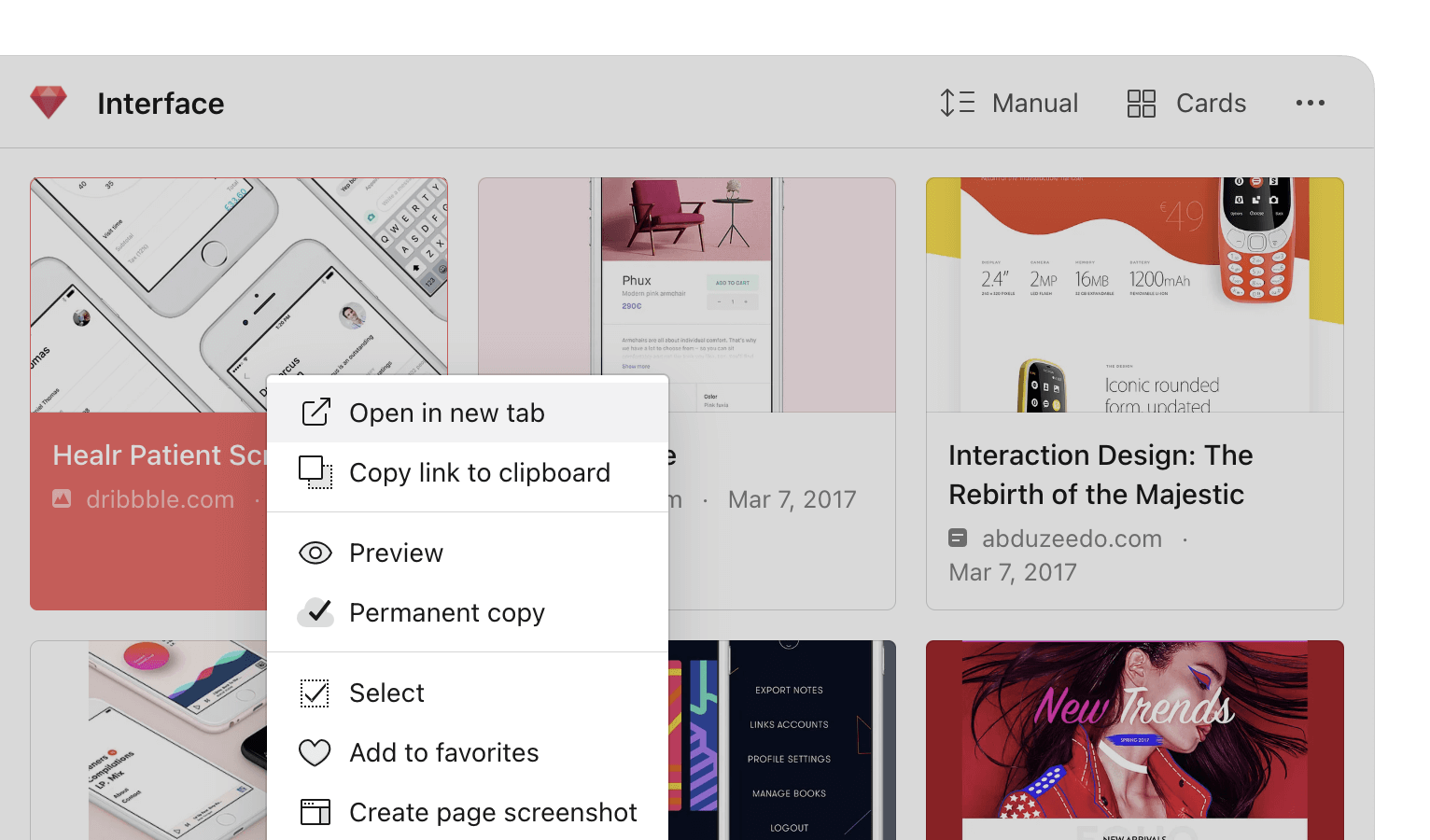
Right-click a bookmark and select **Preview**.
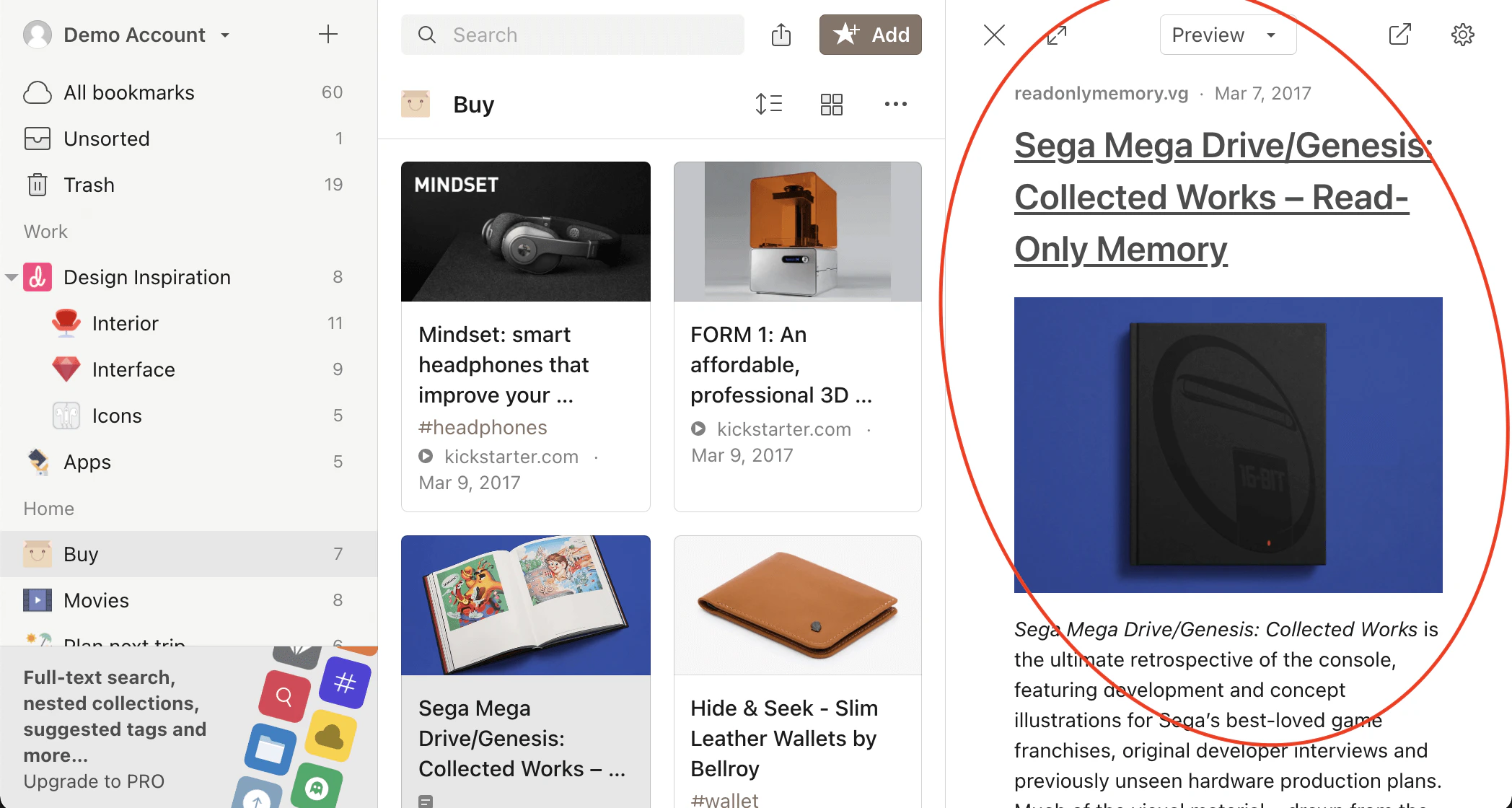
 Adjust the **theme**, **font**, and **text size** to make reading comfortable.
 *Optionally*, [add highlights](/highlights) to important passages.
Tap a bookmark — the article opens in preview automatically when available, otherwise the original page loads.
Adjust the **theme**, **font**, and **text size** by tapping in top bar to make reading comfortable.
*Optionally*, [add highlights](/highlights) to important passages.
Tap a bookmark — the article opens in preview automatically when available, otherwise the original page loads.
Adjust the **theme**, **font**, and **text size** by tapping in top bar to make reading comfortable.
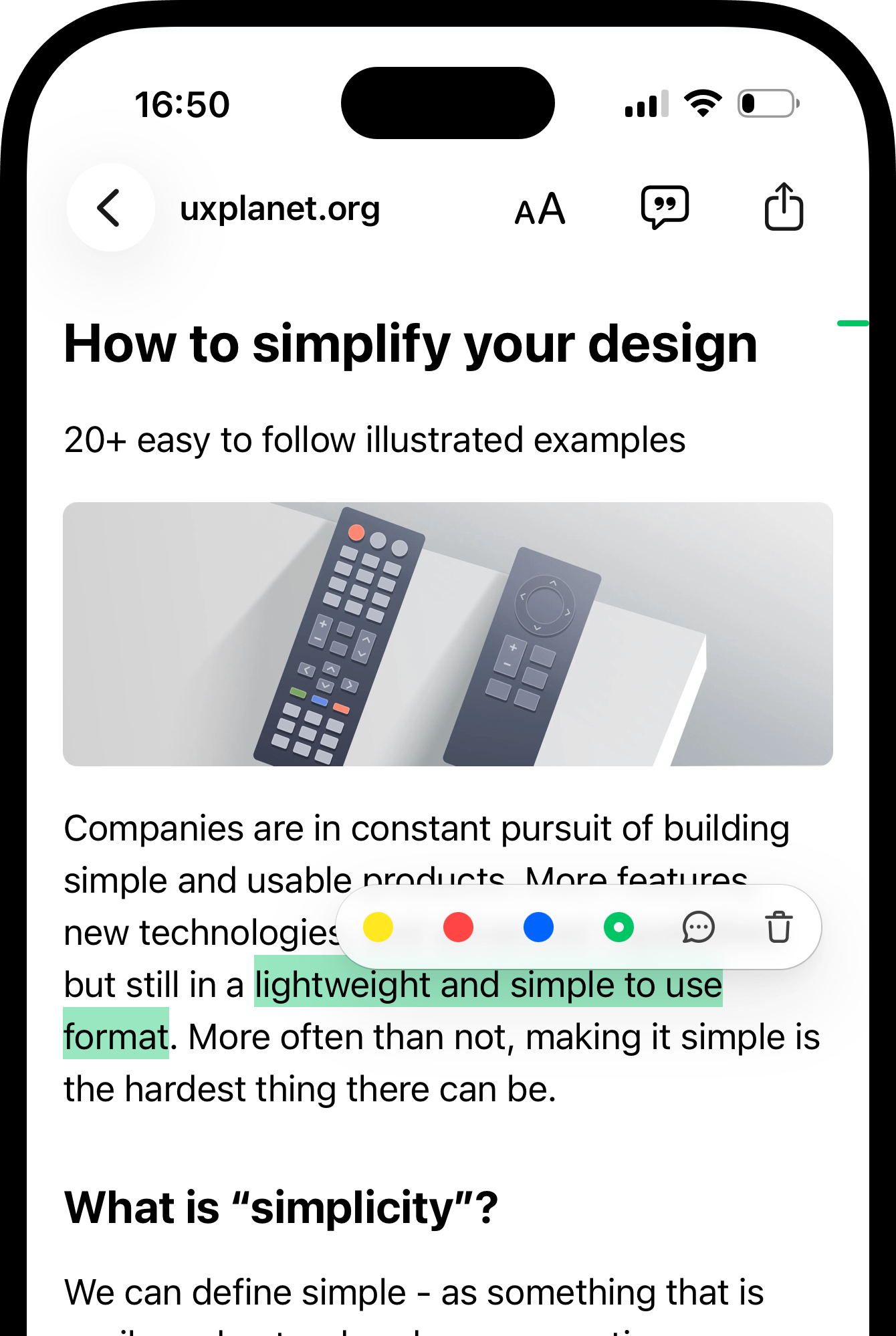 *Optionally*, [add highlights](/highlights) to important passages.
Make sure in-app browser is set to Raindrop.io: **Settings** → **Browser** → **Open links in** → **Raindrop.io**.
Tap a bookmark — the article opens in preview automatically when available, otherwise the original page loads.
Adjust the **theme**, **font**, and **text size** by tapping in bottom bar to make reading comfortable.
*Optionally*, [add highlights](/highlights) to important passages.
Make sure in-app browser is set to Raindrop.io: **Settings** → **Browser** → **Open links in** → **Raindrop.io**.
Tap a bookmark — the article opens in preview automatically when available, otherwise the original page loads.
Adjust the **theme**, **font**, and **text size** by tapping in bottom bar to make reading comfortable.
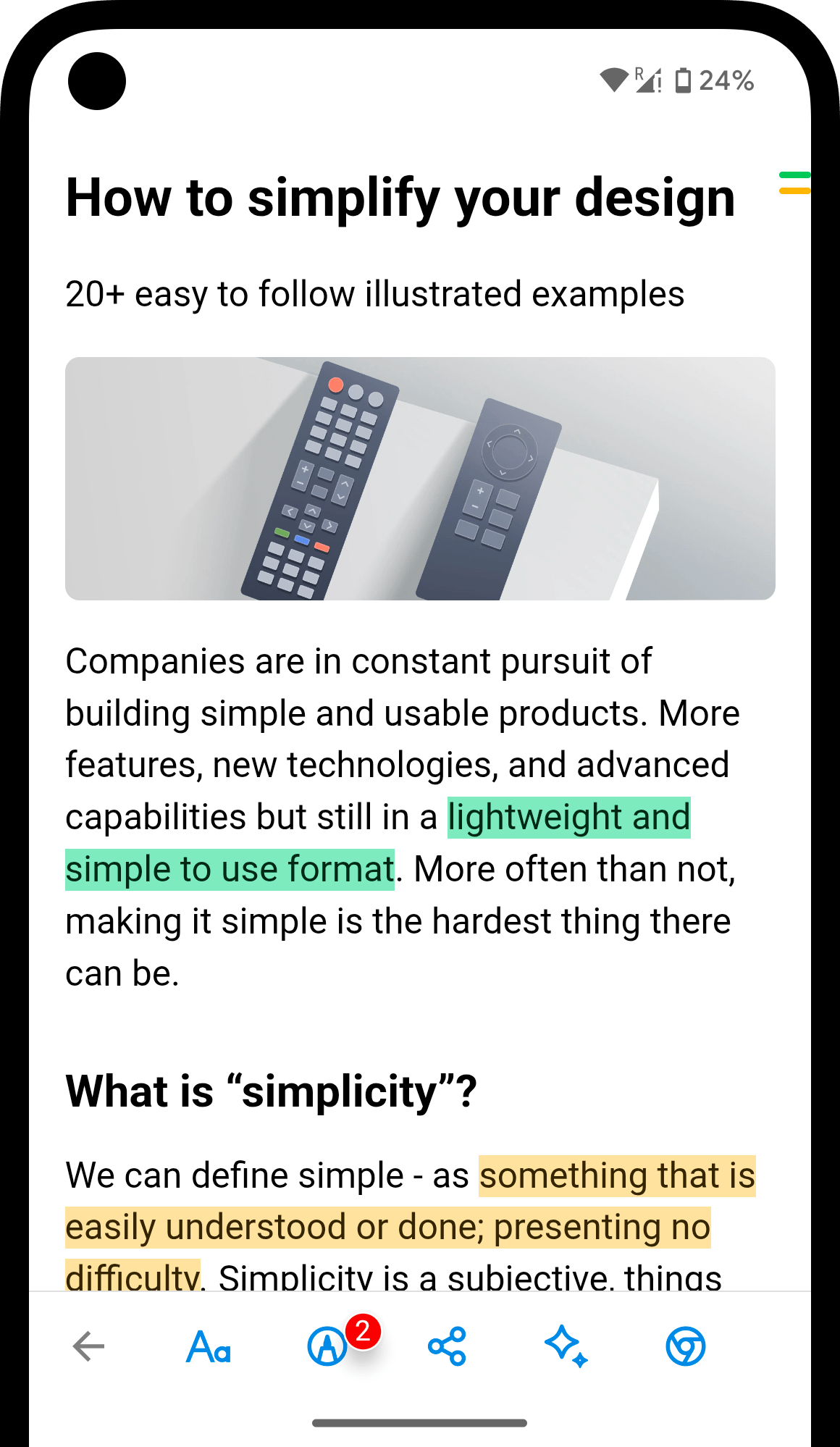 *Optionally*, [add highlights](/highlights) to important passages.
Make sure in-app browser is enabled: **Settings** → **Open in browser** → **In app**.
## Chatting with an article
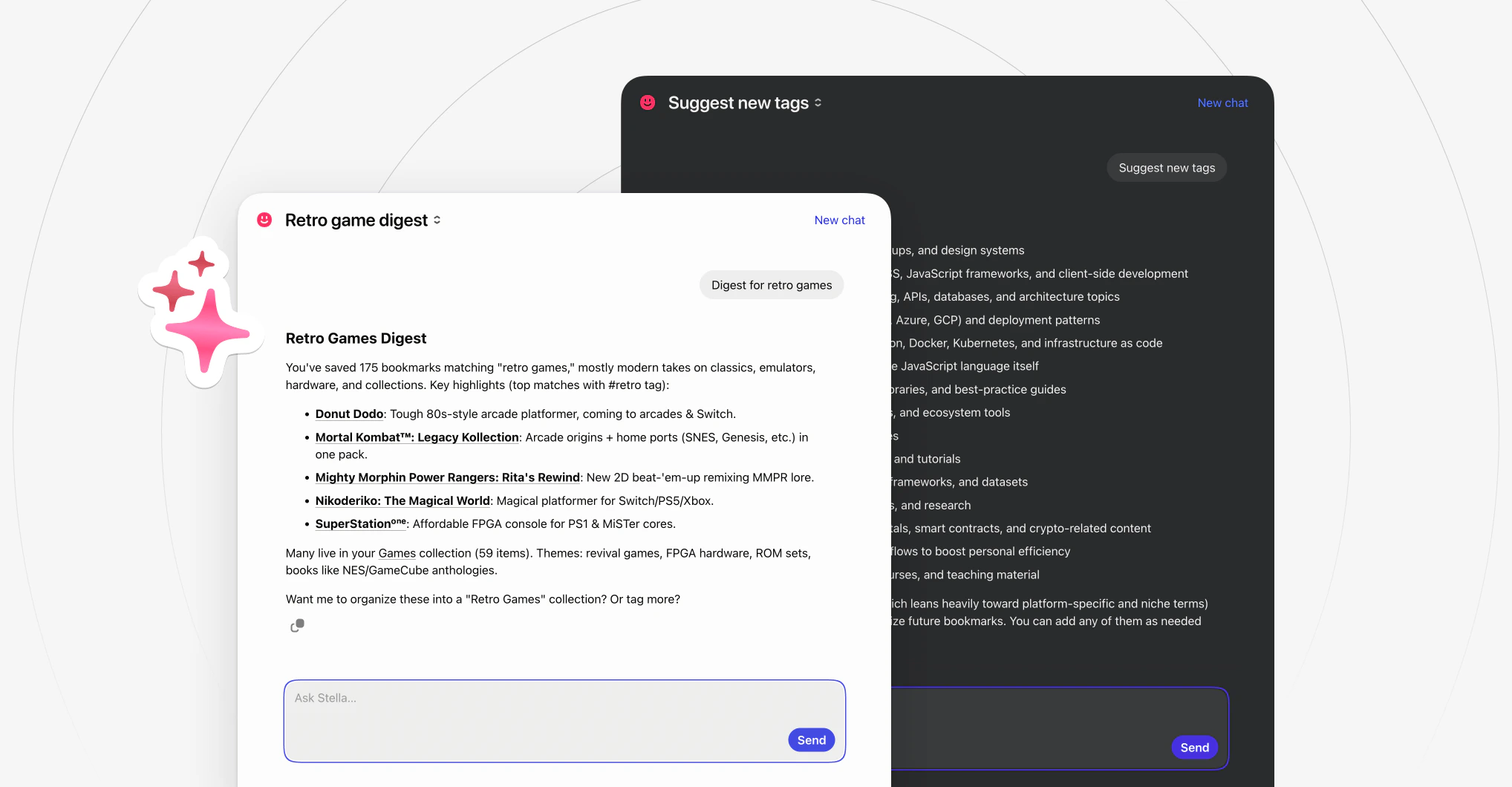
Not sure what the article is about? [Stella](/stella) can summarize it, extract key points, translate into another language, or answer your questions about the content.
Switch to the Ask tab in the preview panel.
*Optionally*, [add highlights](/highlights) to important passages.
Make sure in-app browser is enabled: **Settings** → **Open in browser** → **In app**.
## Chatting with an article
Not sure what the article is about? [Stella](/stella) can summarize it, extract key points, translate into another language, or answer your questions about the content.
Switch to the Ask tab in the preview panel.
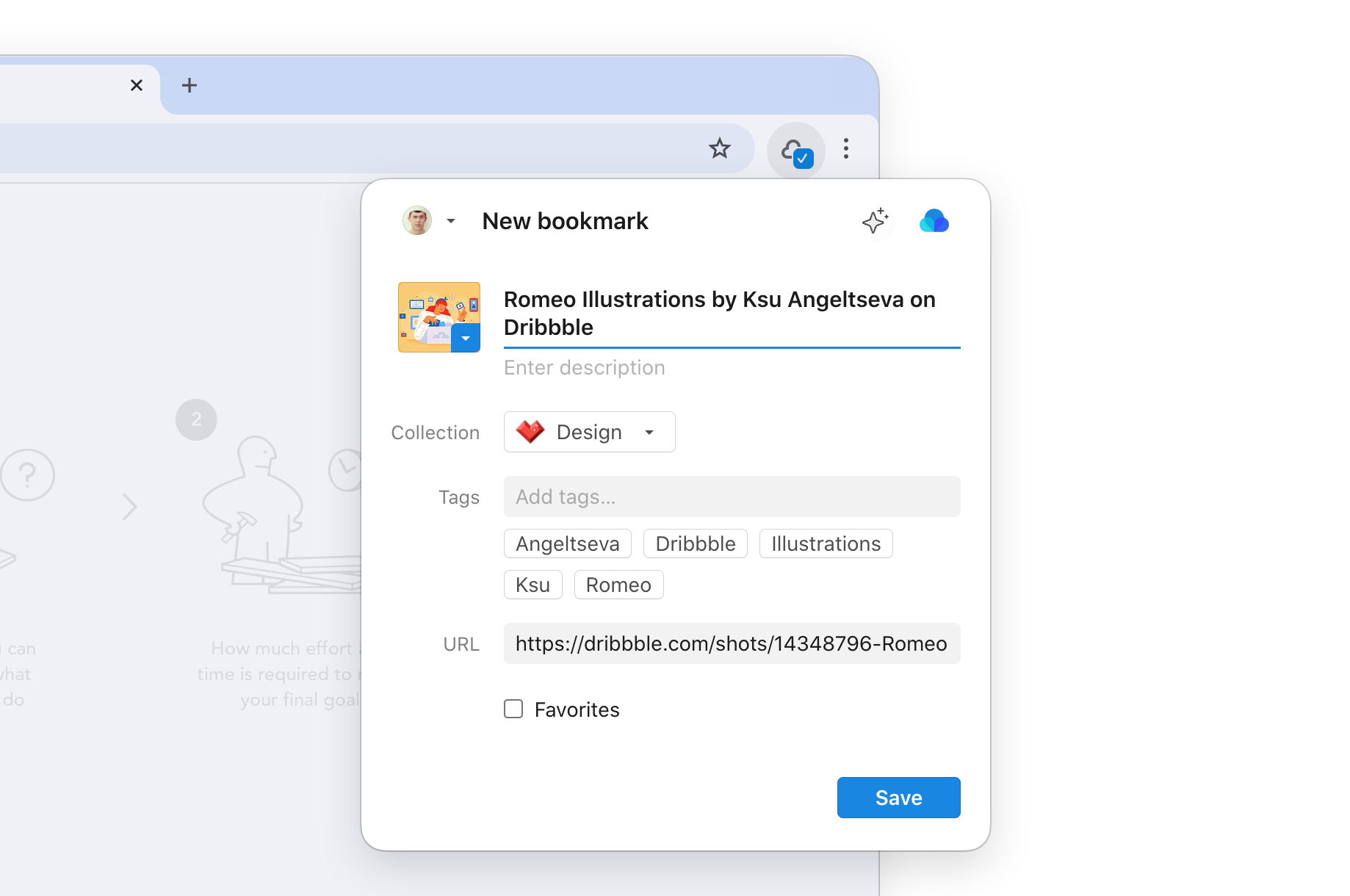
 When saving or editing a bookmark in the extension, click the button — it opens a chat about that web page.
 Tap at the bottom of the screen.
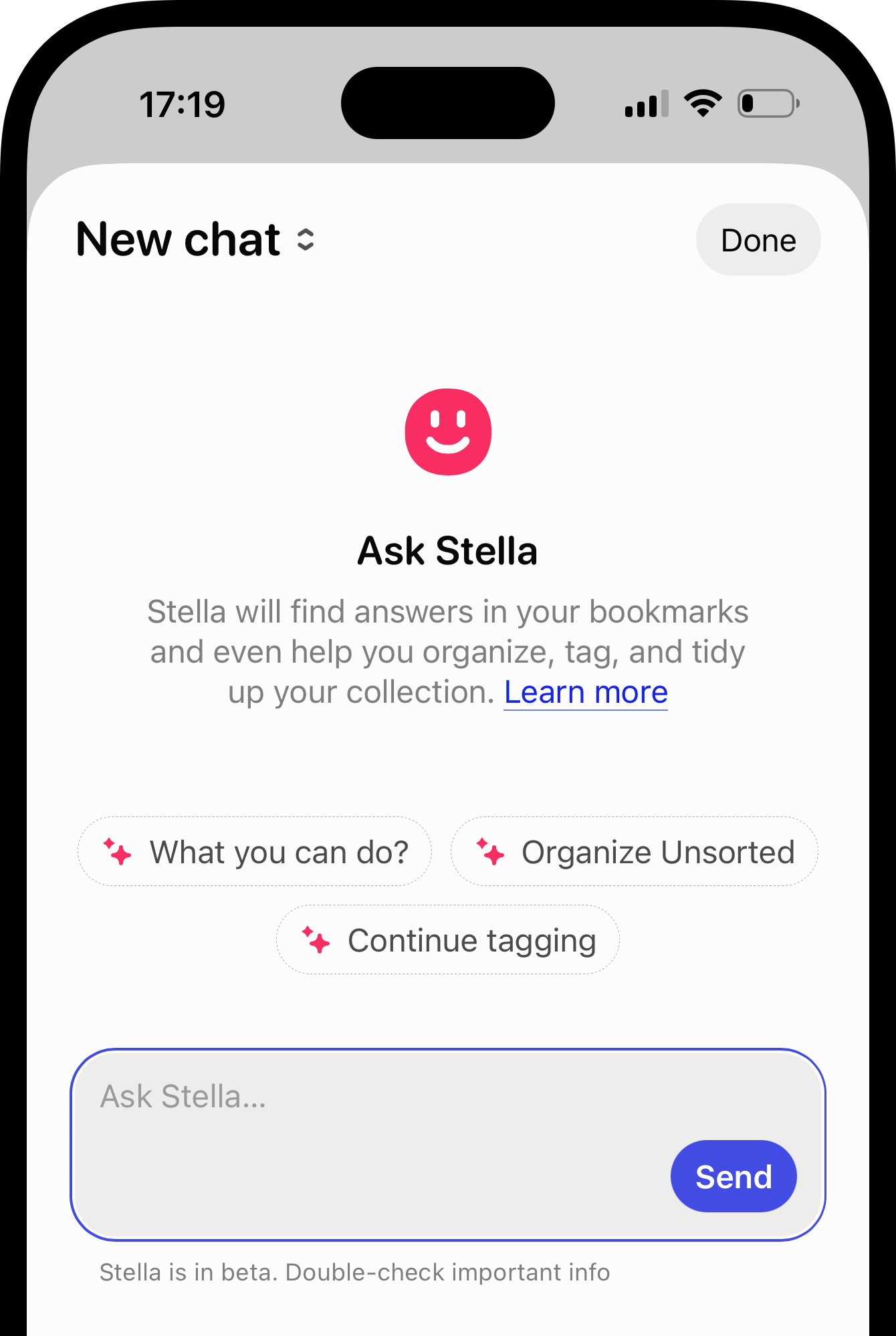 Tap at the bottom of the screen.
## Finding articles
Over time you'll save dozens of articles alongside other bookmarks. Filter to see just your articles, [search](/using-search) through their text — whatever helps you find what you need.
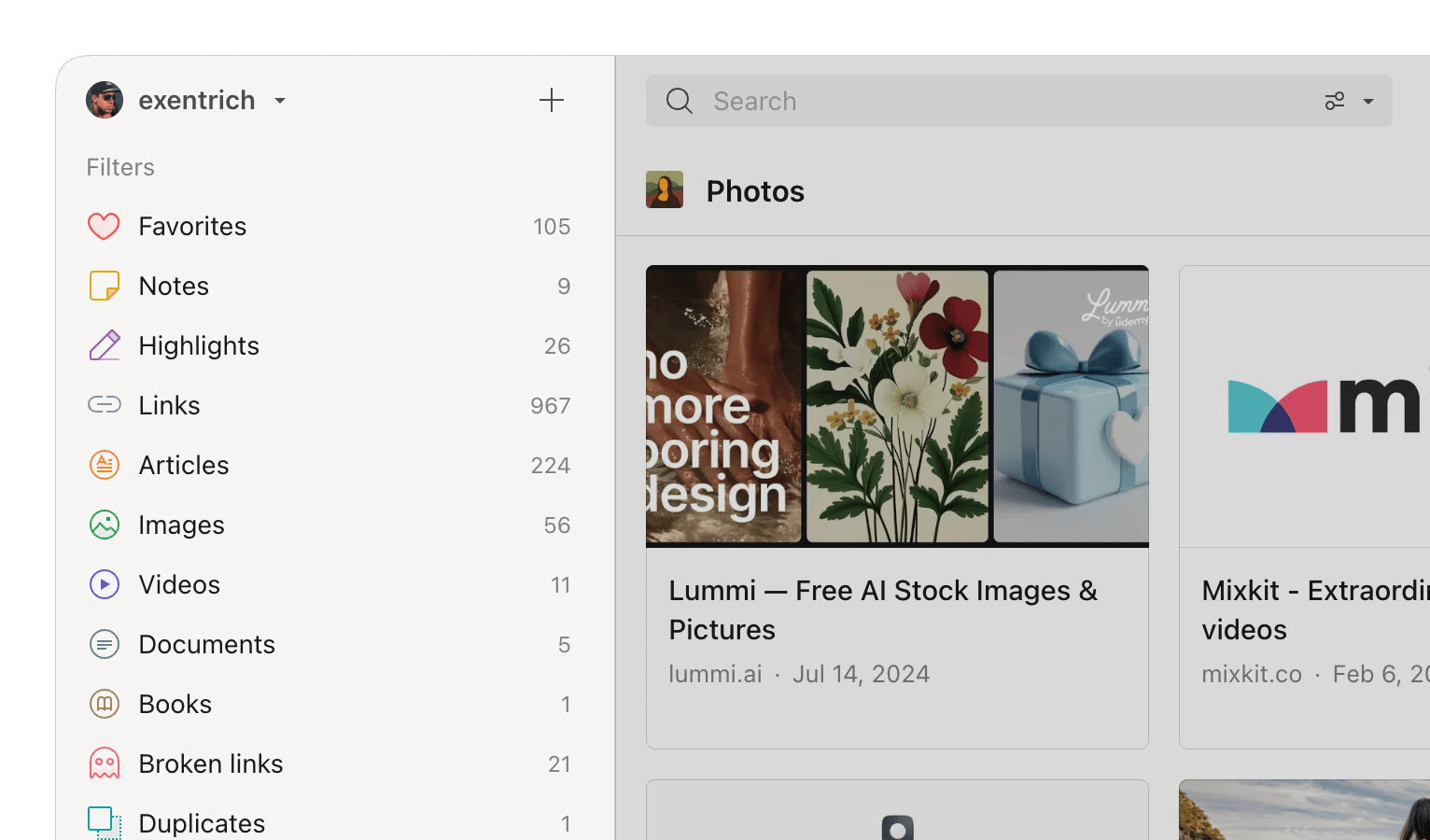
Click the **Articles** filter in the sidebar.
Tap at the bottom of the screen.
## Finding articles
Over time you'll save dozens of articles alongside other bookmarks. Filter to see just your articles, [search](/using-search) through their text — whatever helps you find what you need.
Click the **Articles** filter in the sidebar.
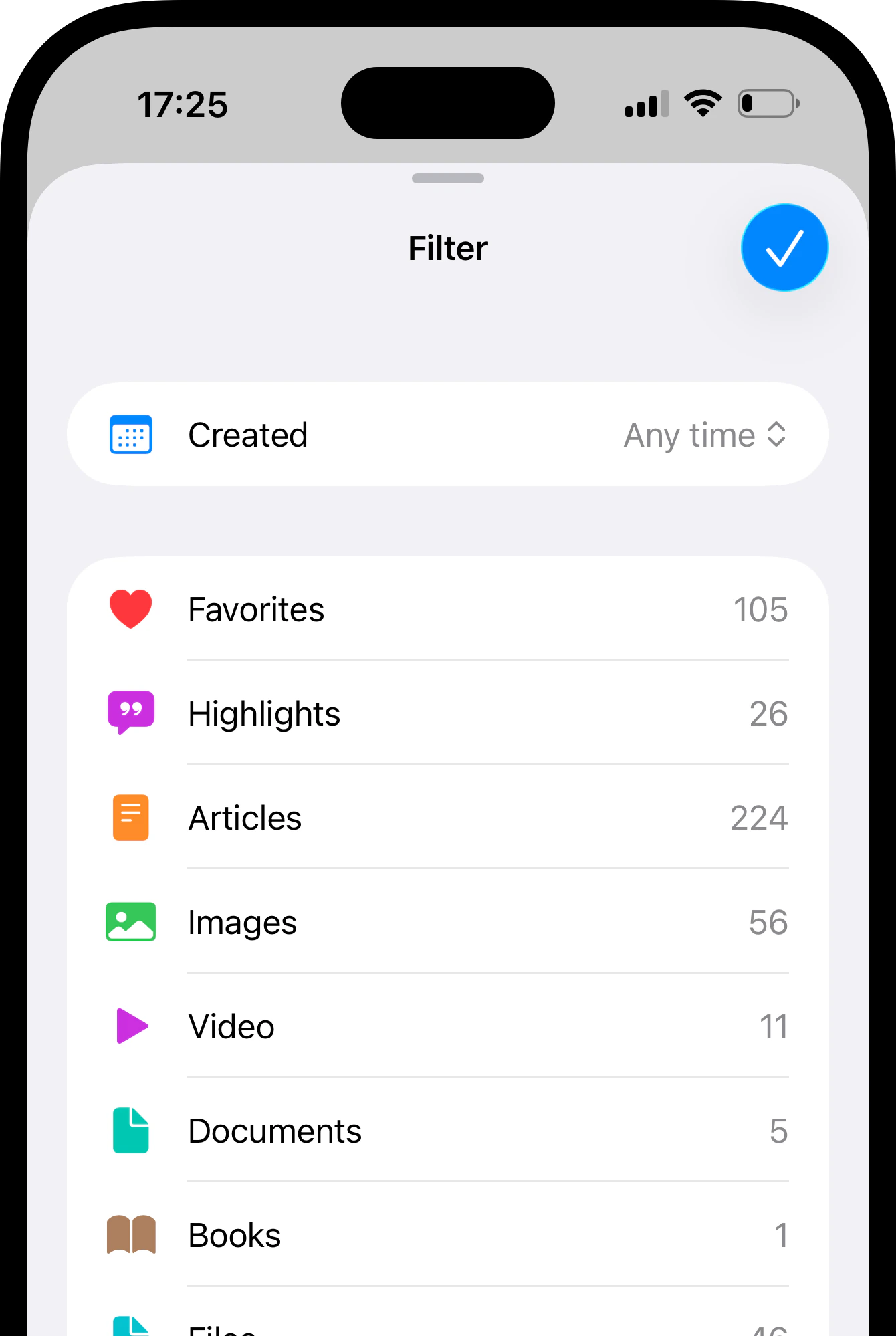
 Tap in top right corner and then **Filter**.
Select the **Article** filter from the list.
Tap in top right corner and then **Filter**.
Select the **Article** filter from the list.
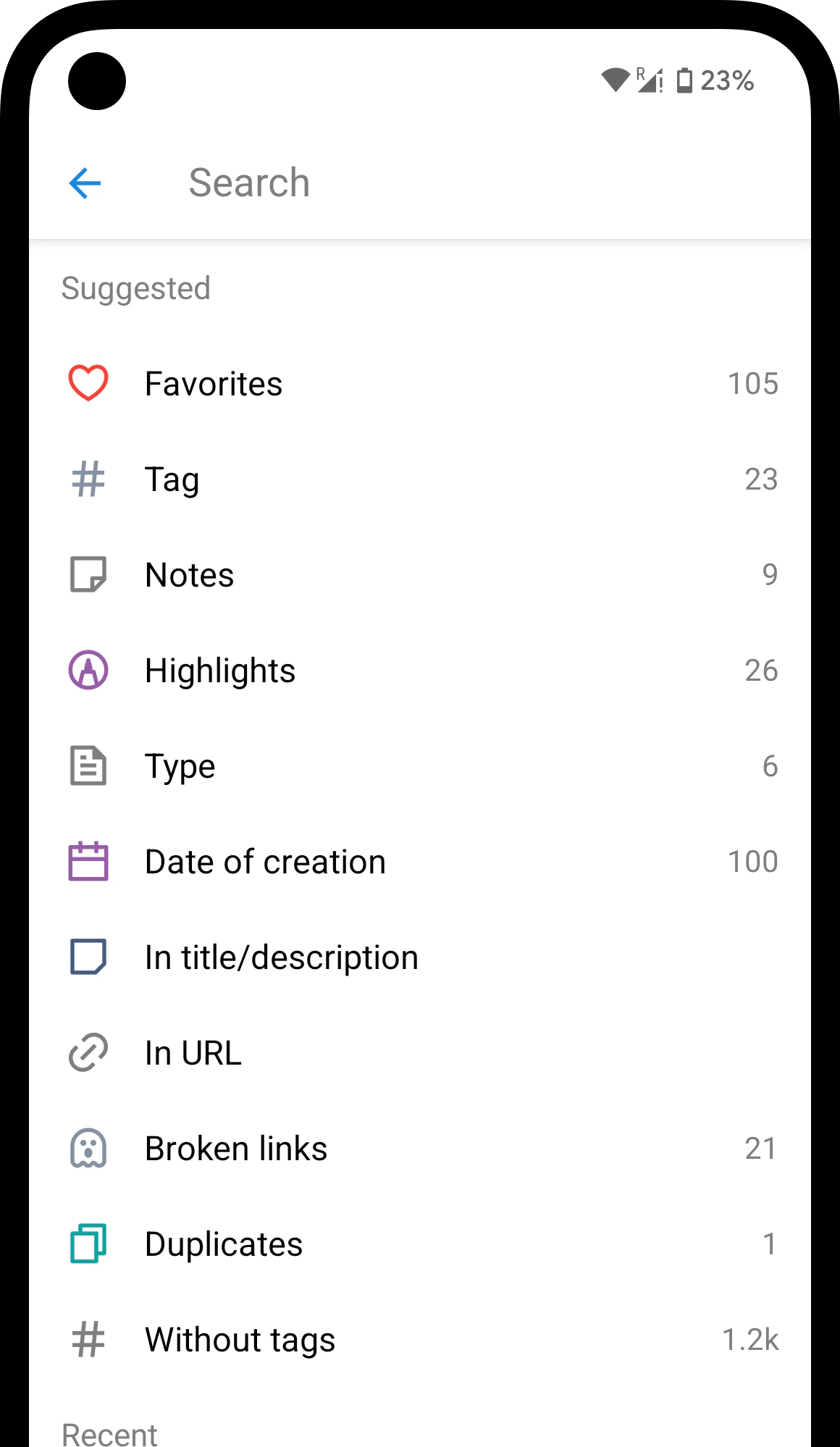
 Tap on the search field.
Select the **Type** filter and then **Articles** from the suggestions.
Tap on the search field.
Select the **Type** filter and then **Articles** from the suggestions.
 ## Related
Save key passages from articles, PDFs, and EPUBs
Find articles by content across your library
Summarize, translate, and ask questions about articles
A saved copy of every page in case the original disappears
## FAQ
It analyzes the page when you save it and detects the content type automatically — no manual action needed.
You can still read it. The article text is saved in Raindrop at the time the bookmark is created.
Right-click the bookmark → **Refresh preview**. If the problem persists, contact support at [info@raindrop.io](mailto:info@raindrop.io).
No. Only publicly accessible pages can be parsed.
Yes — in articles, PDFs, and EPUBs. See [Highlights](/highlights).
## Related
Save key passages from articles, PDFs, and EPUBs
Find articles by content across your library
Summarize, translate, and ask questions about articles
A saved copy of every page in case the original disappears
## FAQ
It analyzes the page when you save it and detects the content type automatically — no manual action needed.
You can still read it. The article text is saved in Raindrop at the time the bookmark is created.
Right-click the bookmark → **Refresh preview**. If the problem persists, contact support at [info@raindrop.io](mailto:info@raindrop.io).
No. Only publicly accessible pages can be parsed.
Yes — in articles, PDFs, and EPUBs. See [Highlights](/highlights).