> ## Documentation Index
> Fetch the complete documentation index at: https://help.raindrop.io/llms.txt
> Use this file to discover all available pages before exploring further.
# Bookmarks
> Save what catches your eye on the web
Bookmarks are at the heart of Raindrop.io. Save a link — and it's stored with a clean preview, ready to organize into [collections](/collections), label with [tags](/tags), and annotate with notes.
## Saving bookmarks
Click the Raindrop.io icon in your browser toolbar.
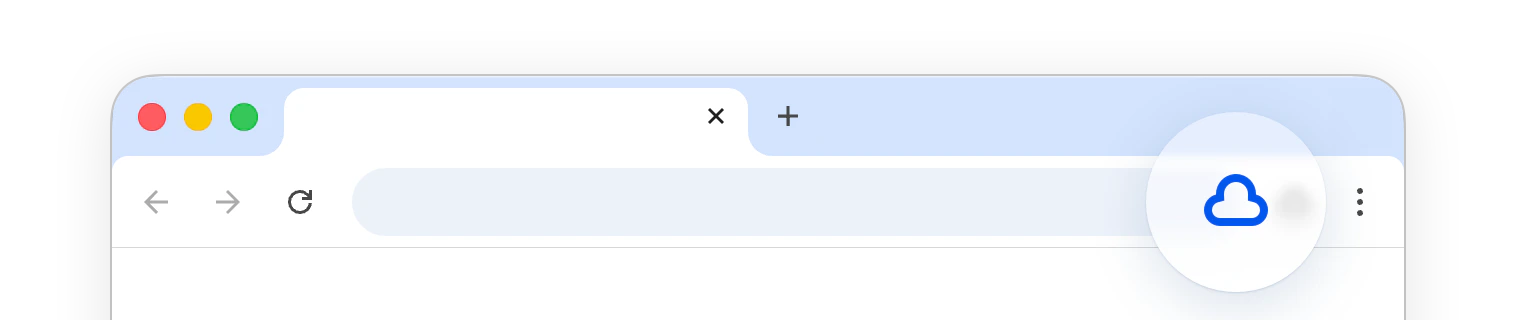 Make sure you have the [browser extension](/install-extension) installed.
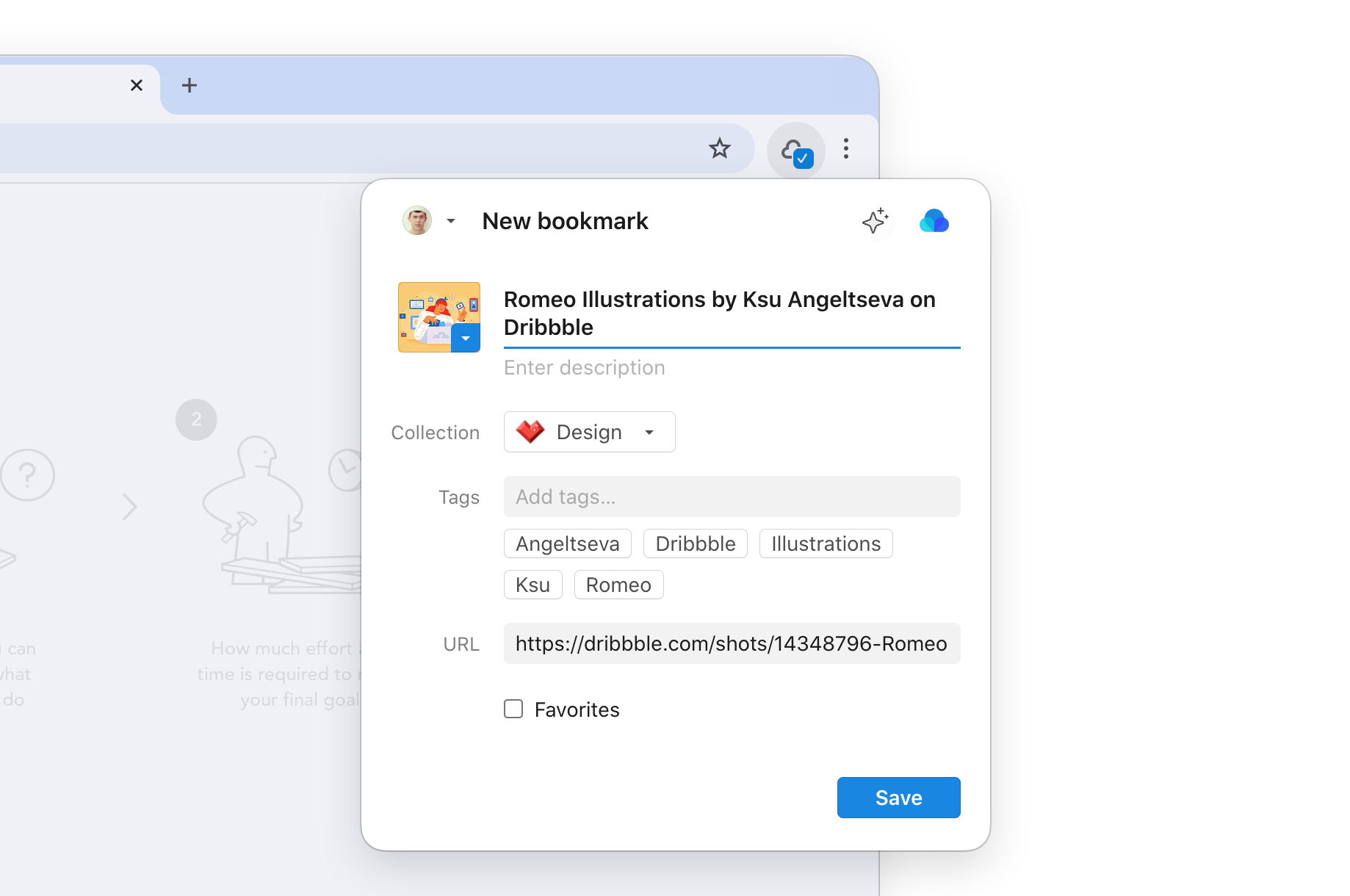
Pick a collection, add tags if you want, and click **Save**.
Make sure you have the [browser extension](/install-extension) installed.
Pick a collection, add tags if you want, and click **Save**.
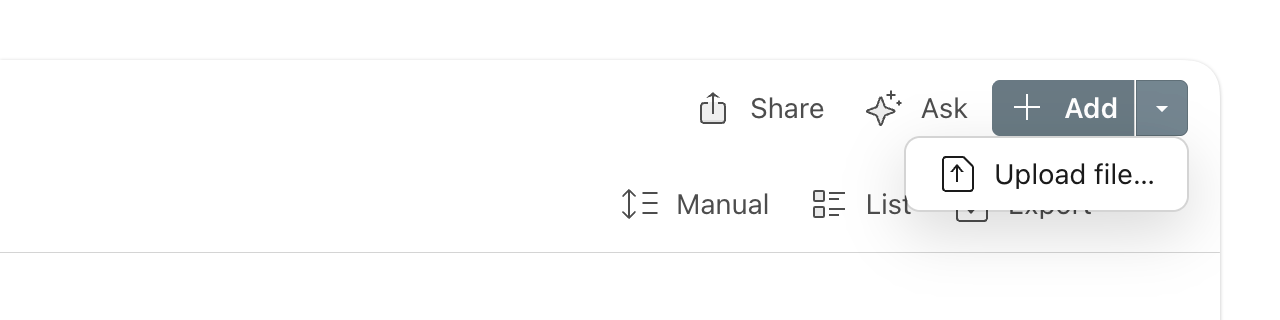
 Open a collection and click **+ Add** in the toolbar.
 Paste the URL and click **Save**.
Tap **Share** in any app (Safari, YouTube, Twitter, etc.).
Paste the URL and click **Save**.
Tap **Share** in any app (Safari, YouTube, Twitter, etc.).
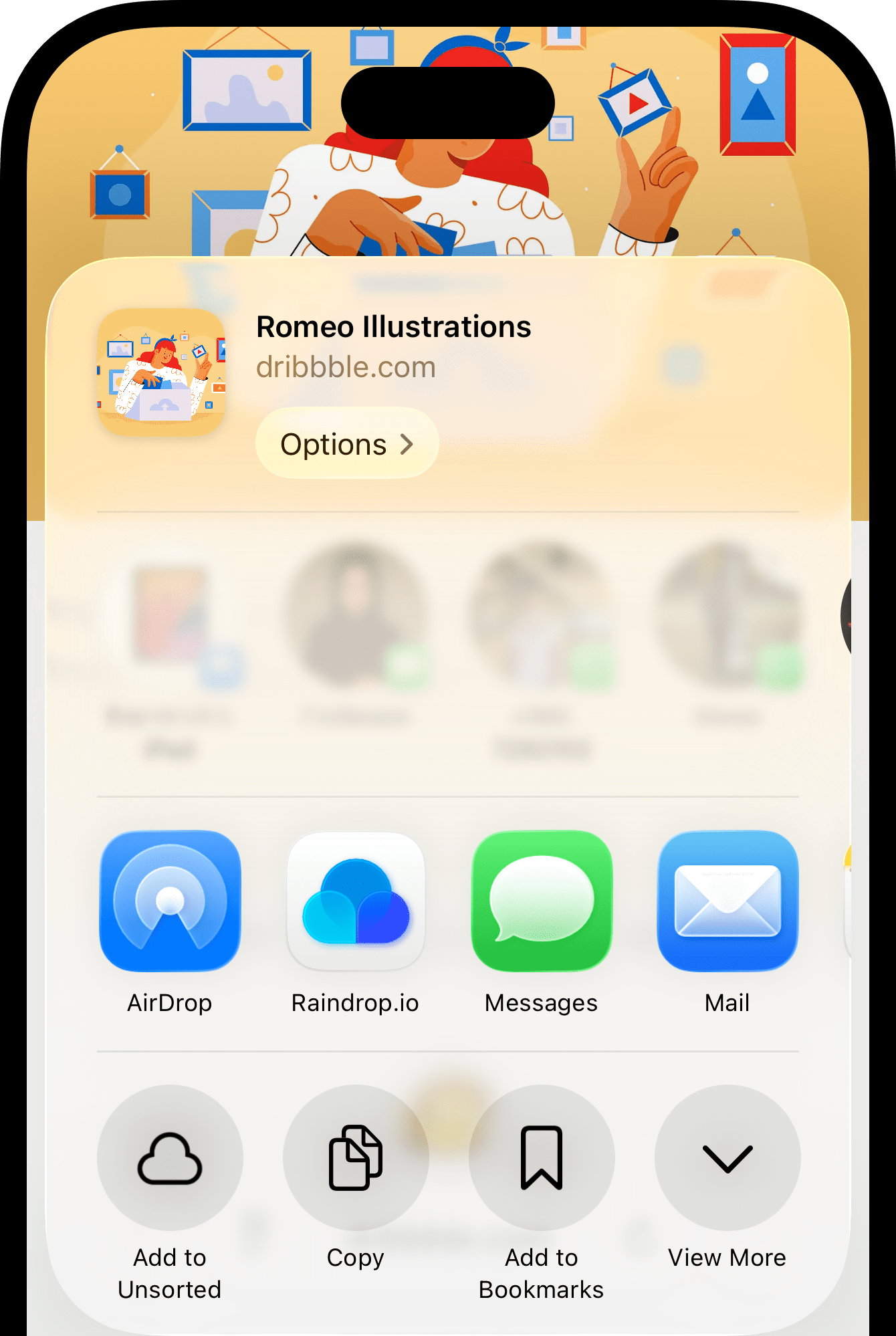 Choose **Raindrop.io** from the share sheet. If you don't see it, scroll the top row of icons to the right and tap **More** at the end to enable Raindrop.io.
Make sure you have the [mobile app](/mobile-app) installed.
Pick a collection, add tags if you want, and tap **Save**.
Choose **Raindrop.io** from the share sheet. If you don't see it, scroll the top row of icons to the right and tap **More** at the end to enable Raindrop.io.
Make sure you have the [mobile app](/mobile-app) installed.
Pick a collection, add tags if you want, and tap **Save**.
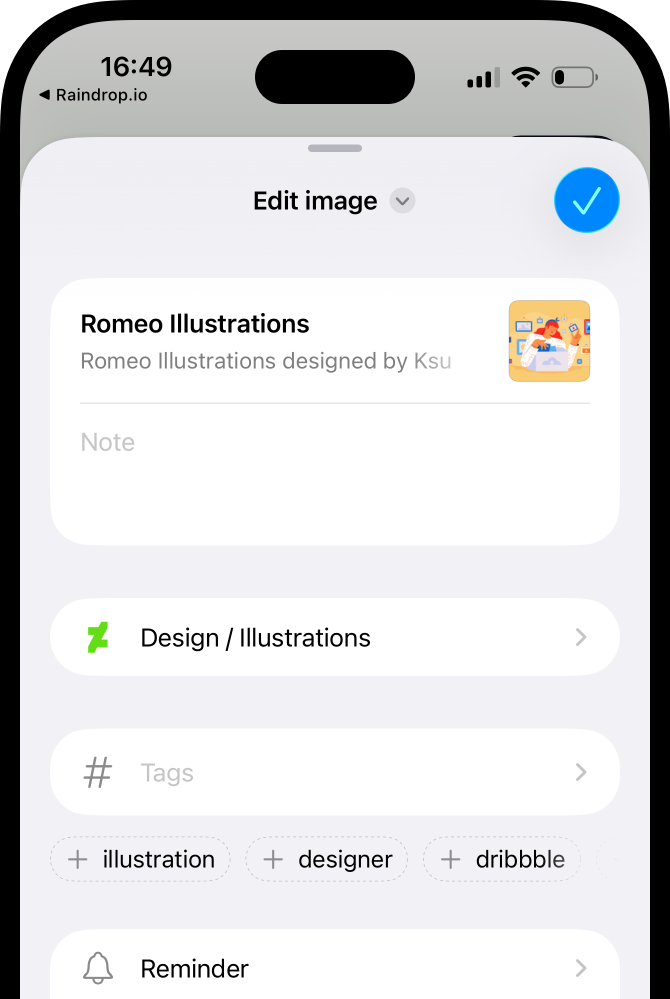 Tap **Share** in any app.
Choose **Raindrop** from the share list.
Tap **Share** in any app.
Choose **Raindrop** from the share list.
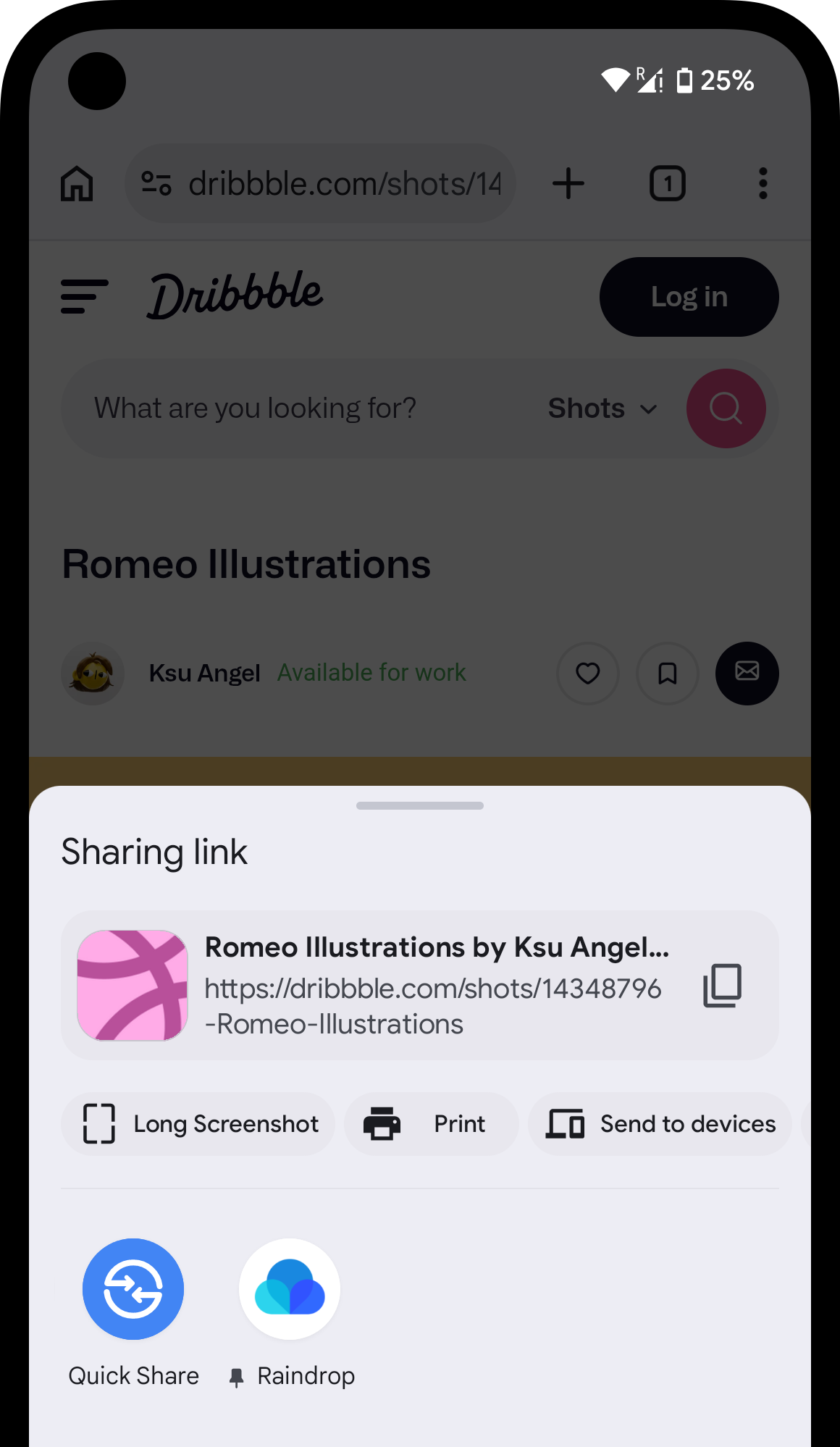 Make sure you have the [mobile app](/mobile-app) installed.
Pick a collection, add tags if you want, and tap **Save**.
The title, description, and thumbnail are grabbed from the page automatically.
If the bookmark is an article or video, you can view it later in a [clean built-in preview](/articles) — no ads or clutter.
## Managing a bookmark
Hover over a bookmark and click **Edit**, or right-click and select **Edit** from the context menu.
Make sure you have the [mobile app](/mobile-app) installed.
Pick a collection, add tags if you want, and tap **Save**.
The title, description, and thumbnail are grabbed from the page automatically.
If the bookmark is an article or video, you can view it later in a [clean built-in preview](/articles) — no ads or clutter.
## Managing a bookmark
Hover over a bookmark and click **Edit**, or right-click and select **Edit** from the context menu.
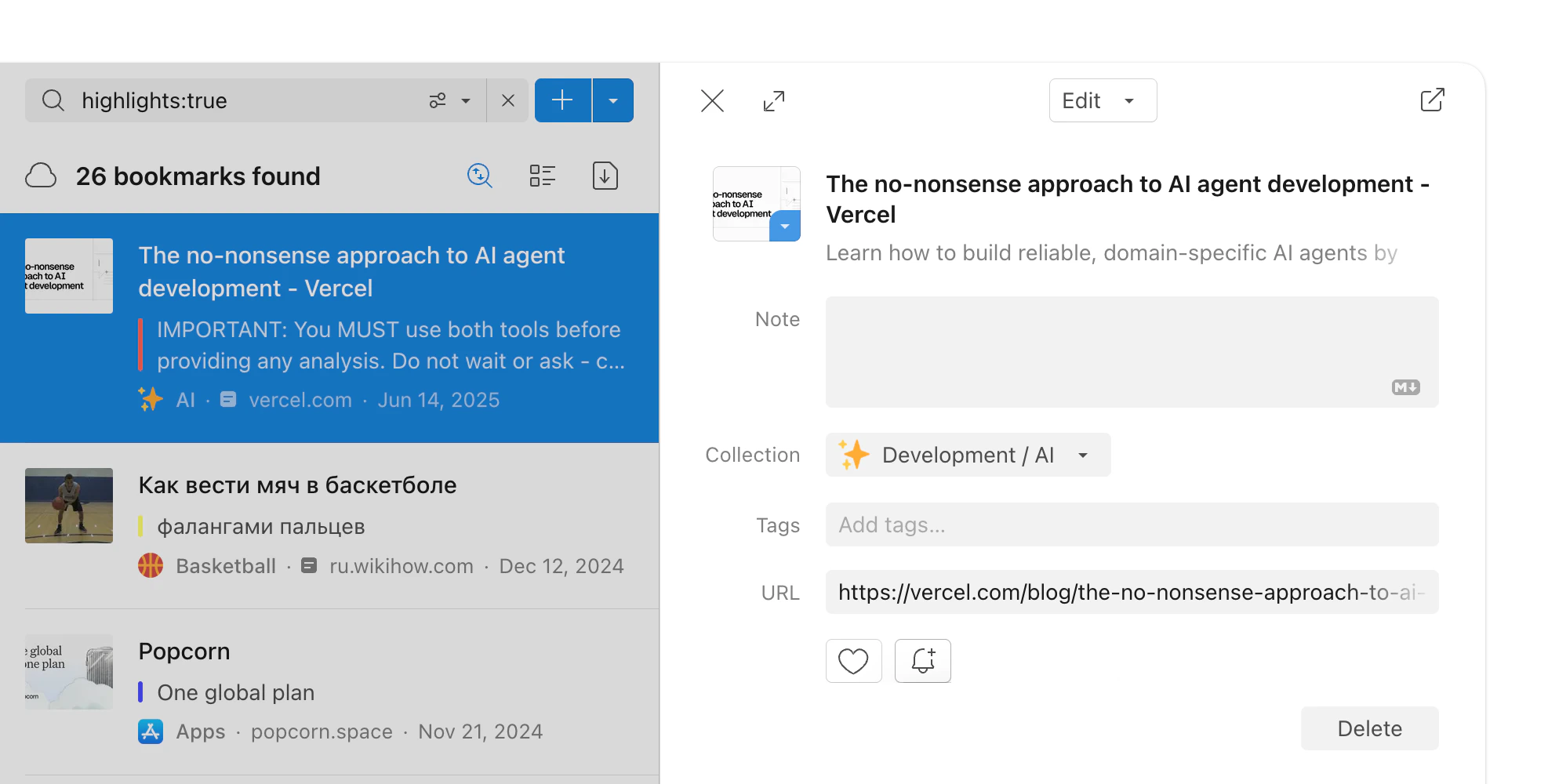 Long-press a bookmark and choose **Edit**.
Tap the icon next to a bookmark to open the edit screen.
Long-press a bookmark and choose **Edit**.
Tap the icon next to a bookmark to open the edit screen.
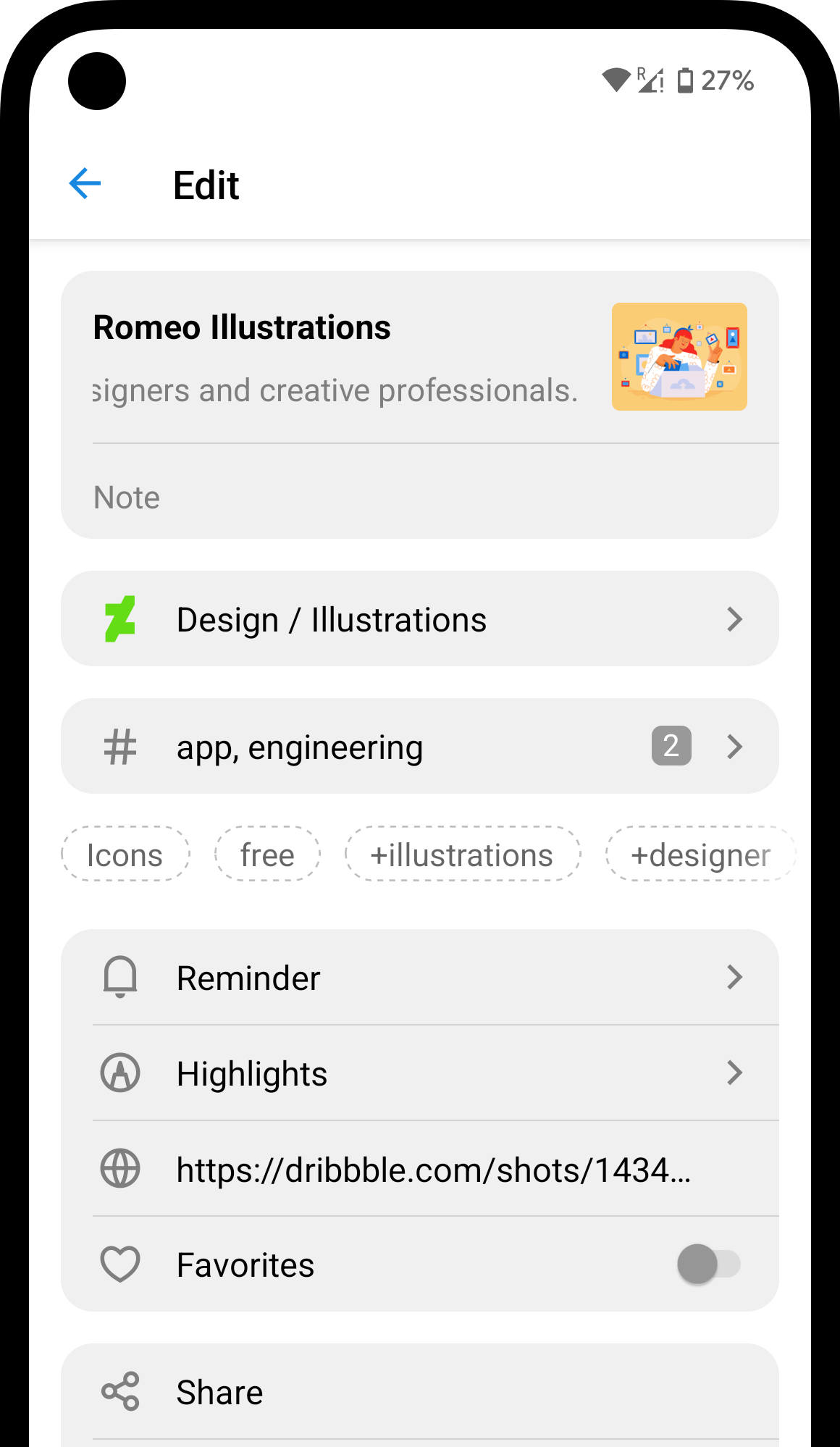 From here you can edit the title, description, or thumbnail, and also:
* Add a **note** — your own comments, context, or anything you want to remember about the page. Notes are written in Markdown (bold, italic, lists, links) and are included in [search](/using-search) and [export](/export)
* Move the bookmark to another [collection](/collections)
* Add [tags](/tags) for easier filtering
* Set a [reminder](/reminders) so you don't forget about it
* Mark as **favorite** to keep it at hand
* Or **delete** — the bookmark goes to [Trash](#where-deleted-bookmarks-go), not permanently removed
## Sorting bookmarks
By default bookmarks appear newest first. You can also manually reorder them — drag the ones that deserve more attention to the top.
Click in the toolbar.
Choose how to order: by date added, by name, or arrange manually.
From here you can edit the title, description, or thumbnail, and also:
* Add a **note** — your own comments, context, or anything you want to remember about the page. Notes are written in Markdown (bold, italic, lists, links) and are included in [search](/using-search) and [export](/export)
* Move the bookmark to another [collection](/collections)
* Add [tags](/tags) for easier filtering
* Set a [reminder](/reminders) so you don't forget about it
* Mark as **favorite** to keep it at hand
* Or **delete** — the bookmark goes to [Trash](#where-deleted-bookmarks-go), not permanently removed
## Sorting bookmarks
By default bookmarks appear newest first. You can also manually reorder them — drag the ones that deserve more attention to the top.
Click in the toolbar.
Choose how to order: by date added, by name, or arrange manually.
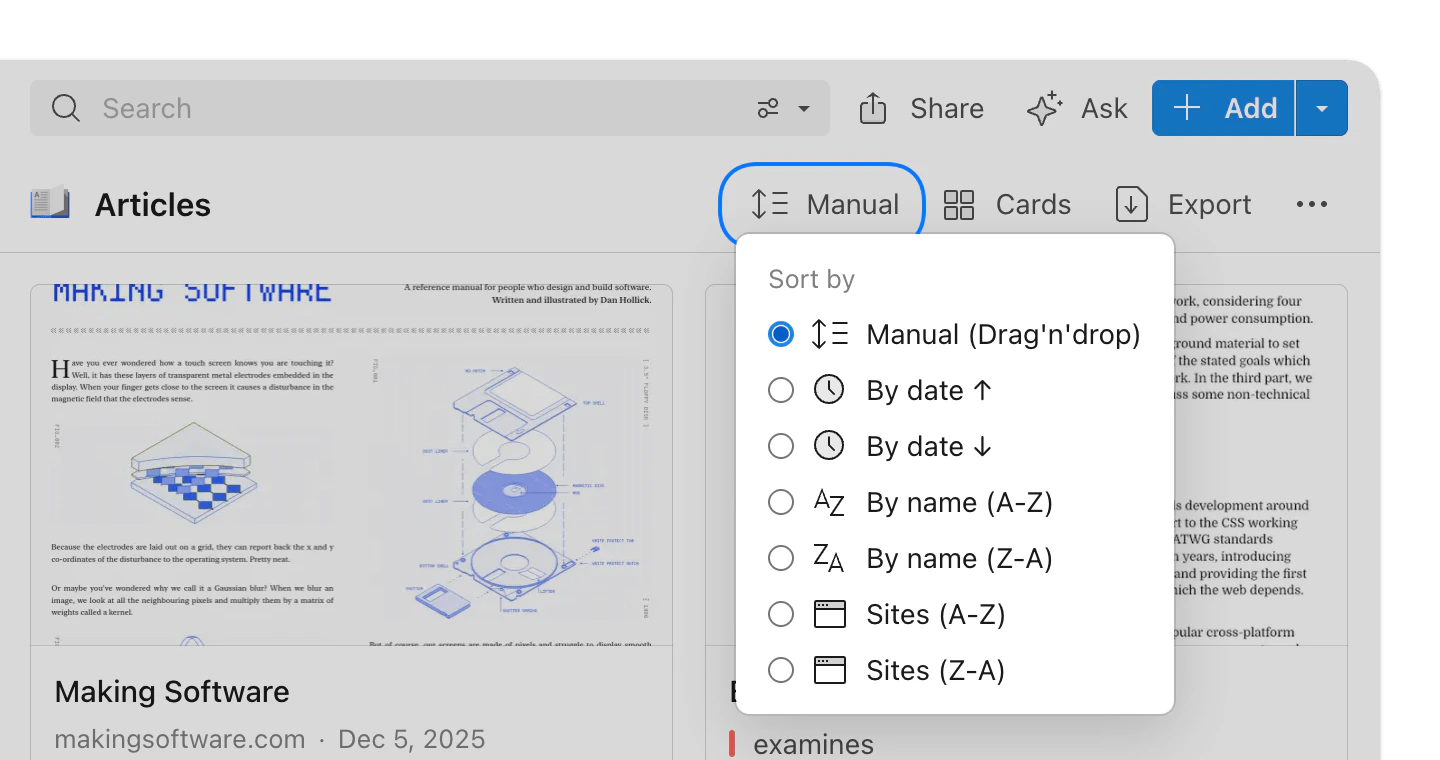 *Optionally*: when manual sorting is active, you can drag and drop bookmarks to reorder them.
Tap in the top right corner, then **Sort**.
Choose how to order: by date added, by name, or arrange manually.
*Optionally*: when manual sorting is active, you can drag and drop bookmarks to reorder them.
Tap in the top right corner, then **Sort**.
Choose how to order: by date added, by name, or arrange manually.
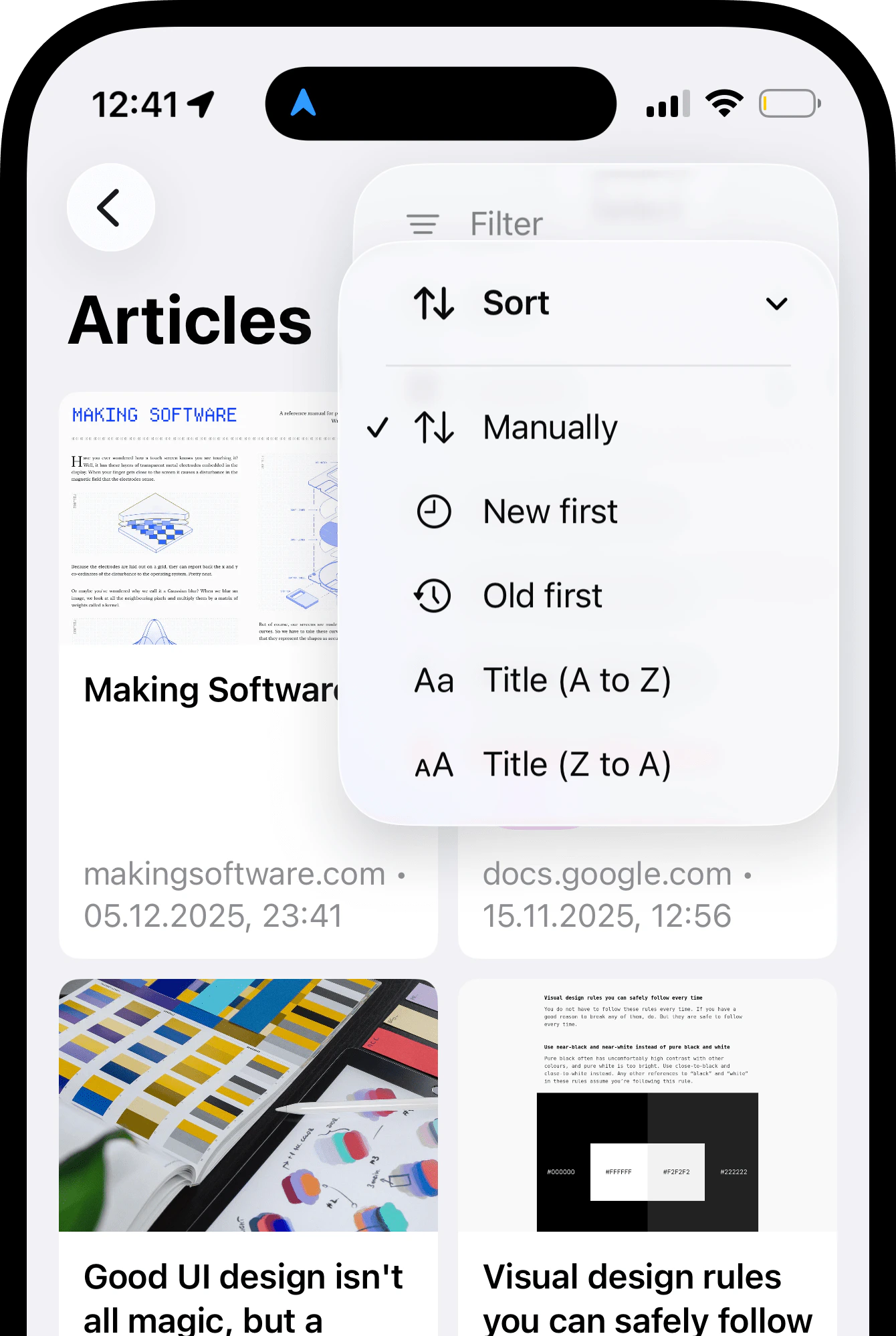 *Optionally*: when manual sorting is active, you can drag and drop bookmarks to reorder them.
Tap in the top right corner.
Choose how to order: by date added, by name, or arrange manually.
*Optionally*: when manual sorting is active, you can drag and drop bookmarks to reorder them.
Tap in the top right corner.
Choose how to order: by date added, by name, or arrange manually.
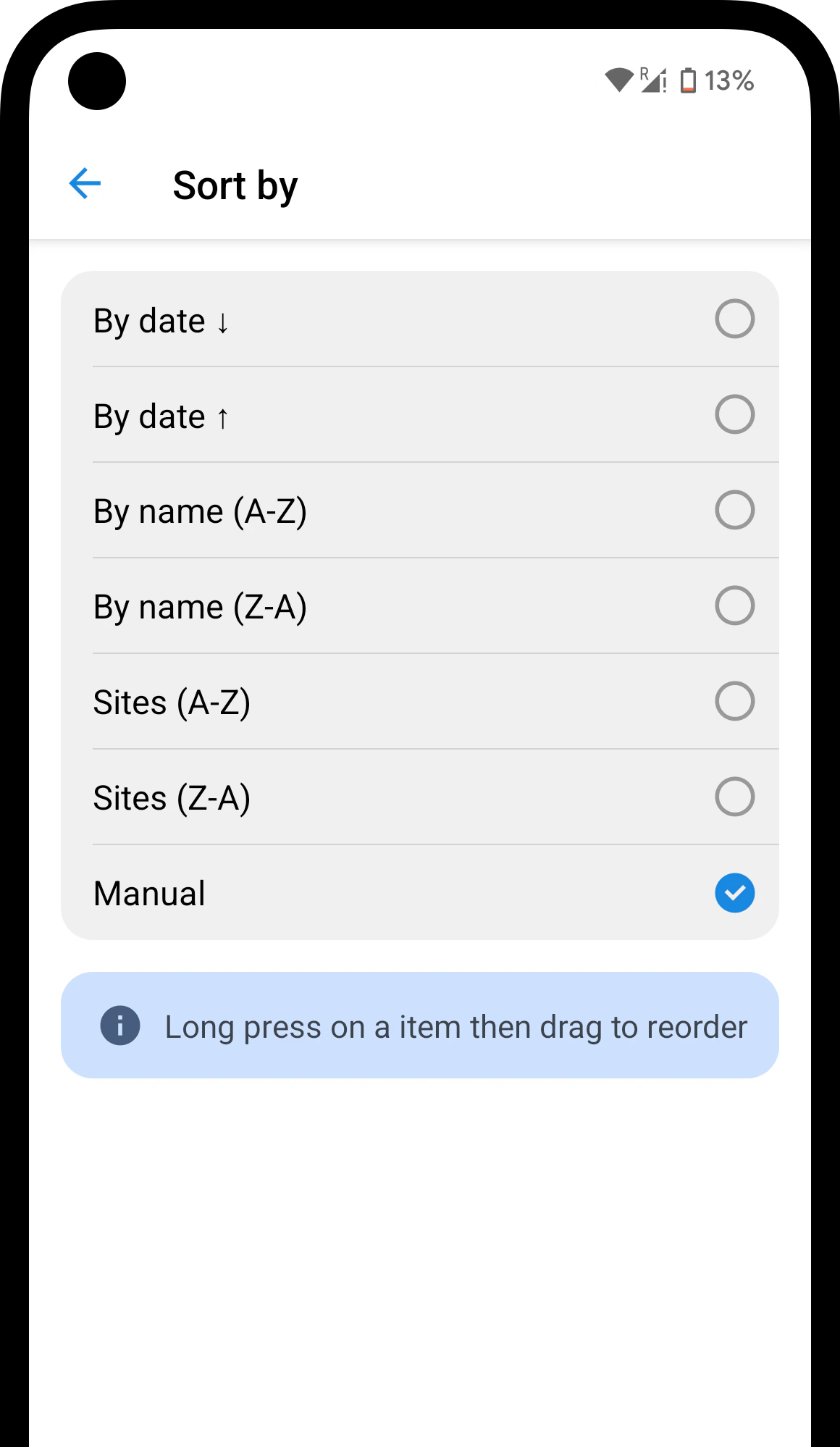 *Optionally*: when manual sorting is active, you can drag and drop bookmarks to reorder them.
## Finding bookmarks
Find any bookmark by name, URL, or content. Use [filters](/filters) to narrow results by type, date, tag, and more.
Click the search field at the top of the page and start typing.
*Optionally*: when manual sorting is active, you can drag and drop bookmarks to reorder them.
## Finding bookmarks
Find any bookmark by name, URL, or content. Use [filters](/filters) to narrow results by type, date, tag, and more.
Click the search field at the top of the page and start typing.
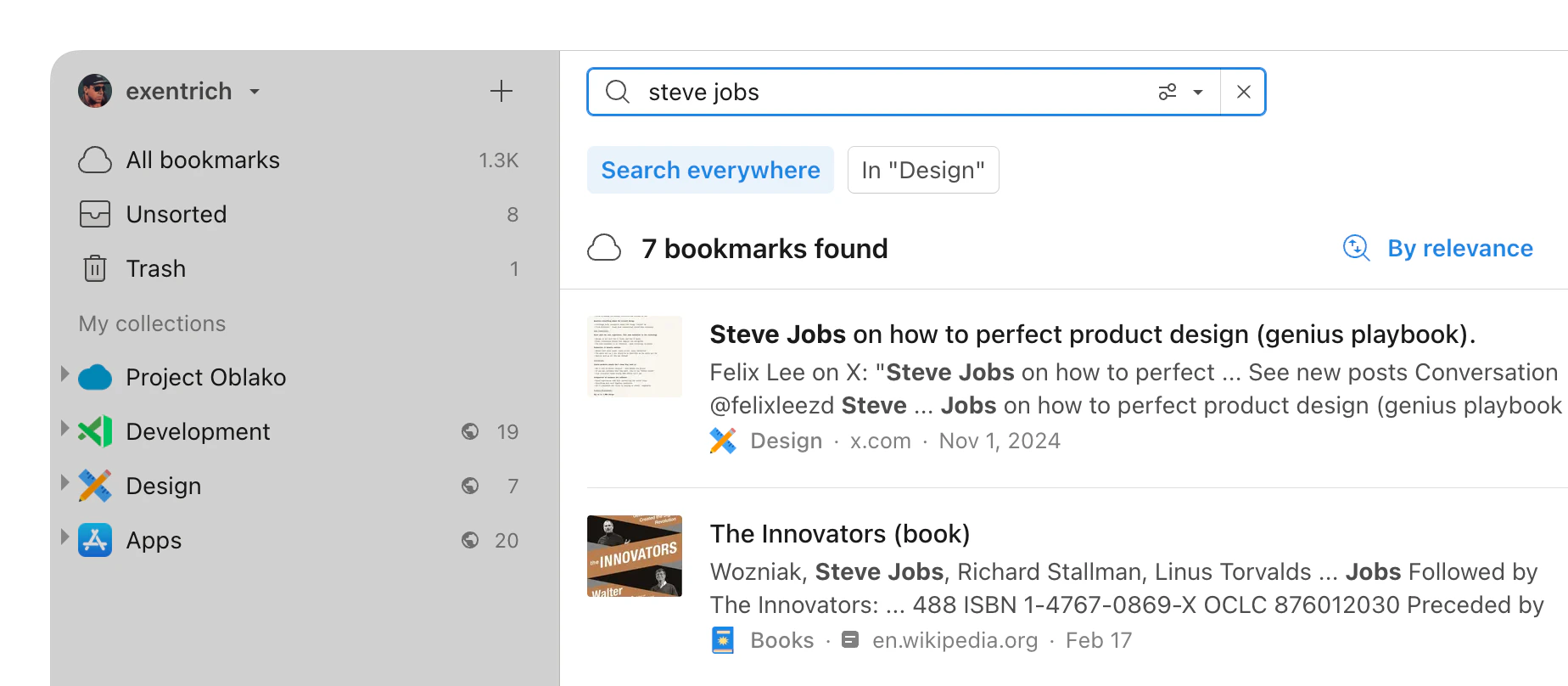 Tap the search field at the top of the screen and type your query.
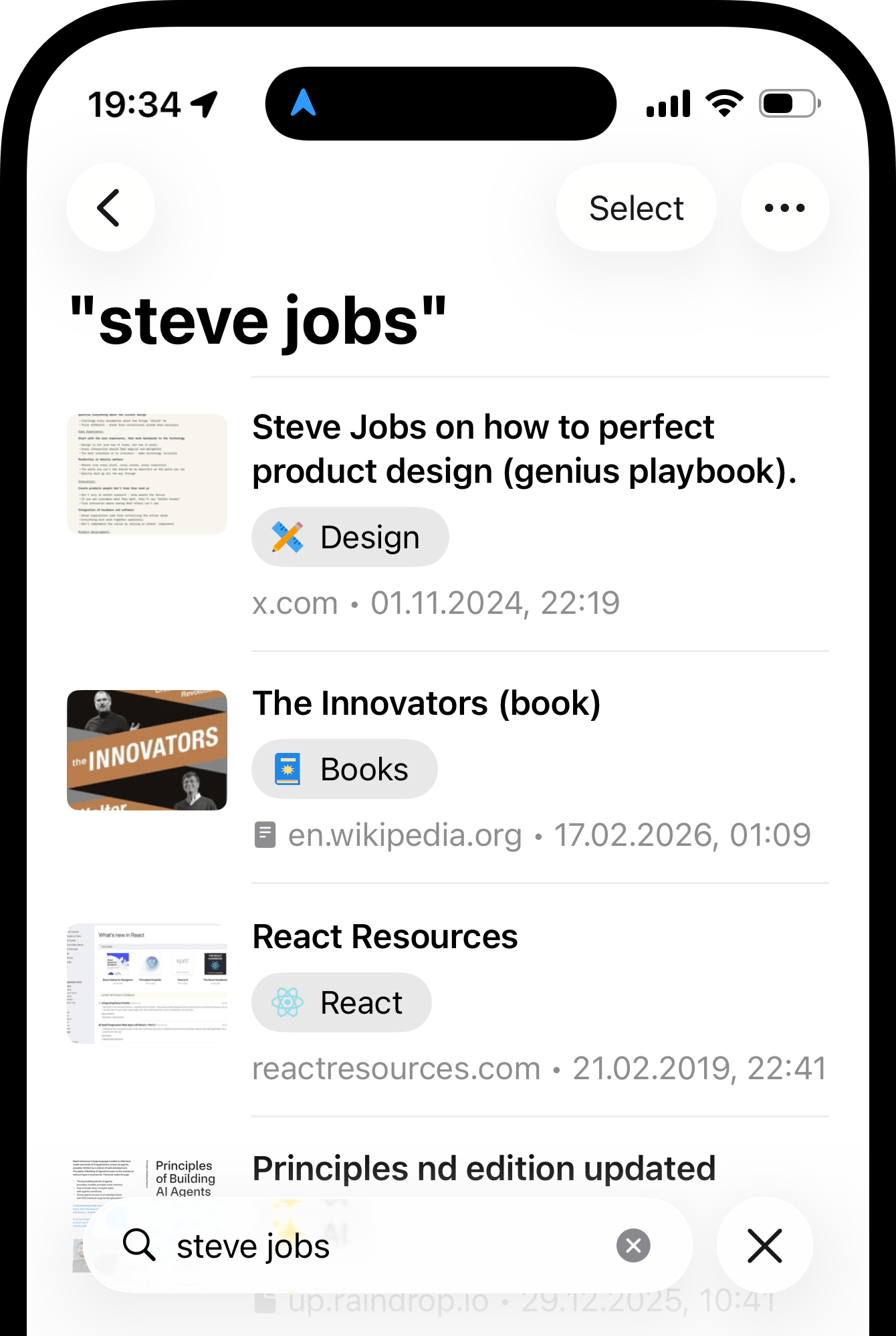 Tap the button at the top of the screen and type your query.
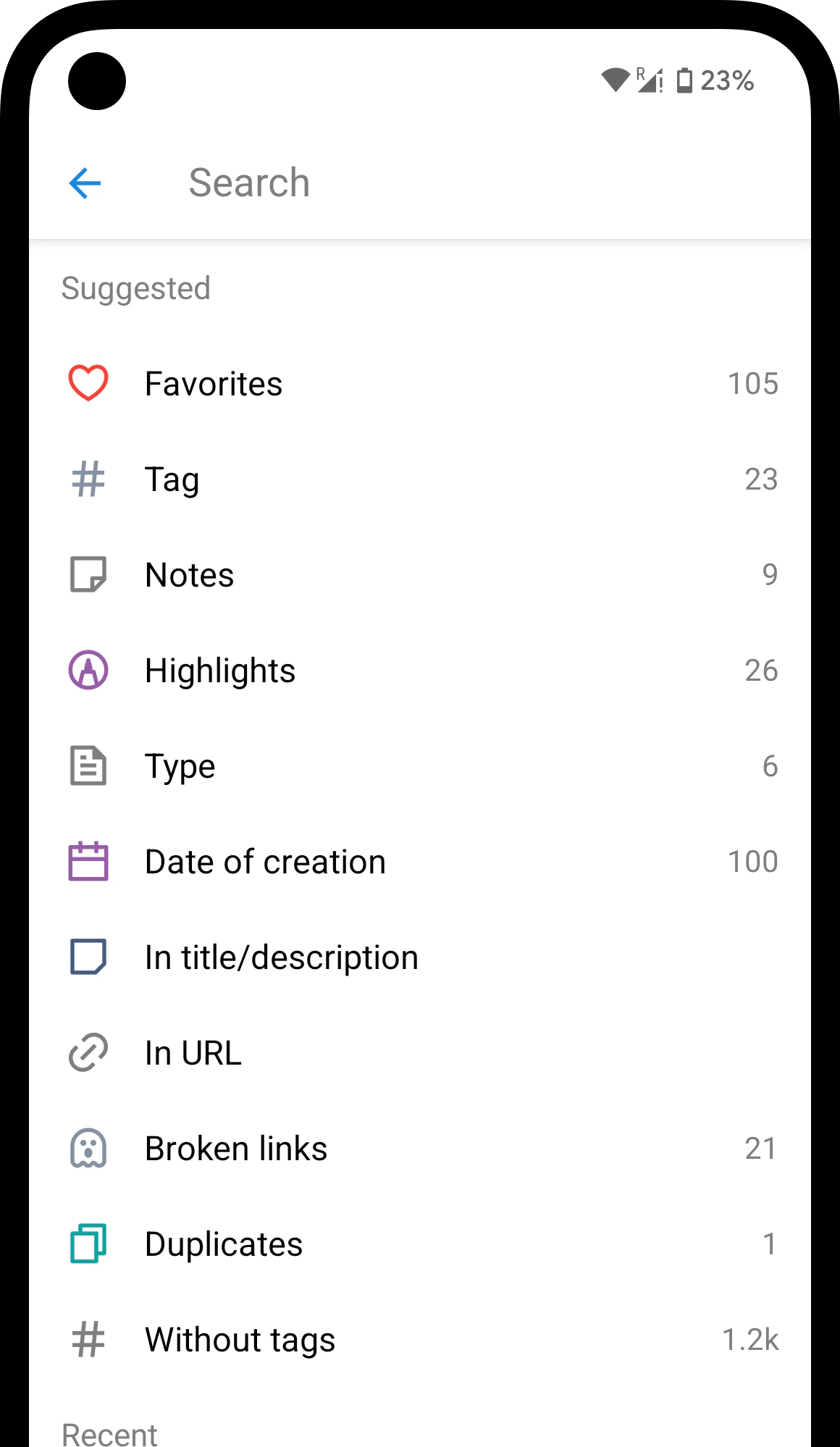 Learn more about other ways to [search](/using-search) and [filter](/filters) your bookmarks.
## Managing multiple bookmarks
**Pro tip**: need to sort, tag, or reorganize a lot of bookmarks at once? Ask [Stella](/stella) — just describe what you need in plain language.
Hover over a bookmark and click the checkbox that appears.
Learn more about other ways to [search](/using-search) and [filter](/filters) your bookmarks.
## Managing multiple bookmarks
**Pro tip**: need to sort, tag, or reorganize a lot of bookmarks at once? Ask [Stella](/stella) — just describe what you need in plain language.
Hover over a bookmark and click the checkbox that appears.
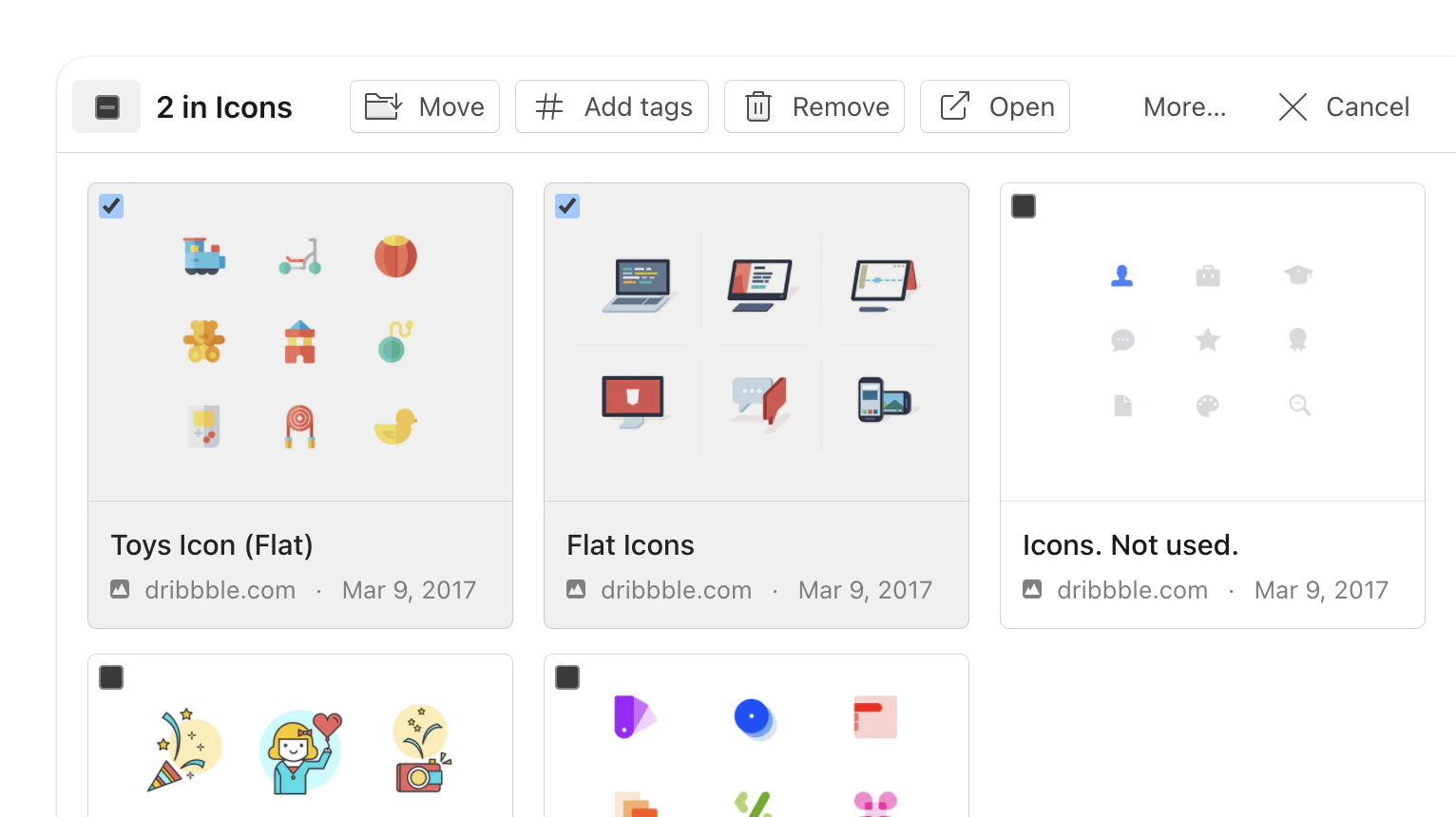 Click additional bookmarks to add them to the selection.
Use the toolbar actions:
* **Move** — transfer to another [collection](/collections)
* **Add tags** — apply [tags](/tags) to all selected items
* **Open** — open all selected links in new browser tabs at once
* **Delete** — move to [Trash](#where-deleted-bookmarks-go)
Tap **Select** in the top right corner.
Tap bookmarks to add them to the selection.
Use the action bar at the bottom — **Move**, **Add tags**, **Delete**, and more.
Click additional bookmarks to add them to the selection.
Use the toolbar actions:
* **Move** — transfer to another [collection](/collections)
* **Add tags** — apply [tags](/tags) to all selected items
* **Open** — open all selected links in new browser tabs at once
* **Delete** — move to [Trash](#where-deleted-bookmarks-go)
Tap **Select** in the top right corner.
Tap bookmarks to add them to the selection.
Use the action bar at the bottom — **Move**, **Add tags**, **Delete**, and more.
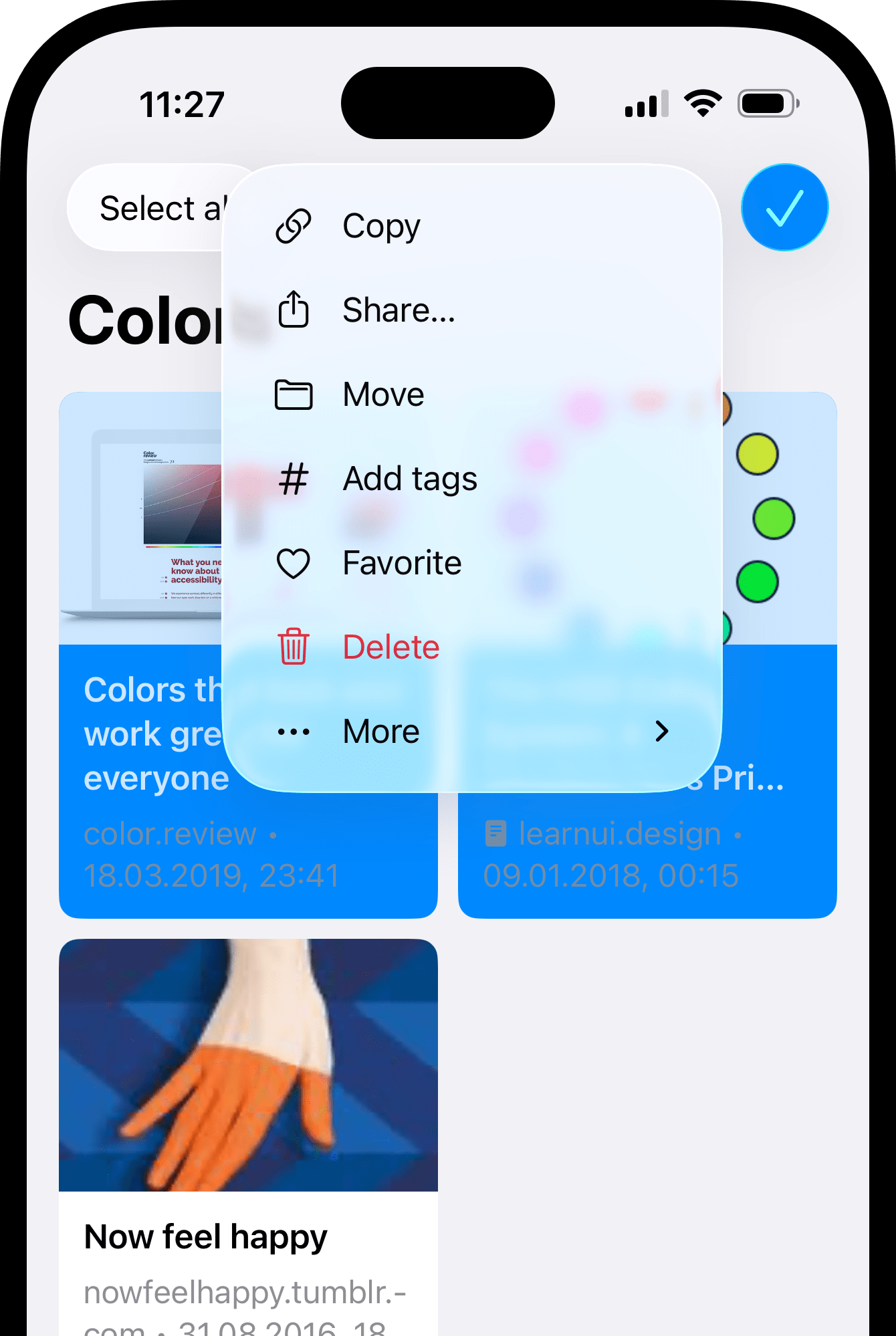 Long-press a bookmark to enter selection mode.
Tap more bookmarks to add them to the selection.
Use the toolbar: **⋮** → **Move**, **Add tags**, **Delete**, and more.
## Where deleted bookmarks go
Deleted bookmarks are moved to **Trash** collection. It works like any other collection: you can browse it, drag bookmarks out to restore them, or drag bookmarks into it to delete them.
Nothing is removed permanently until you choose to. Bookmarks in Trash don't appear in search results or filters.
## Related
Dive deeper into organizing, finding, and working with your bookmarks.
Find anything across your entire library
Group bookmarks by topic, project, or interest
Add keywords to find bookmarks from different angles
Save key passages from articles, PDFs, and books
Get notified about bookmarks at the right time
Let AI organize, summarize, and clean up your library
## FAQ
A bookmark lives in one collection. To have it in two places, open the target collection, click **+**, paste the URL, and save — this creates a separate copy.
Title, description, thumbnail, and content type (article, video, image, document, audio).
Full text is also extracted from any web page, as well as PDF, EPUB, TXT, and Markdown files — making them all [searchable](/using-search).
Right-click the bookmark → **Refresh preview**. Raindrop.io will re-extract content from the original page. If the problem persists, contact support at [info@raindrop.io](mailto:info@raindrop.io).
Long-press a bookmark to enter selection mode.
Tap more bookmarks to add them to the selection.
Use the toolbar: **⋮** → **Move**, **Add tags**, **Delete**, and more.
## Where deleted bookmarks go
Deleted bookmarks are moved to **Trash** collection. It works like any other collection: you can browse it, drag bookmarks out to restore them, or drag bookmarks into it to delete them.
Nothing is removed permanently until you choose to. Bookmarks in Trash don't appear in search results or filters.
## Related
Dive deeper into organizing, finding, and working with your bookmarks.
Find anything across your entire library
Group bookmarks by topic, project, or interest
Add keywords to find bookmarks from different angles
Save key passages from articles, PDFs, and books
Get notified about bookmarks at the right time
Let AI organize, summarize, and clean up your library
## FAQ
A bookmark lives in one collection. To have it in two places, open the target collection, click **+**, paste the URL, and save — this creates a separate copy.
Title, description, thumbnail, and content type (article, video, image, document, audio).
Full text is also extracted from any web page, as well as PDF, EPUB, TXT, and Markdown files — making them all [searchable](/using-search).
Right-click the bookmark → **Refresh preview**. Raindrop.io will re-extract content from the original page. If the problem persists, contact support at [info@raindrop.io](mailto:info@raindrop.io).