> ## Documentation Index
> Fetch the complete documentation index at: https://help.raindrop.io/llms.txt
> Use this file to discover all available pages before exploring further.
# Broken links
> Automatic detection of outdated and unavailable bookmarks
Web pages go offline, get deleted, or move to a new address — and there is no way to know until you click. Raindrop.io scans your bookmarks automatically and marks the ones that may no longer work, so you can decide what to do before you need them.
Requires a [Pro plan](/premium-features).
## Finding broken links
Bookmarks flagged as broken show a ghost icon next to the domain name. To see all of them at once:
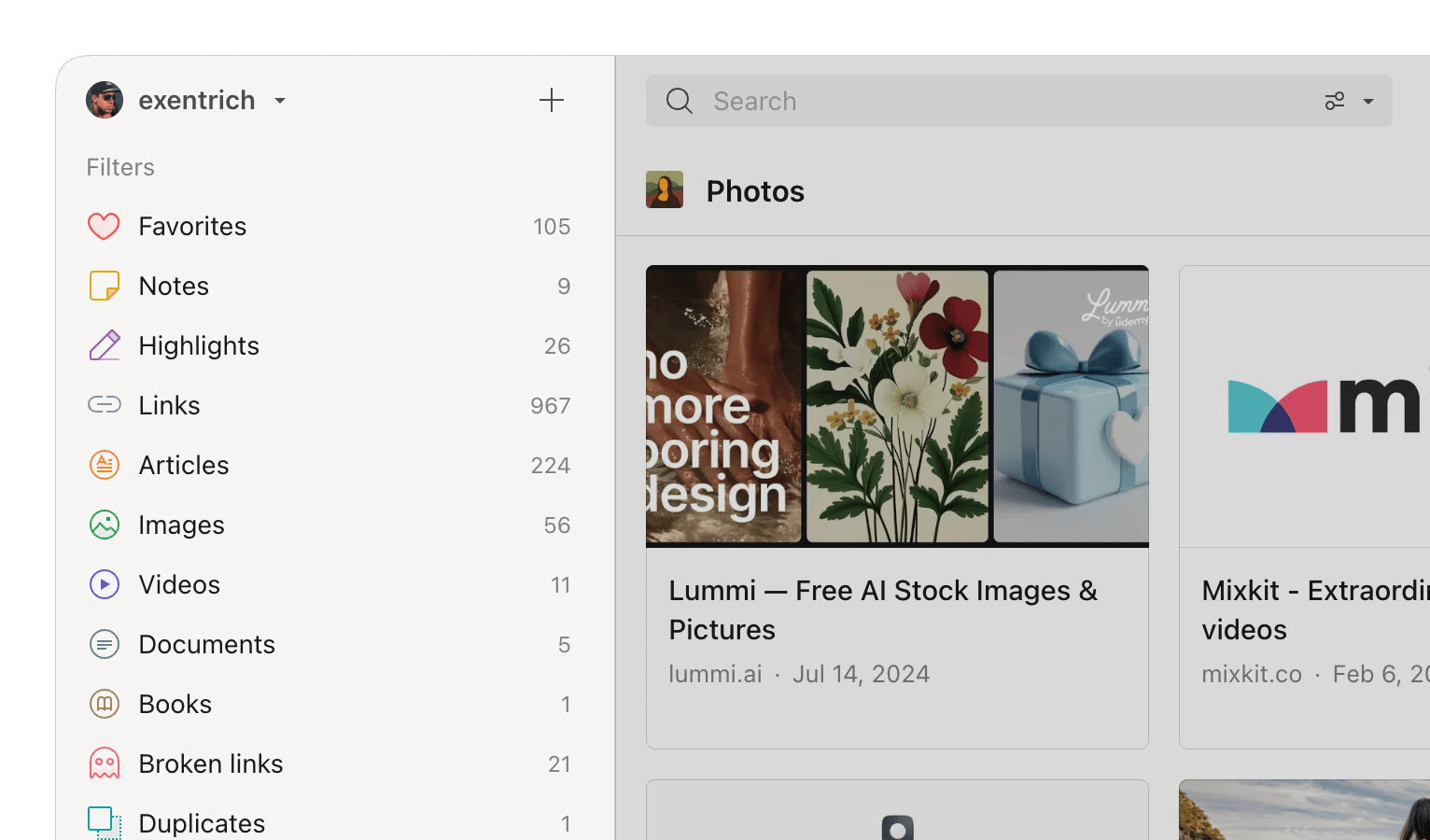
Click the **Broken links** filter in sidebar
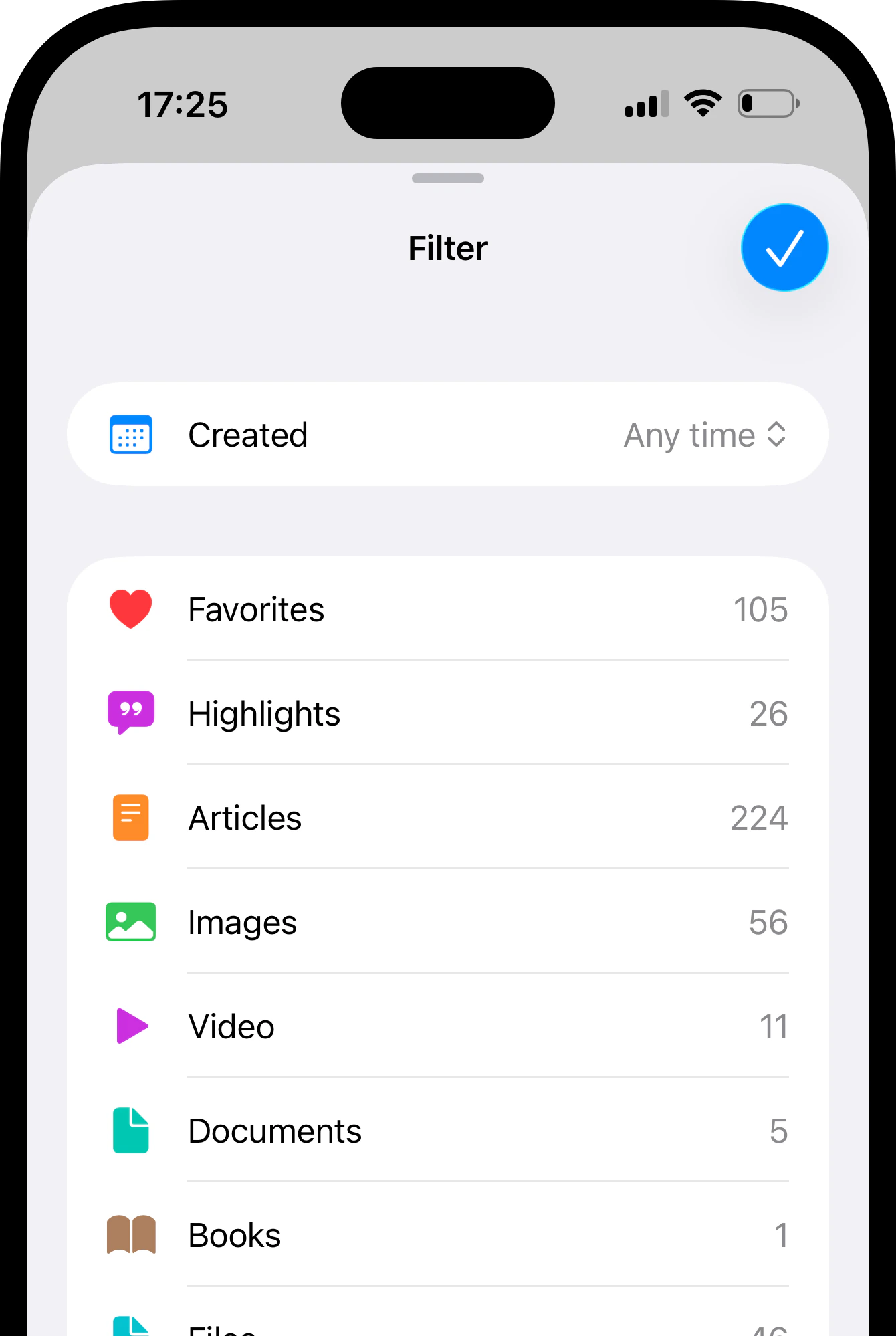
 Tap in top right corner and then **Filter**.
Select the **Broken links** from available filters.
Tap in top right corner and then **Filter**.
Select the **Broken links** from available filters.
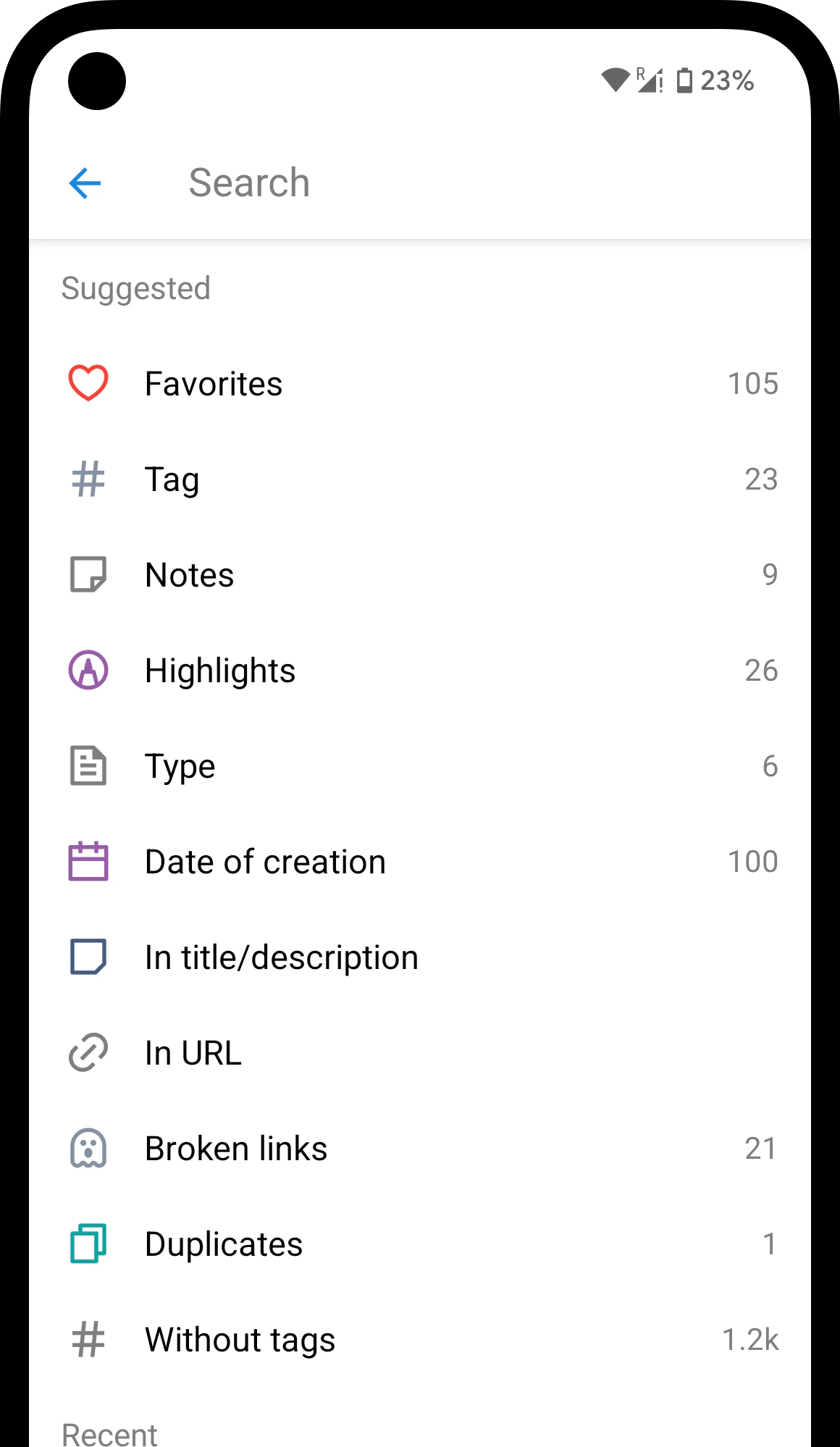
 Tap the search field.
Select the **Broken links** filter from the suggestions.
Tap the search field.
Select the **Broken links** filter from the suggestions.
 ## What to do with a broken link
A broken-link flag is a hint, not a verdict — the page may be temporarily down or simply moved. You have several options:
* **Do nothing.** If you have a [web archive](/permanent-copy) copy, the content is safe even if the original page is gone.
* **Fix the URL.** If the page moved to a new address, update the URL in the bookmark editor. The broken flag clears automatically within a few hours.
* **Delete.** If the bookmark is no longer relevant, select it and press **Delete**.
## Reducing false positives
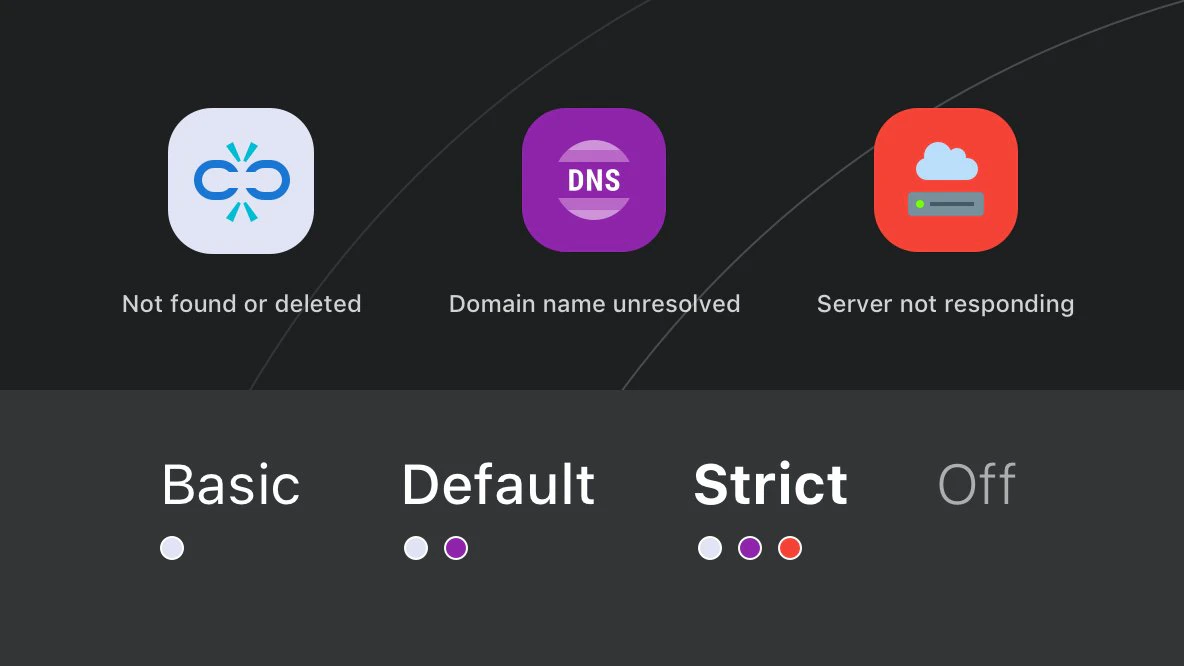
Some pages appear broken even though they work fine — for example, local network resources, sites behind aggressive firewalls, or slow servers. You can adjust how strictly Raindrop.io checks links in [Settings → App](https://app.raindrop.io/settings/app) under the **Broken links** dropdown.
## What to do with a broken link
A broken-link flag is a hint, not a verdict — the page may be temporarily down or simply moved. You have several options:
* **Do nothing.** If you have a [web archive](/permanent-copy) copy, the content is safe even if the original page is gone.
* **Fix the URL.** If the page moved to a new address, update the URL in the bookmark editor. The broken flag clears automatically within a few hours.
* **Delete.** If the bookmark is no longer relevant, select it and press **Delete**.
## Reducing false positives
Some pages appear broken even though they work fine — for example, local network resources, sites behind aggressive firewalls, or slow servers. You can adjust how strictly Raindrop.io checks links in [Settings → App](https://app.raindrop.io/settings/app) under the **Broken links** dropdown.
 | Mode | What gets flagged |
| ----------- | ---------------------------------------------------------------------------------------------------------- |
| **Basic** | Only explicit "not found" responses (404, 410). Best if you have many intranet or local-network bookmarks. |
| **Default** | Basic + domain does not exist or cannot be resolved. |
| **Strict** | Default + slow responses, server errors, and too many redirects. |
To turn off checking entirely, set the mode to **Off**.
## FAQ
Scans run automatically on a regular schedule. After you change a URL or switch detection mode, allow a few hours for results to update.
Some sites block automated requests, causing a false positive. This also applies to local network resources that Raindrop.io servers cannot reach. Switch to **Basic** mode in [Settings → App](https://app.raindrop.io/settings/app) to reduce these cases.
Not if you have a Pro plan. Raindrop.io automatically saves a [web archive](/permanent-copy) copy of every bookmark. Even if the original page disappears, you can open the archived version.
Yes. Set the detection mode to **Off** in [Settings → App](https://app.raindrop.io/settings/app).
## Related
Narrow down bookmarks by type, tag, date, and more
Automatic saved copies of every web page
Find and remove duplicate bookmarks
| Mode | What gets flagged |
| ----------- | ---------------------------------------------------------------------------------------------------------- |
| **Basic** | Only explicit "not found" responses (404, 410). Best if you have many intranet or local-network bookmarks. |
| **Default** | Basic + domain does not exist or cannot be resolved. |
| **Strict** | Default + slow responses, server errors, and too many redirects. |
To turn off checking entirely, set the mode to **Off**.
## FAQ
Scans run automatically on a regular schedule. After you change a URL or switch detection mode, allow a few hours for results to update.
Some sites block automated requests, causing a false positive. This also applies to local network resources that Raindrop.io servers cannot reach. Switch to **Basic** mode in [Settings → App](https://app.raindrop.io/settings/app) to reduce these cases.
Not if you have a Pro plan. Raindrop.io automatically saves a [web archive](/permanent-copy) copy of every bookmark. Even if the original page disappears, you can open the archived version.
Yes. Set the detection mode to **Off** in [Settings → App](https://app.raindrop.io/settings/app).
## Related
Narrow down bookmarks by type, tag, date, and more
Automatic saved copies of every web page
Find and remove duplicate bookmarks