> ## Documentation Index
> Fetch the complete documentation index at: https://help.raindrop.io/llms.txt
> Use this file to discover all available pages before exploring further.
# Members
> Invite people to your collections to work on them together
Collections are private by default — only you can see them. But sometimes you need other people involved: a colleague gathering research, a friend contributing to a shared reading list, or a team curating resources together.
Membership works at the collection level: you choose which collections to share and invite people to each one individually. Nested collections are included automatically. Everything else stays private.
If you just want to publish a read-only link for anyone on the web, use a [public page](/public-page) instead.
## Inviting members
Open the collection you want to share.
Click the **Share** button in the top-right corner.
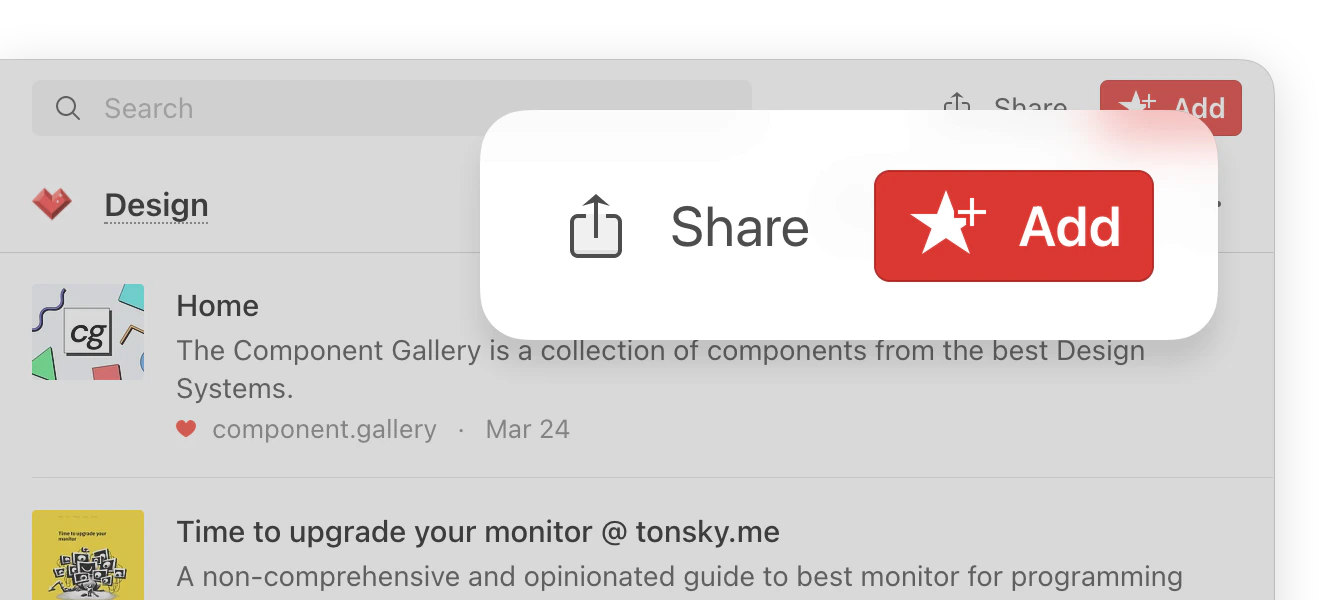 If the Share button is not visible, make sure you are inside a specific collection — sharing is not available from "All bookmarks" or "Unsorted".
Switch to the **Collaboration** tab to manage existing members or invite new ones.
If the Share button is not visible, make sure you are inside a specific collection — sharing is not available from "All bookmarks" or "Unsorted".
Switch to the **Collaboration** tab to manage existing members or invite new ones.
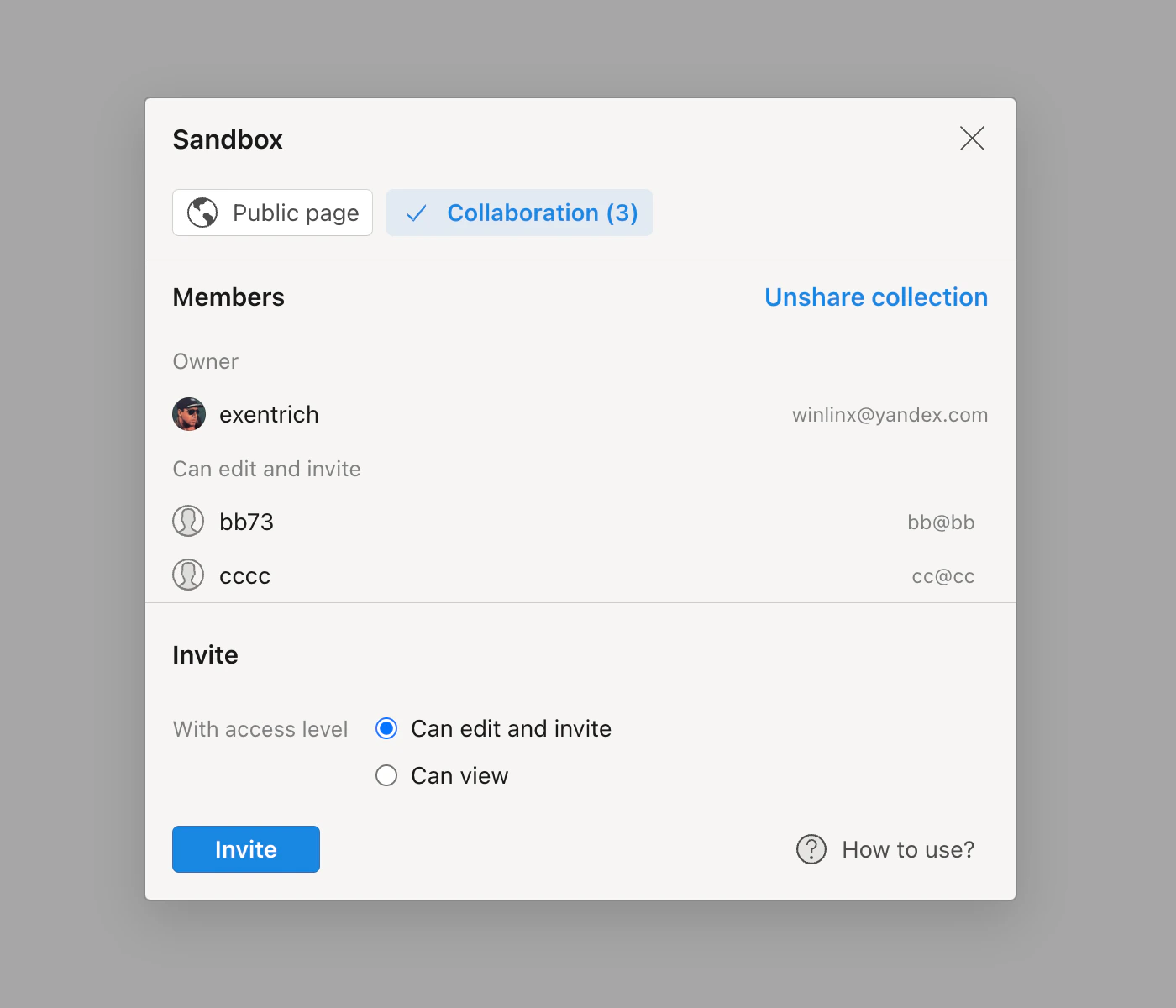 Click **Invite** to create a unique join link. Send this link to anyone you want to add.
Invite links are reusable — the same link works for multiple people without needing to generate a new one each time.
## Setting permissions
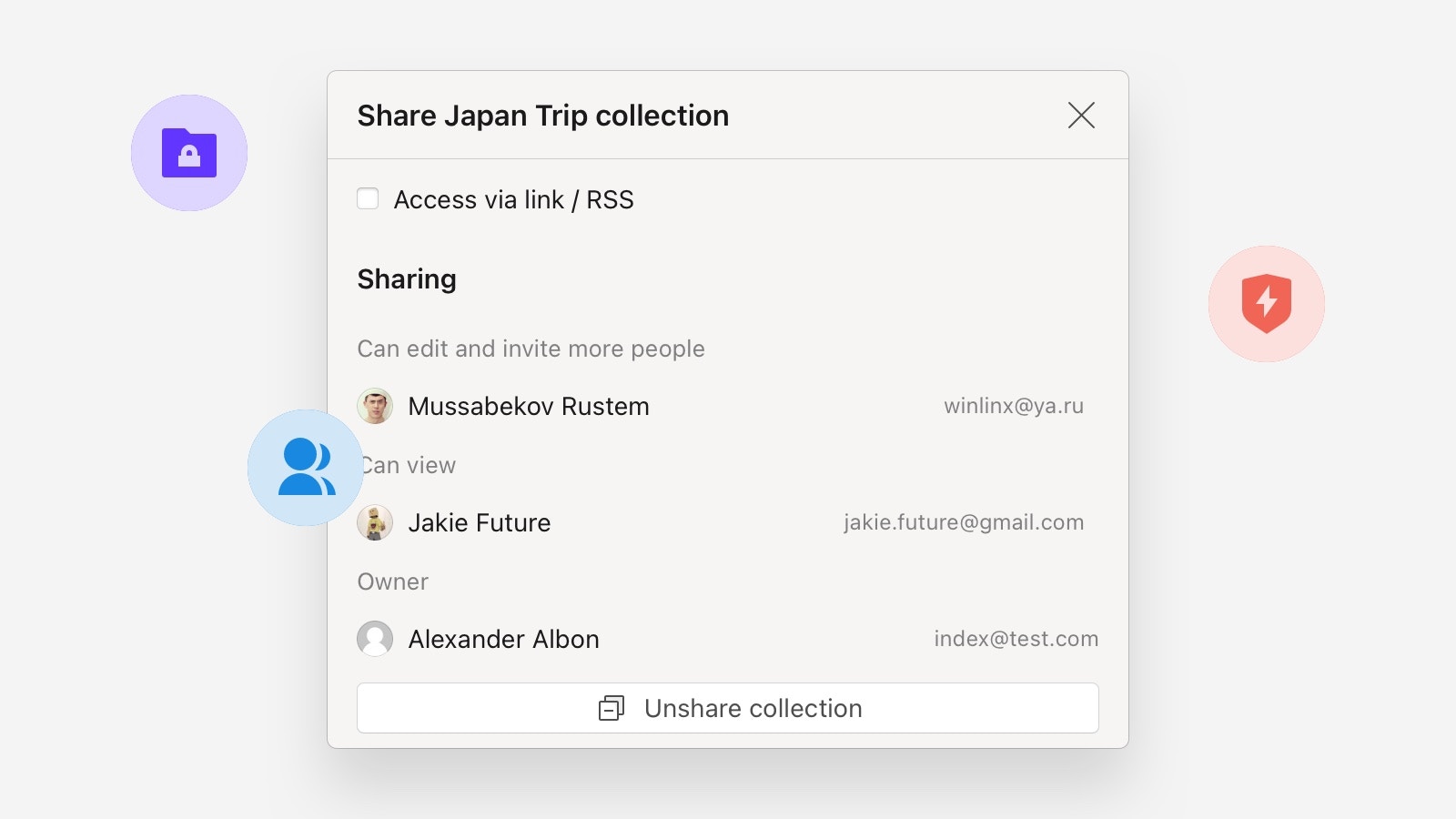
Every member has one of two roles:
| Role | Can view | Can add, edit, delete |
| ------------- | -------- | --------------------- |
| **Member** | Yes | Yes |
| **Read-only** | Yes | No |
The collection owner always has full control: managing members, changing roles, and revoking access.
Click **Invite** to create a unique join link. Send this link to anyone you want to add.
Invite links are reusable — the same link works for multiple people without needing to generate a new one each time.
## Setting permissions
Every member has one of two roles:
| Role | Can view | Can add, edit, delete |
| ------------- | -------- | --------------------- |
| **Member** | Yes | Yes |
| **Read-only** | Yes | No |
The collection owner always has full control: managing members, changing roles, and revoking access.
 If the collection owner has a [Pro plan](/premium-features), every member gains access to full-text search on that collection — even without their own Pro subscription.
## Removing members
Open the collection, click **Share** → **Collaboration**, and remove the person from the list. Access is revoked immediately.
## FAQ
Yes. Adding members to collections is free with no limit on the number of members, on both Free and Pro plans.
No. Members only see the specific collections they've been invited to. Everything else remains private.
No. Only the collection owner can invite new members.
No. You choose which collections to share individually. To share a group, put them under one parent and share the parent — all nested collections are included automatically.
Yes. To join a shared collection, a person needs to sign up for a free Raindrop.io account.
## Related
Share a read-only collection with anyone on the web
Organize bookmarks into collections and nested folders
If the collection owner has a [Pro plan](/premium-features), every member gains access to full-text search on that collection — even without their own Pro subscription.
## Removing members
Open the collection, click **Share** → **Collaboration**, and remove the person from the list. Access is revoked immediately.
## FAQ
Yes. Adding members to collections is free with no limit on the number of members, on both Free and Pro plans.
No. Members only see the specific collections they've been invited to. Everything else remains private.
No. Only the collection owner can invite new members.
No. You choose which collections to share individually. To share a group, put them under one parent and share the parent — all nested collections are included automatically.
Yes. To join a shared collection, a person needs to sign up for a free Raindrop.io account.
## Related
Share a read-only collection with anyone on the web
Organize bookmarks into collections and nested folders