
> ## Documentation Index
> Fetch the complete documentation index at: https://help.raindrop.io/llms.txt
> Use this file to discover all available pages before exploring further.

# Collections

> Group bookmarks by topic, project, or interest

<Frame style={{backgroundColor: '#FEF9C3', padding: '48px'}}>
  <Icon icon="folders" iconType="duotone" size={80} color="#A16207" />
</Frame>

As your library grows, finding the right bookmark gets harder.
Collections work like folders — group related items together so you always know where things are.

Each collection has its own icon and layout settings, so you can set up each one the way that works best for its content.
Bookmarks you save without picking a collection land in <Icon icon="inbox" size={16} /> **Unsorted** — a built-in inbox you can sort through later.

## Creating a collection

<Tabs>
  <Tab title="Web & Desktop">
    <Steps>
      <Step>
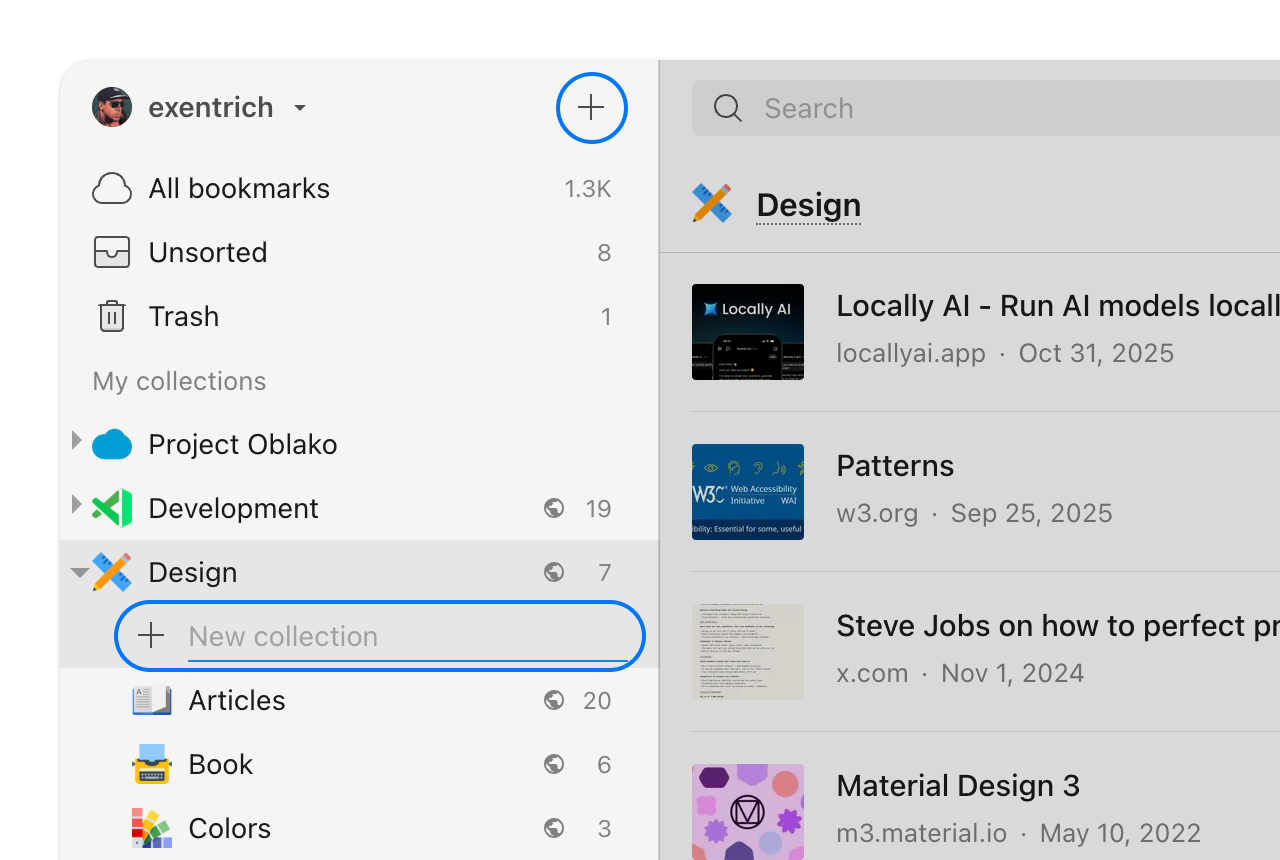
        Click <Icon icon="plus" size={16} /> in the sidebar.
      </Step>

      <Step>
        Type a name and press **Enter**.

        <Frame style={{padding: 0}}>
          <img src="https://mintcdn.com/raindropio-0c6b7ca1/g7d24I8ROfahz7TM/assets/collections-create.png?fit=max&auto=format&n=g7d24I8ROfahz7TM&q=85&s=af4724d6abb125a9d2f79b5eb2263e04" alt="" width="1280" height="860" data-path="assets/collections-create.png" />
        </Frame>
      </Step>

      <Step icon="swatchbook">
        *Optionally*, customize the [icon](#changing-collection-icon) and [layout](#customizing-the-view) of the new collection.
      </Step>
    </Steps>
  </Tab>

  <Tab title="iOS">
    <Steps>
      <Step>
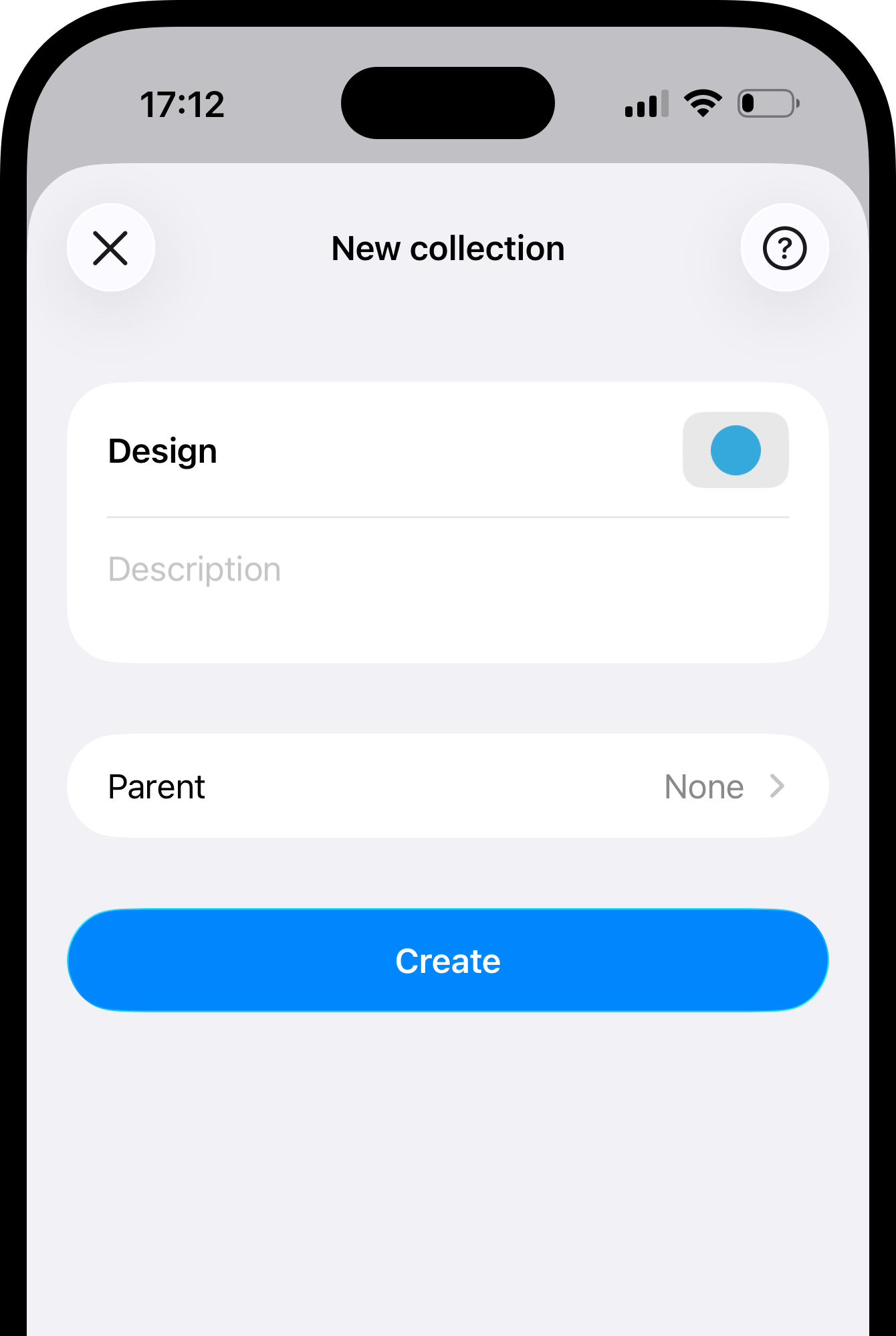
        Tap <Icon icon="plus" size={16} /> in the bottom right corner.
      </Step>

      <Step>
        Tap <Icon icon="folder" size={16} /> **Collection**.
      </Step>

      <Step>
        Enter a name and tap **Create**.

        <Frame style={{padding: '20px 0 0 0'}}>
          <img src="https://mintcdn.com/raindropio-0c6b7ca1/g7d24I8ROfahz7TM/assets/ios-new-collection.png?fit=max&auto=format&n=g7d24I8ROfahz7TM&q=85&s=208108f0d19bb52a8205fe22d927e07e" style={{maxHeight: '333px'}} width="1340" height="1998" data-path="assets/ios-new-collection.png" />
        </Frame>
      </Step>

      <Step icon="swatchbook">
        *Optionally*, customize the [icon](#changing-collection-icon) and [layout](#customizing-the-view) of the new collection.
      </Step>
    </Steps>
  </Tab>

  <Tab title="Android">
    <Steps>
      <Step>
        Tap <Icon icon="plus" size={16} /> in the bottom right corner.
      </Step>

      <Step>
        Tap <Icon icon="folder" size={16} /> **collection**.
      </Step>

      <Step>
        Enter a name and tap **Create**.
      </Step>

      <Step icon="swatchbook">
        *Optionally*, customize the [icon](#changing-collection-icon) and [layout](#customizing-the-view) of the new collection.
      </Step>
    </Steps>
  </Tab>
</Tabs>

## Adding bookmarks to a collection

Every bookmark belongs to one collection. You pick the collection when you [save a bookmark](/bookmarks) — or it goes to **Unsorted** by default.

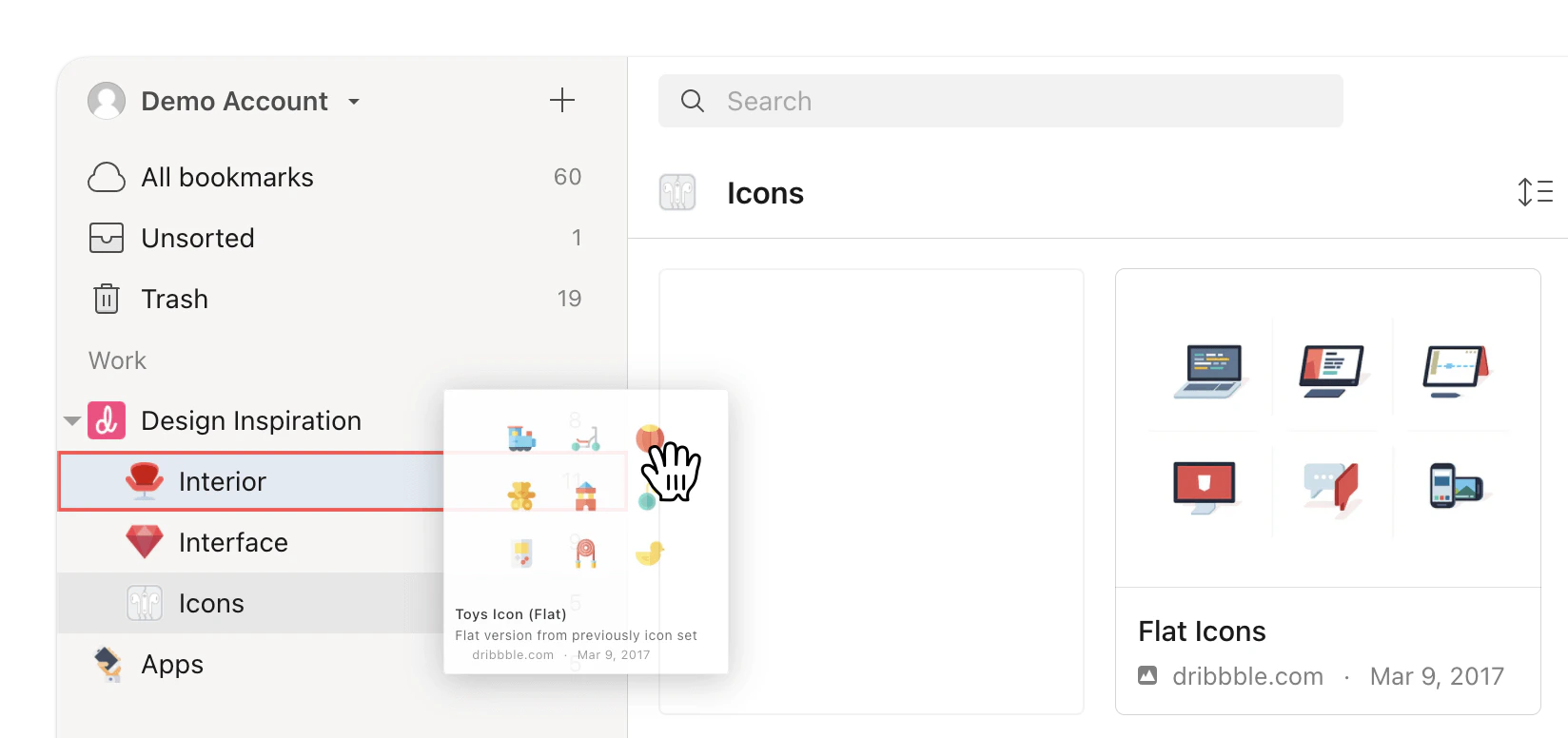
Already saved bookmarks can be easily moved to the right collection:

<Tabs>
  <Tab title="Web & Desktop">
    Drag a bookmark from the list onto a collection in the sidebar.

    <Frame style={{padding: 0}}>
      <img src="https://mintcdn.com/raindropio-0c6b7ca1/g7d24I8ROfahz7TM/assets/collections-move-drag.png?fit=max&auto=format&n=g7d24I8ROfahz7TM&q=85&s=b662ff9ba0330107f22ef4684843bcbc" alt="" width="1648" height="776" data-path="assets/collections-move-drag.png" />
    </Frame>

    <Accordion title="Moving multiple bookmarks at once">
      <Steps>
        <Step>
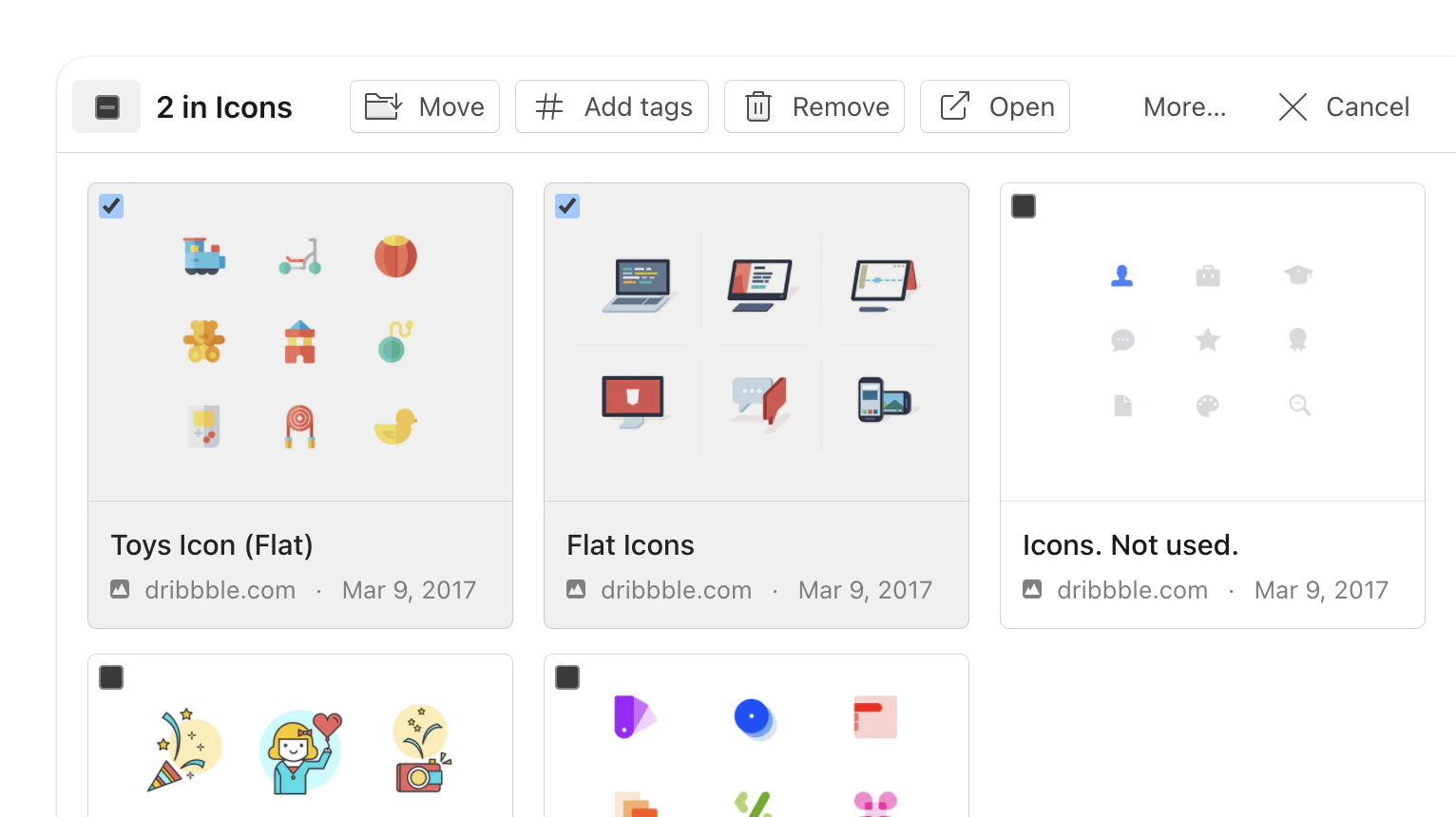
          Select items by hovering and clicking the checkbox that appears.

          <Frame style={{padding:0}}>
            <img src="https://mintcdn.com/raindropio-0c6b7ca1/g7d24I8ROfahz7TM/assets/bookmarks-bulk.png?fit=max&auto=format&n=g7d24I8ROfahz7TM&q=85&s=1ec967fc9a7da610ab563e6470329331" alt="" width="1532" height="860" data-path="assets/bookmarks-bulk.png" />
          </Frame>
        </Step>

        <Step>
          Click **Move** in the toolbar at the top.
        </Step>

        <Step>
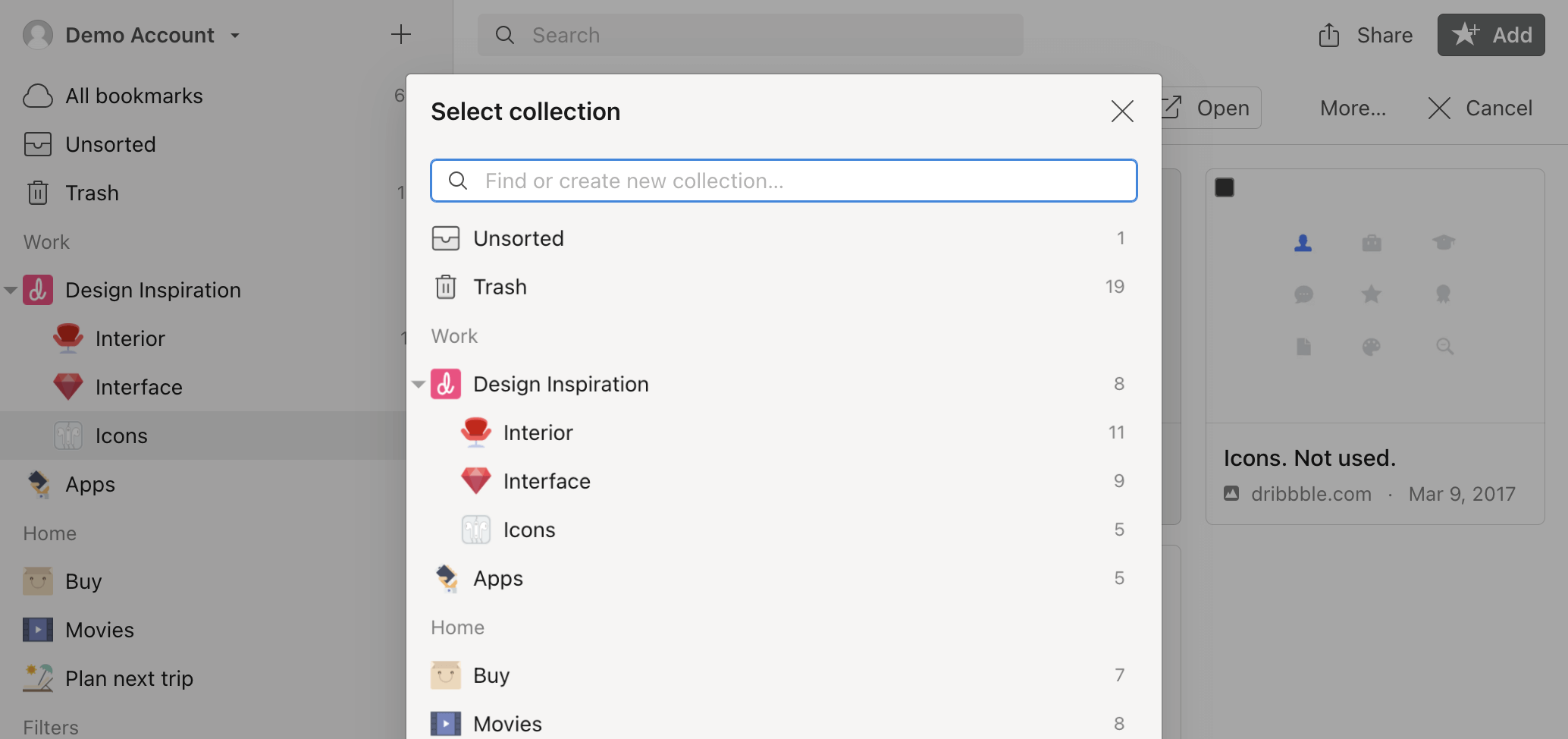
          Pick or type the target collection name.

          <Frame style={{padding: 0}}>
            <img src="https://mintcdn.com/raindropio-0c6b7ca1/GdpCiIhWcEST3eHX/assets/collections-bulk-move.png?fit=max&auto=format&n=GdpCiIhWcEST3eHX&q=85&s=460316be0196bf5728ceb0a4bc8ad26e" alt="" width="2068" height="974" data-path="assets/collections-bulk-move.png" />
          </Frame>
        </Step>
      </Steps>
    </Accordion>
  </Tab>

  <Tab title="Browser extension">
    <Steps>
      <Step>
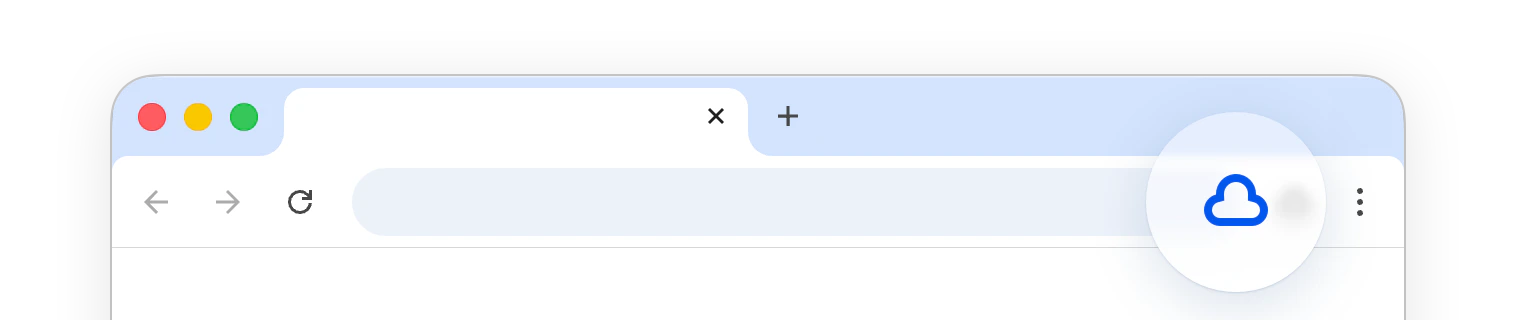
        Click the Raindrop.io extension icon.

        <Frame style={{padding: 0}}>
          <img src="https://mintcdn.com/raindropio-0c6b7ca1/g7d24I8ROfahz7TM/assets/extension-button.png?fit=max&auto=format&n=g7d24I8ROfahz7TM&q=85&s=661c11225776658e9a713b1fbe354094" alt="" width="1516" height="320" data-path="assets/extension-button.png" />
        </Frame>
      </Step>

      <Step>
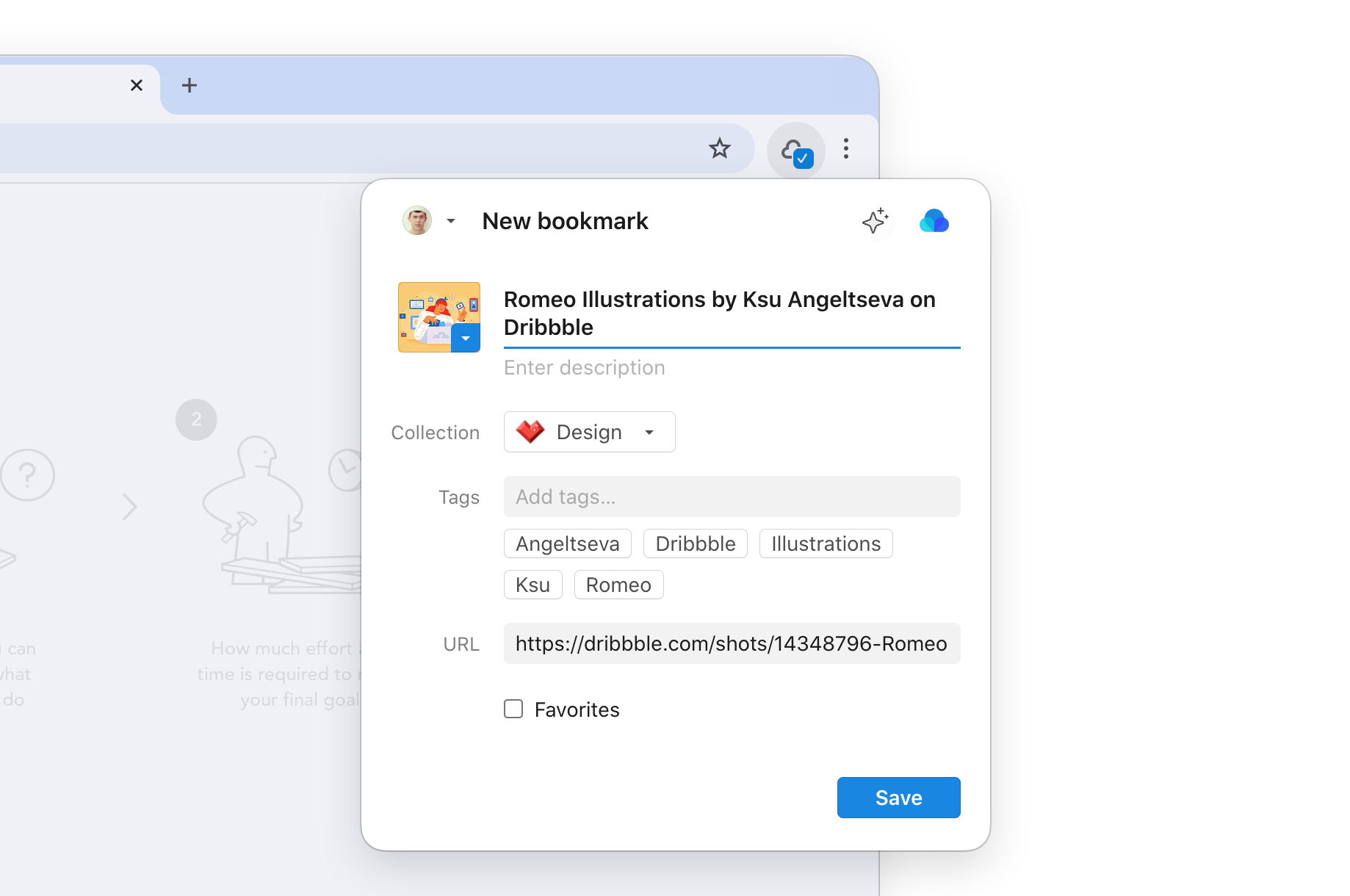
        Click collection name to pick another one.

        <Frame style={{padding: 0}}>
          <img src="https://mintcdn.com/raindropio-0c6b7ca1/g7d24I8ROfahz7TM/assets/extension-intro.png?fit=max&auto=format&n=g7d24I8ROfahz7TM&q=85&s=e8fd769360ca62fb9a428168ba2714dc" alt="" width="1838" height="1220" data-path="assets/extension-intro.png" />
        </Frame>
      </Step>

      <Step icon="sparkle">
        *Optionally*, pick from ✦ AI suggested collections based on the page content.
      </Step>
    </Steps>
  </Tab>

  <Tab title="iOS">
    <Steps>
      <Step>
        Swipe a bookmark to the right and tap **Move**.

        <Frame>
          <img src="https://mintcdn.com/raindropio-0c6b7ca1/g7d24I8ROfahz7TM/assets/collections-ios-swipe.png?fit=max&auto=format&n=g7d24I8ROfahz7TM&q=85&s=025b4b94bf880618fdceabe9fd171876" style={{maxHeight: '100px'}} width="1260" height="345" data-path="assets/collections-ios-swipe.png" />
        </Frame>

        Or tap a bookmark and then tap the <Icon icon="folder" size={16} /> **collection** icon in the bottom toolbar.
      </Step>

      <Step>
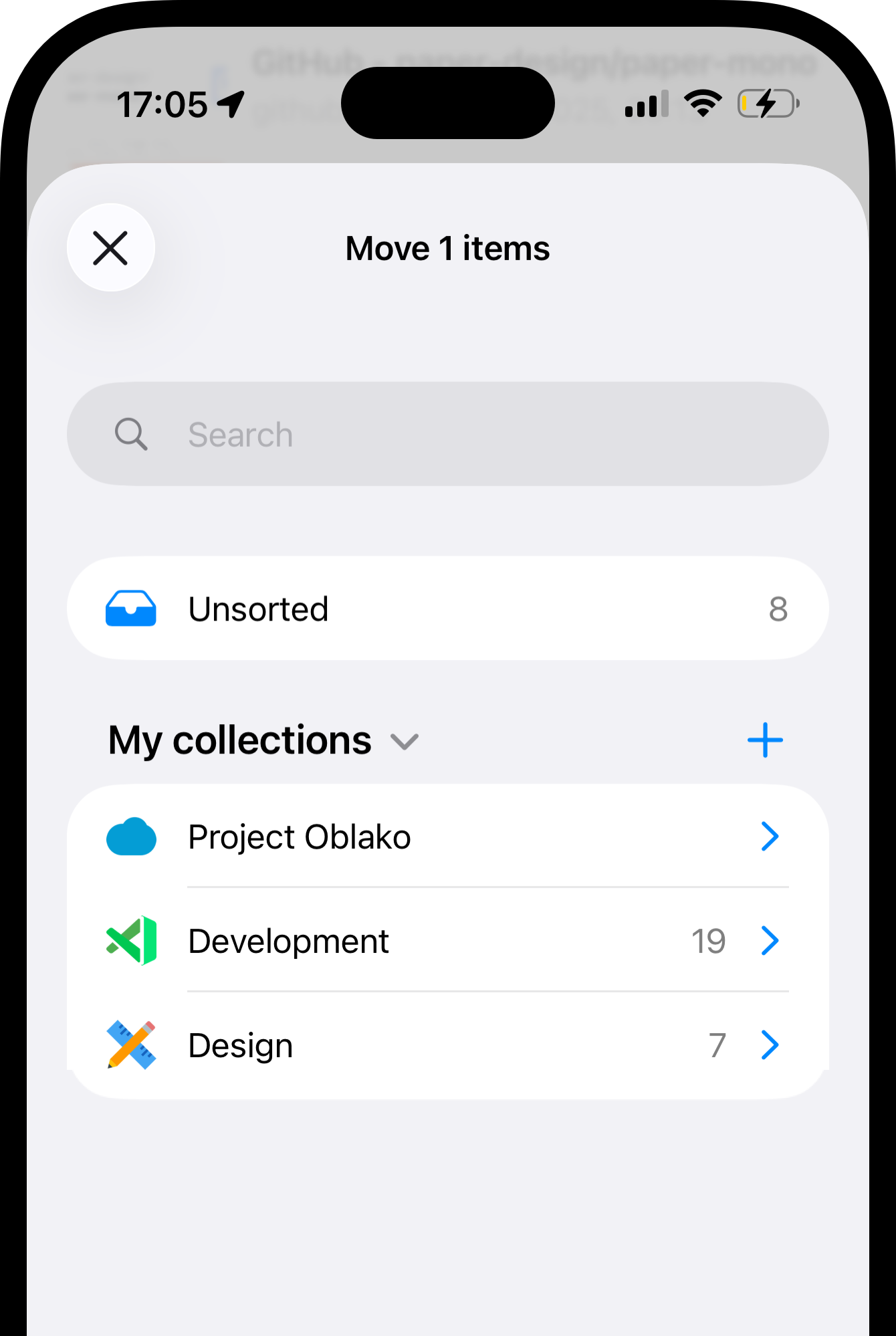
        Select the destination collection.

        <Frame style={{padding: '20px 0 0 0'}}>
          <img src="https://mintcdn.com/raindropio-0c6b7ca1/g7d24I8ROfahz7TM/assets/ios-to-collection.png?fit=max&auto=format&n=g7d24I8ROfahz7TM&q=85&s=3d38097de87160e17abbea58fc5f140b" style={{maxHeight: '333px'}} width="1340" height="1998" data-path="assets/ios-to-collection.png" />
        </Frame>
      </Step>
    </Steps>

    <Accordion title="Moving multiple bookmarks at once">
      <Steps>
        <Step>
          Tap the **Select** button in the top right corner to start selection mode.
        </Step>

        <Step>
          Select as many bookmarks as you want.
        </Step>

        <Step>
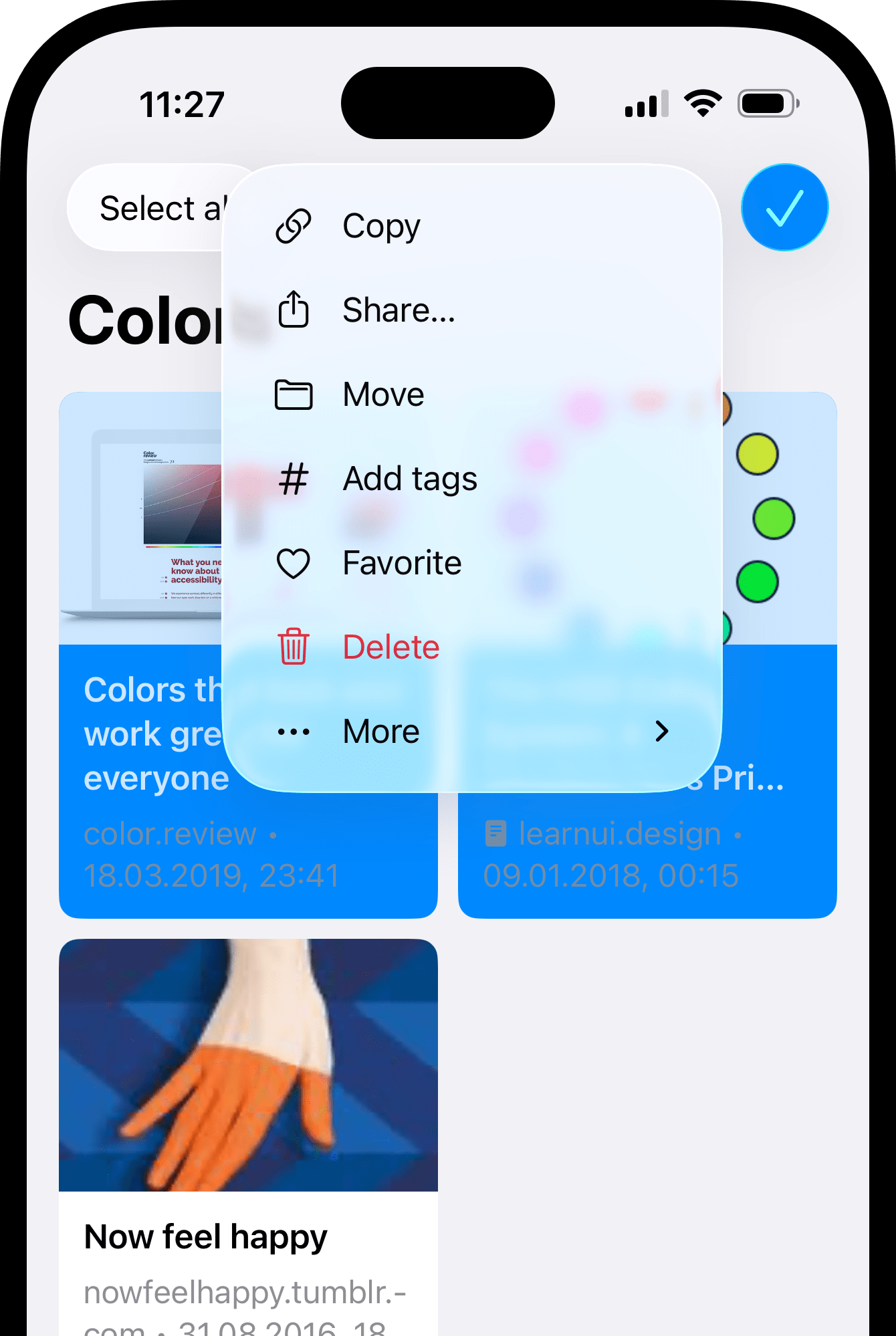
          Tap **Actions** → **Move**.

          <Frame style={{padding: '20px 0 0 0'}}>
            <img src="https://mintcdn.com/raindropio-0c6b7ca1/g7d24I8ROfahz7TM/assets/ios-batch-actions.png?fit=max&auto=format&n=g7d24I8ROfahz7TM&q=85&s=f3a98ef5cdd8f0079405739c0112797d" style={{maxHeight: '333px'}} width="1340" height="1998" data-path="assets/ios-batch-actions.png" />
          </Frame>
        </Step>
      </Steps>
    </Accordion>
  </Tab>

  <Tab title="Android">
    <Steps>
      <Step>
        Tap the <Icon icon="ellipsis" size={16} /> icon next to a bookmark.
      </Step>

      <Step>
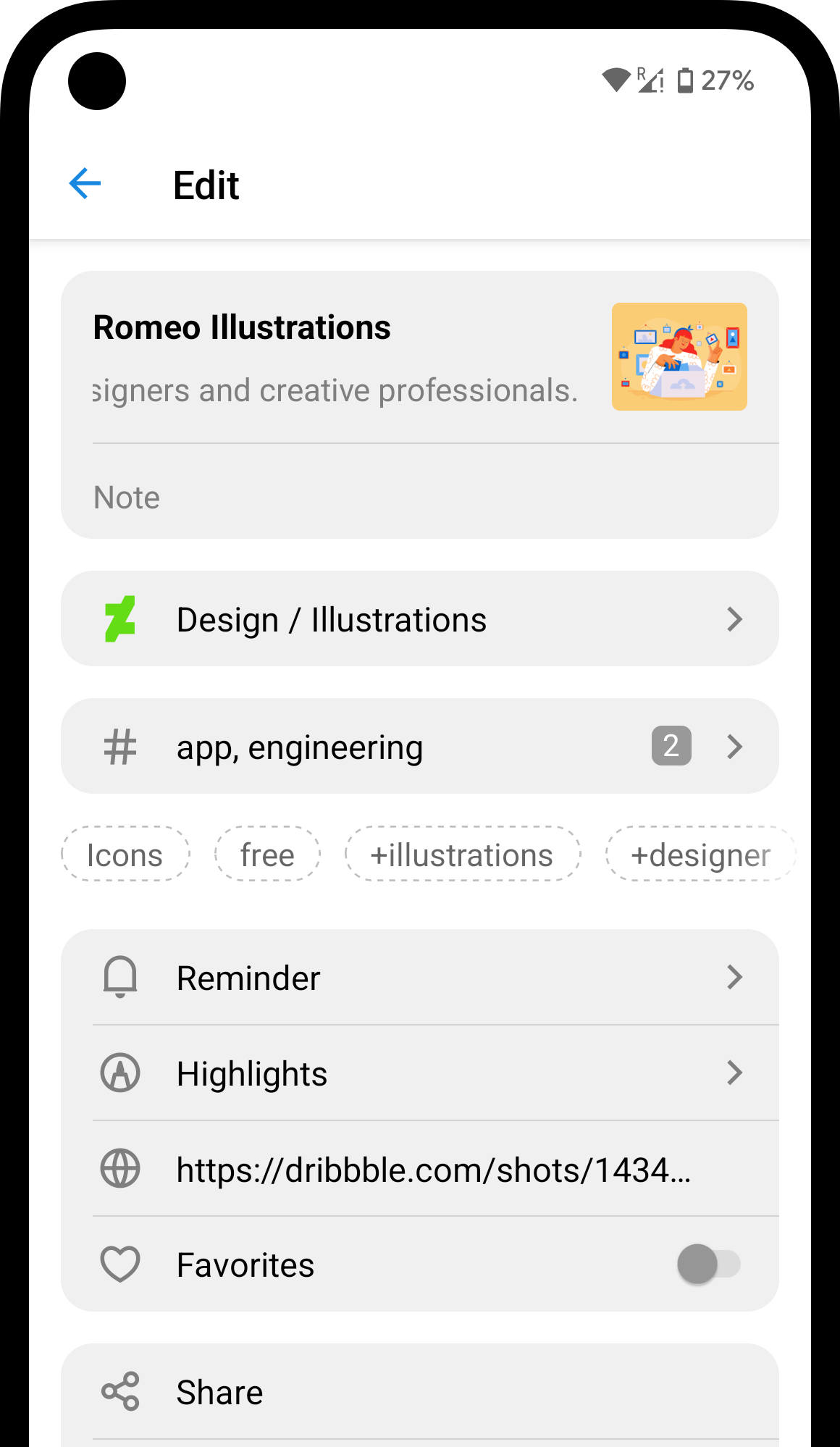
        Tap the collection name to change it.

        <Frame style={{padding: '20px 0 0 0'}}>
          <img src="https://mintcdn.com/raindropio-0c6b7ca1/g7d24I8ROfahz7TM/assets/android-edit-bookmark.png?fit=max&auto=format&n=g7d24I8ROfahz7TM&q=85&s=5d60571673f3fe5b1d3117b2c26fa5ee" style={{maxHeight: '333px'}} width="1160" height="1998" data-path="assets/android-edit-bookmark.png" />
        </Frame>
      </Step>
    </Steps>
  </Tab>
</Tabs>

## Grouping and ordering

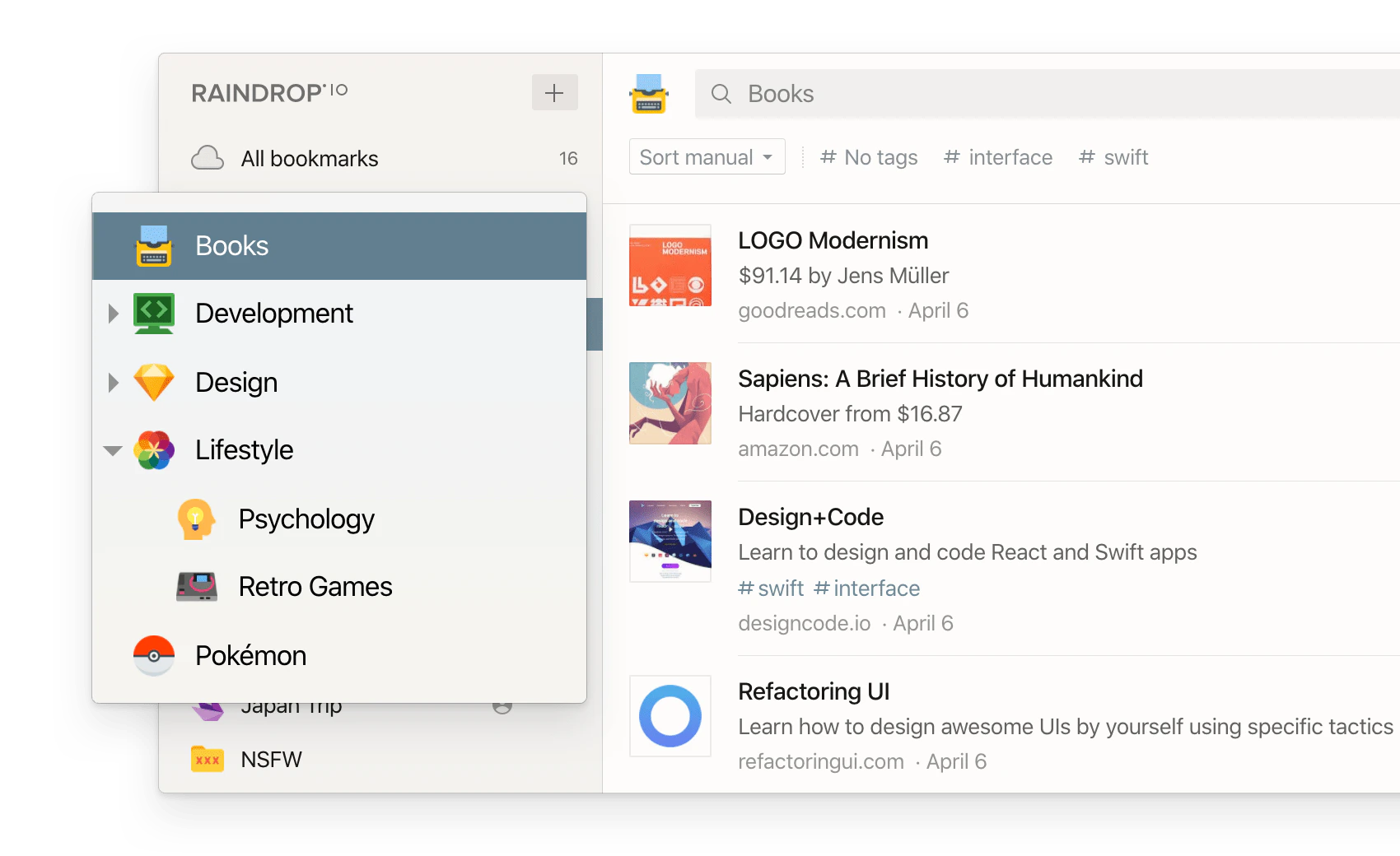
Once you have more than a handful of collections, you'll want to keep them organized too. Collections support nesting, reordering, and collapsing.

<Tip>**Pro tip**: need to restructure your library or sort through hundreds of unsorted bookmarks? Ask [Stella](/stella) — just describe what you want.</Tip>

<Frame style={{padding: 0}}>
  <img src="https://mintcdn.com/raindropio-0c6b7ca1/g7d24I8ROfahz7TM/assets/collections.png?fit=max&auto=format&n=g7d24I8ROfahz7TM&q=85&s=35e5a279ebcc7b825bd259a973c40fe9" alt="" width="1700" height="1040" data-path="assets/collections.png" />
</Frame>

<Tabs>
  <Tab title="Web & Desktop">
    <Steps>
      <Step icon="folders">
        To **nest**, drag a collection onto another — it becomes a child.

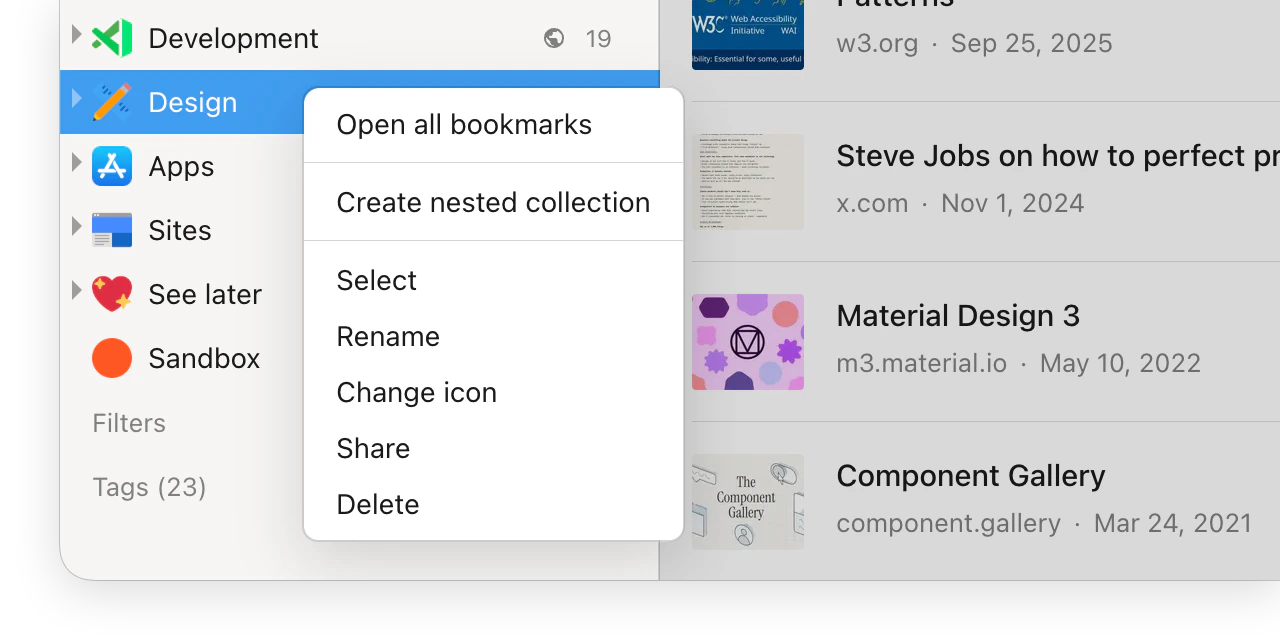
        You can also right-click any collection and choose **Create nested collection**. To un-nest, drag it back into empty space in the sidebar.
      </Step>

      <Step icon="arrow-down-arrow-up">
        To **reorder**, drag a collection up or down to a new position.
      </Step>

      <Step icon="chevron-right">
        Click the arrow next to a parent collection to collapse or expand its children.
      </Step>
    </Steps>

    <AccordionGroup>
      <Accordion title="Sorting all alphabetically">
        <Steps>
          <Step>
            Hover over **My collections** in the sidebar and click **…**.
          </Step>

          <Step>
            Choose **Sort all collections by name**.
          </Step>
        </Steps>
      </Accordion>

      <Accordion title="Collapsing everything at once">
        <Steps>
          <Step>
            Hover over **My collections** in the sidebar and click **…**.
          </Step>

          <Step>
            Choose **Collapse all collections**.
          </Step>
        </Steps>
      </Accordion>
    </AccordionGroup>
  </Tab>

  <Tab title="iOS">
    <Steps>
      <Step icon="folders">
        To **nest**, long-press a collection and drag it onto another — it becomes a child.

        You can also swipe a collection to the right and choose **Create collection** to create a nested collection. To un-nest, drag it back into empty space.
      </Step>

      <Step icon="arrow-down-arrow-up">
        To **reorder**, drag a collection up or down to a new position.
      </Step>

      <Step icon="chevron-right">
        Tap the arrow next to a parent collection to collapse or expand its children.
      </Step>
    </Steps>

    <AccordionGroup>
      <Accordion title="Sorting all alphabetically">
        <Steps>
          <Step>
            Tap the <Icon icon="ellipsis" size={16} /> icon in the toolbar in the collections list.
          </Step>

          <Step>
            Choose **Sort collections** → **By name**.
          </Step>
        </Steps>
      </Accordion>

      <Accordion title="Collapsing everything at once">
        <Steps>
          <Step>
            Tap the <Icon icon="ellipsis" size={16} /> icon in the toolbar in the collections list.
          </Step>

          <Step>
            Choose **Collapse all**.
          </Step>
        </Steps>
      </Accordion>
    </AccordionGroup>
  </Tab>

  <Tab title="Android">
    <Steps>
      <Step icon="folders">
        To **nest**, long-press a collection and drag it onto another — it becomes a child.

        You can also swipe a collection to the right and choose **Create collection** to create a nested collection. To un-nest, drag it back into empty space.
      </Step>

      <Step icon="arrow-down-arrow-up">
        To **reorder**, drag a collection up or down to a new position.
      </Step>

      <Step icon="chevron-right">
        Tap the arrow next to a parent collection to collapse or expand its children.
      </Step>
    </Steps>

    <AccordionGroup>
      <Accordion title="Sorting all alphabetically">
        <Steps>
          <Step>
            Tap the <Icon icon="ellipsis" size={16} /> icon next to the **My collections** section title.
          </Step>

          <Step>
            Choose **Sort collections by name**.
          </Step>
        </Steps>
      </Accordion>

      <Accordion title="Collapsing everything at once">
        <Steps>
          <Step>
            Tap the <Icon icon="ellipsis" size={16} /> icon next to the **My collections** section title.
          </Step>

          <Step>
            Choose **Collapse all collections**.
          </Step>
        </Steps>
      </Accordion>
    </AccordionGroup>
  </Tab>
</Tabs>

## Finding a collection

<Tabs>
  <Tab title="Web & Desktop">
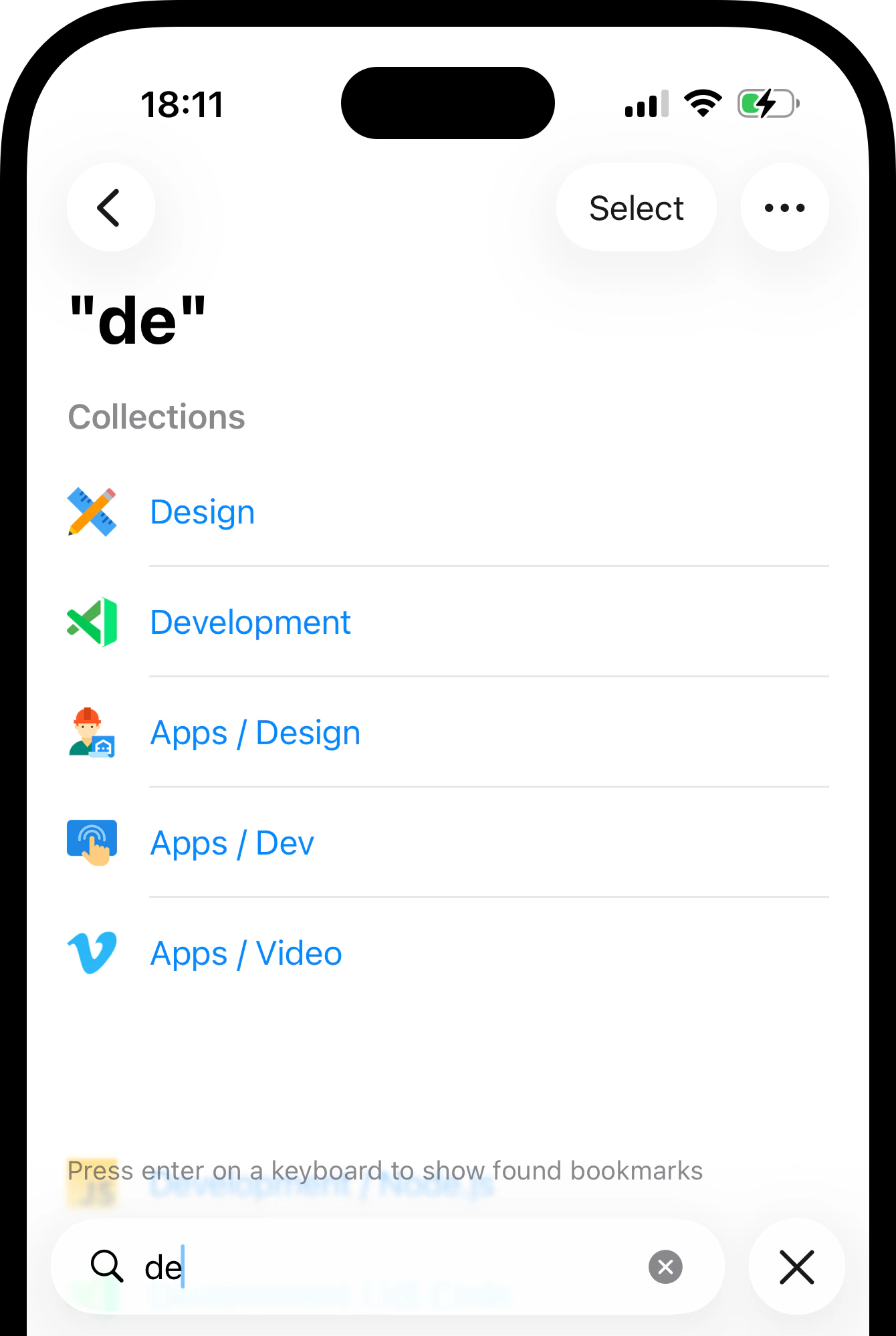
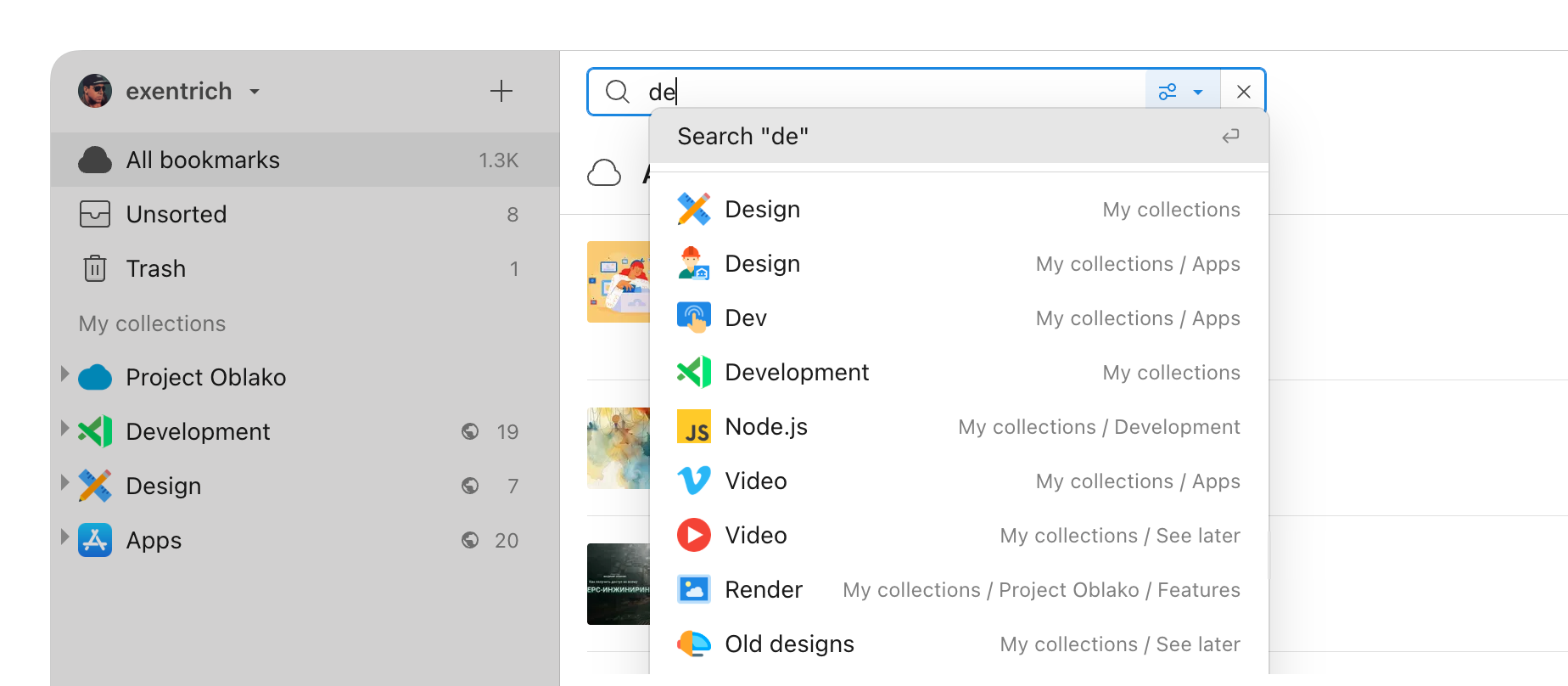
    Type a collection name in the search field and matching collections appear instantly.

    <Frame style={{padding: 0}}>
      <img src="https://mintcdn.com/raindropio-0c6b7ca1/g7d24I8ROfahz7TM/assets/search-collections.png?fit=max&auto=format&n=g7d24I8ROfahz7TM&q=85&s=b18a76d8c43a02bc02f64a36a2d317f5" alt="" width="1848" height="808" data-path="assets/search-collections.png" />
    </Frame>
  </Tab>

  <Tab title="iOS">
    Type a collection name in the search field and matching collections appear instantly.

    <Frame style={{padding: '20px 0 0 0'}}>
      <img src="https://mintcdn.com/raindropio-0c6b7ca1/g7d24I8ROfahz7TM/assets/ios-search-collections.png?fit=max&auto=format&n=g7d24I8ROfahz7TM&q=85&s=e888c79af71e3281b0236ac94e8fac1e" style={{maxHeight: '333px'}} width="1340" height="1998" data-path="assets/ios-search-collections.png" />
    </Frame>
  </Tab>

  <Tab title="Android">
    Type a collection name in the search field and matching collections appear instantly.
  </Tab>
</Tabs>

Besides collections, you can also search bookmarks by content, tags, and other criteria — see [Search](/using-search) for details.

## Managing a collection

<Tabs>
  <Tab title="Web & Desktop">
    <Steps>
      <Step icon="computer-mouse-button-right">
        Right-click a collection to open the context menu.

        <Frame style={{padding: 0}}>
          <img src="https://mintcdn.com/raindropio-0c6b7ca1/g7d24I8ROfahz7TM/assets/collection-context-menu.png?fit=max&auto=format&n=g7d24I8ROfahz7TM&q=85&s=ad9bcfe82e7ce21f93f31bffc7fd6e6b" width="1280" height="640" data-path="assets/collection-context-menu.png" />
        </Frame>
      </Step>

      <Step icon="pen-to-square">
        **Rename** — type a new name and press **Enter**.
      </Step>

      <Step icon="image">
        **[Change icon](#changing-collection-icon)** — pick a custom icon for the collection.
      </Step>

      <Step icon="trash">
        **Delete** — bookmarks inside are moved to [Trash](/bookmarks#where-deleted-bookmarks-go), not permanently deleted. Deleting a parent also deletes its sub-collections.
      </Step>
    </Steps>
  </Tab>

  <Tab title="iOS">
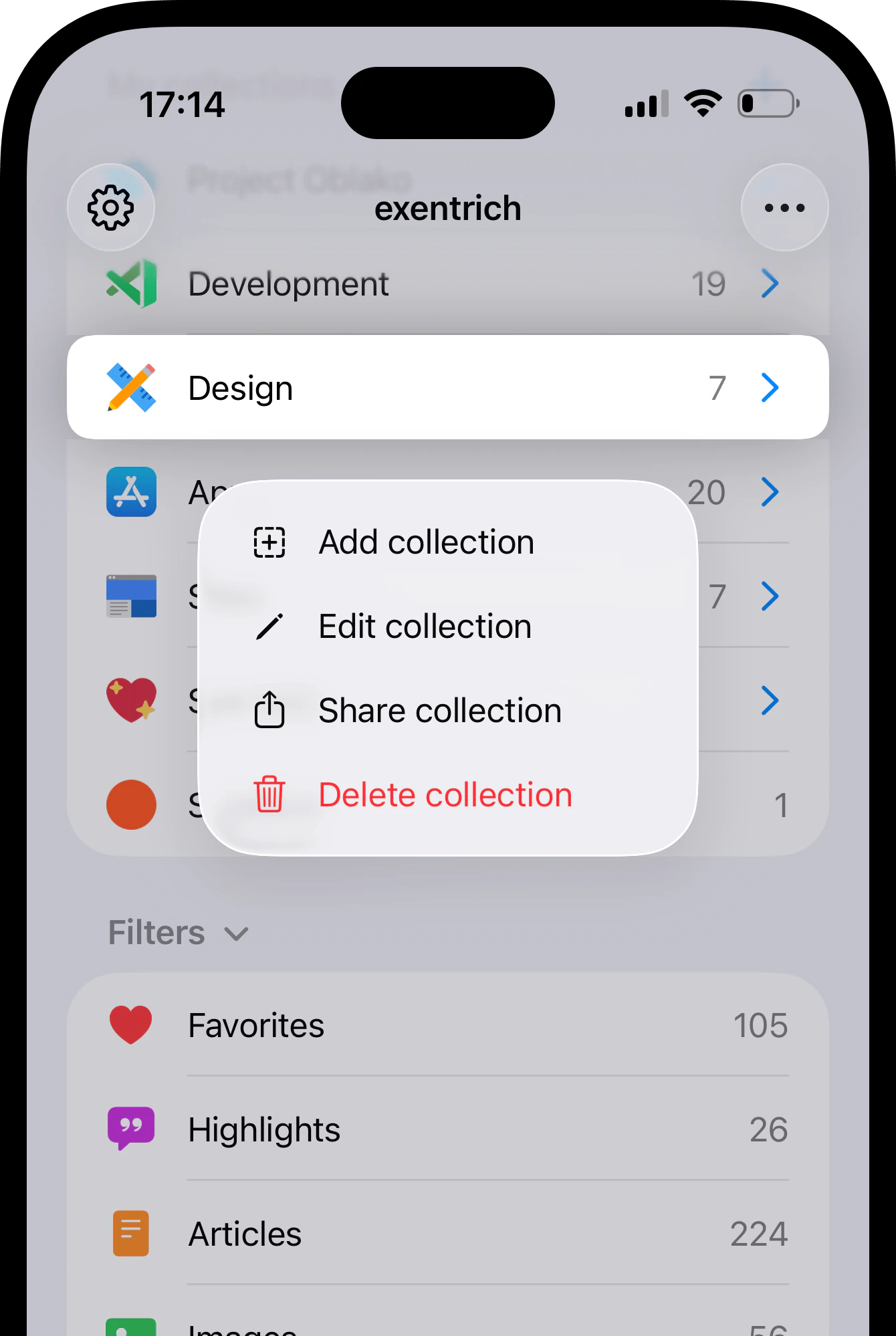
    Long-press a collection to open the context menu.

    * **Edit collection** — type a new name and tap **Done**.
    * **Delete collection** — bookmarks inside are moved to [Trash](/bookmarks#where-deleted-bookmarks-go).

    <Frame style={{padding: '20px 0 0 0'}}>
      <img src="https://mintcdn.com/raindropio-0c6b7ca1/g7d24I8ROfahz7TM/assets/ios-collection-menu.png?fit=max&auto=format&n=g7d24I8ROfahz7TM&q=85&s=7948451ebe8766690fc44486476bdaaf" style={{maxHeight: '333px'}} width="1340" height="1998" data-path="assets/ios-collection-menu.png" />
    </Frame>
  </Tab>

  <Tab title="Android">
    Swipe a collection to the left and tap <Icon icon="pencil" size={16} /> to open the edit screen.

    * **Rename** — type a new name and tap **Save**.
    * **[Change icon](#changing-collection-icon)** — pick a custom icon.
    * **Delete** — bookmarks inside are moved to [Trash](/bookmarks#where-deleted-bookmarks-go).
  </Tab>
</Tabs>

## Changing collection icon

Every collection gets a default folder icon, but a custom one makes it much easier to spot at a glance.

<Tabs>
  <Tab title="Web & Desktop">
    <Steps>
      <Step>
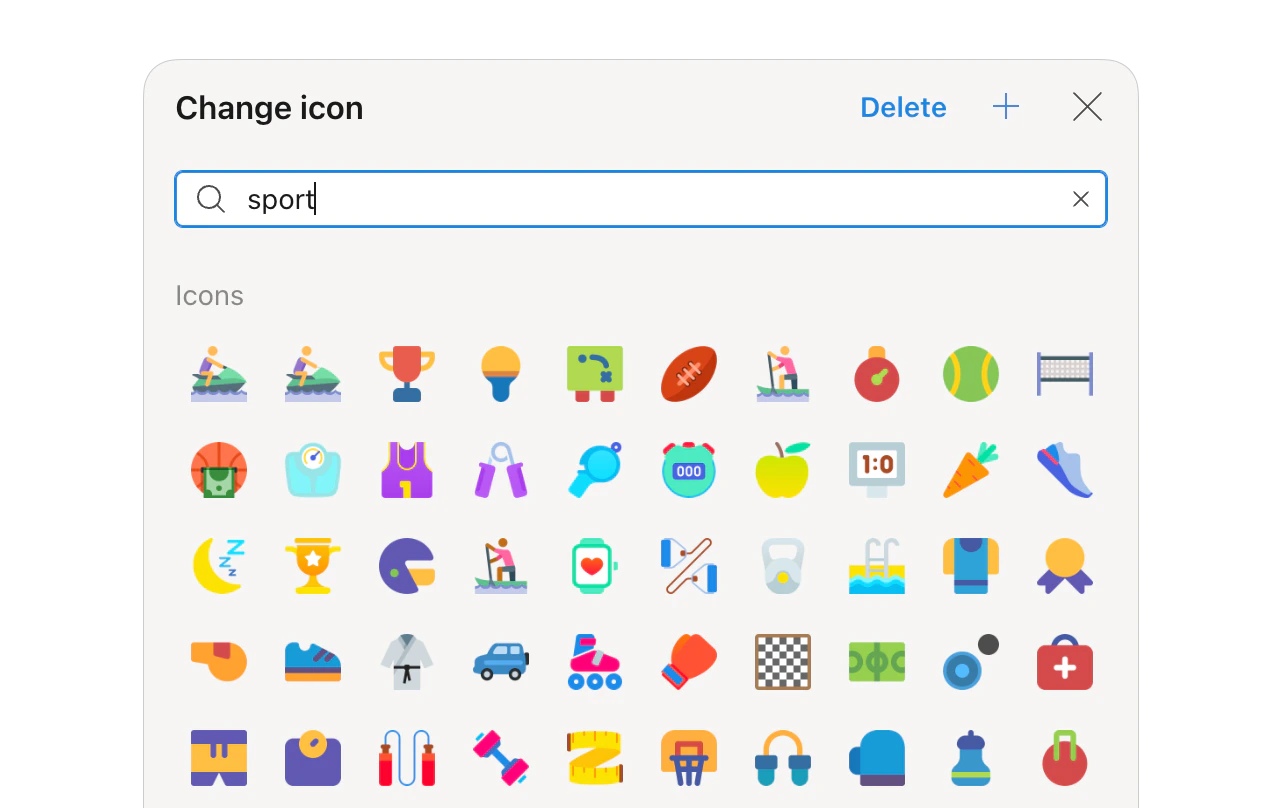
        Right-click a collection and choose **Change icon**.
      </Step>

      <Step>
        Pick from predefined icons or search by keyword. Click **Delete** in the top-right corner to remove the icon.

        <Frame style={{padding: 0}}>
          <img src="https://mintcdn.com/raindropio-0c6b7ca1/g7d24I8ROfahz7TM/assets/collection-change-icon.png?fit=max&auto=format&n=g7d24I8ROfahz7TM&q=85&s=bb0a9fb22209de69a27039eb4d1d8f7b" alt="" width="1280" height="808" data-path="assets/collection-change-icon.png" />
        </Frame>
      </Step>
    </Steps>
  </Tab>

  <Tab title="iOS">
    <Steps>
      <Step>
        Long-press a collection and choose **Edit collection**.

        <Frame style={{padding: '20px 0 0 0'}}>
          <img src="https://mintcdn.com/raindropio-0c6b7ca1/g7d24I8ROfahz7TM/assets/ios-collection-menu.png?fit=max&auto=format&n=g7d24I8ROfahz7TM&q=85&s=7948451ebe8766690fc44486476bdaaf" style={{maxHeight: '333px'}} width="1340" height="1998" data-path="assets/ios-collection-menu.png" />
        </Frame>
      </Step>

      <Step>
        Tap the icon next to a collection name.

        <Frame style={{padding: '20px 0 0 0'}}>
          <img src="https://mintcdn.com/raindropio-0c6b7ca1/g7d24I8ROfahz7TM/assets/ios-new-collection.png?fit=max&auto=format&n=g7d24I8ROfahz7TM&q=85&s=208108f0d19bb52a8205fe22d927e07e" style={{maxHeight: '333px'}} width="1340" height="1998" data-path="assets/ios-new-collection.png" />
        </Frame>
      </Step>
    </Steps>
  </Tab>

  <Tab title="Android">
    <Steps>
      <Step>
        Swipe a collection to the left and tap <Icon icon="pencil" size={16} /> to open the edit screen.
      </Step>

      <Step>
        Tap **Icon** and pick or search for an icon.
      </Step>
    </Steps>
  </Tab>
</Tabs>

## Customizing the view

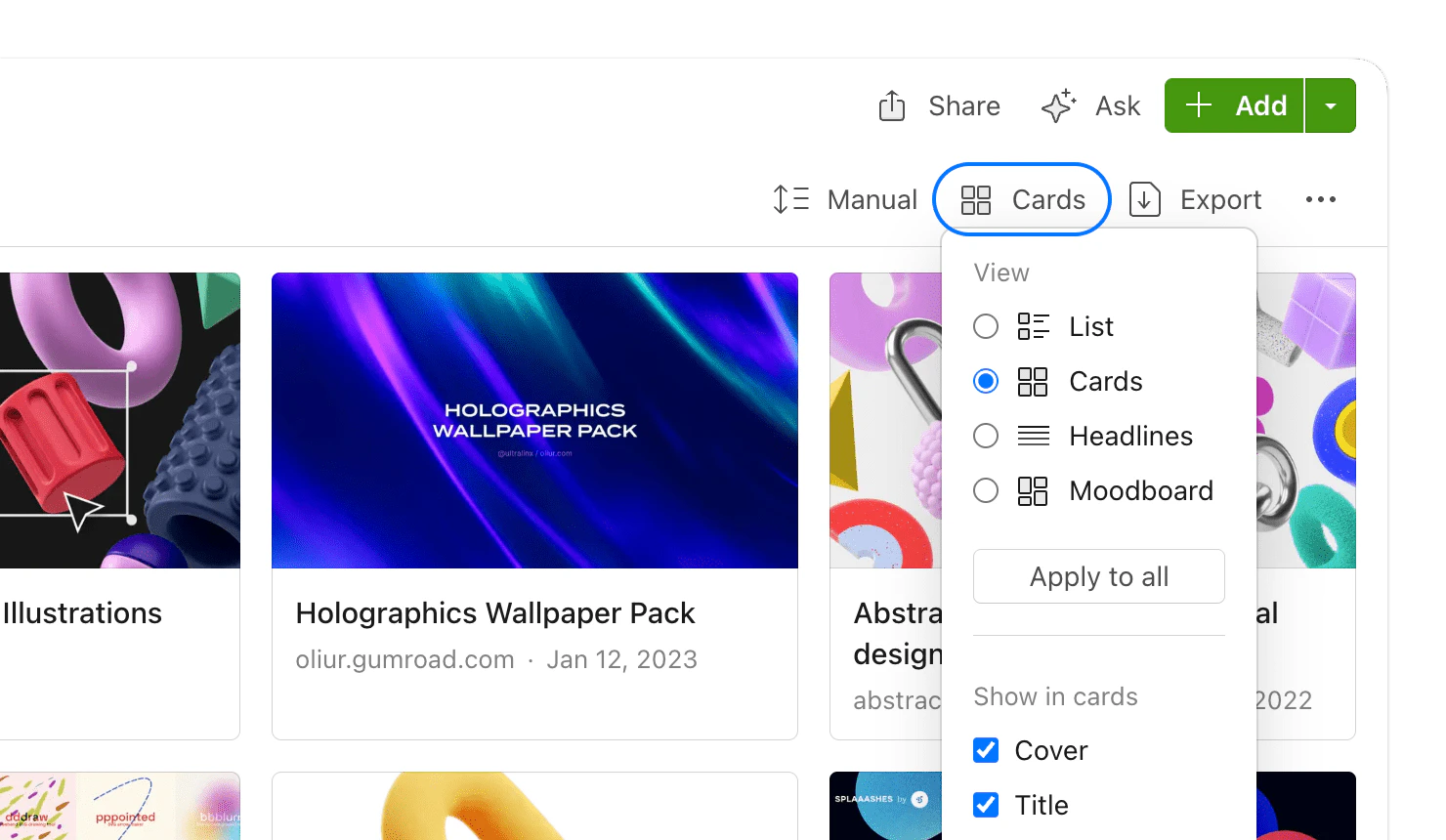
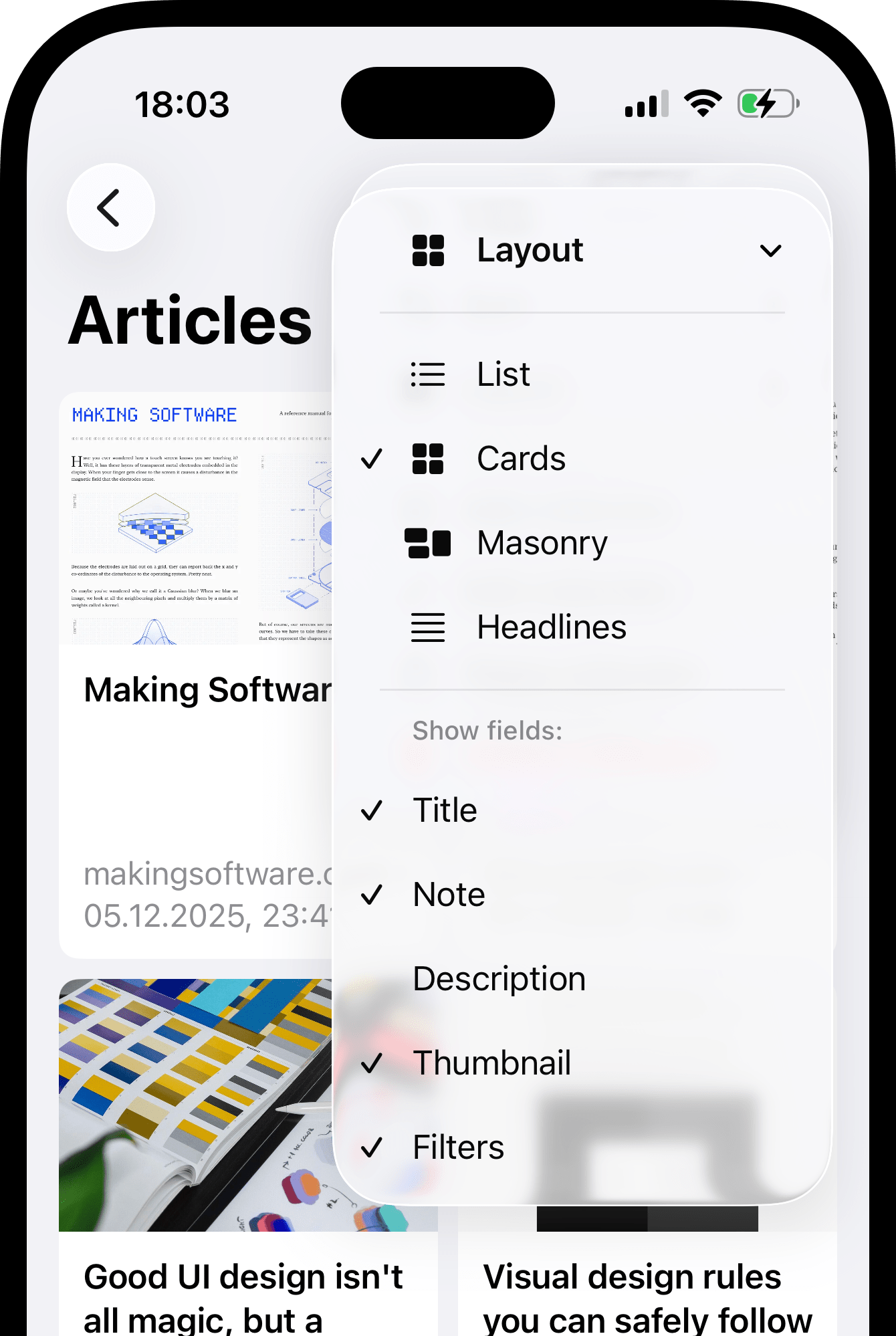
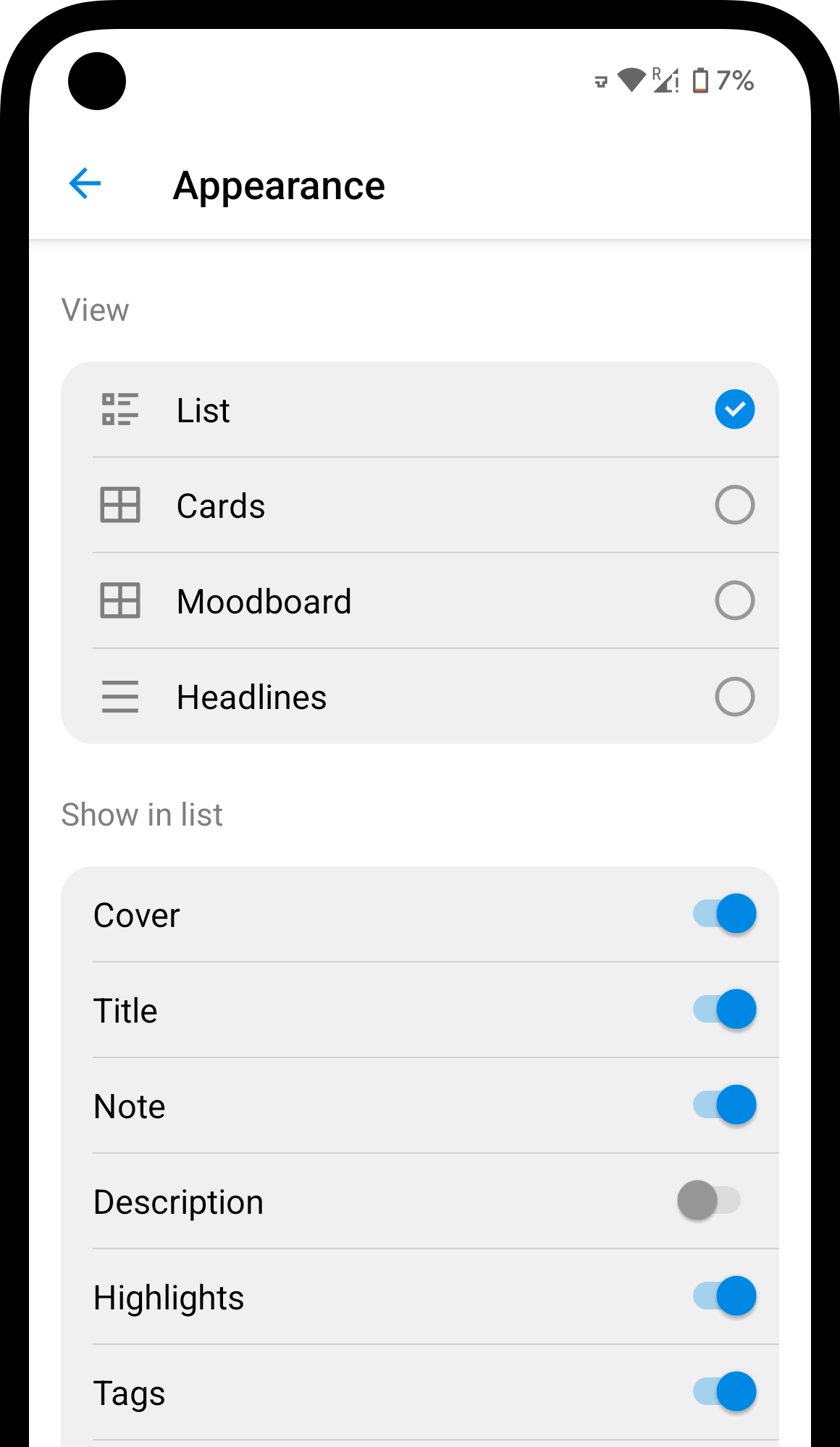
Bookmarks are displayed as a list by default, but each collection has its own view settings. Switch to a grid or moodboard for visual collections, hide titles or tags — whatever works best for the content.

<Tabs>
  <Tab title="Web & Desktop">
    <Steps>
      <Step>
        Tap <Badge><Icon icon="list" /></Badge> in the top right corner.
      </Step>

      <Step>
        Choose preferred layout and visible details.

        <Frame style={{padding: '20px 0 0 0'}}>
          <img src="https://mintcdn.com/raindropio-0c6b7ca1/g7d24I8ROfahz7TM/assets/appearance-view.png?fit=max&auto=format&n=g7d24I8ROfahz7TM&q=85&s=1c95a37fceafc3e52d7df009e1c0b8fa" style={{maxHeight: '333px'}} width="1480" height="860" data-path="assets/appearance-view.png" />
        </Frame>
      </Step>
    </Steps>
  </Tab>

  <Tab title="iOS">
    <Steps>
      <Step>
        Tap <Badge><Icon icon="ellipsis" /></Badge> in the top right corner, then **Layout**.
      </Step>

      <Step>
        Choose preferred layout and visible details.

        <Frame style={{padding: '20px 0 0 0'}}>
          <img src="https://mintcdn.com/raindropio-0c6b7ca1/g7d24I8ROfahz7TM/assets/ios-layout.png?fit=max&auto=format&n=g7d24I8ROfahz7TM&q=85&s=9a1c9032d5389d21c859627728101cc1" style={{maxHeight: '333px'}} width="1340" height="1998" data-path="assets/ios-layout.png" />
        </Frame>
      </Step>
    </Steps>
  </Tab>

  <Tab title="Android">
    <Steps>
      <Step>
        Tap <Badge><Icon icon="list" /></Badge> in the top right corner.
      </Step>

      <Step>
        Choose preferred layout and visible details.

        <Frame style={{padding: '20px 0 0 0'}}>
          <img src="https://mintcdn.com/raindropio-0c6b7ca1/g7d24I8ROfahz7TM/assets/android-layout.png?fit=max&auto=format&n=g7d24I8ROfahz7TM&q=85&s=d0e639ab80d01b1671e539551c705901" style={{maxHeight: '333px'}} width="1160" height="1998" data-path="assets/android-layout.png" />
        </Frame>
      </Step>
    </Steps>
  </Tab>
</Tabs>

<div style={{height:'2em'}} />

<Accordion title="Which layout to choose?">
  <CardGroup cols={2}>
    <div>
      <Frame style={{padding:0}}>
        <img src="https://mintcdn.com/raindropio-0c6b7ca1/g7d24I8ROfahz7TM/assets/appearance-list.png?fit=max&auto=format&n=g7d24I8ROfahz7TM&q=85&s=b43a1b0c286019682fdffab574e2ce02" alt="" width="1600" height="1200" data-path="assets/appearance-list.png" />
      </Frame>

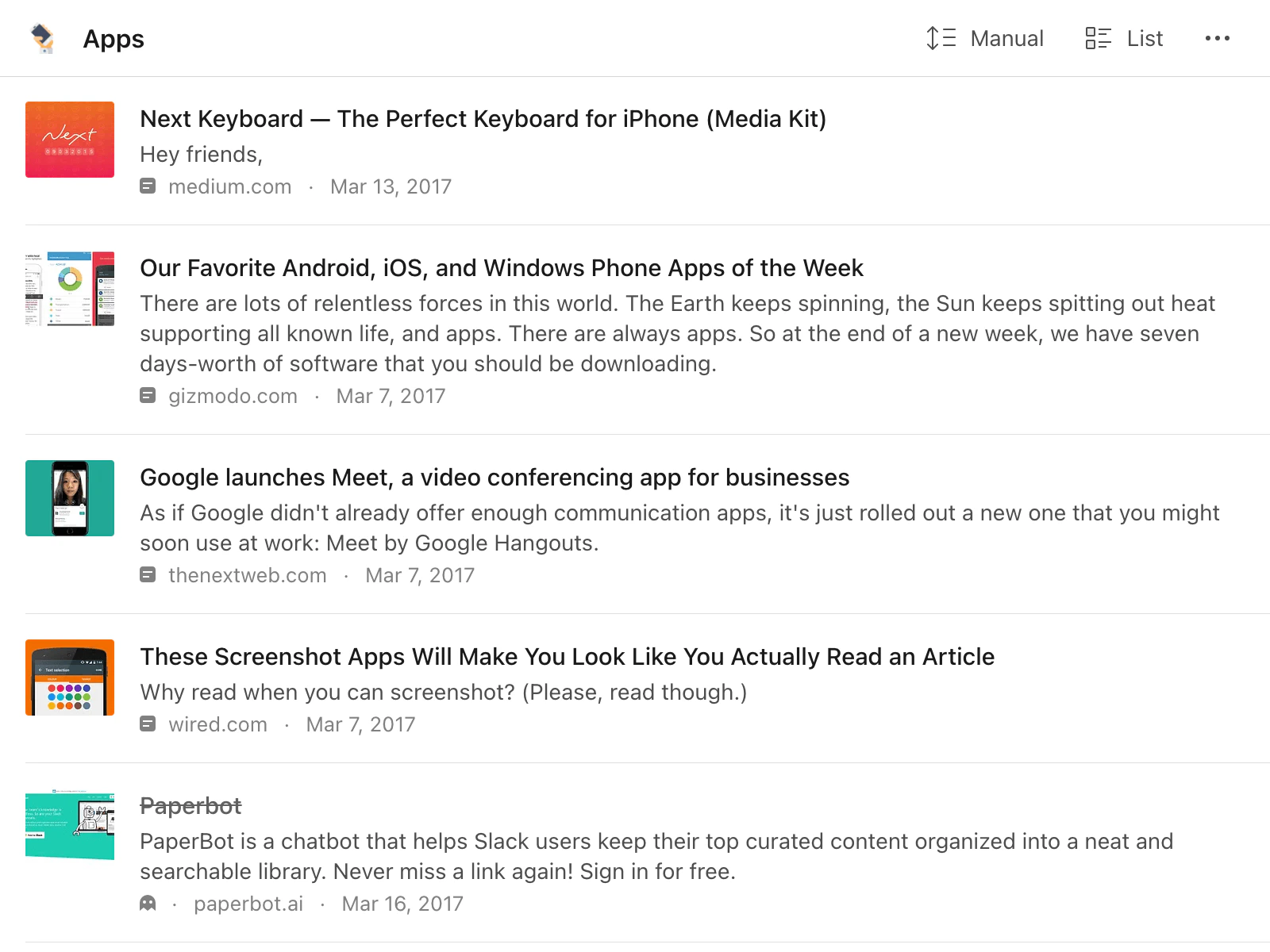
      **List**\
      Each bookmark takes a full row — best for alphabetical or date sorting.
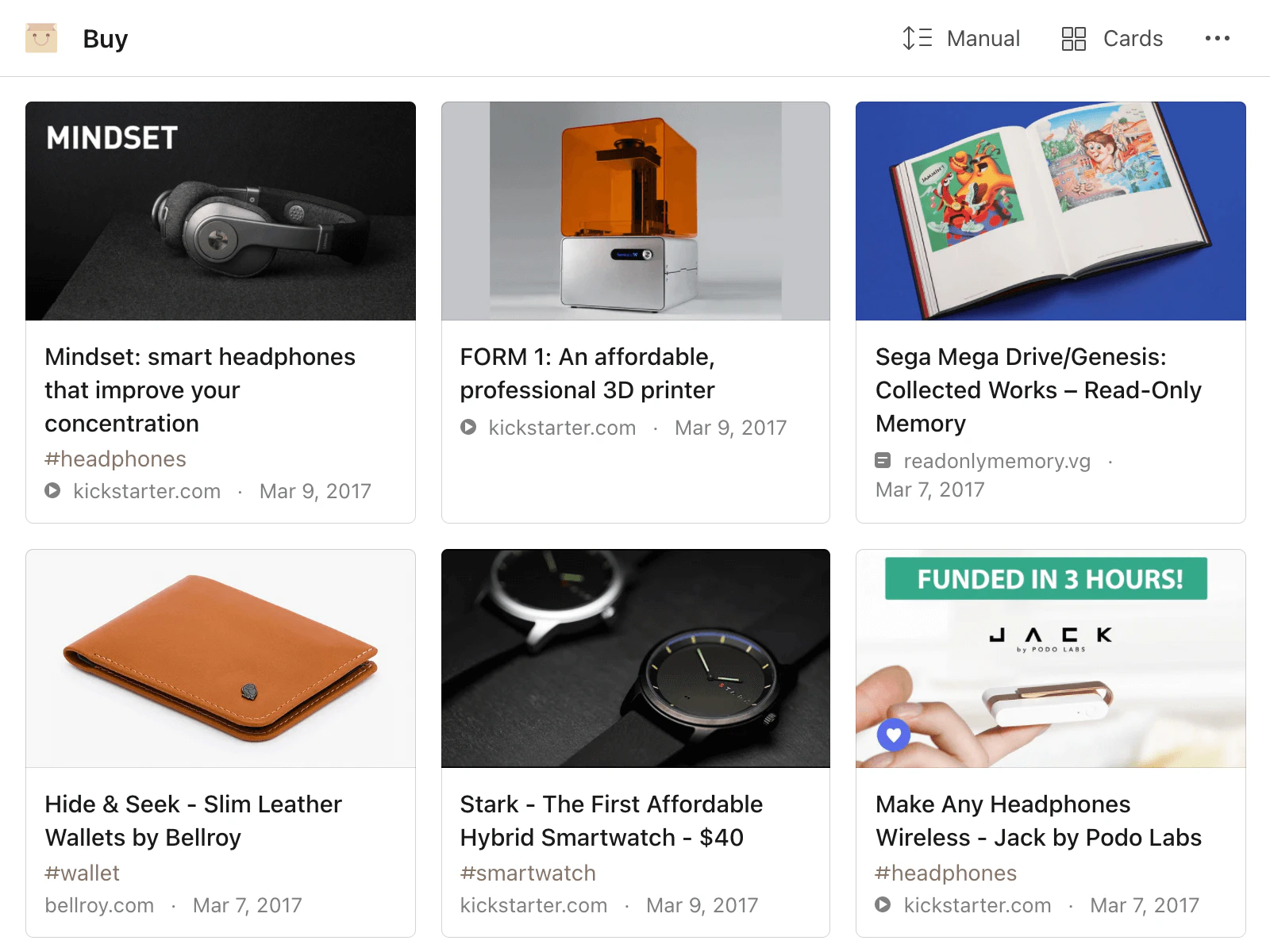
      <br />

      <br />
    </div>

    <div>
      <Frame style={{padding:0}}>
        <img src="https://mintcdn.com/raindropio-0c6b7ca1/GdpCiIhWcEST3eHX/assets/appearance-grid.png?fit=max&auto=format&n=GdpCiIhWcEST3eHX&q=85&s=6eb23df459a41dd9398c2cc74610172e" alt="" width="1600" height="1200" data-path="assets/appearance-grid.png" />
      </Frame>

      **Grid**\
      Bookmarks are cropped into uniform squares. Useful for design inspiration or mood boards.
      <br />

      <br />
    </div>

    <div>
      <Frame style={{padding:0}}>
        <img src="https://mintcdn.com/raindropio-0c6b7ca1/GdpCiIhWcEST3eHX/assets/appearance-headlines.png?fit=max&auto=format&n=GdpCiIhWcEST3eHX&q=85&s=f2a75fb72fd6d7d9c27d173a126da6a2" alt="" width="1600" height="1200" data-path="assets/appearance-headlines.png" />
      </Frame>

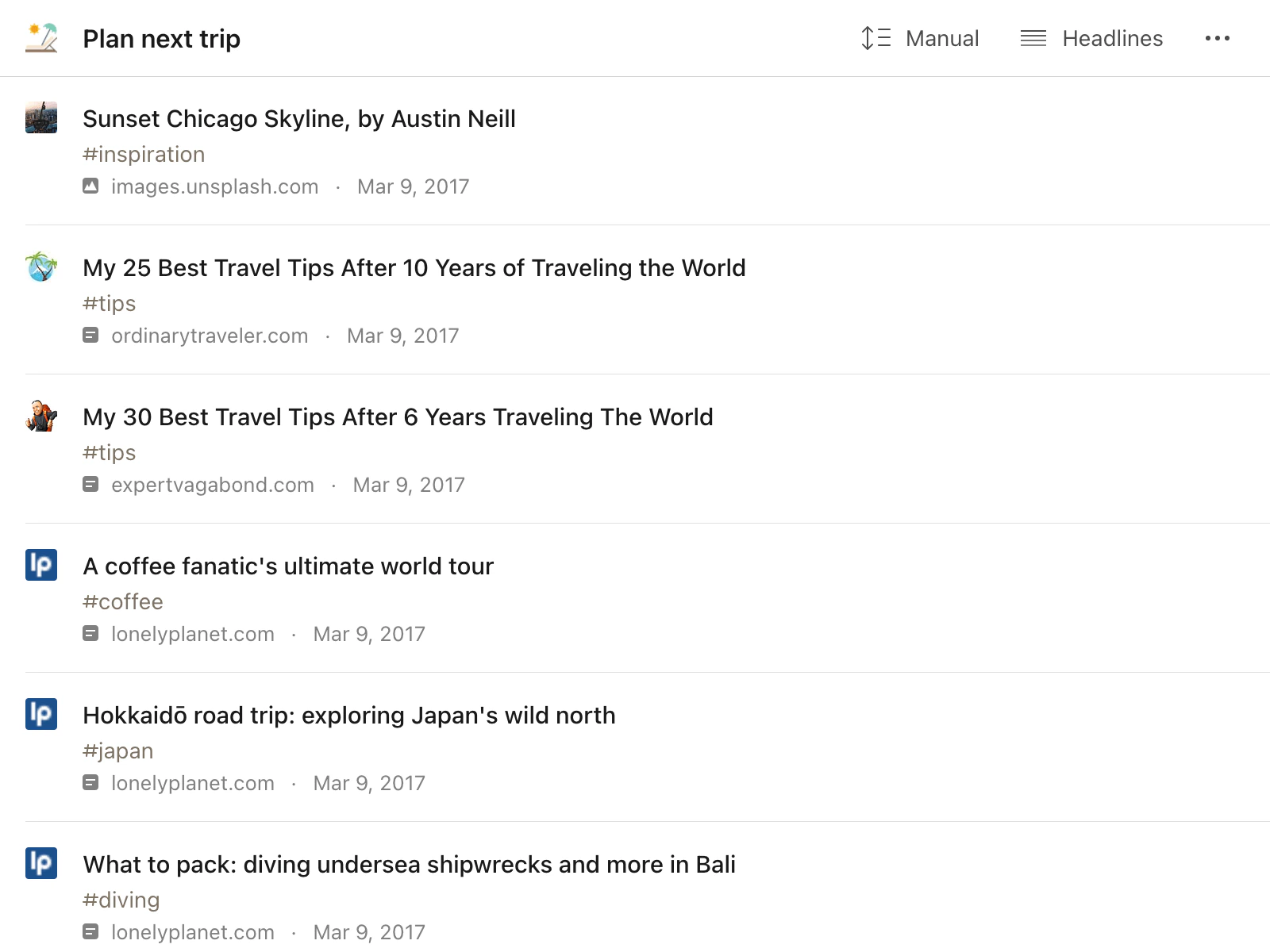
      **Headlines**\
      Text-only, no thumbnails. The fastest way to scan a large number of bookmarks.
      <br />

      <br />
    </div>

    <div>
      <Frame style={{padding:0}}>
        <img src="https://mintcdn.com/raindropio-0c6b7ca1/g7d24I8ROfahz7TM/assets/appearance-moodboard.png?fit=max&auto=format&n=g7d24I8ROfahz7TM&q=85&s=ef24391200d621422e2918ea5c277ea8" alt="" width="1600" height="1200" data-path="assets/appearance-moodboard.png" />
      </Frame>

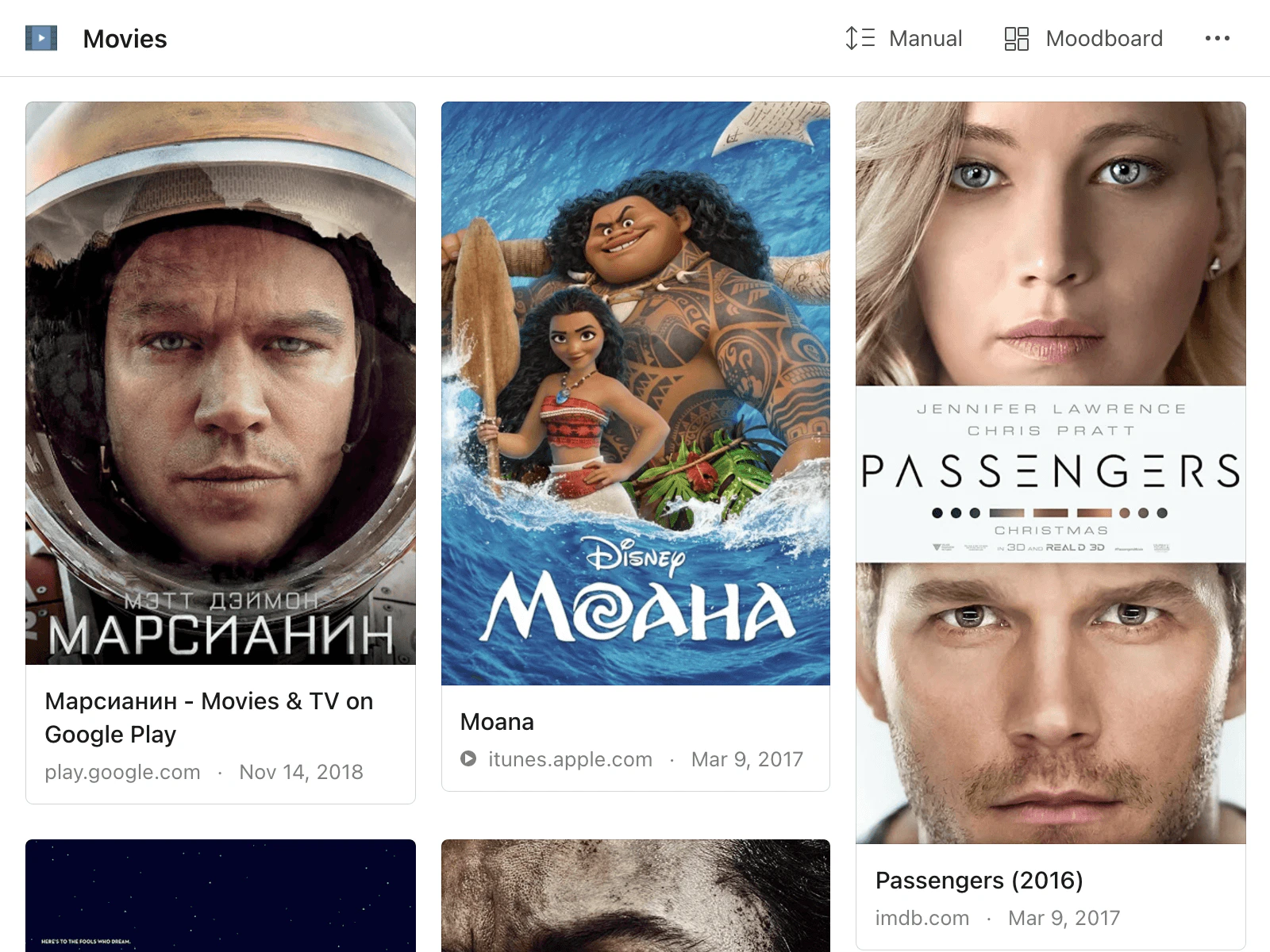
      **Moodboard**\
      Variable-height tiles arranged like a mosaic. Works well when visual overview matters more than strict order.
      <br />

      <br />
    </div>
  </CardGroup>
</Accordion>

## Managing multiple collections

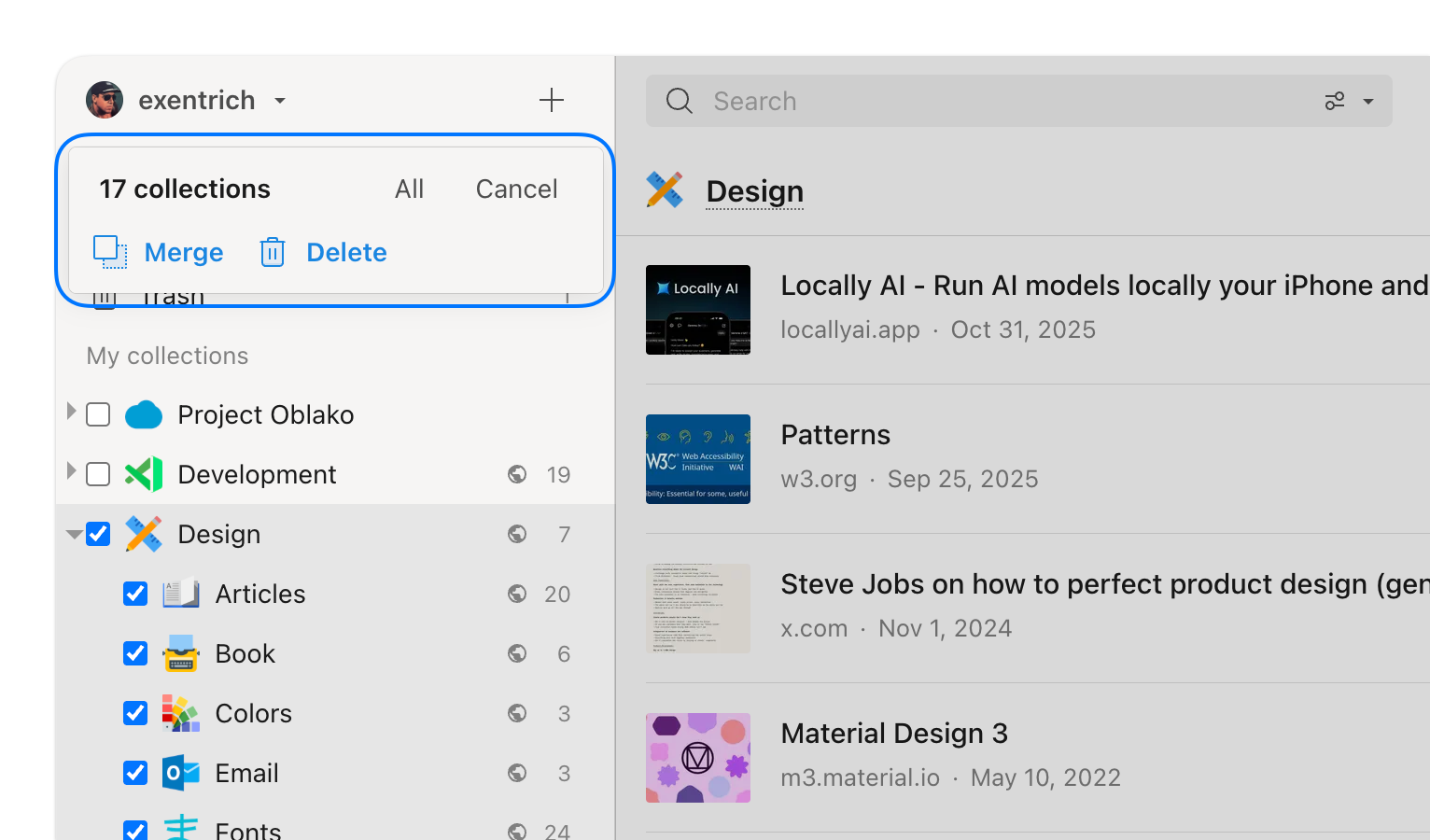
On Web & Desktop, you can select multiple collections to merge or delete them at once.

<Tip>**Pro tip**: need to restructure your library or sort through hundreds of unsorted bookmarks? Ask [Stella](/stella) — just describe what you want.</Tip>

<Steps>
  <Step>
    Right-click a collection and choose **Select**.

    <Frame style={{padding: 0}}>
      <img src="https://mintcdn.com/raindropio-0c6b7ca1/g7d24I8ROfahz7TM/assets/collection-context-menu.png?fit=max&auto=format&n=g7d24I8ROfahz7TM&q=85&s=ad9bcfe82e7ce21f93f31bffc7fd6e6b" width="1280" height="640" data-path="assets/collection-context-menu.png" />
    </Frame>
  </Step>

  <Step>
    Click additional collections to add them to the selection.
  </Step>

  <Step>
    Use the toolbar actions:

    * **Merge** — combine all selected collections into one. All bookmarks are moved to the target collection.
    * **Delete** — delete all selected collections. Bookmarks inside go to [Trash](/bookmarks#where-deleted-bookmarks-go).

    <Frame style={{padding: 0}}>
      <img src="https://mintcdn.com/raindropio-0c6b7ca1/g7d24I8ROfahz7TM/assets/collections-bulk.png?fit=max&auto=format&n=g7d24I8ROfahz7TM&q=85&s=22b70d5cce07f7341553e74f3e9936a6" alt="" width="1532" height="900" data-path="assets/collections-bulk.png" />
    </Frame>
  </Step>
</Steps>

## FAQ

<AccordionGroup>
  <Accordion title="What happens to bookmarks when I delete a collection?">
    They are moved to [Trash](/bookmarks#where-deleted-bookmarks-go), not permanently deleted. You can restore them from there.
  </Accordion>

  <Accordion title="Can I save a bookmark into multiple collections?">
    A bookmark can only live in one collection. To have it in two places, open the target collection, click <Icon icon="plus" size={16} />, paste the URL, and save — this creates a separate copy.
  </Accordion>

  <Accordion title="Can I set a default layout for all collections?">
    Yes. Go to [Settings → App](https://app.raindrop.io/settings/app) and change **Default layout**. New collections will use this layout automatically.
  </Accordion>

  <Accordion title="How do I delete all empty collections at once?">
    On Web & Desktop, right-click **My collections** in the sidebar and choose **Delete all empty collections**.
  </Accordion>
</AccordionGroup>

## Related

<CardGroup cols={2}>
  <Card title="Members" icon="user-group" iconType="duotone" href="/collaboration">
    Share collections with teammates or friends
  </Card>

  <Card title="Public page" icon="globe" iconType="duotone" href="/public-page">
    Make a collection accessible to anyone on the web
  </Card>

  <Card title="Export" icon="arrow-up-from-bracket" iconType="duotone" href="/export">
    Download collections as HTML, CSV, or TXT
  </Card>
</CardGroup>