> ## Documentation Index
> Fetch the complete documentation index at: https://help.raindrop.io/llms.txt
> Use this file to discover all available pages before exploring further.
# Export & backup
Your data is yours.
You can download everything at any time — the whole account, a single collection, or just a few selected items — and move it to another app, back to your browser, or to a different Raindrop.io account.
Available formats are **HTML**, **CSV**, and **TXT**.
Not sure which format to pick? Choose **HTML** — it produces a Netscape Bookmarks file supported by all browsers and most third-party apps.
## Backing up the whole account
All your bookmarks, collections, tags, highlights, and notes — keep as a safety copy or use to move to another service.
Go to [Settings → Backups](https://app.raindrop.io/settings/backups).
Click **Create new**.
Wait for an email notification, then download the files from the same page.
*(Optional)* To restore from a backup see [Import](/import).
The backup covers everything except [uploaded files](/files) (PDFs, images, etc.) — those are stored separately and can be downloaded as a ZIP archive, as described below.
[Uploaded files](/files) (PDFs, images, etc.) are not included in the backup. To download them separately:
Open **All bookmarks** in the [web app](https://app.raindrop.io).
Click **Export → ZIP**. The archive will contain all original files across your collections.
## Automatic daily backups
Requires a [Pro subscription](/premium-features).
If you accidentally delete something or want to roll back recent changes, automatic backups have you covered.
With a Pro plan, a backup is created once a day when you make changes.
Up to 30 recent backups are kept in your account at [Settings → Backups](https://app.raindrop.io/settings/backups) — pick any of them and [restore](/import) to get your data back.
Optionally, backups can also be sent to your cloud storage — enable each provider under **Cloud backup** on the same page.
| Service | Where files are stored |
| ------------------ | ----------------------------------------------------------------------- |
| Dropbox | `/Apps/Raindrop.io` |
| Google Drive | Root folder (as `Raindrop.io-Export.html` and `Raindrop.io-Export.csv`) |
| Microsoft OneDrive | `/Apps/Raindrop.io` |
## Exporting a collection
If you don't need the whole account, you can export just a collection or a handful of selected bookmarks.
Open the collection you want to export.
Click **Export** and choose a format.
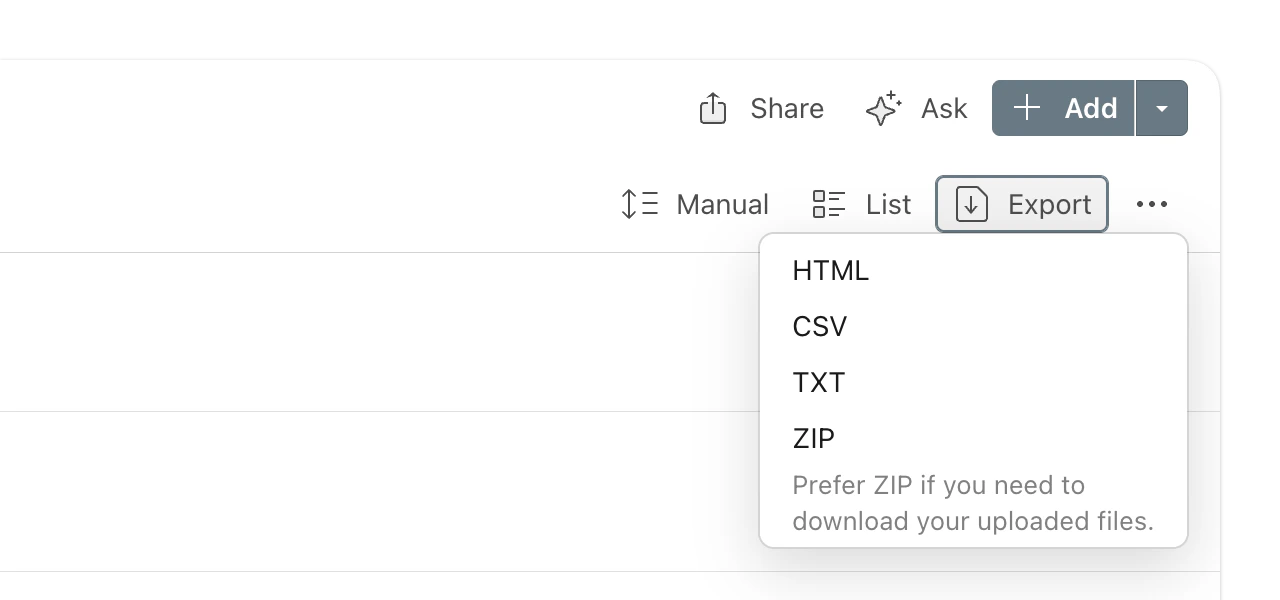 Open the collection you want to export.
Tap **Select** in the toolbar.
Tap **Select all** in the toolbar.
Tap **Actions** → **Share**.
Open the collection you want to export.
Tap **Select** in the toolbar.
Tap **Select all** in the toolbar.
Tap **Actions** → **Share**.
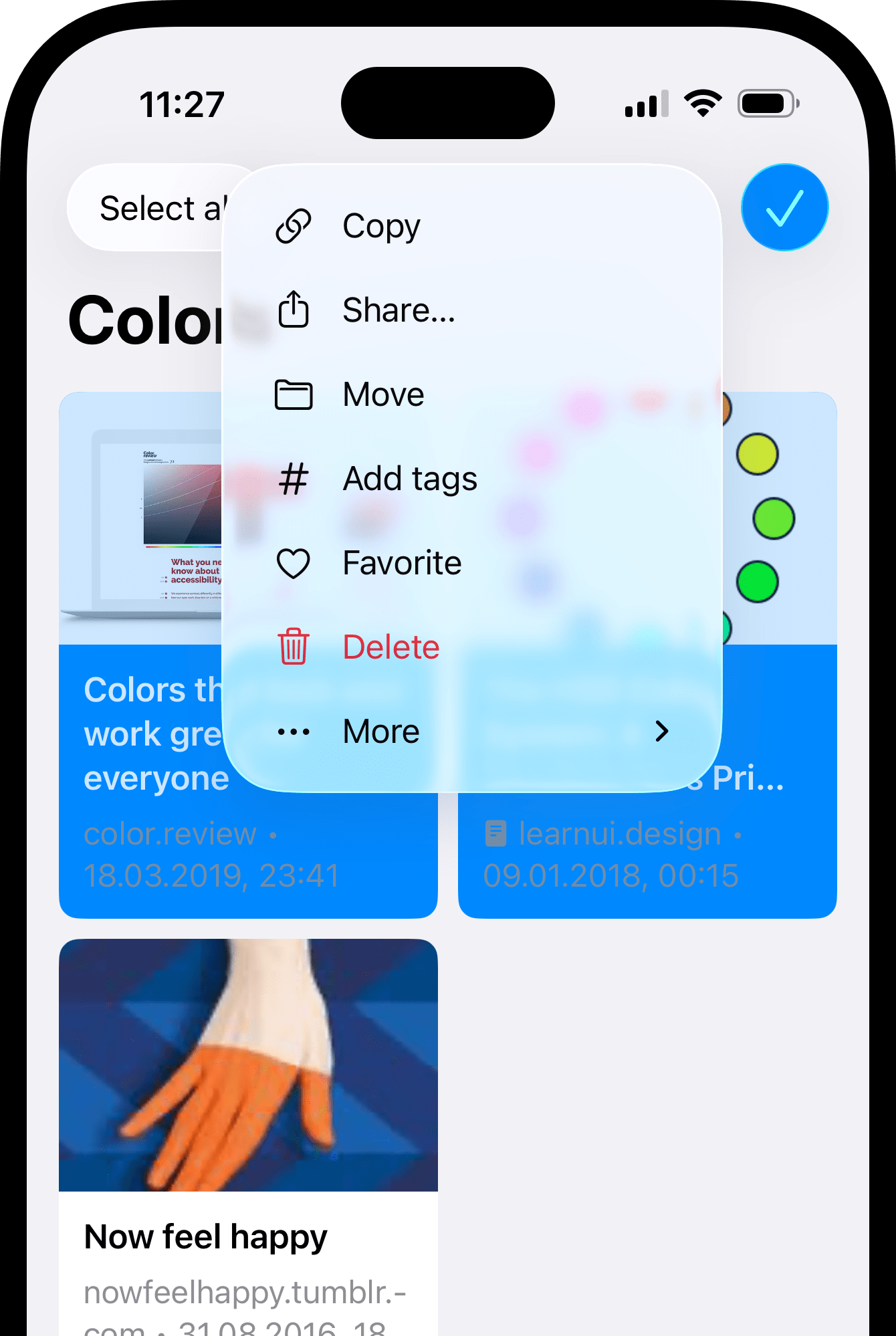 Not available yet.
## Exporting selected bookmarks
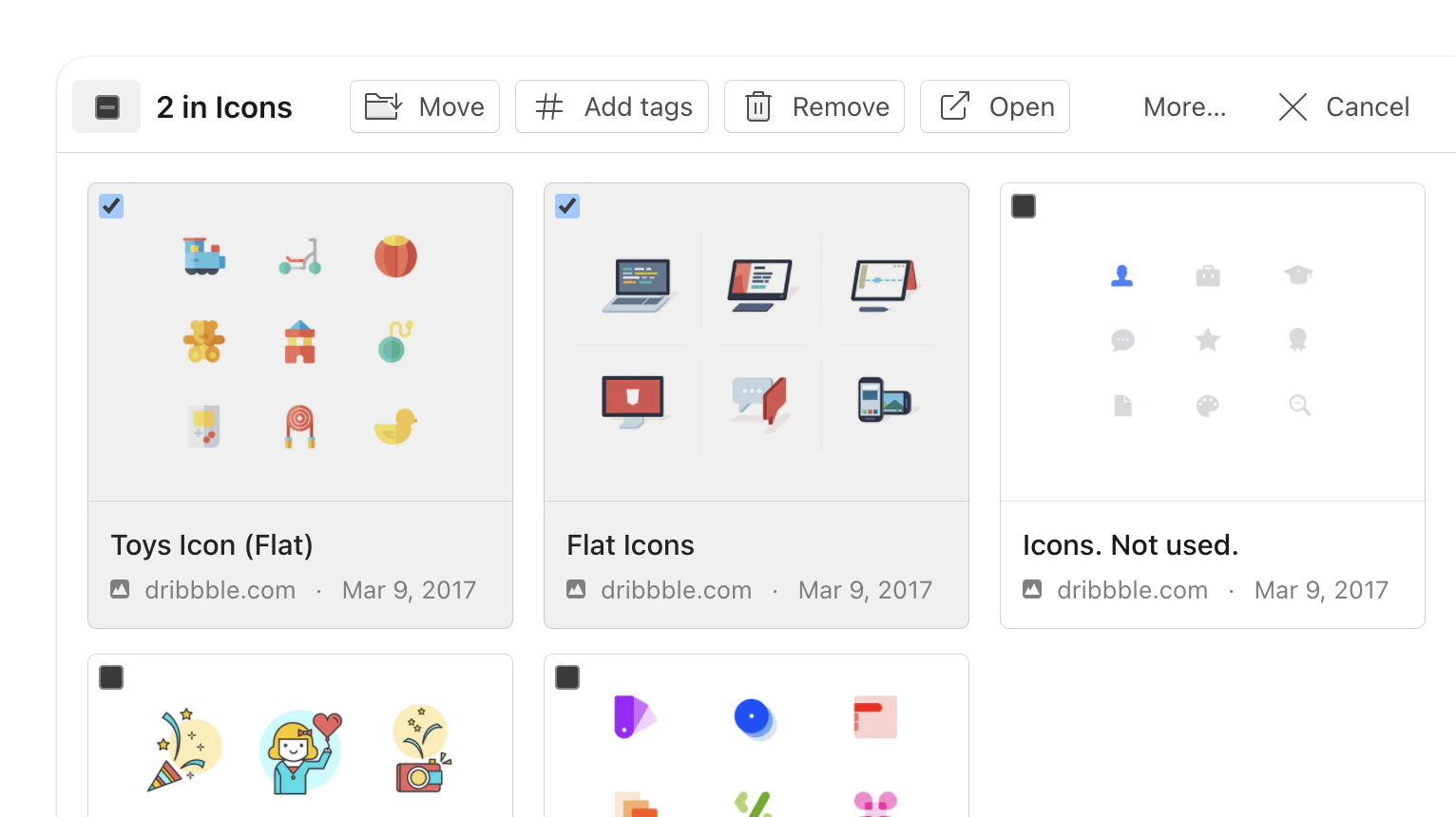
Hover over items and click the checkbox to select them.
Click **Export** in the toolbar and choose a format.
Not available yet.
## Exporting selected bookmarks
Hover over items and click the checkbox to select them.
Click **Export** in the toolbar and choose a format.
 Open a collection and tap **Select** in the toolbar.
Tap the bookmarks you want to export.
Tap **Actions** → **Share**.
Not available yet.
## Exporting highlights
Highlights from a single bookmark can be exported as a **text** or **CSV** file.
Open a bookmark → **Highlights** → **Export** icon.
Not available yet.
Not available yet.
## FAQ
**HTML** is the most universal — any browser or bookmark manager can import it. **CSV** is convenient for spreadsheets and data analysis. **TXT** is a plain list of URLs.
Export and backup are available in the web app. Open [app.raindrop.io](https://app.raindrop.io) in a mobile browser to access them.
## Related
Import bookmarks from a file or browser
Move data between accounts or remove your account
Open a collection and tap **Select** in the toolbar.
Tap the bookmarks you want to export.
Tap **Actions** → **Share**.
Not available yet.
## Exporting highlights
Highlights from a single bookmark can be exported as a **text** or **CSV** file.
Open a bookmark → **Highlights** → **Export** icon.
Not available yet.
Not available yet.
## FAQ
**HTML** is the most universal — any browser or bookmark manager can import it. **CSV** is convenient for spreadsheets and data analysis. **TXT** is a plain list of URLs.
Export and backup are available in the web app. Open [app.raindrop.io](https://app.raindrop.io) in a mobile browser to access them.
## Related
Import bookmarks from a file or browser
Move data between accounts or remove your account