> ## Documentation Index
> Fetch the complete documentation index at: https://help.raindrop.io/llms.txt
> Use this file to discover all available pages before exploring further.
# Files
> Upload documents, images, videos, and books to your collections
Not all useful materials exist as web pages — research PDFs, design mockups, receipts, ebooks live as files on your devices.
Upload them to your collections to keep everything in one place, right next to related bookmarks.
They work just like bookmarks: [tag](/tags), [search](/using-search), organize into [collections](/collections), [highlight](/highlights), and share.
## Supported types
| Type | Formats |
| ------------------------------------------- | ------------------------------------ |
| Images | `jpeg`, `gif`, `png`, `webp`, `heic` |
| Videos | `mp4`, `mov`, `wmv`, `webm` |
| Audios | `mp3`, `wav`, `aiff`, `flac` |
| Books | `epub` |
| Documents | `pdf`, `md`, `txt` |
## Uploading files
Click **+** in a collection to open the add menu.
Choose **File** to open the file picker.
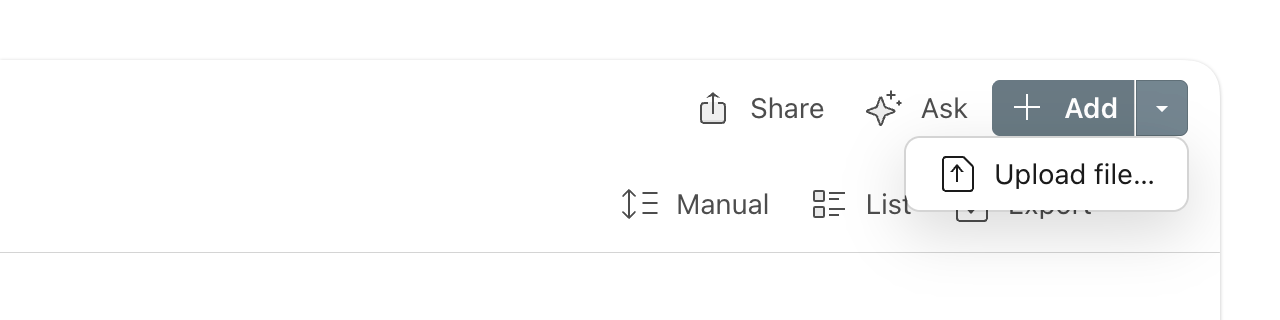 Select files on your computer. Chosen files are uploaded into the collection.
**Pro tip:** you can also drag files from your desktop straight into a collection.
Tap **+** in a collection to open the add menu.
Choose **File** or **Media** to open the picker.
Select items on your device. Chosen items are uploaded into the collection.
Tap **+** in a collection to open the add menu.
Choose **Add images** or **Add file** to open the picker.
Select items on your device. Chosen items are uploaded into the collection.
PDF, EPUB, TXT, and Markdown files are automatically indexed after upload — you can [full-text search](/using-search) through their content and read them right inside Raindrop.io with the [built-in reader](/articles).
## Sharing from other apps
On mobile you can send files to Raindrop.io from any app that supports the system share menu. Make sure the [mobile app](/mobile-app) is installed first.
Open a file and tap **Share**.
Select files on your computer. Chosen files are uploaded into the collection.
**Pro tip:** you can also drag files from your desktop straight into a collection.
Tap **+** in a collection to open the add menu.
Choose **File** or **Media** to open the picker.
Select items on your device. Chosen items are uploaded into the collection.
Tap **+** in a collection to open the add menu.
Choose **Add images** or **Add file** to open the picker.
Select items on your device. Chosen items are uploaded into the collection.
PDF, EPUB, TXT, and Markdown files are automatically indexed after upload — you can [full-text search](/using-search) through their content and read them right inside Raindrop.io with the [built-in reader](/articles).
## Sharing from other apps
On mobile you can send files to Raindrop.io from any app that supports the system share menu. Make sure the [mobile app](/mobile-app) is installed first.
Open a file and tap **Share**.
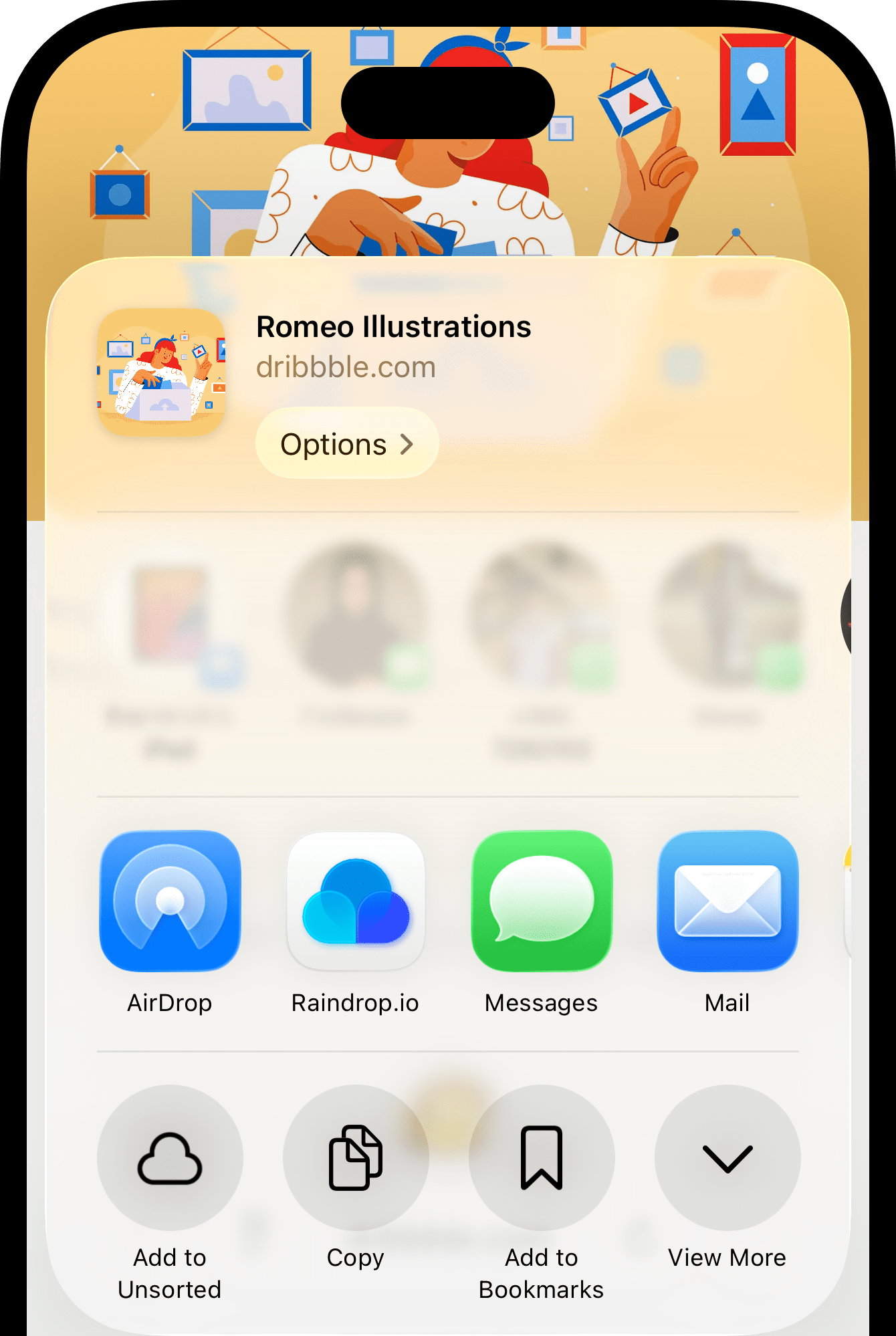 Choose **Raindrop.io** from the share sheet. If you don't see it, scroll the top row of icons to the right and tap **More** at the end to enable Raindrop.io.
Pick a collection and tap **Save**.
Open a file and tap **Share**.
Choose **Raindrop.io** from the share sheet. If you don't see it, scroll the top row of icons to the right and tap **More** at the end to enable Raindrop.io.
Pick a collection and tap **Save**.
Open a file and tap **Share**.
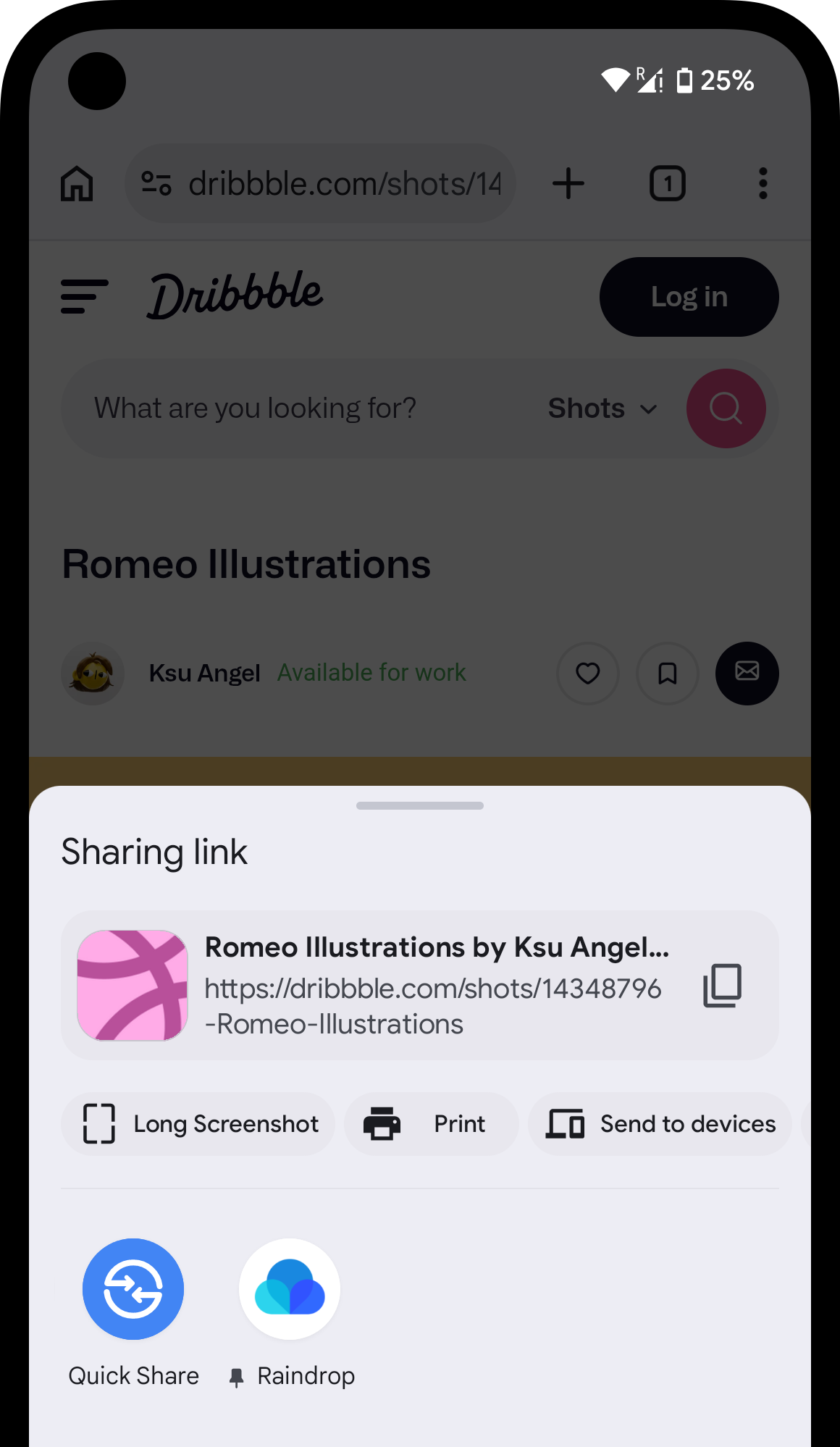 Choose **Raindrop** from the share list.
Pick a collection and tap **Save**.
## Finding uploaded files
Click a content type filter like **Document**, **Image**, or **Video** in sidebar.
Choose **Raindrop** from the share list.
Pick a collection and tap **Save**.
## Finding uploaded files
Click a content type filter like **Document**, **Image**, or **Video** in sidebar.
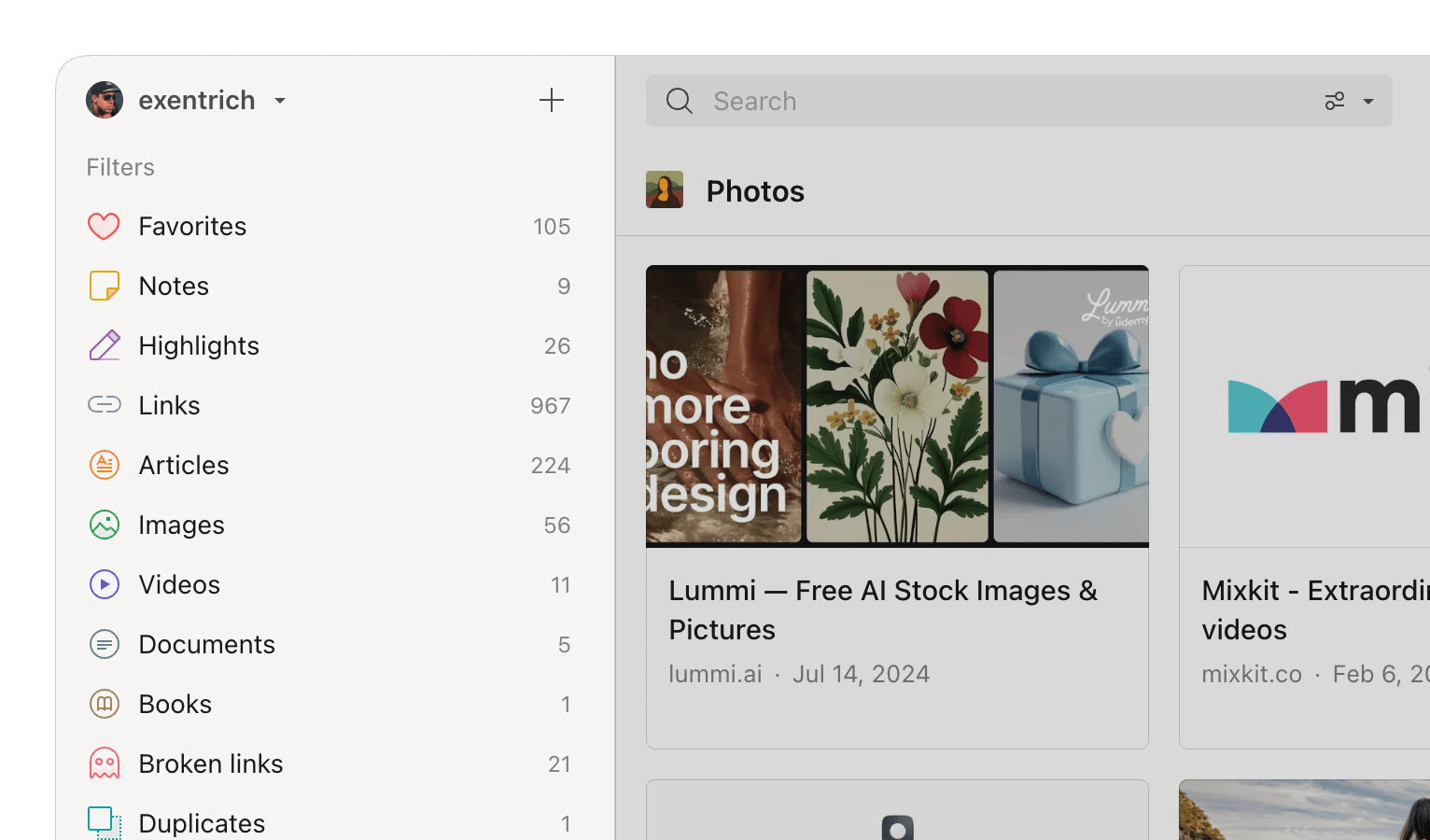 To see only uploaded files (without web bookmarks), type `file:true` in the search field.
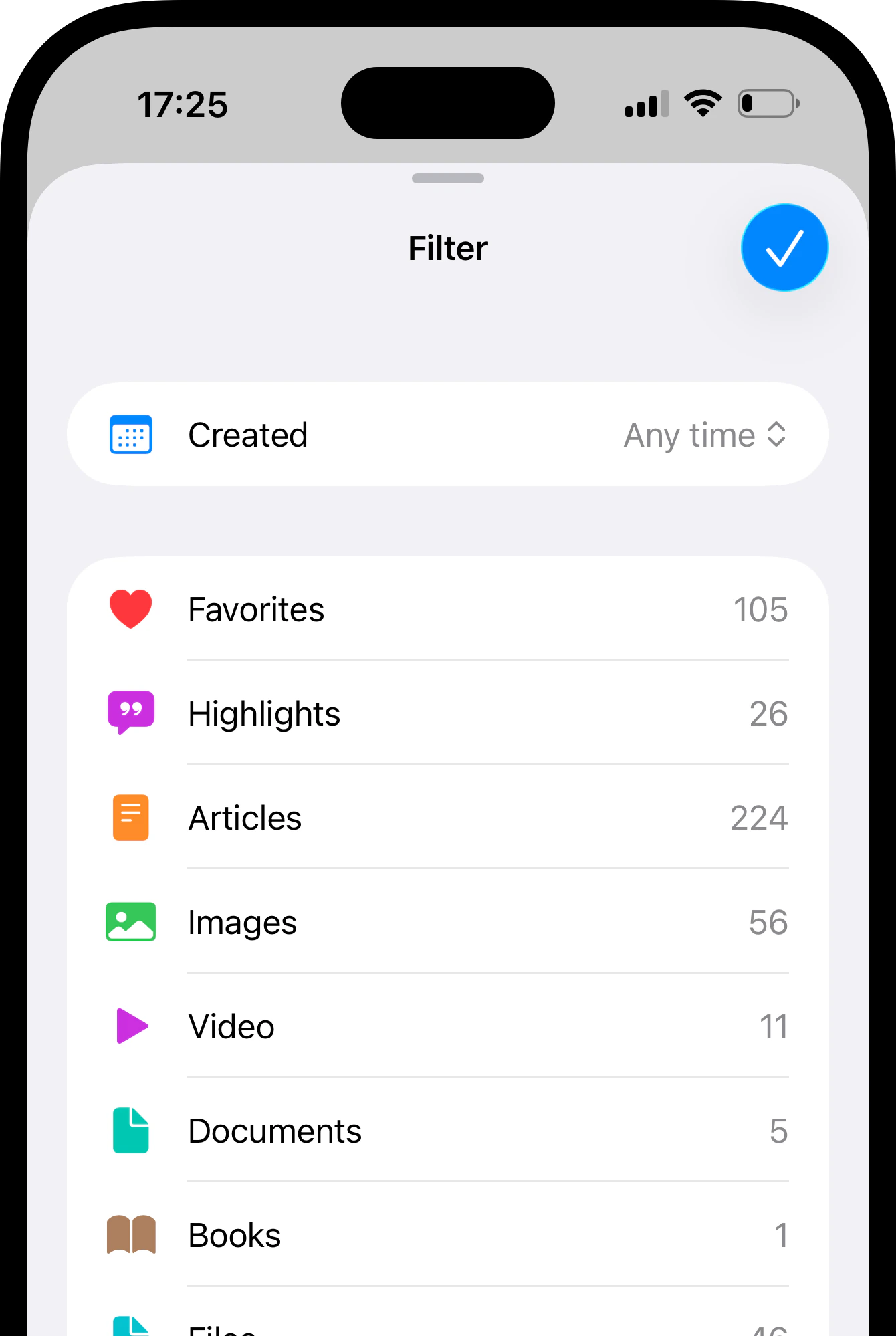
Tap in top right corner and then **Filter**.
Select a content type like **Document**, **Image**, or **Video** from the list.
To see only uploaded files (without web bookmarks), type `file:true` in the search field.
Tap in top right corner and then **Filter**.
Select a content type like **Document**, **Image**, or **Video** from the list.
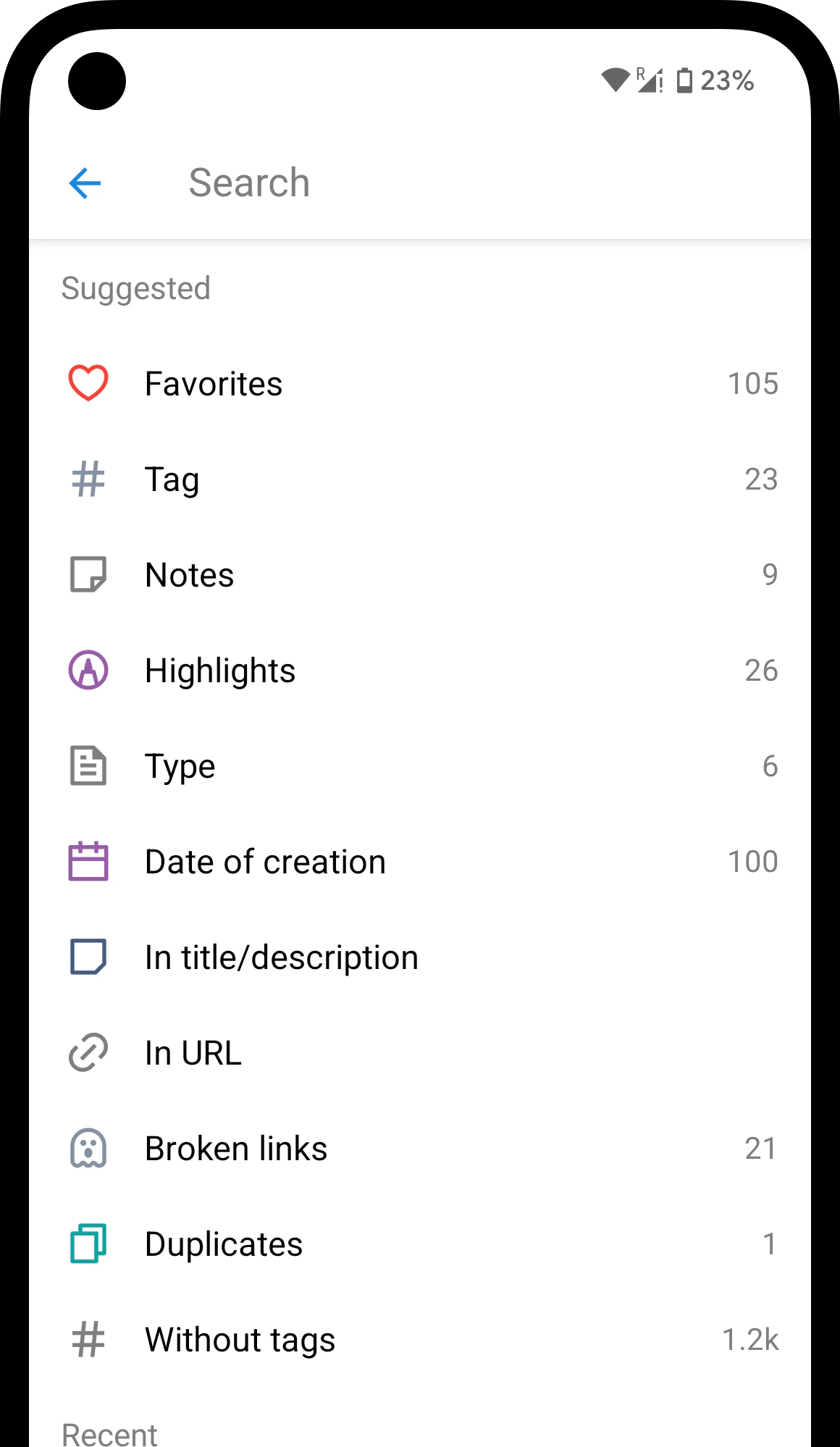
 Tap on the search field.
Select a content type like **Document**, **Image**, or **Video** from the suggestions.
Tap on the search field.
Select a content type like **Document**, **Image**, or **Video** from the suggestions.
 ## Downloading files
**Single file** — right-click a file and choose **Download**.
**Multiple files** — select the files, click [**Export**](/export), and choose **ZIP**.
Tap a file to open the preview, then tap **Share** and choose where to save it.
Not available yet.
## Related
Save text selections from PDFs and web pages
Upload quotas and plan comparison
## FAQ
Yes, with a Pro plan. [Full-text search](/using-search) works with text-based PDFs, EPUBs, and plain text files. Scanned documents and photos of pages are not searchable — only PDFs where text was typed or copy-pasted.
New uploads are blocked until the next month. Existing files are not affected.
No. Delete the old file and upload the new version.
Your files stay in your collections. The monthly upload limit drops to the Free plan level.
## Downloading files
**Single file** — right-click a file and choose **Download**.
**Multiple files** — select the files, click [**Export**](/export), and choose **ZIP**.
Tap a file to open the preview, then tap **Share** and choose where to save it.
Not available yet.
## Related
Save text selections from PDFs and web pages
Upload quotas and plan comparison
## FAQ
Yes, with a Pro plan. [Full-text search](/using-search) works with text-based PDFs, EPUBs, and plain text files. Scanned documents and photos of pages are not searchable — only PDFs where text was typed or copy-pasted.
New uploads are blocked until the next month. Existing files are not affected.
No. Delete the old file and upload the new version.
Your files stay in your collections. The monthly upload limit drops to the Free plan level.