> ## Documentation Index
> Fetch the complete documentation index at: https://help.raindrop.io/llms.txt
> Use this file to discover all available pages before exploring further.
# Filters
> Narrow down your bookmarks by tag, type, attributes, and more
As your library grows, you need a quick way to see only what matters right now. Filters narrow your bookmarks to exactly the subset you need — in one click, without any setup upfront.
## Using filters
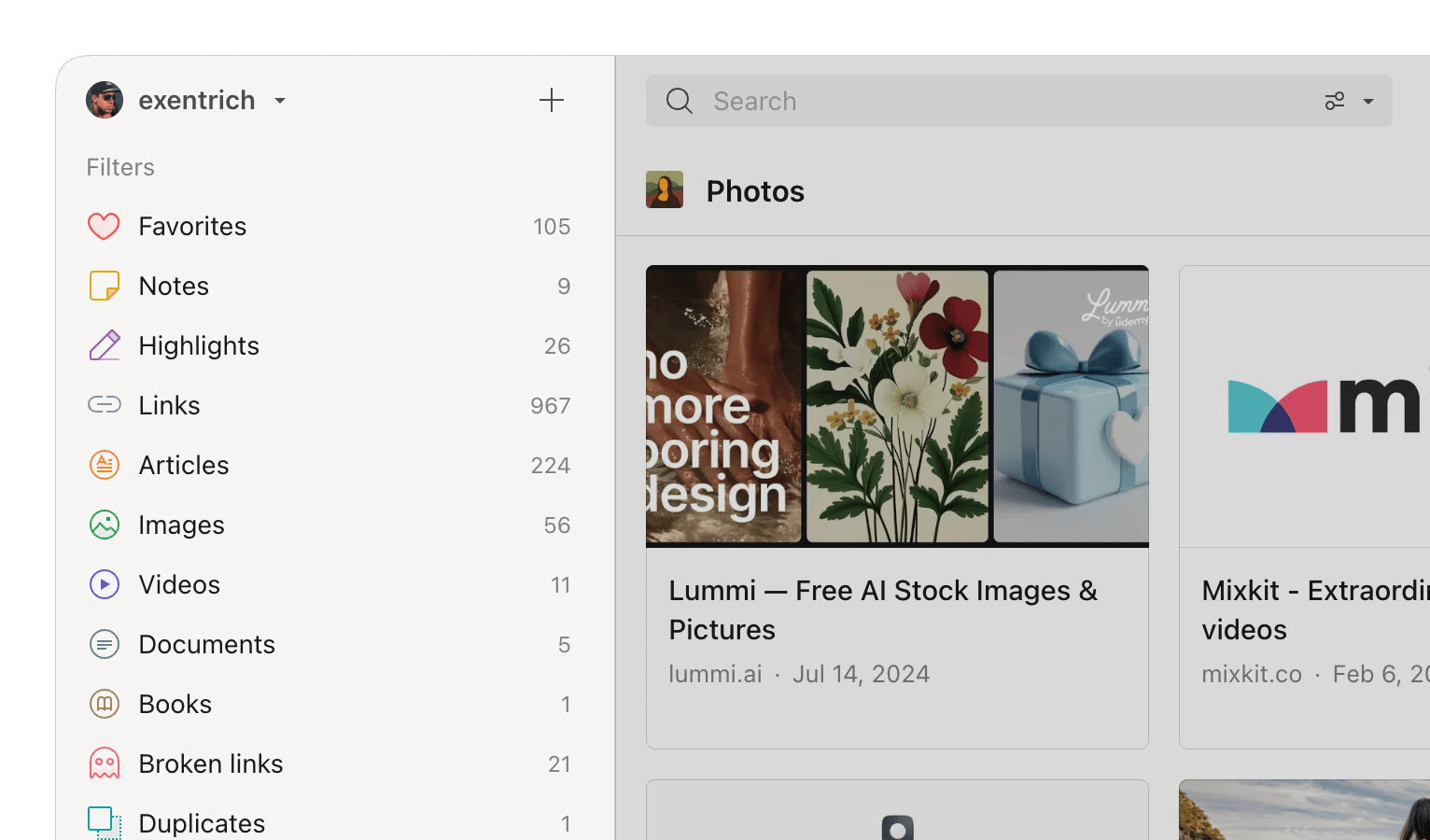
Filters live in the sidebar and apply across your entire library. Click any filter to apply it — the bookmark list updates instantly.
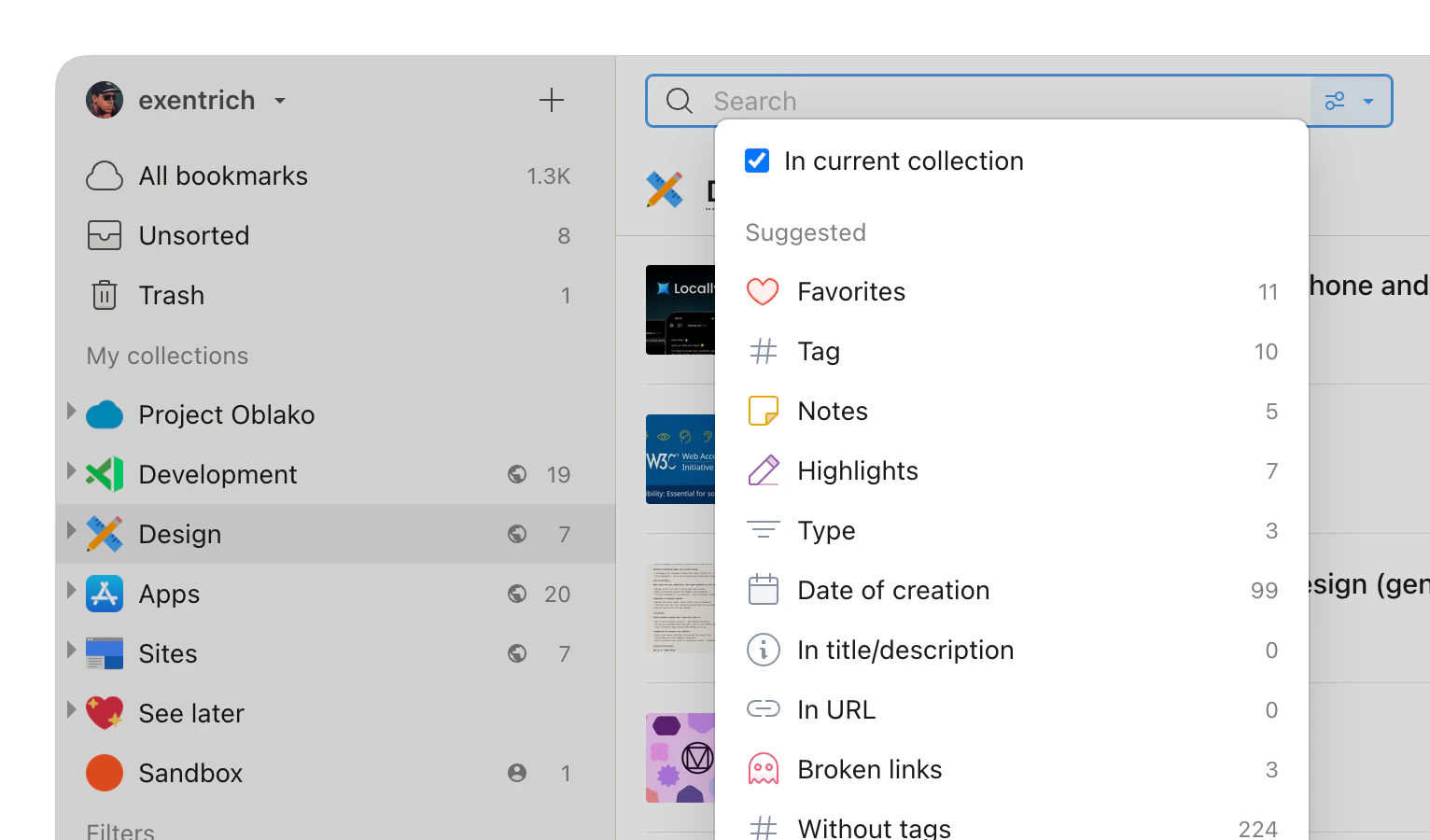
 To filter within a specific collection, open it, click the search field, and select **In current collection** from the dropdown to limit the scope.
 Open **All bookmarks** to filter across your whole library, or go to a specific collection to filter within it.
Tap in the top right corner, then **Filter**.
Pick one or more filters from the list.
Open **All bookmarks** to filter across your whole library, or go to a specific collection to filter within it.
Tap in the top right corner, then **Filter**.
Pick one or more filters from the list.
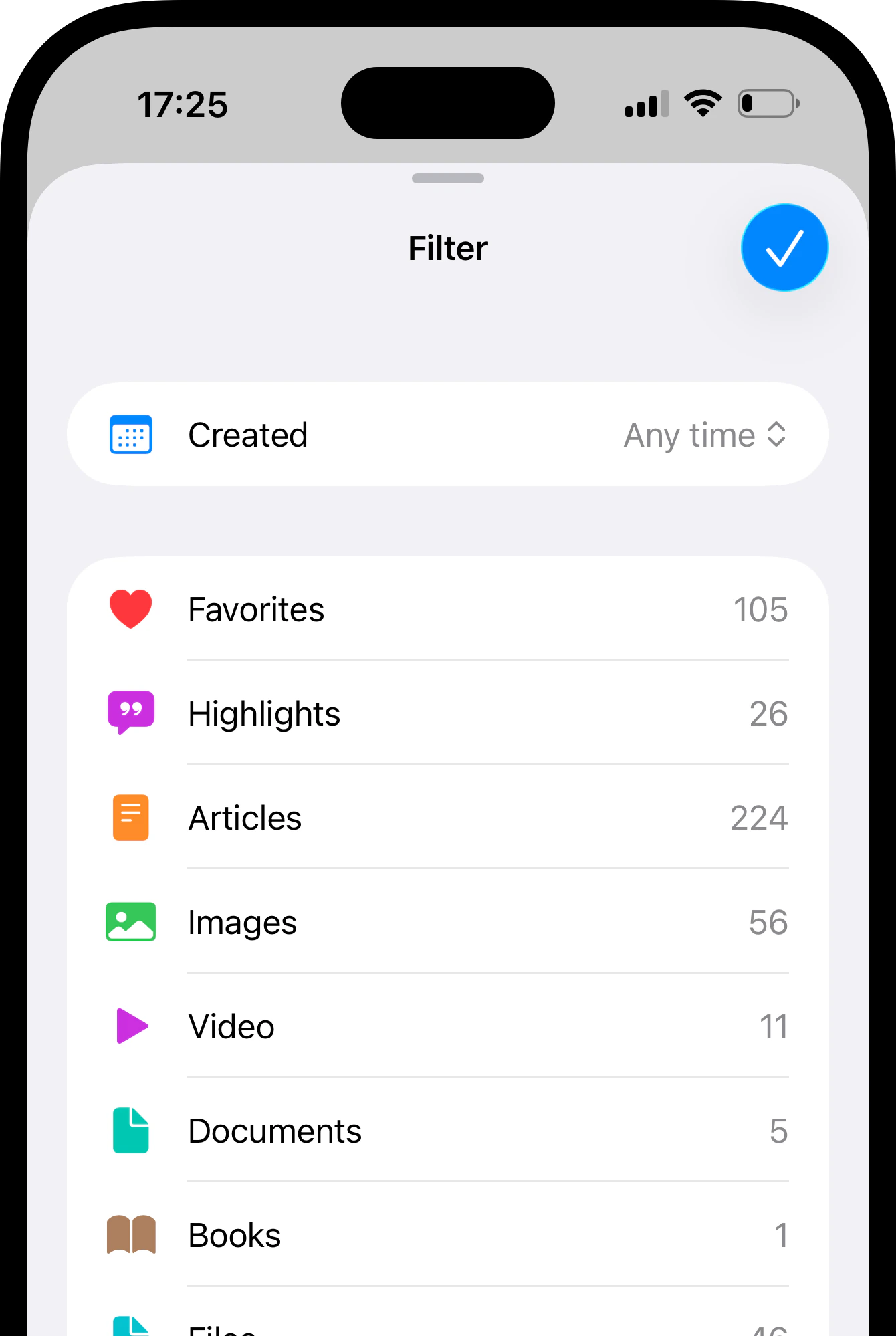 Open **All bookmarks** to filter across your whole library, or go to a specific collection to filter within it.
Tap the search field.
Pick a filter from the suggestions.
Open **All bookmarks** to filter across your whole library, or go to a specific collection to filter within it.
Tap the search field.
Pick a filter from the suggestions.
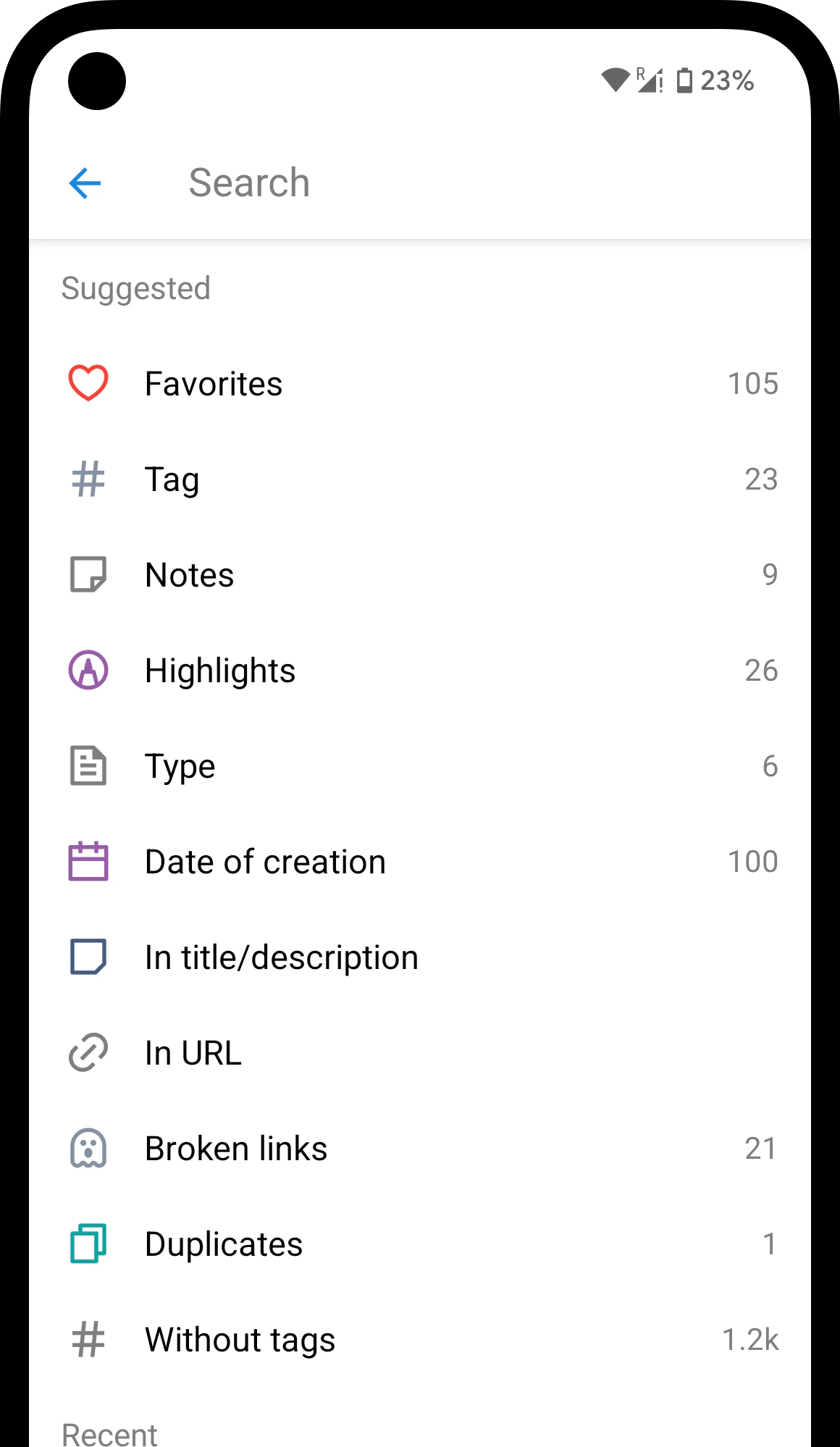 A filter only appears when at least one bookmark matches it — so the list always reflects what's actually in your library. Inside a collection the list narrows further, showing only filters relevant to that collection's content.
## Available filters
### Tags
Your [tags](/tags) show up as filters — each tag you use becomes a clickable filter.
There's also a **Without tags** filter to find bookmarks that have no tags yet.
### Attributes
* **Favorites** — bookmarks you marked as favorite
* **Reminder** — bookmarks with an active [reminder](/reminders)
* **Note** — bookmarks that have a note attached
* **Highlights** — bookmarks with saved [highlights](/highlights)
### Content type
Raindrop.io detects what kind of content each bookmark holds and creates filters automatically —
[Article](/articles),
**Image**,
**Video**,
**Audio**,
**Document**, and
**Book**. No setup needed: save a YouTube link, and the **Video** filter appears on its own.
### Creation date
Narrow bookmarks to a specific month by selecting the date range in the filter list.
### Library health
* **[Broken links](/broken-links)** — bookmarks pointing to pages that may no longer work
* **[Duplicates](/duplicates)** — the same URL saved more than once
Broken links and Duplicates require a [Pro plan](/premium-features).
## Combining and excluding filters
Pick a filter, then open the filter list again to add another one. By default, all selected filters apply together — so picking two tags shows only bookmarks that have both.
Once you have more than one filter selected, a **match:OR** option appears in the list; turn it on to show bookmarks matching **any** of them instead.
To exclude a specific filter, select it first, then add `-` (minus) before it in the search field — for example, `-type:video` hides all videos from the results. You can also type keywords in the search field while filters are active to narrow things down even further.
Every filter is a search operator under the hood — you can type them in the search field directly for extra flexibility, like searching within a specific field, using date ranges, or matching either of two terms.
| Operator | Example | What it does |
| ----------------------- | -------------------------- | -------------------------------------------------------- |
| `word` | `apple iphone` | Match in title, description, URL, or page content |
| `"phrase"` | `"css grid"` | Exact phrase match |
| `-word` | `-superman` | Exclude results containing this word |
| `#tag` | `#coffee` | Filter by tag (`#"coffee beans"` for multi-word tags) |
| `-#tag` | `-#coffee` | Exclude a tag |
| `match:OR` | `superman batman match:OR` | Match either term instead of both |
| `created:YYYY-MM-DD` | `created:2024-01` | By creation date. Use `<` or `>` for before/after |
| `lastUpdate:YYYY-MM-DD` | `lastUpdate:2024-07-15` | By last update date |
| `title:word` | `title:css` | Search only in title |
| `excerpt:word` | `excerpt:css` | Search only in description |
| `note:word` | `note:css` | Search only in notes |
| `link:word` | `link:github` | Search only in URL |
| `type:X` | `type:article` | By content type (article, image, video, audio, document) |
| `❤️` | | Favorites |
| `file:true` | | Uploaded files |
| `notag:true` | | Bookmarks without tags |
| `reminder:true` | | Bookmarks with a reminder |
| `cache.status:ready` | | Bookmarks with a [web archive](/web-archive) |
## Related
Combine text search with filters for precise results
Label bookmarks with keywords — each tag becomes a filter
## FAQ
Yes. Type in the search field while one or more filters are active. The results show only bookmarks that match both your search query and every selected filter.
A filter only shows up when at least one bookmark matches it. If you don't have any video bookmarks, for example, the **Video** filter won't appear. Inside a collection the list narrows even further. Open **All bookmarks** to see every filter available across your whole library.
A filter only appears when at least one bookmark matches it — so the list always reflects what's actually in your library. Inside a collection the list narrows further, showing only filters relevant to that collection's content.
## Available filters
### Tags
Your [tags](/tags) show up as filters — each tag you use becomes a clickable filter.
There's also a **Without tags** filter to find bookmarks that have no tags yet.
### Attributes
* **Favorites** — bookmarks you marked as favorite
* **Reminder** — bookmarks with an active [reminder](/reminders)
* **Note** — bookmarks that have a note attached
* **Highlights** — bookmarks with saved [highlights](/highlights)
### Content type
Raindrop.io detects what kind of content each bookmark holds and creates filters automatically —
[Article](/articles),
**Image**,
**Video**,
**Audio**,
**Document**, and
**Book**. No setup needed: save a YouTube link, and the **Video** filter appears on its own.
### Creation date
Narrow bookmarks to a specific month by selecting the date range in the filter list.
### Library health
* **[Broken links](/broken-links)** — bookmarks pointing to pages that may no longer work
* **[Duplicates](/duplicates)** — the same URL saved more than once
Broken links and Duplicates require a [Pro plan](/premium-features).
## Combining and excluding filters
Pick a filter, then open the filter list again to add another one. By default, all selected filters apply together — so picking two tags shows only bookmarks that have both.
Once you have more than one filter selected, a **match:OR** option appears in the list; turn it on to show bookmarks matching **any** of them instead.
To exclude a specific filter, select it first, then add `-` (minus) before it in the search field — for example, `-type:video` hides all videos from the results. You can also type keywords in the search field while filters are active to narrow things down even further.
Every filter is a search operator under the hood — you can type them in the search field directly for extra flexibility, like searching within a specific field, using date ranges, or matching either of two terms.
| Operator | Example | What it does |
| ----------------------- | -------------------------- | -------------------------------------------------------- |
| `word` | `apple iphone` | Match in title, description, URL, or page content |
| `"phrase"` | `"css grid"` | Exact phrase match |
| `-word` | `-superman` | Exclude results containing this word |
| `#tag` | `#coffee` | Filter by tag (`#"coffee beans"` for multi-word tags) |
| `-#tag` | `-#coffee` | Exclude a tag |
| `match:OR` | `superman batman match:OR` | Match either term instead of both |
| `created:YYYY-MM-DD` | `created:2024-01` | By creation date. Use `<` or `>` for before/after |
| `lastUpdate:YYYY-MM-DD` | `lastUpdate:2024-07-15` | By last update date |
| `title:word` | `title:css` | Search only in title |
| `excerpt:word` | `excerpt:css` | Search only in description |
| `note:word` | `note:css` | Search only in notes |
| `link:word` | `link:github` | Search only in URL |
| `type:X` | `type:article` | By content type (article, image, video, audio, document) |
| `❤️` | | Favorites |
| `file:true` | | Uploaded files |
| `notag:true` | | Bookmarks without tags |
| `reminder:true` | | Bookmarks with a reminder |
| `cache.status:ready` | | Bookmarks with a [web archive](/web-archive) |
## Related
Combine text search with filters for precise results
Label bookmarks with keywords — each tag becomes a filter
## FAQ
Yes. Type in the search field while one or more filters are active. The results show only bookmarks that match both your search query and every selected filter.
A filter only shows up when at least one bookmark matches it. If you don't have any video bookmarks, for example, the **Video** filter won't appear. Inside a collection the list narrows even further. Open **All bookmarks** to see every filter available across your whole library.