> ## Documentation Index
> Fetch the complete documentation index at: https://help.raindrop.io/llms.txt
> Use this file to discover all available pages before exploring further.
# Highlights
> Save key passages from web pages, PDFs, and books
Reading online means scanning dozens of pages a day — and losing the important parts just as fast.
Select and save key passages from any web page, PDF, or EPUB to revisit them later without re-reading the whole page.
Color-code your highlights, add annotations, then search or export them across all your bookmarks.
Highlights are free for all users with no limit on pages or highlights. [Annotations](#adding-a-note) (notes on highlights) require a [Pro plan](/premium-features).
## Saving highlights
Select any text and pick a color — the highlight is saved instantly. You can also add an optional note. See how it works on each platform below.
Select text on any web page — click and drag over the passage you want to save.
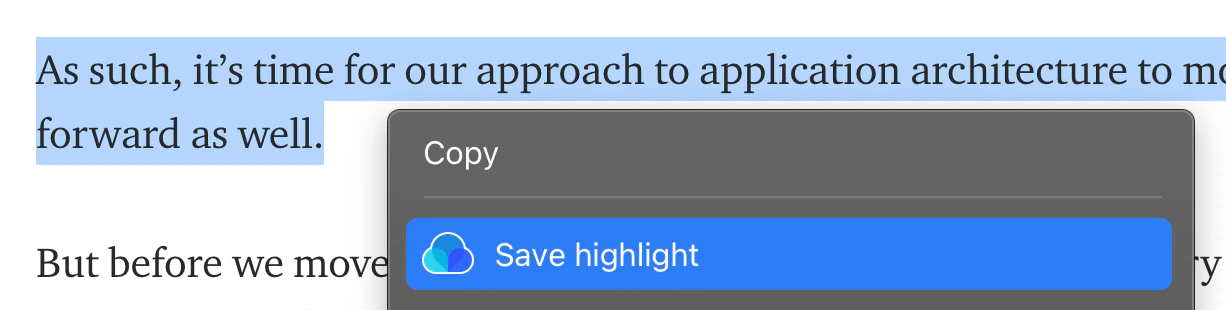 Choose **Save highlight** from the context menu, or use a keyboard shortcut:
| Browser | Shortcut |
| --------------------- | ----------------------------------- |
| Chrome, Safari | `Ctrl+Shift+S` (Mac: `Cmd+Shift+S`) |
| Edge, Firefox, others | `Alt+X` (Mac: `⌃X`) |
Accept the permission request (first time only). The extension needs **Access data on websites** to show your highlights when you revisit a page. [Why?](#why-does-the-browser-extension-need-extra-permissions)
In Safari on macOS, click **Always Allow on Every Website** when prompted — otherwise highlights won't appear on revisits.
Right-click a bookmark and select **Preview**.
Select text by clicking and dragging over the passage you want to save.
Choose **Save highlight** from the context menu, or use a keyboard shortcut:
| Browser | Shortcut |
| --------------------- | ----------------------------------- |
| Chrome, Safari | `Ctrl+Shift+S` (Mac: `Cmd+Shift+S`) |
| Edge, Firefox, others | `Alt+X` (Mac: `⌃X`) |
Accept the permission request (first time only). The extension needs **Access data on websites** to show your highlights when you revisit a page. [Why?](#why-does-the-browser-extension-need-extra-permissions)
In Safari on macOS, click **Always Allow on Every Website** when prompted — otherwise highlights won't appear on revisits.
Right-click a bookmark and select **Preview**.
Select text by clicking and dragging over the passage you want to save.
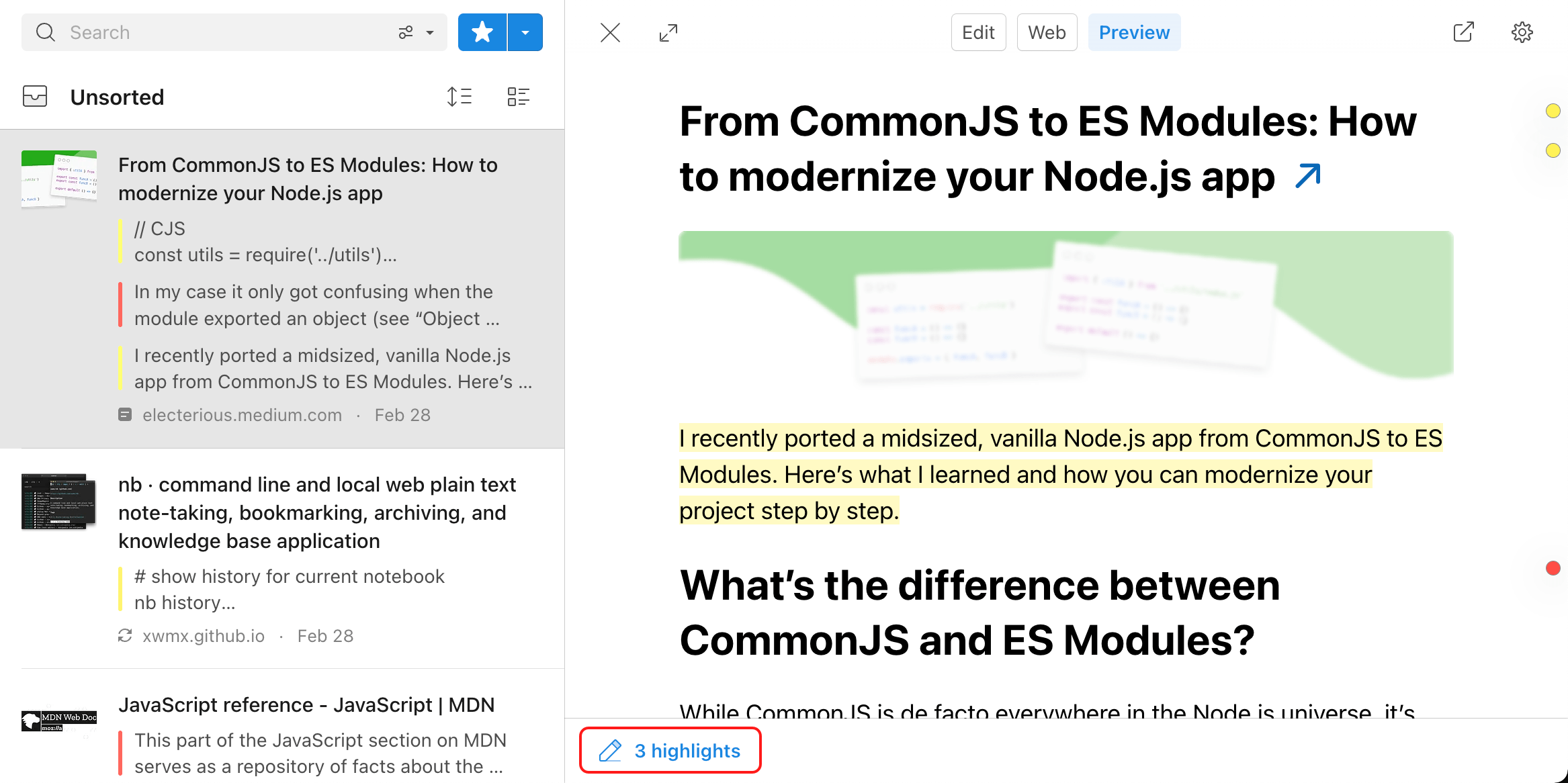 Pick a highlight color from the toolbar that appears, and optionally add an annotation.
To highlight inside the Raindrop.io app:
Tap on any bookmark to open its content.
Select the text you would like to highlight, then tap the color button.
Pick a highlight color from the toolbar that appears, and optionally add an annotation.
To highlight inside the Raindrop.io app:
Tap on any bookmark to open its content.
Select the text you would like to highlight, then tap the color button.
 To highlight directly in Safari:
Install the [Raindrop.io mobile app](/mobile-app) if you haven't already.
Enable the Safari extension: go to iOS **Settings** → **Safari** → **Extensions** → **Raindrop.io** and turn it on.
Select the text you would like to highlight, then tap the color button.
Tap on any bookmark to open its content.
Select the text you would like to highlight, then tap the color button.
To highlight directly in Safari:
Install the [Raindrop.io mobile app](/mobile-app) if you haven't already.
Enable the Safari extension: go to iOS **Settings** → **Safari** → **Extensions** → **Raindrop.io** and turn it on.
Select the text you would like to highlight, then tap the color button.
Tap on any bookmark to open its content.
Select the text you would like to highlight, then tap the color button.
 ## Revisiting highlights
Highlights sync across all your devices automatically. With the browser extension, they also appear right on the original page when you revisit it.
With the [browser extension](/install-extension) installed, saved highlights appear directly on the original page when you revisit it.
## Revisiting highlights
Highlights sync across all your devices automatically. With the browser extension, they also appear right on the original page when you revisit it.
With the [browser extension](/install-extension) installed, saved highlights appear directly on the original page when you revisit it.
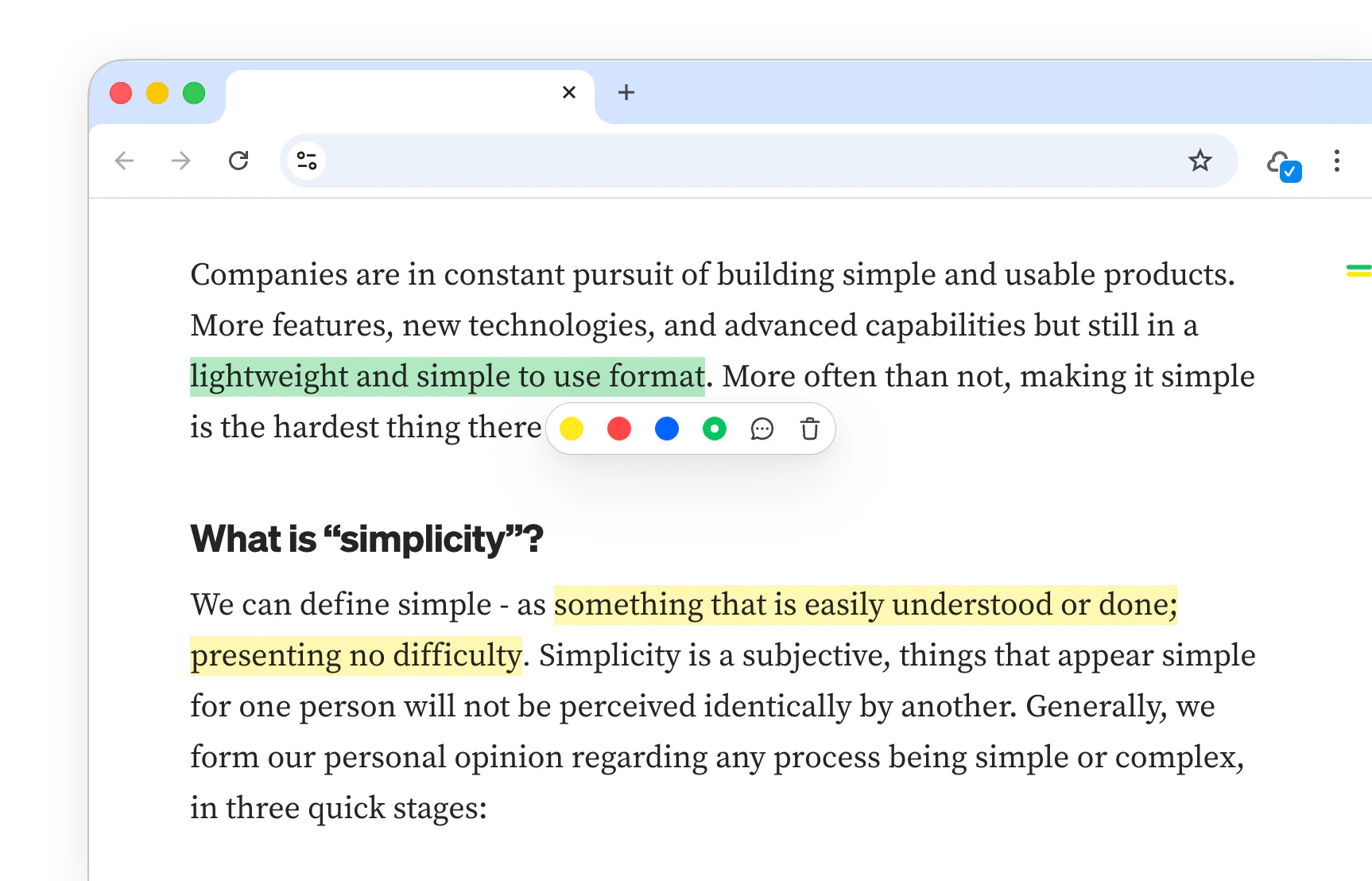 The extension needs permission to display highlights on pages.
To enable it, right-click the extension icon → **Settings** → **Permissions** and turn on **Highlights**.
In Safari on macOS, click **Always Allow on Every Website** when prompted. [Why is this needed?](#why-does-the-browser-extension-need-extra-permissions)
Right-click a bookmark to open the context menu and select **Preview**.
The extension needs permission to display highlights on pages.
To enable it, right-click the extension icon → **Settings** → **Permissions** and turn on **Highlights**.
In Safari on macOS, click **Always Allow on Every Website** when prompted. [Why is this needed?](#why-does-the-browser-extension-need-extra-permissions)
Right-click a bookmark to open the context menu and select **Preview**.
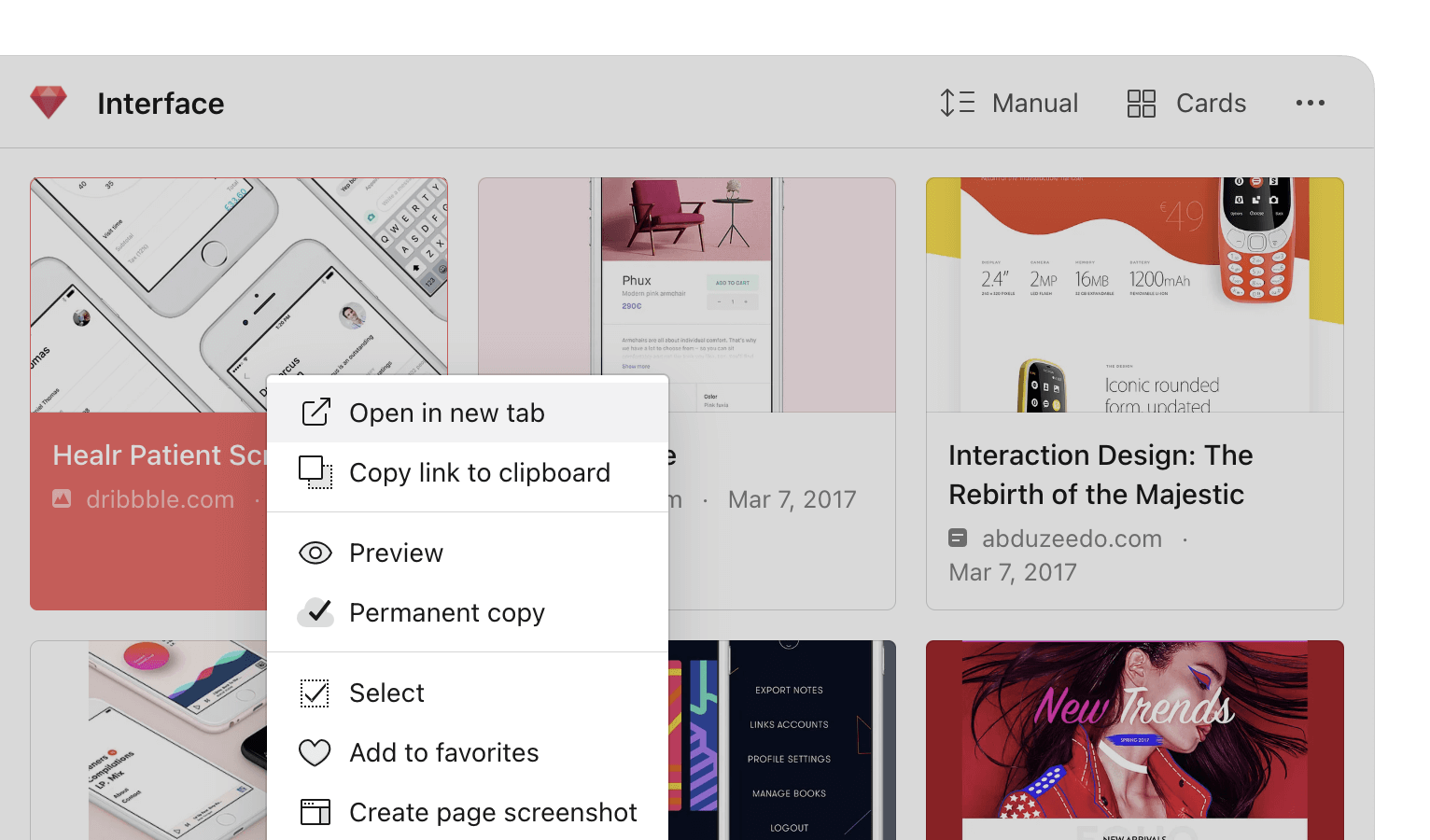 Click **Highlights** at the bottom of the page. Click any highlight in the list to jump to its position (works in the **Preview** tab).
Tap on any bookmark to open its content
Tap on any bookmark to open its content
## Annotating
Leave a note on any highlight — useful for capturing your thoughts in context.
Tap or click a highlight, then tap the note icon to write your note.
Annotations require a [Pro plan](/premium-features). Highlights themselves are free.
## Editing highlights
Tap or click any saved highlight to open an action toolbar (available on all platforms):
* **Change color** — switch between available highlight colors
* **Add note** — attach an annotation to the highlight
* **Delete** — remove the highlight from the page
## Finding highlighted bookmarks
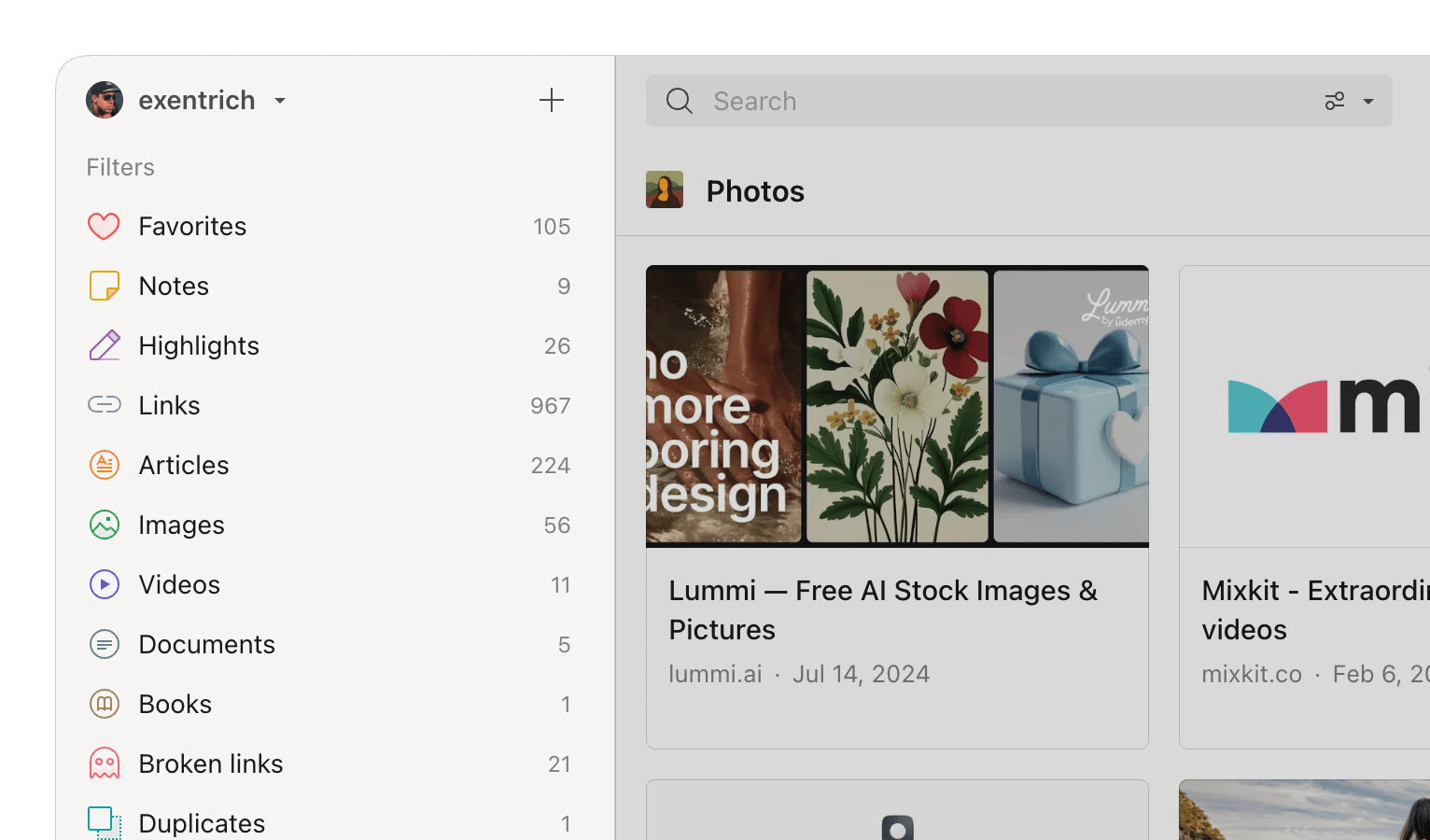
Click the **Highlights** filter in sidebar.
Click **Highlights** at the bottom of the page. Click any highlight in the list to jump to its position (works in the **Preview** tab).
Tap on any bookmark to open its content
Tap on any bookmark to open its content
## Annotating
Leave a note on any highlight — useful for capturing your thoughts in context.
Tap or click a highlight, then tap the note icon to write your note.
Annotations require a [Pro plan](/premium-features). Highlights themselves are free.
## Editing highlights
Tap or click any saved highlight to open an action toolbar (available on all platforms):
* **Change color** — switch between available highlight colors
* **Add note** — attach an annotation to the highlight
* **Delete** — remove the highlight from the page
## Finding highlighted bookmarks
Click the **Highlights** filter in sidebar.
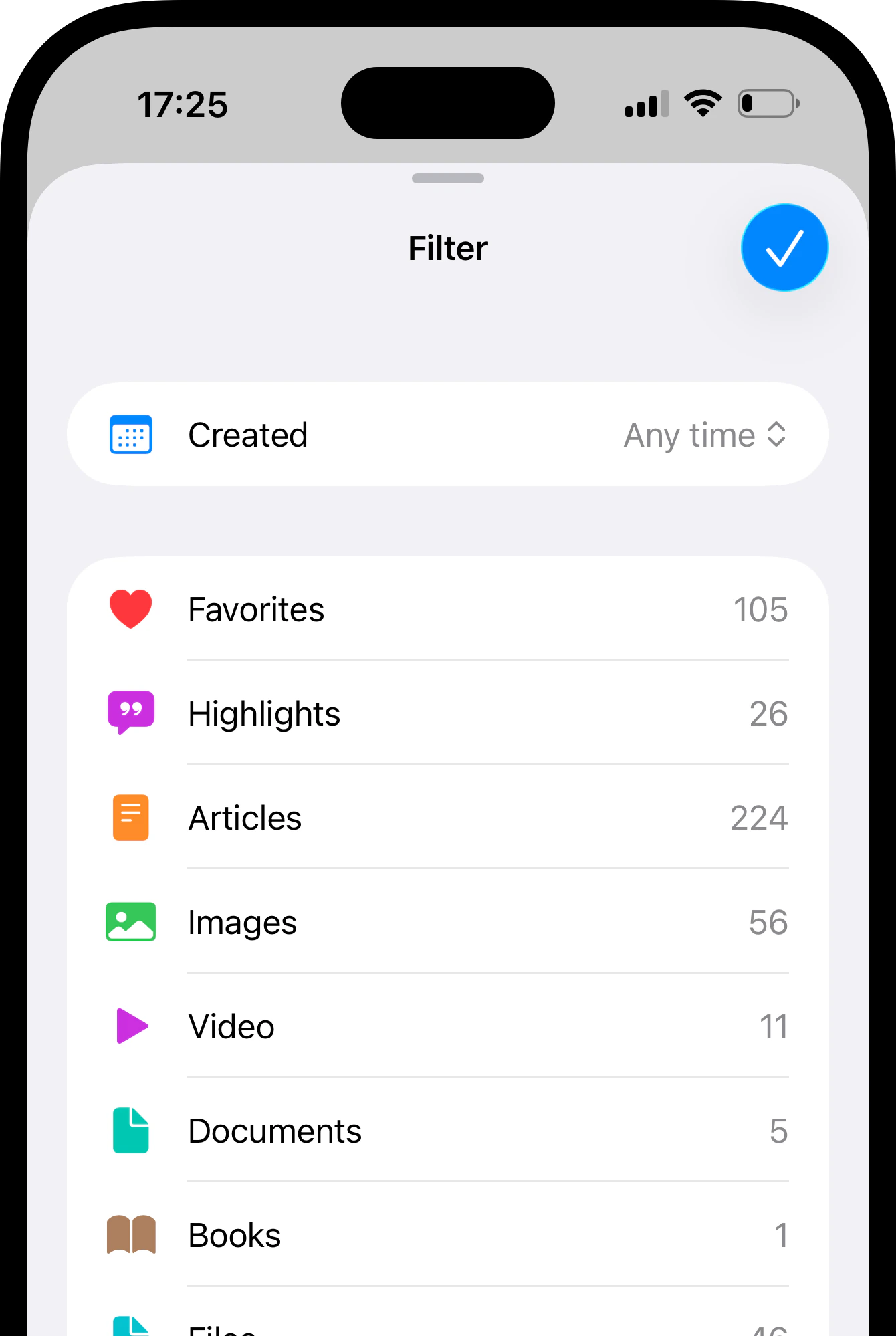
 Tap in top right corner and then **Filter**.
Select the **Highlights** filter from the list.
Tap in top right corner and then **Filter**.
Select the **Highlights** filter from the list.
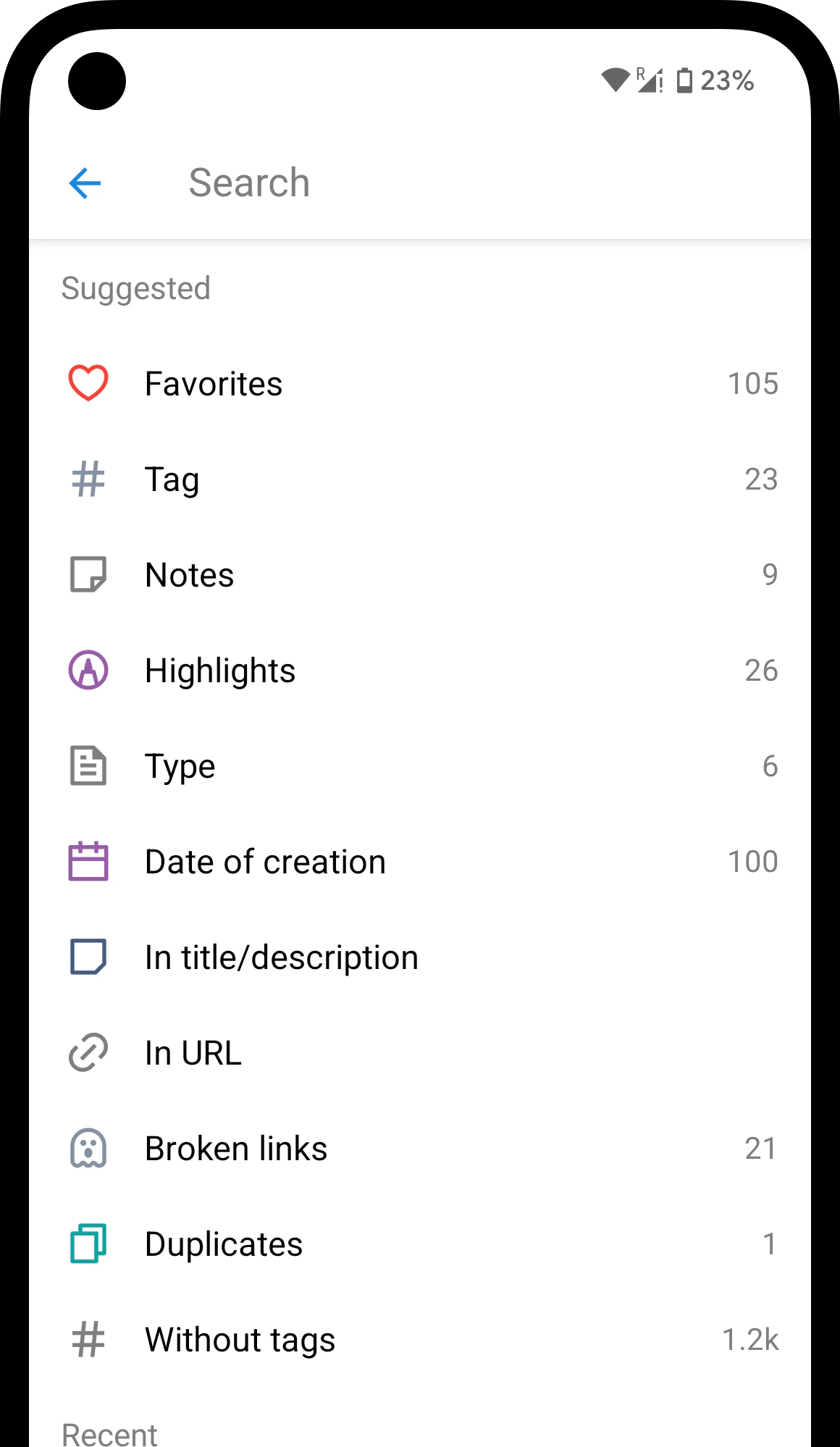
 Tap on the search field.
Select the **Highlights** filter from the suggestions.
Tap on the search field.
Select the **Highlights** filter from the suggestions.
 ## Related
Highlight text in uploaded PDFs and EPUBs
Find specific highlights across your entire library
Download your highlights as a file
Export highlights to Readwise, Notion, and other apps
## FAQ
Yes. Save a PDF as a bookmark or [upload it as a file](/files), then open it inside Raindrop.io to highlight. EPUBs work the same way — upload to any collection and open. The browser's built-in PDF viewer doesn't support Raindrop.io highlights.
To display your saved highlights when you revisit a page, the extension needs **Access data on websites**. It checks the page URL and loads matching highlights — no tracking or third-party data sharing involved. Many extensions request this permission by default; Raindrop.io asks explicitly.
Yes. Highlights are part of your [backup](/export) data alongside collections, bookmarks, and tags.
Yes. Highlights are stored on Raindrop.io servers and appear everywhere you're signed in.
## Related
Highlight text in uploaded PDFs and EPUBs
Find specific highlights across your entire library
Download your highlights as a file
Export highlights to Readwise, Notion, and other apps
## FAQ
Yes. Save a PDF as a bookmark or [upload it as a file](/files), then open it inside Raindrop.io to highlight. EPUBs work the same way — upload to any collection and open. The browser's built-in PDF viewer doesn't support Raindrop.io highlights.
To display your saved highlights when you revisit a page, the extension needs **Access data on websites**. It checks the page URL and loads matching highlights — no tracking or third-party data sharing involved. Many extensions request this permission by default; Raindrop.io asks explicitly.
Yes. Highlights are part of your [backup](/export) data alongside collections, bookmarks, and tags.
Yes. Highlights are stored on Raindrop.io servers and appear everywhere you're signed in.