> ## Documentation Index
> Fetch the complete documentation index at: https://help.raindrop.io/llms.txt
> Use this file to discover all available pages before exploring further.
# Import
> Bring your existing bookmarks from browsers and other apps
Switching to Raindrop.io doesn't mean starting over. Your bookmarks, folders, tags, notes, highlights, and annotations can all come with you.
## Getting export file
First, download an export file from where you currently keep your bookmarks.
### From a browser
Every browser lets you export bookmarks from settings — look for `Export bookmarks` or `Bookmark manager`.
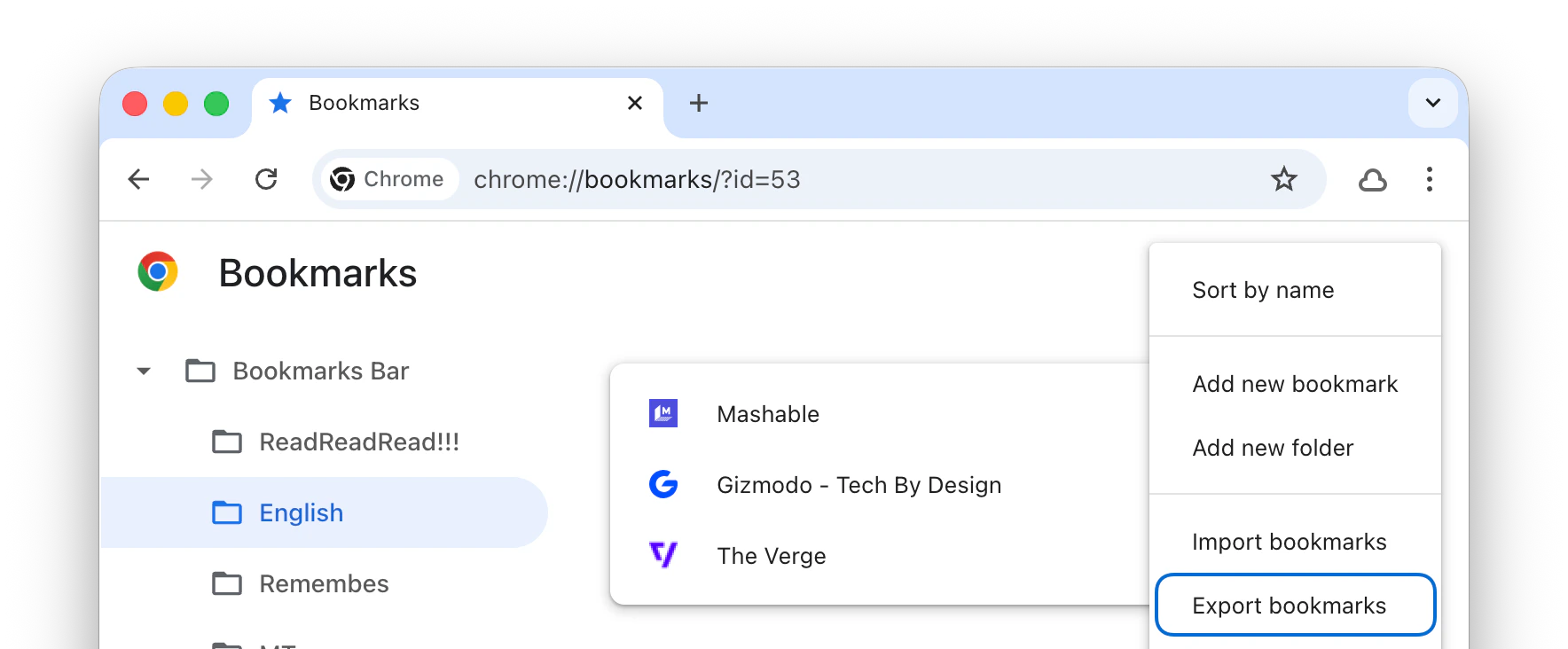 Here are guides for
[Chrome](https://www.wikihow.com/Export-Bookmarks-from-Chrome),
[Safari](https://www.ionos.com/digitalguide/websites/web-development/export-safari-bookmarks/),
[Firefox](https://support.mozilla.org/en-US/kb/export-firefox-bookmarks-to-backup-or-transfer),
and [Edge](https://www.ionos.com/digitalguide/websites/web-development/export-edge-bookmarks/).
### From another app
Works with most bookmark managers, read-later apps, PKM, and even some note-taking apps. In most cases you just need to find the export option in your current app's settings and upload the file to Raindrop.io.
* **Raindrop.io** — your own [backup](/export)
* **Readwise Reader** — [export](https://read.readwise.io/profile) as CSV
* **Instapaper** — [export](https://www.instapaper.com/user) as CSV
* **Evernote** — [export your notes](https://help.evernote.com/hc/en-us/articles/209005557-Export-notes-and-notebooks) in ENEX format. Select only **Created Date**, **Tags**, and **Source URL** — other fields are ignored. Only web clips (created via Web Clipper) are imported, not regular notes
* **Notion** — [export your entire workspace](https://www.notion.com/help/export-your-content#export-your-entire-workspace), unzip the archive, and find the `My Links.csv` file inside
* **Diigo** — [export](https://www.diigo.com/tools/export) as CSV for the most complete transfer, including tags and annotations
* **Pinboard** — [export](https://pinboard.in/settings/backup) as JSON for the most complete transfer
* **Pinterest** — doesn't offer a built-in export. Use [Pinback](https://pinbackit.github.io/), a free third-party tool that downloads your pins as an importable file
* **Pocket** — export as HTML file
* **GoodLinks** — click File / Export data in menu
* **Anybox** - export as JSON for the most complete transfer
* **Mymind** — [export](https://access.mymind.com/account) and get CSV file
* **Toby** — [export](https://help.gettoby.com/support/solutions/articles/66000508502-how-to-export-your-collections) as JSON file
* **Omnivore** — export as JSON file
* **Listy** — [export](https://listy.is/help/how-to-export-lists/) as JSON or LISTY file
* **Edge Collections** — open the collection, click **… → Copy All**, paste into a `.txt` file
Raindrop.io supports HTML, CSV, JSON, TXT, and ENEX file formats — so if your app can export in any of these, it will work.
If you're having trouble or your app uses a different format, [contact us](mailto:info@raindrop.io) — we'll help you move.
## Importing
Once you have your export file, open the [Import page](https://app.raindrop.io/settings/import) and upload it. Raindrop.io will show how many bookmarks, folders, tags, and highlights were found. Review the summary and click **Start import**.
Keep the browser tab open until the upload finishes
Here are guides for
[Chrome](https://www.wikihow.com/Export-Bookmarks-from-Chrome),
[Safari](https://www.ionos.com/digitalguide/websites/web-development/export-safari-bookmarks/),
[Firefox](https://support.mozilla.org/en-US/kb/export-firefox-bookmarks-to-backup-or-transfer),
and [Edge](https://www.ionos.com/digitalguide/websites/web-development/export-edge-bookmarks/).
### From another app
Works with most bookmark managers, read-later apps, PKM, and even some note-taking apps. In most cases you just need to find the export option in your current app's settings and upload the file to Raindrop.io.
* **Raindrop.io** — your own [backup](/export)
* **Readwise Reader** — [export](https://read.readwise.io/profile) as CSV
* **Instapaper** — [export](https://www.instapaper.com/user) as CSV
* **Evernote** — [export your notes](https://help.evernote.com/hc/en-us/articles/209005557-Export-notes-and-notebooks) in ENEX format. Select only **Created Date**, **Tags**, and **Source URL** — other fields are ignored. Only web clips (created via Web Clipper) are imported, not regular notes
* **Notion** — [export your entire workspace](https://www.notion.com/help/export-your-content#export-your-entire-workspace), unzip the archive, and find the `My Links.csv` file inside
* **Diigo** — [export](https://www.diigo.com/tools/export) as CSV for the most complete transfer, including tags and annotations
* **Pinboard** — [export](https://pinboard.in/settings/backup) as JSON for the most complete transfer
* **Pinterest** — doesn't offer a built-in export. Use [Pinback](https://pinbackit.github.io/), a free third-party tool that downloads your pins as an importable file
* **Pocket** — export as HTML file
* **GoodLinks** — click File / Export data in menu
* **Anybox** - export as JSON for the most complete transfer
* **Mymind** — [export](https://access.mymind.com/account) and get CSV file
* **Toby** — [export](https://help.gettoby.com/support/solutions/articles/66000508502-how-to-export-your-collections) as JSON file
* **Omnivore** — export as JSON file
* **Listy** — [export](https://listy.is/help/how-to-export-lists/) as JSON or LISTY file
* **Edge Collections** — open the collection, click **… → Copy All**, paste into a `.txt` file
Raindrop.io supports HTML, CSV, JSON, TXT, and ENEX file formats — so if your app can export in any of these, it will work.
If you're having trouble or your app uses a different format, [contact us](mailto:info@raindrop.io) — we'll help you move.
## Importing
Once you have your export file, open the [Import page](https://app.raindrop.io/settings/import) and upload it. Raindrop.io will show how many bookmarks, folders, tags, and highlights were found. Review the summary and click **Start import**.
Keep the browser tab open until the upload finishes
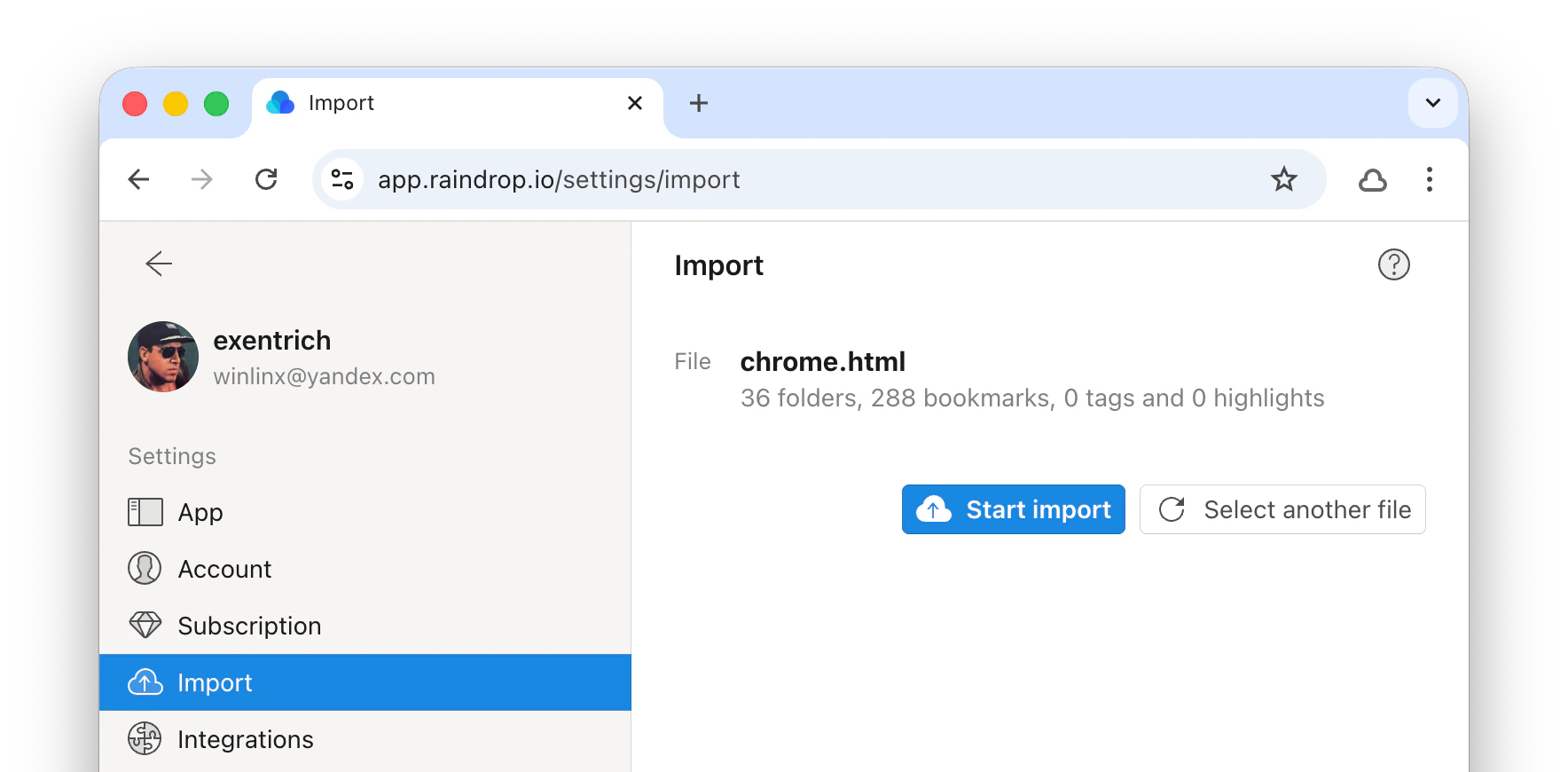 Your bookmarks appear in collections that match the original folder structure. Thumbnails, search filters, and [web archive](/web-archive) copies are processed in the background — you'll get an email when everything is ready.
## Next steps
Save bookmarks, highlights, and tabs as you browse
Set up automatic sync with dozens of apps and services
## FAQ
Duplicates are skipped automatically. If the export file contains duplicate URLs, only the first one is imported. If a bookmark already exists in your Raindrop.io account, it's skipped too — the summary before import shows how many duplicates were found.
Existing bookmarks are never overwritten. If you need to update a bookmark, delete it from Raindrop.io first, then re-import.
Imported bookmarks are placed into collections matching the folder structure from the export file. Bookmarks without a folder go to Unsorted.
Compress it into a ZIP archive and upload that instead. Maximum file size is 300 MB.
HTML, CSV, TXT, JSON, and ENEX (Evernote). Most apps export in one of these formats.
Yes. Raindrop.io accepts TXT and CSV.
**TXT** — one URL per line.
**CSV** — comma-delimited with these columns:
* `url` (required), `folder`, `title`, `note`, `tags`, `created` (optional)
* Use `/` for nested folders — e.g. `a/b/c`
* Multiple tags go in quotes — e.g. `"tag1, tag2"`
* `created` accepts a Unix timestamp or ISO 8601 date
```csv theme={null}
folder,url,title,note,tags,created
"Folder",http://google.com,Google,"Note","search, app",1629980125
"Folder/Nested folder",http://yahoo.com,Yahoo,"Note","search, app",1629980125
```
[Validate your CSV](https://csvlint.io/) before uploading.
Your bookmarks appear in collections that match the original folder structure. Thumbnails, search filters, and [web archive](/web-archive) copies are processed in the background — you'll get an email when everything is ready.
## Next steps
Save bookmarks, highlights, and tabs as you browse
Set up automatic sync with dozens of apps and services
## FAQ
Duplicates are skipped automatically. If the export file contains duplicate URLs, only the first one is imported. If a bookmark already exists in your Raindrop.io account, it's skipped too — the summary before import shows how many duplicates were found.
Existing bookmarks are never overwritten. If you need to update a bookmark, delete it from Raindrop.io first, then re-import.
Imported bookmarks are placed into collections matching the folder structure from the export file. Bookmarks without a folder go to Unsorted.
Compress it into a ZIP archive and upload that instead. Maximum file size is 300 MB.
HTML, CSV, TXT, JSON, and ENEX (Evernote). Most apps export in one of these formats.
Yes. Raindrop.io accepts TXT and CSV.
**TXT** — one URL per line.
**CSV** — comma-delimited with these columns:
* `url` (required), `folder`, `title`, `note`, `tags`, `created` (optional)
* Use `/` for nested folders — e.g. `a/b/c`
* Multiple tags go in quotes — e.g. `"tag1, tag2"`
* `created` accepts a Unix timestamp or ISO 8601 date
```csv theme={null}
folder,url,title,note,tags,created
"Folder",http://google.com,Google,"Note","search, app",1629980125
"Folder/Nested folder",http://yahoo.com,Yahoo,"Note","search, app",1629980125
```
[Validate your CSV](https://csvlint.io/) before uploading.