> ## Documentation Index
> Fetch the complete documentation index at: https://help.raindrop.io/llms.txt
> Use this file to discover all available pages before exploring further.
# Browser extension
> The quickest way to save bookmarks, highlights, and tabs
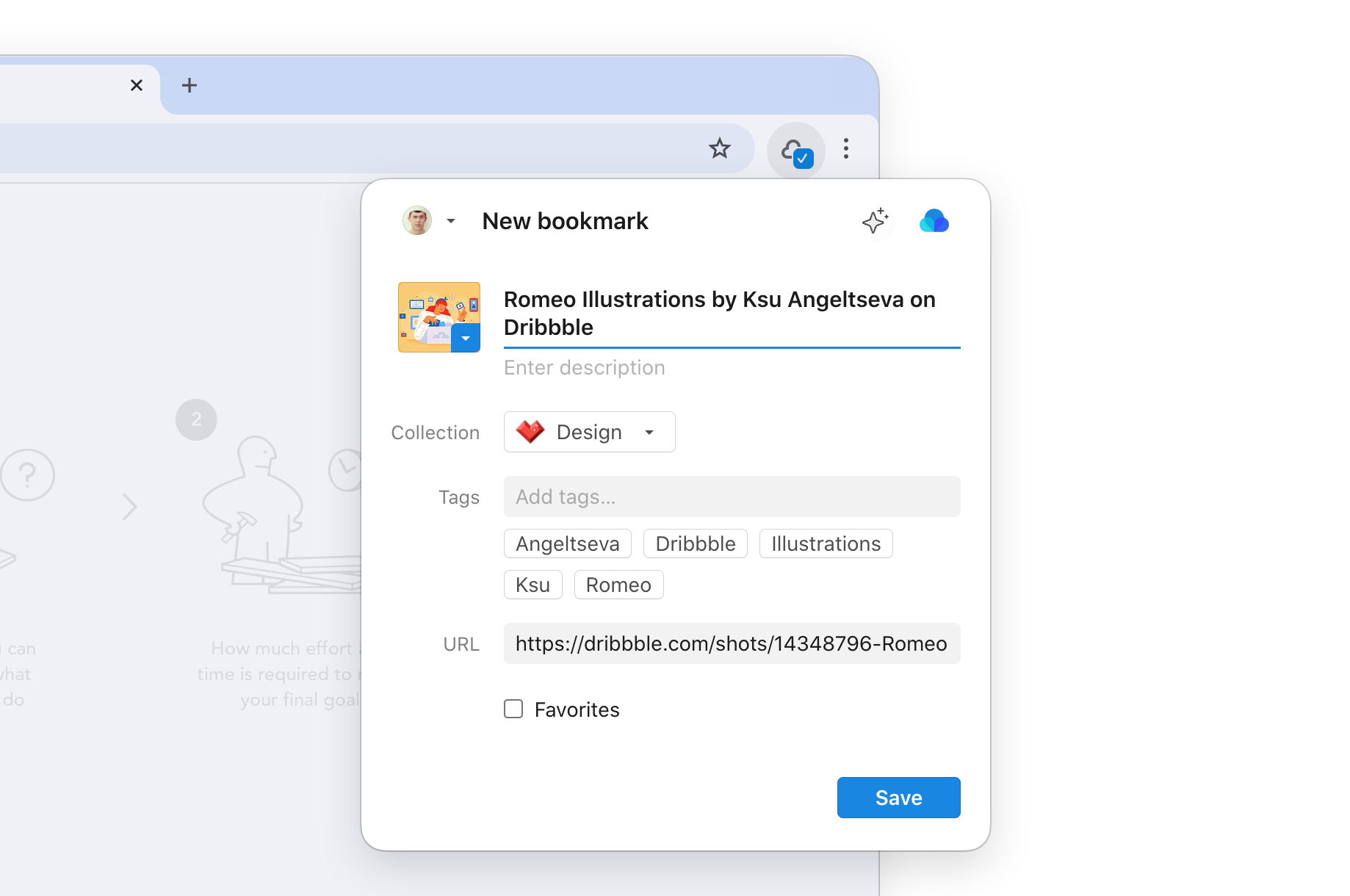 Save anything to Raindrop.io as you browse the web — just click the extension icon or use a keyboard shortcut.
## Installing
Using Arc, Vivaldi, Opera, or Brave? Install the [Chrome extension](https://raindrop.io/r/extension/chrome) — it works in these browsers too.
For iOS and Android, check out the [mobile app](/mobile-app).
## Pinning toolbar icon
After installing, pin the Raindrop.io icon to your browser toolbar so it's always one click away.
Save anything to Raindrop.io as you browse the web — just click the extension icon or use a keyboard shortcut.
## Installing
Using Arc, Vivaldi, Opera, or Brave? Install the [Chrome extension](https://raindrop.io/r/extension/chrome) — it works in these browsers too.
For iOS and Android, check out the [mobile app](/mobile-app).
## Pinning toolbar icon
After installing, pin the Raindrop.io icon to your browser toolbar so it's always one click away.
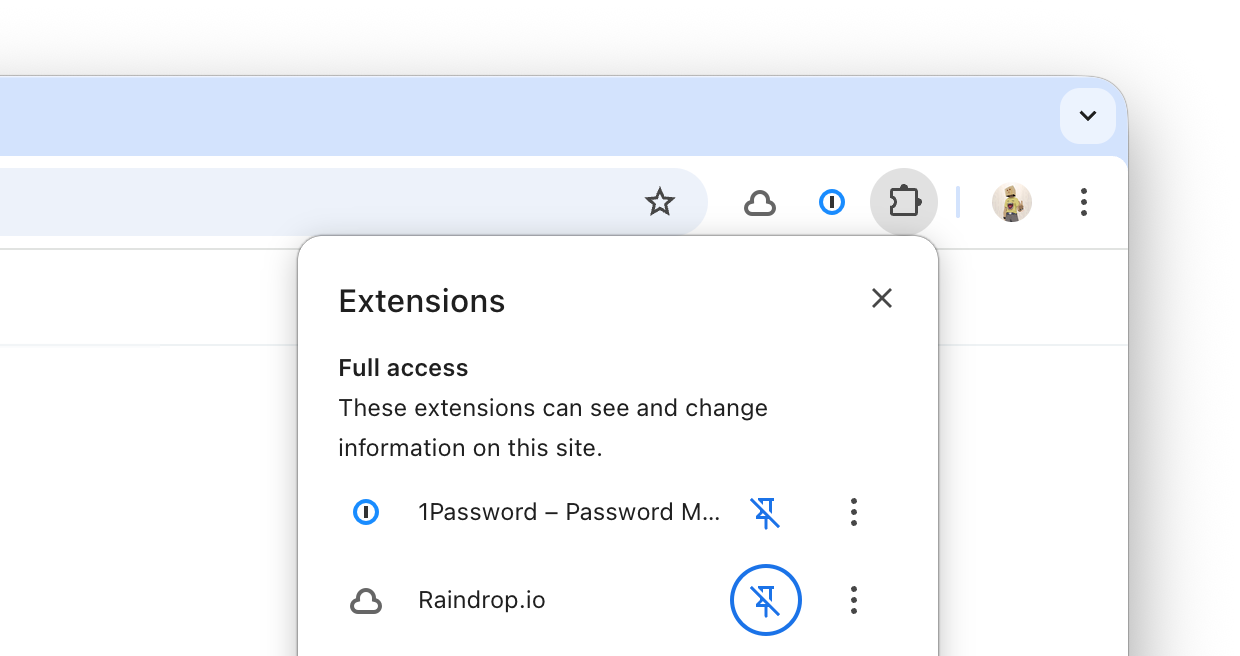 Click the puzzle piece (extensions) icon in the toolbar
Find **Raindrop.io** in the list and click the pin button
## Enabling saved page indicator
Enable the saved page indicator to see a small badge on the extension icon whenever you visit a page that's already in your bookmarks.
Click the puzzle piece (extensions) icon in the toolbar
Find **Raindrop.io** in the list and click the pin button
## Enabling saved page indicator
Enable the saved page indicator to see a small badge on the extension icon whenever you visit a page that's already in your bookmarks.
 Right-click the Raindrop.io extension icon and select **Settings**
Turn on **Saved page indicator** in the **Permissions** section
## Next steps
You're all set! Now explore what you can do with the extension:
Save the current page or any link
Select and save text on any page
Save all open browser tabs at once
Ask questions about the web page
## Advanced features
Once you're comfortable with the basics, try these features to get more out of the extension:
Keep the full Raindrop.io app open as a persistent sidebar alongside your current page — browse collections, search, and drag links or images directly into it.
Right-click the Raindrop.io extension icon and select **Settings**
Turn on **Saved page indicator** in the **Permissions** section
## Next steps
You're all set! Now explore what you can do with the extension:
Save the current page or any link
Select and save text on any page
Save all open browser tabs at once
Ask questions about the web page
## Advanced features
Once you're comfortable with the basics, try these features to get more out of the extension:
Keep the full Raindrop.io app open as a persistent sidebar alongside your current page — browse collections, search, and drag links or images directly into it.
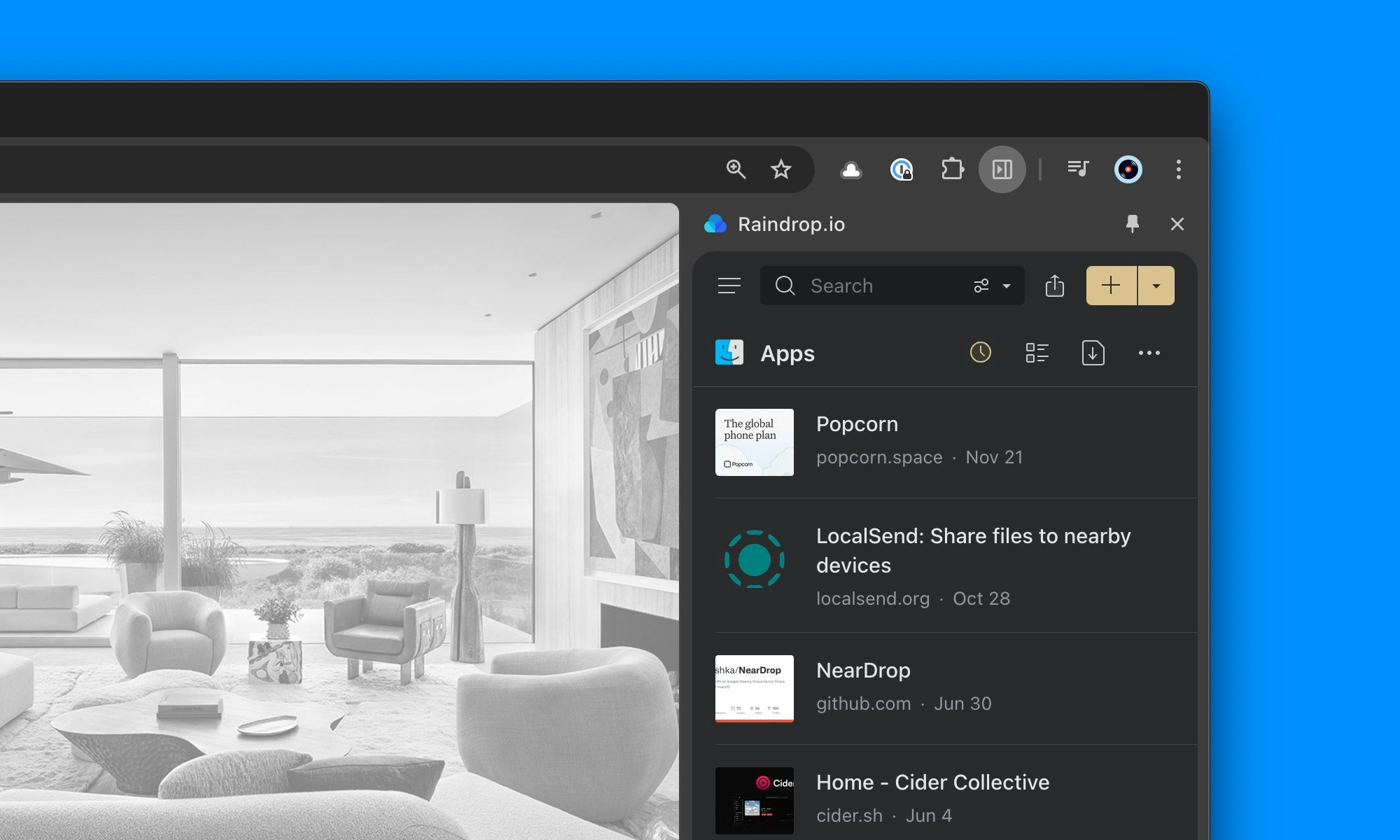 Press `Ctrl+.` (Windows/Linux) or `Cmd+.` (Mac). Or right-click the Raindrop.io toolbar icon and select **Open Sidebar**.
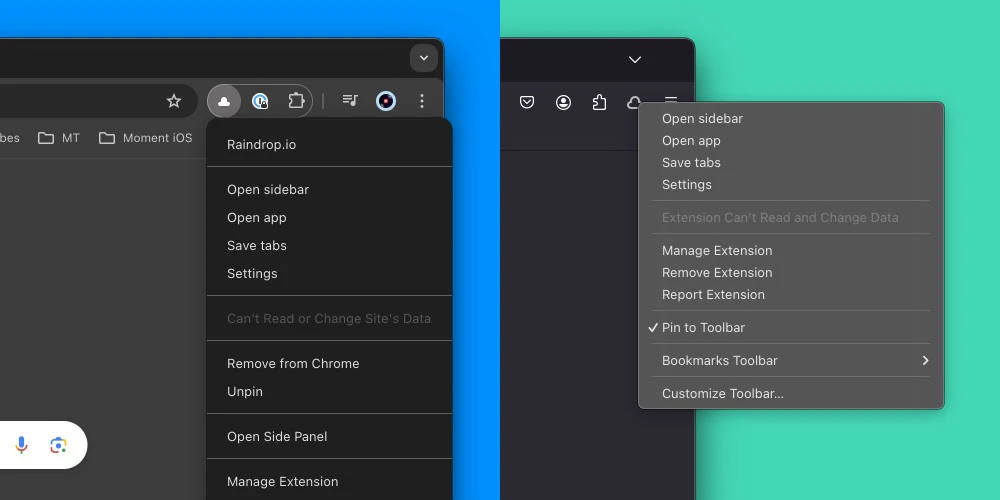 Press `Ctrl+.` (Windows/Linux) or `Cmd+.` (Mac). Or go to **View → Sidebar → Raindrop.io**.
You can also [pin the sidebar button in the toolbar](https://support.mozilla.org/kb/use-firefox-sidebar-access-bookmarks-history-synced) for quicker access.
Sidebar is not supported in Safari and other browsers.
Type `rd` in the address bar, press `Tab`, and search your bookmarks without opening Raindrop.io. See [Search](/using-search) for details.
Press `Ctrl+.` (Windows/Linux) or `Cmd+.` (Mac). Or go to **View → Sidebar → Raindrop.io**.
You can also [pin the sidebar button in the toolbar](https://support.mozilla.org/kb/use-firefox-sidebar-access-bookmarks-history-synced) for quicker access.
Sidebar is not supported in Safari and other browsers.
Type `rd` in the address bar, press `Tab`, and search your bookmarks without opening Raindrop.io. See [Search](/using-search) for details.
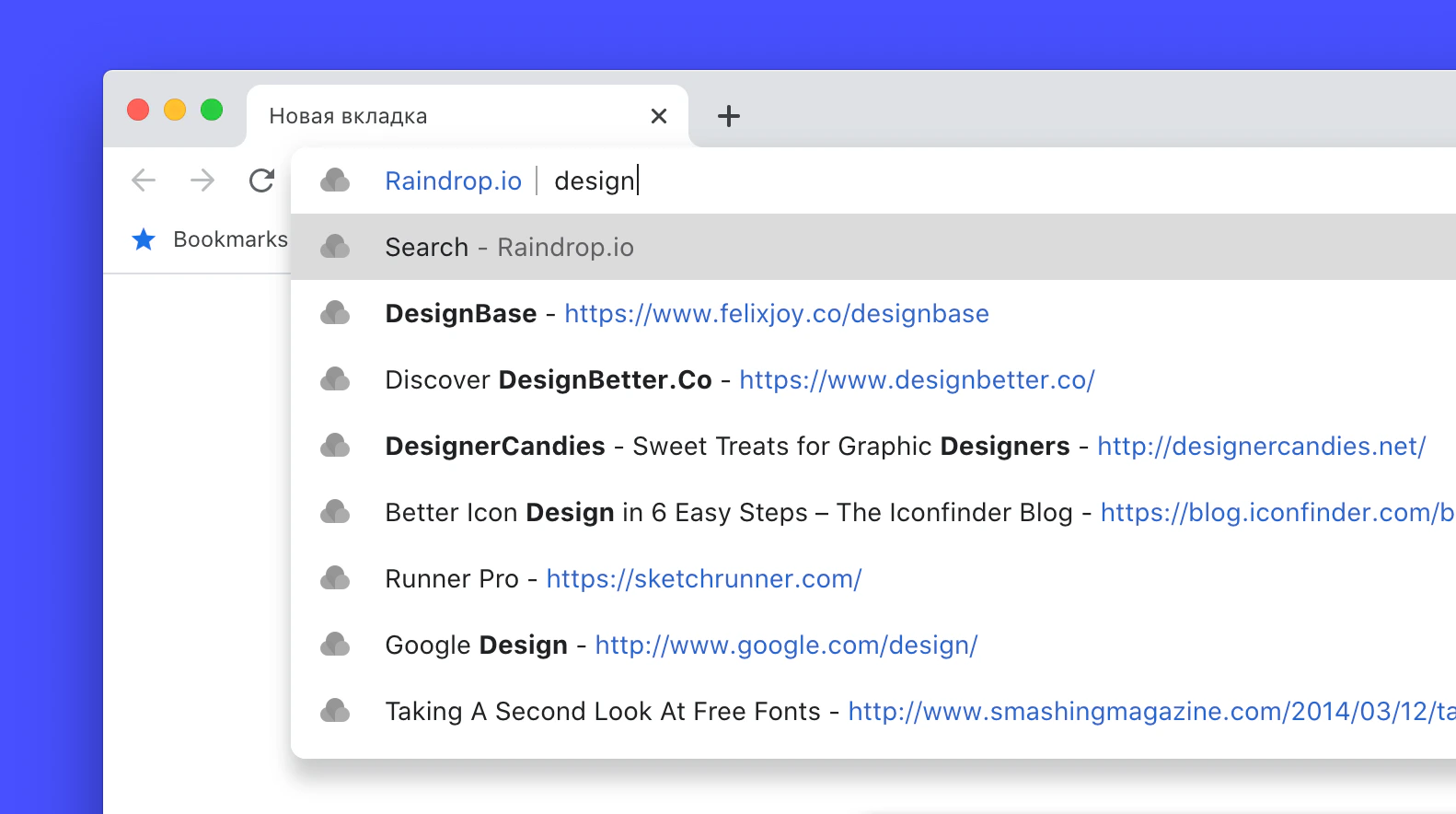 Not available in Safari and Vivaldi. In Chrome, make sure **Settings → Search engine → Keyboard shortcut** is set to **Space or tab**.
## FAQ
Yes. Right-click the extension icon → **Settings → Appearance → Clipper**, then enable **Save automatically**. New bookmarks are saved to **Unsorted** (or the last used collection) with a single click.
Yes — you can add bookmarks directly in the [Raindrop.io app](/bookmarks) by pasting a URL or using the built-in browser share menu.
Alternatively, you can use a bookmarklet — it opens a small save dialog for the current page, no permissions required, works in any browser.
Create a new bookmark in your browser and name it **Save to Raindrop.io**
Paste the following code as the bookmark URL:
```
javascript:(function(){var rspW=450,rspH=600,rspL=parseInt((screen.width/2)-(rspW/2)),rspT=parseInt((screen.height/2)-(rspH/2));window.open("https://app.raindrop.io/add?link="+encodeURIComponent(window.location.href)+"&title="+encodeURIComponent(document.title),"raindrop-save","width="+rspW+",height="+rspH+",resizable=yes,scrollbars=yes,status=false,location=false,toolbar=false,left="+rspL+",top="+rspT)})()
```
Click the bookmark on any page to save it to Raindrop.io
Only in Safari on iOS and iPadOS. To enable it, install the [Raindrop.io mobile app](/mobile-app) first — the Safari extension is included.
Other mobile browsers (Chrome, Firefox, etc.) don't support extensions. Use the Raindrop.io app with the browser share menu instead.
By default, only minimal permissions — the extension can access the current tab only when you click it. No data is collected or sent in the background.
Additional permissions are requested only if you enable features like the [saved page indicator](#enabling-saved-page-indicator) or [highlights](/highlights), which need the **Access data on websites** permission to check URLs against your bookmarks and display highlights on revisited pages.
Having issues with the extension? Check the [Troubleshooting](/troubleshooting) guide.
Not available in Safari and Vivaldi. In Chrome, make sure **Settings → Search engine → Keyboard shortcut** is set to **Space or tab**.
## FAQ
Yes. Right-click the extension icon → **Settings → Appearance → Clipper**, then enable **Save automatically**. New bookmarks are saved to **Unsorted** (or the last used collection) with a single click.
Yes — you can add bookmarks directly in the [Raindrop.io app](/bookmarks) by pasting a URL or using the built-in browser share menu.
Alternatively, you can use a bookmarklet — it opens a small save dialog for the current page, no permissions required, works in any browser.
Create a new bookmark in your browser and name it **Save to Raindrop.io**
Paste the following code as the bookmark URL:
```
javascript:(function(){var rspW=450,rspH=600,rspL=parseInt((screen.width/2)-(rspW/2)),rspT=parseInt((screen.height/2)-(rspH/2));window.open("https://app.raindrop.io/add?link="+encodeURIComponent(window.location.href)+"&title="+encodeURIComponent(document.title),"raindrop-save","width="+rspW+",height="+rspH+",resizable=yes,scrollbars=yes,status=false,location=false,toolbar=false,left="+rspL+",top="+rspT)})()
```
Click the bookmark on any page to save it to Raindrop.io
Only in Safari on iOS and iPadOS. To enable it, install the [Raindrop.io mobile app](/mobile-app) first — the Safari extension is included.
Other mobile browsers (Chrome, Firefox, etc.) don't support extensions. Use the Raindrop.io app with the browser share menu instead.
By default, only minimal permissions — the extension can access the current tab only when you click it. No data is collected or sent in the background.
Additional permissions are requested only if you enable features like the [saved page indicator](#enabling-saved-page-indicator) or [highlights](/highlights), which need the **Access data on websites** permission to check URLs against your bookmarks and display highlights on revisited pages.
Having issues with the extension? Check the [Troubleshooting](/troubleshooting) guide.