> ## Documentation Index
> Fetch the complete documentation index at: https://help.raindrop.io/llms.txt
> Use this file to discover all available pages before exploring further.
# Mobile app
> Access and save your bookmarks on iOS and Android
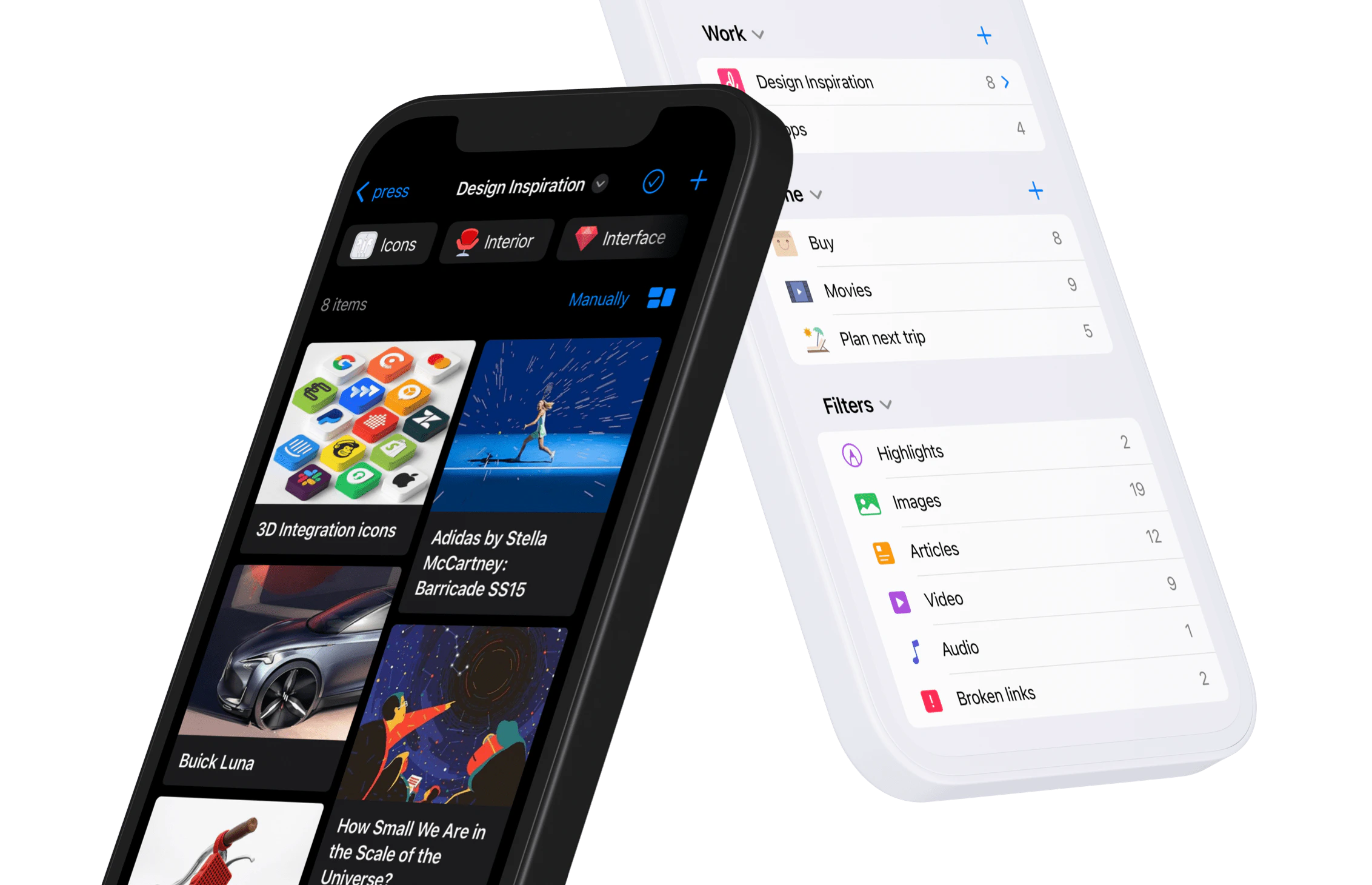 Save links on the go, manage your library from your phone, and keep everything in sync across devices.
## Installing app
Download the app and log in with your Raindrop.io account.
Requires iOS / iPadOS 17 or higher
Requires Android 7.0 or higher
## Enabling share button
Once enabled, you can save any link or file to Raindrop.io straight from the share menu of any app.
Enable **Share extension** to save links from any app.
Optionally enable **Safari extension** for [highlighting](/highlights) in the Safari, and **"Add to Unsorted"** for one-tap saving.
Save links on the go, manage your library from your phone, and keep everything in sync across devices.
## Installing app
Download the app and log in with your Raindrop.io account.
Requires iOS / iPadOS 17 or higher
Requires Android 7.0 or higher
## Enabling share button
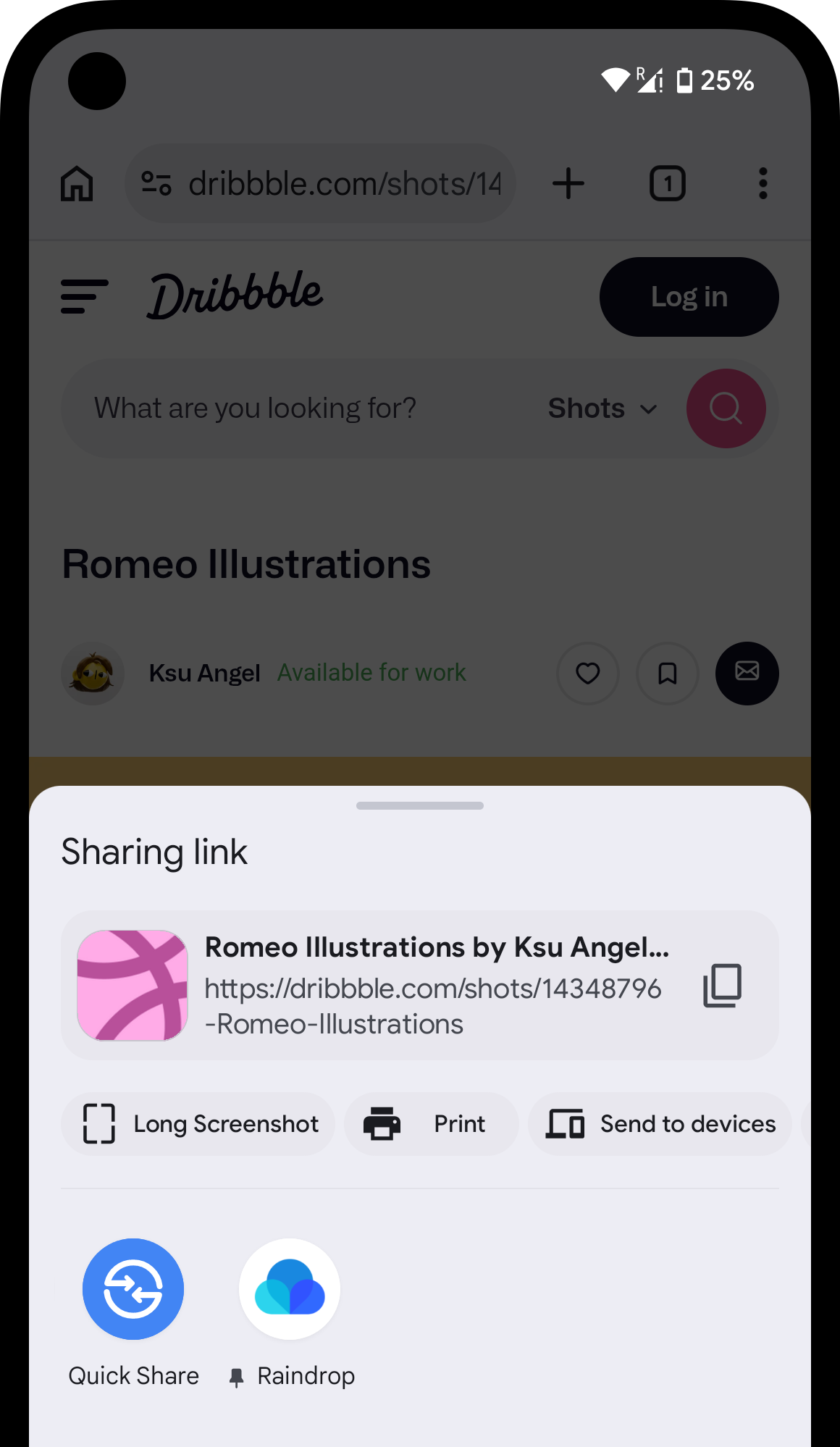
Once enabled, you can save any link or file to Raindrop.io straight from the share menu of any app.
Enable **Share extension** to save links from any app.
Optionally enable **Safari extension** for [highlighting](/highlights) in the Safari, and **"Add to Unsorted"** for one-tap saving.
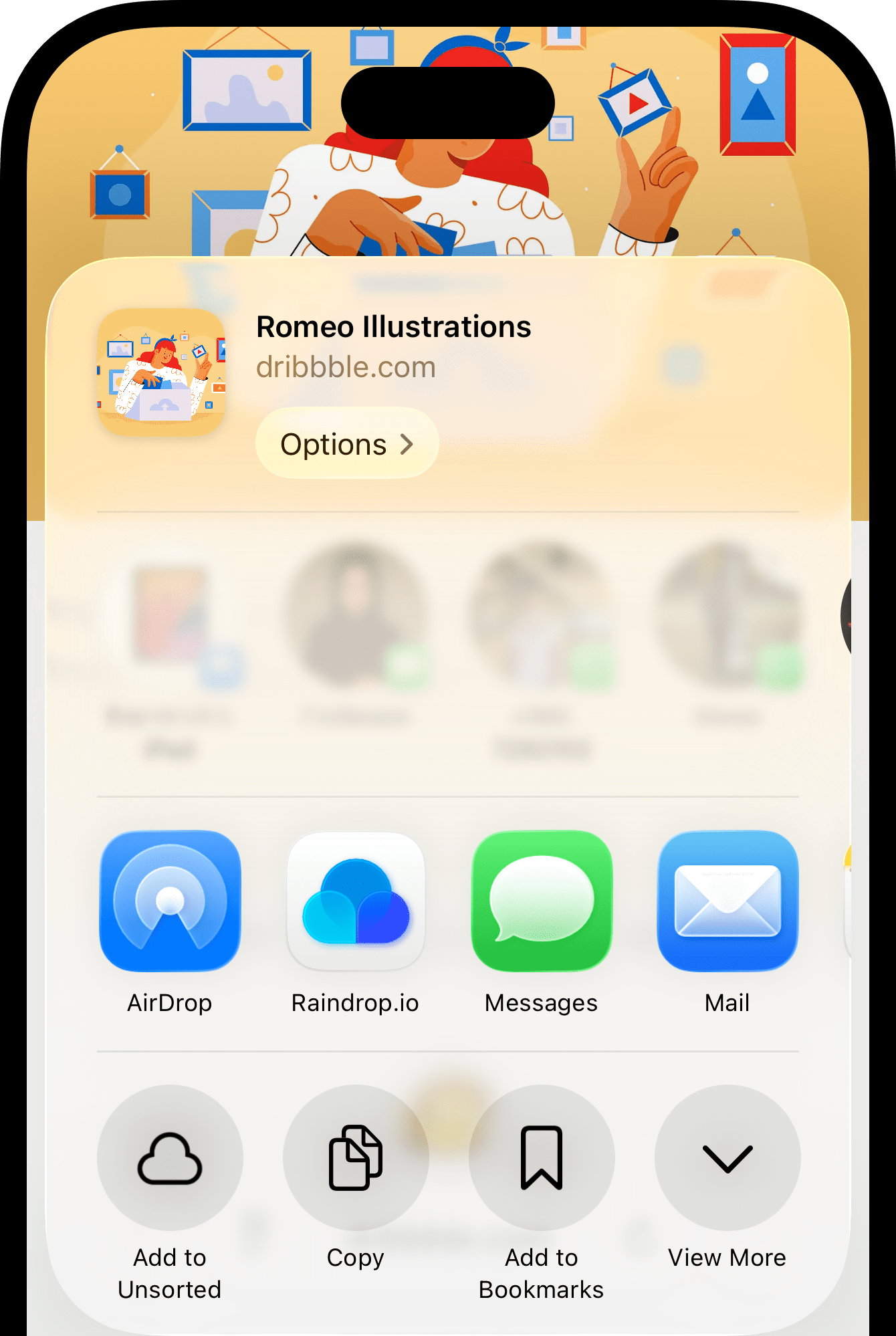 Tap the **Share** button in Safari or any other app
Swipe the top row (with the colored icons) and tap **More**
Enable **Raindrop.io**
(Optional) Move Raindrop.io to the top of the list, then tap **Done**
Open **Safari** on your iPhone or iPad
Tap the **Extensions** button in the toolbar (puzzle icon next to "AA")
Tap **Manage Extensions** and turn on **Raindrop.io**
Tap the **Share** button in Safari or any other app
Swipe the list down and tap **Edit Actions...**
Find **Add to Unsorted**, tap **+** to enable it
(Optional) Move it to the top of the list, then tap **Done**
No extra setup needed
After installing the app, **Raindrop.io** will appear in the share sheet of any app. If you don't see it right away, scroll through the list — after the first use it moves closer to the top automatically.
Tap the **Share** button in Safari or any other app
Swipe the top row (with the colored icons) and tap **More**
Enable **Raindrop.io**
(Optional) Move Raindrop.io to the top of the list, then tap **Done**
Open **Safari** on your iPhone or iPad
Tap the **Extensions** button in the toolbar (puzzle icon next to "AA")
Tap **Manage Extensions** and turn on **Raindrop.io**
Tap the **Share** button in Safari or any other app
Swipe the list down and tap **Edit Actions...**
Find **Add to Unsorted**, tap **+** to enable it
(Optional) Move it to the top of the list, then tap **Done**
No extra setup needed
After installing the app, **Raindrop.io** will appear in the share sheet of any app. If you don't see it right away, scroll through the list — after the first use it moves closer to the top automatically.
 ## Next steps
You're all set. Here's what you can do from the mobile app:
Talk with your bookmarks
Integrate with other apps
These are just a few examples. The mobile app is a full-featured Raindrop.io client — [tags](/tags), [filters](/filters), [collections](/collections), [search](/using-search), and everything else work the same way as on desktop. Browse the rest of the documentation to learn more.
## FAQ
No. An internet connection is required to sync changes and save new bookmarks.
Yes, as many as you need. Your library syncs automatically across all devices where you're signed in.
Try a full reinstall: go to **Settings → General → iPhone Storage → Raindrop.io → Delete App**, then install the app again from the App Store.
## Next steps
You're all set. Here's what you can do from the mobile app:
Talk with your bookmarks
Integrate with other apps
These are just a few examples. The mobile app is a full-featured Raindrop.io client — [tags](/tags), [filters](/filters), [collections](/collections), [search](/using-search), and everything else work the same way as on desktop. Browse the rest of the documentation to learn more.
## FAQ
No. An internet connection is required to sync changes and save new bookmarks.
Yes, as many as you need. Your library syncs automatically across all devices where you're signed in.
Try a full reinstall: go to **Settings → General → iPhone Storage → Raindrop.io → Delete App**, then install the app again from the App Store.