> ## Documentation Index
> Fetch the complete documentation index at: https://help.raindrop.io/llms.txt
> Use this file to discover all available pages before exploring further.
# Web archive
> Automatic saved copies of every web page in your collections
Previously called **Permanent copy**. Web pages change and disappear. A web archive is a copy of a page saved in your Raindrop.io cloud storage at the moment you bookmarked it. If the original goes down or changes, your copy stays the same.
* **Automatic** — every bookmark is archived in the background, nothing to set up
* **Private** — archived copies are only visible to you
Requires a [Pro plan](/premium-features). Storage is unlimited. When the subscription expires, archived copies become inaccessible and are permanently deleted after about a month. Your bookmarks are not affected.
## What gets archived
Each copy saves the full page content — text, images, and formatting — but strips out ads and tracking scripts. Video, audio, and iframes inside a page are not captured. PDFs and EPUBs are archived as-is.
## Saving
Every time you save a bookmark, the page is archived in the background in your Raindrop.io cloud storage. There is nothing to configure or trigger manually.
New bookmarks are archived within a few minutes. When you first upgrade to Pro, existing bookmarks are queued and processed in bulk (roughly 1,000 every 30 minutes).
If archiving seems stuck, [contact us](mailto:info@raindrop.io).
## Opening
Right-click a bookmark to open the context menu.
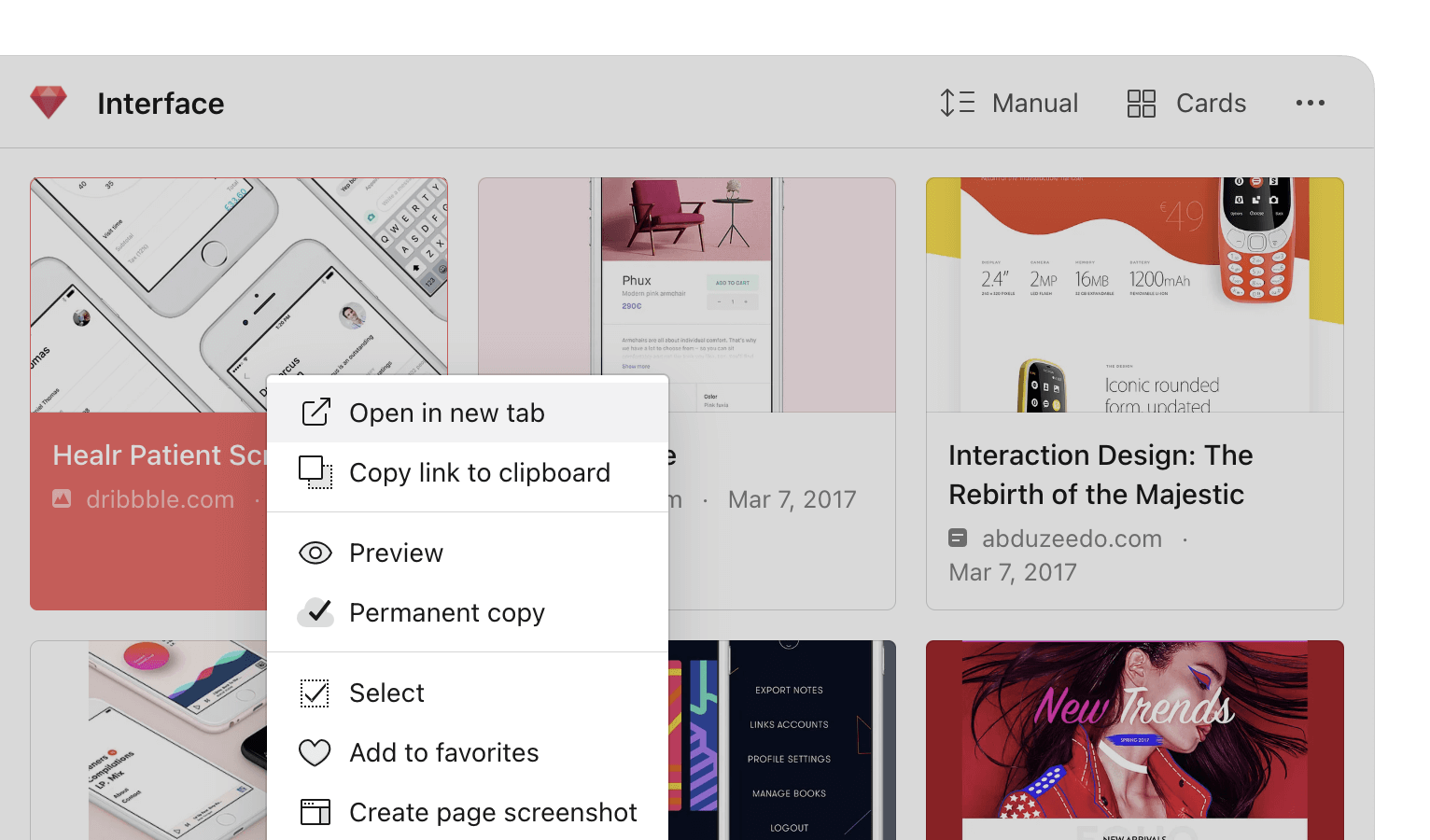 Click **Open web archive**. The archived copy opens in a new tab.
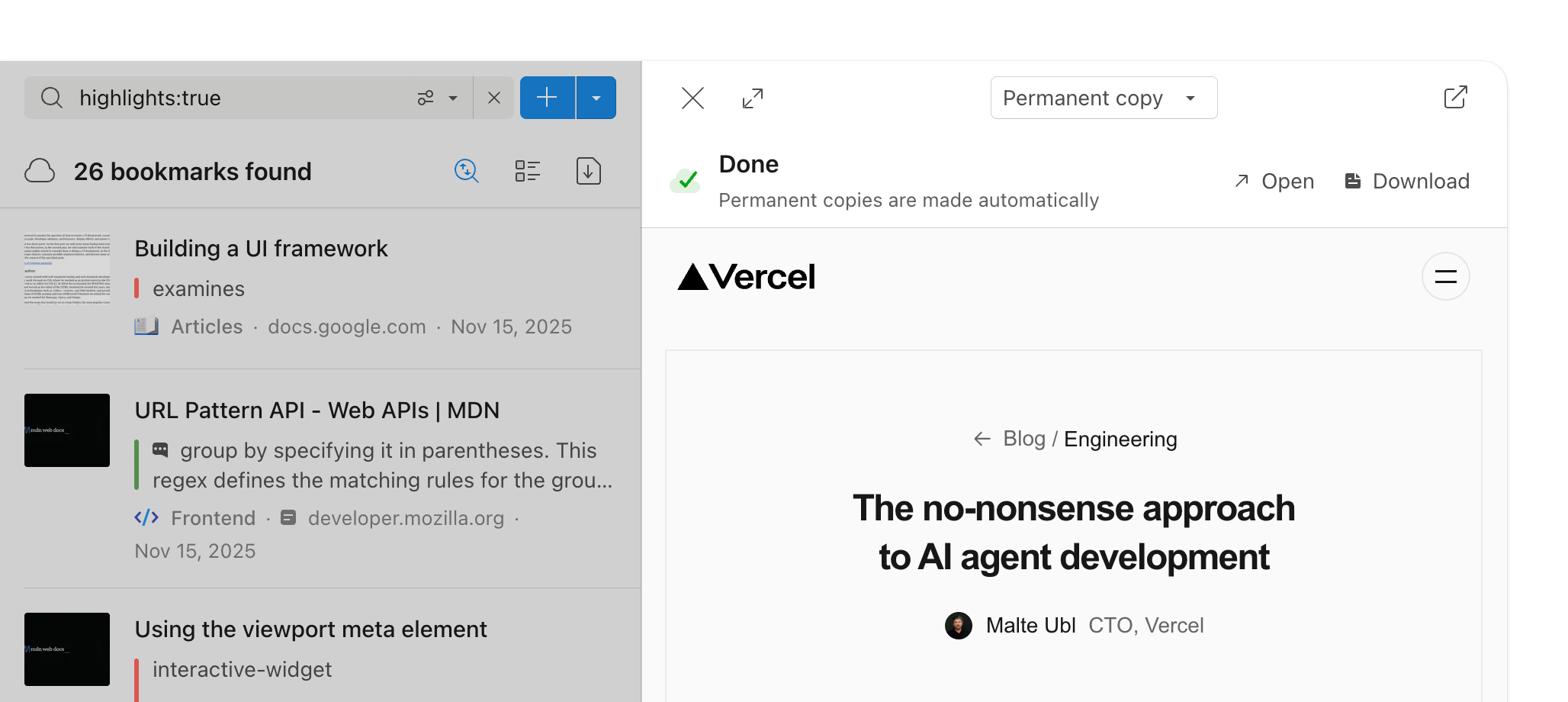 *Optionally* click **Download** to save the copy to your device.
Long-press a bookmark to open the action menu.
*Optionally* click **Download** to save the copy to your device.
Long-press a bookmark to open the action menu.
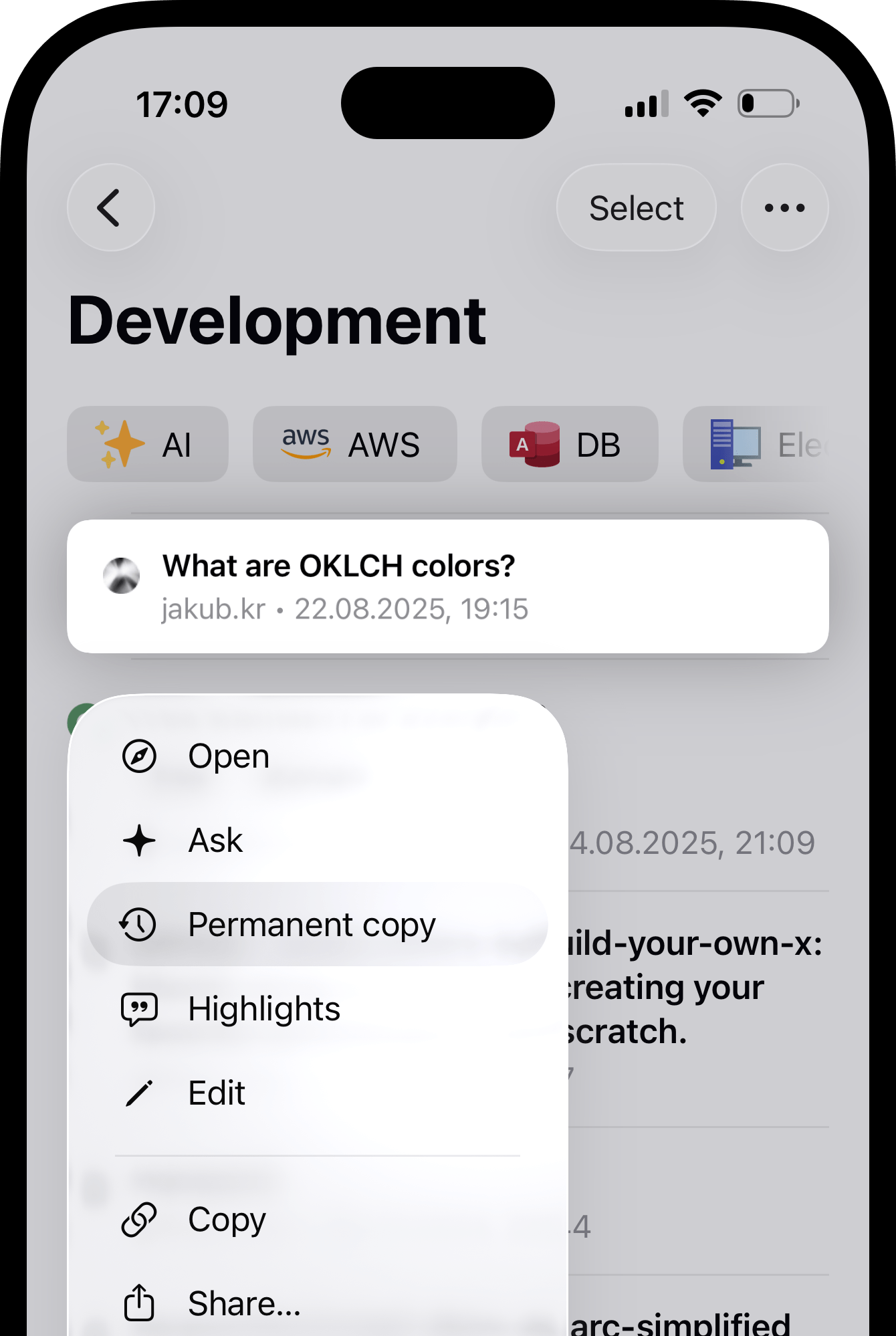 Tap **Open web archive**. The archived copy opens in the browser.
Tap **···** next to a bookmark to open the action menu.
Tap **Open web archive**. The archived copy opens in the browser.
## Limitations
* Pages behind a login or not publicly accessible can't be archived
* Files larger than 70 MB are skipped
* Pages with scroll-based animations may render incorrectly
* Some sites block automated access and can't be archived
* Bookmarks in [Trash](/bookmarks#where-deleted-bookmarks-go) are not archived
## FAQ
No. Archive as many bookmarks as you want with no cap on total size. The only per-item limit is 70 MB.
No. Archive links are private and can't be made public. You can download a copy to your device and share it manually.
Open [this filtered view](https://app.raindrop.io/my/0/cache.status%3Aready/) to list every bookmark with a ready archive.
Open [this filtered view](https://app.raindrop.io/my/0/cache.status%3Ainvalid-origin%20cache.status%3Afailed%20match%3AOR/) to see bookmarks where archiving failed. Failed pages are retried automatically. If a bookmark stays marked as failed, [let us know](mailto:info@raindrop.io) with the original link.
The archived copy is deleted with the bookmark. If you downgrade from Pro, copies are kept for about a month and then removed.
There is no manual re-archive button. Delete the bookmark and save it again — a new archive is created automatically.
Tap **Open web archive**. The archived copy opens in the browser.
Tap **···** next to a bookmark to open the action menu.
Tap **Open web archive**. The archived copy opens in the browser.
## Limitations
* Pages behind a login or not publicly accessible can't be archived
* Files larger than 70 MB are skipped
* Pages with scroll-based animations may render incorrectly
* Some sites block automated access and can't be archived
* Bookmarks in [Trash](/bookmarks#where-deleted-bookmarks-go) are not archived
## FAQ
No. Archive as many bookmarks as you want with no cap on total size. The only per-item limit is 70 MB.
No. Archive links are private and can't be made public. You can download a copy to your device and share it manually.
Open [this filtered view](https://app.raindrop.io/my/0/cache.status%3Aready/) to list every bookmark with a ready archive.
Open [this filtered view](https://app.raindrop.io/my/0/cache.status%3Ainvalid-origin%20cache.status%3Afailed%20match%3AOR/) to see bookmarks where archiving failed. Failed pages are retried automatically. If a bookmark stays marked as failed, [let us know](mailto:info@raindrop.io) with the original link.
The archived copy is deleted with the bookmark. If you downgrade from Pro, copies are kept for about a month and then removed.
There is no manual re-archive button. Delete the bookmark and save it again — a new archive is created automatically.