> ## Documentation Index
> Fetch the complete documentation index at: https://help.raindrop.io/llms.txt
> Use this file to discover all available pages before exploring further.
# Public page
> Share your bookmarks and collections with anyone via a public link
You've put together a reading list, a resource collection, or a portfolio in Raindrop.io — and now you want to share it with someone who doesn't have an account.
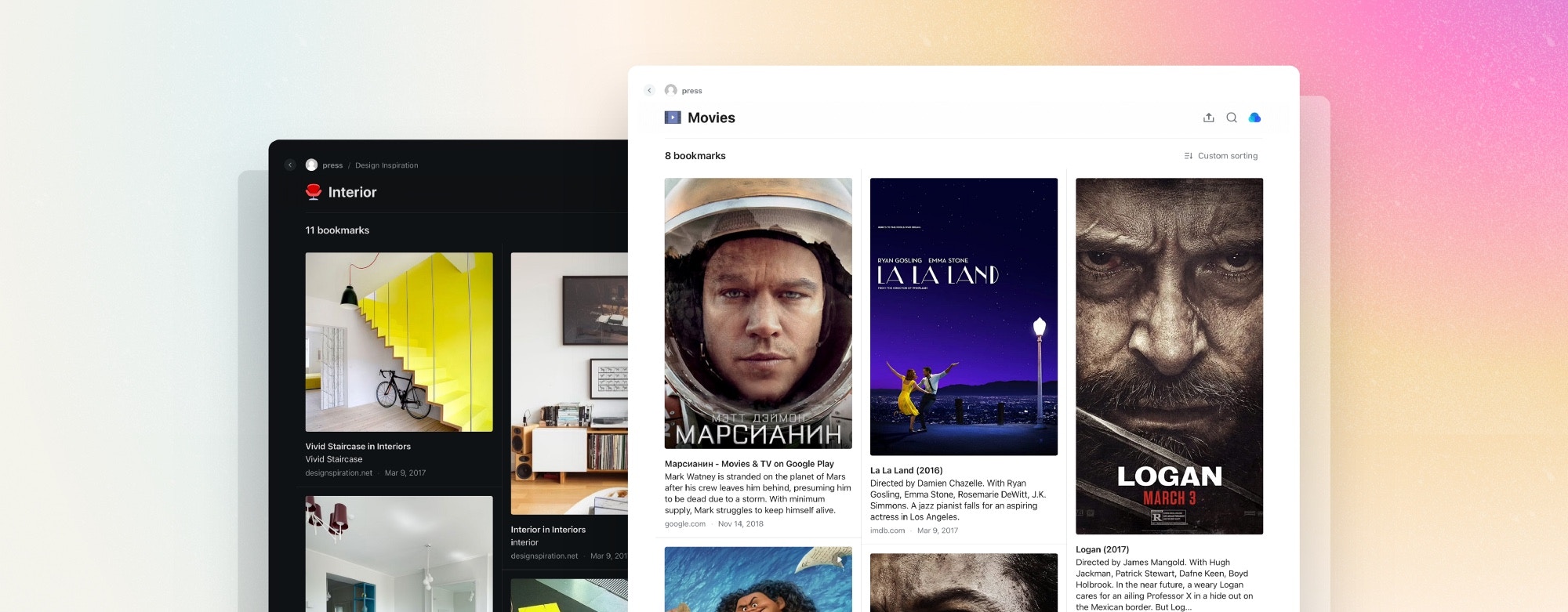
A public page turns any collection into a read-only webpage with its own link that anyone can open in a browser.
## How it works
* You publish individual collections — each gets its own link like `username.raindrop.page/collection-name`
* Nested collections are included automatically
* Everything you don't publish stays private
* Once you have at least one public collection, your personal page at `username.raindrop.page` becomes accessible — it lists all your public collections in one place
 ## Publishing
Open the collection you want to share.
Click the **Share** button in the top-right corner.
## Publishing
Open the collection you want to share.
Click the **Share** button in the top-right corner.
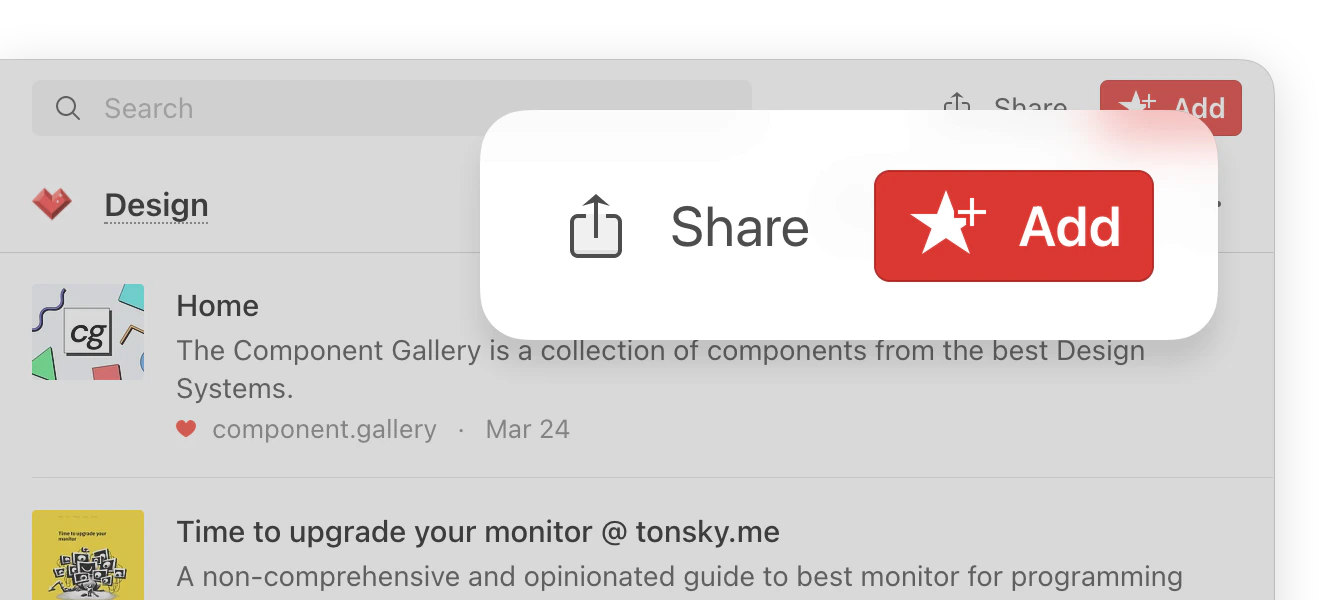 If the **Share** button is not visible, make sure you are inside a specific collection — sharing is not available from "All bookmarks" or "Unsorted".
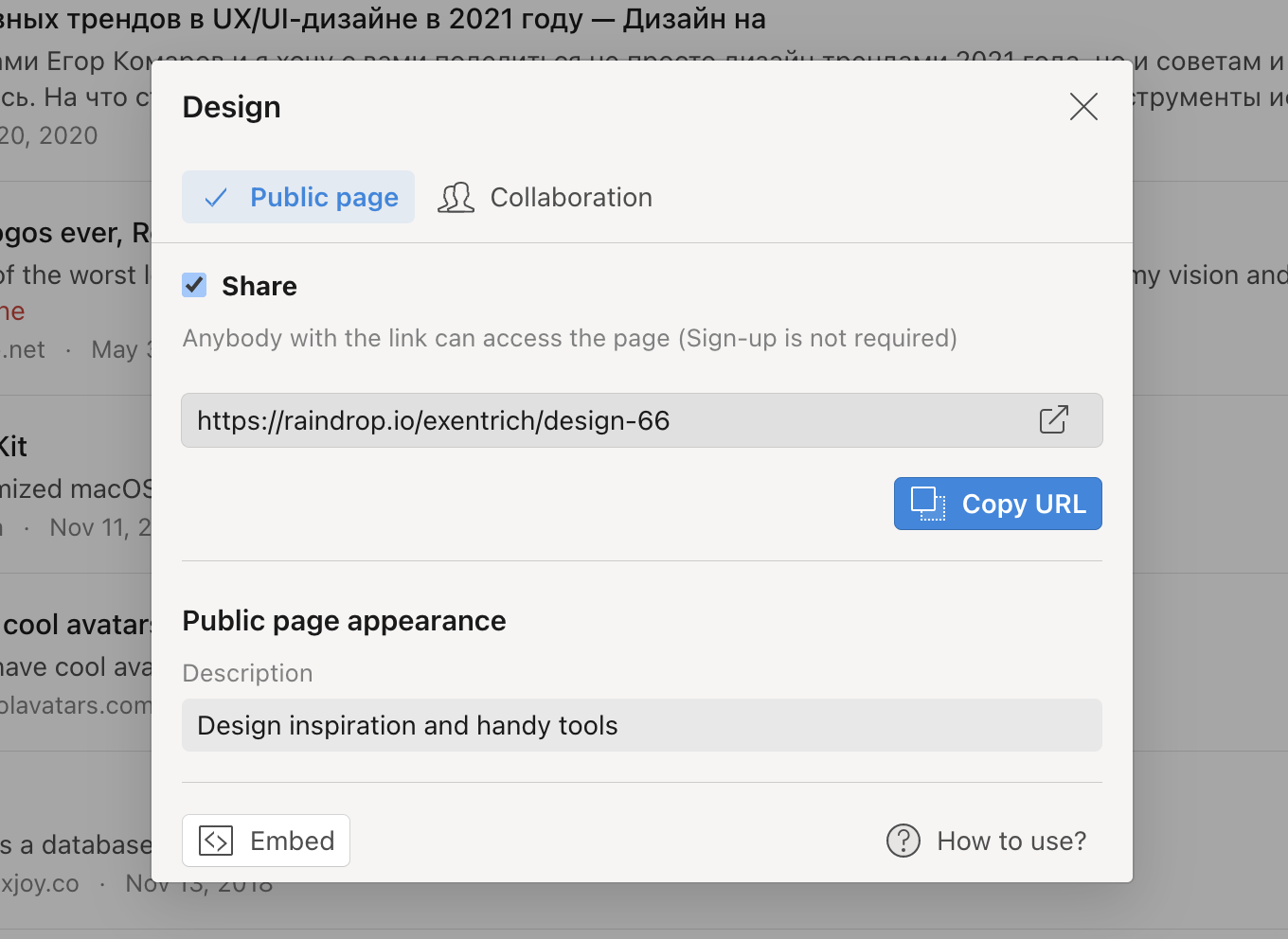
Turn on **Public Page** and copy the link.
If the **Share** button is not visible, make sure you are inside a specific collection — sharing is not available from "All bookmarks" or "Unsorted".
Turn on **Public Page** and copy the link.
 Open the collection you want to share.
Tap **…** (more) at the top, then select **Share**.
Turn on **Public Page** and copy the link.
Open the collection you want to share.
Tap **…** (more) at the top, then select **Share**.
Turn on **Public Page** and copy the link.
 Open the collection you want to share.
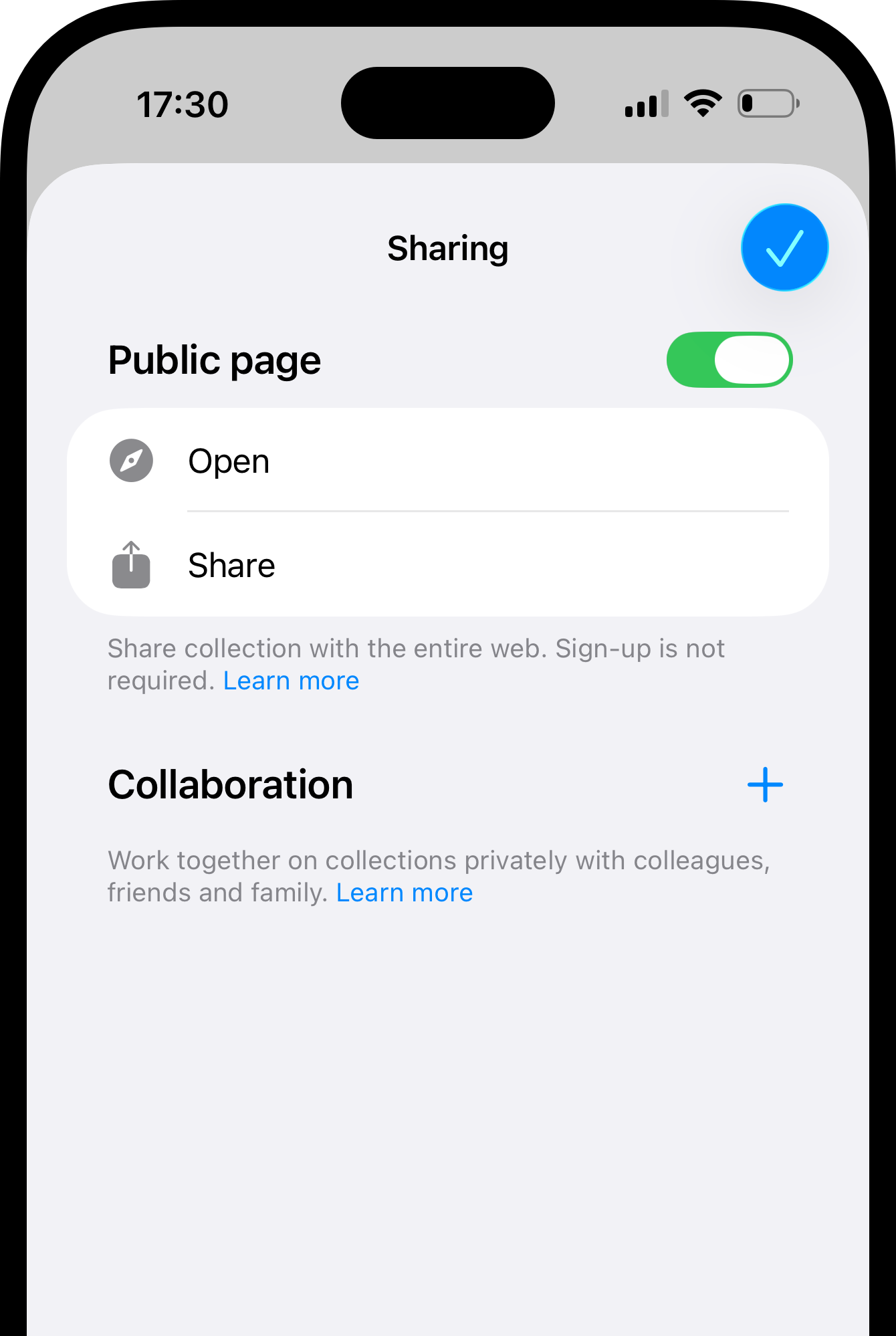
Tap **…** (more) at the top, then select **Share**.
Turn on **Public Page** and copy the link.
## Unpublishing
To take a collection off the web, go back to **Share** and turn off **Public Page**. The link stops working immediately. If it was your only public collection, your personal page at `username.raindrop.page` becomes inaccessible too.
## Personal page
Your personal page at `username.raindrop.page` is created automatically once you publish at least one collection. It shows all your public collections in one place.
Open the collection you want to share.
Tap **…** (more) at the top, then select **Share**.
Turn on **Public Page** and copy the link.
## Unpublishing
To take a collection off the web, go back to **Share** and turn off **Public Page**. The link stops working immediately. If it was your only public collection, your personal page at `username.raindrop.page` becomes inaccessible too.
## Personal page
Your personal page at `username.raindrop.page` is created automatically once you publish at least one collection. It shows all your public collections in one place.
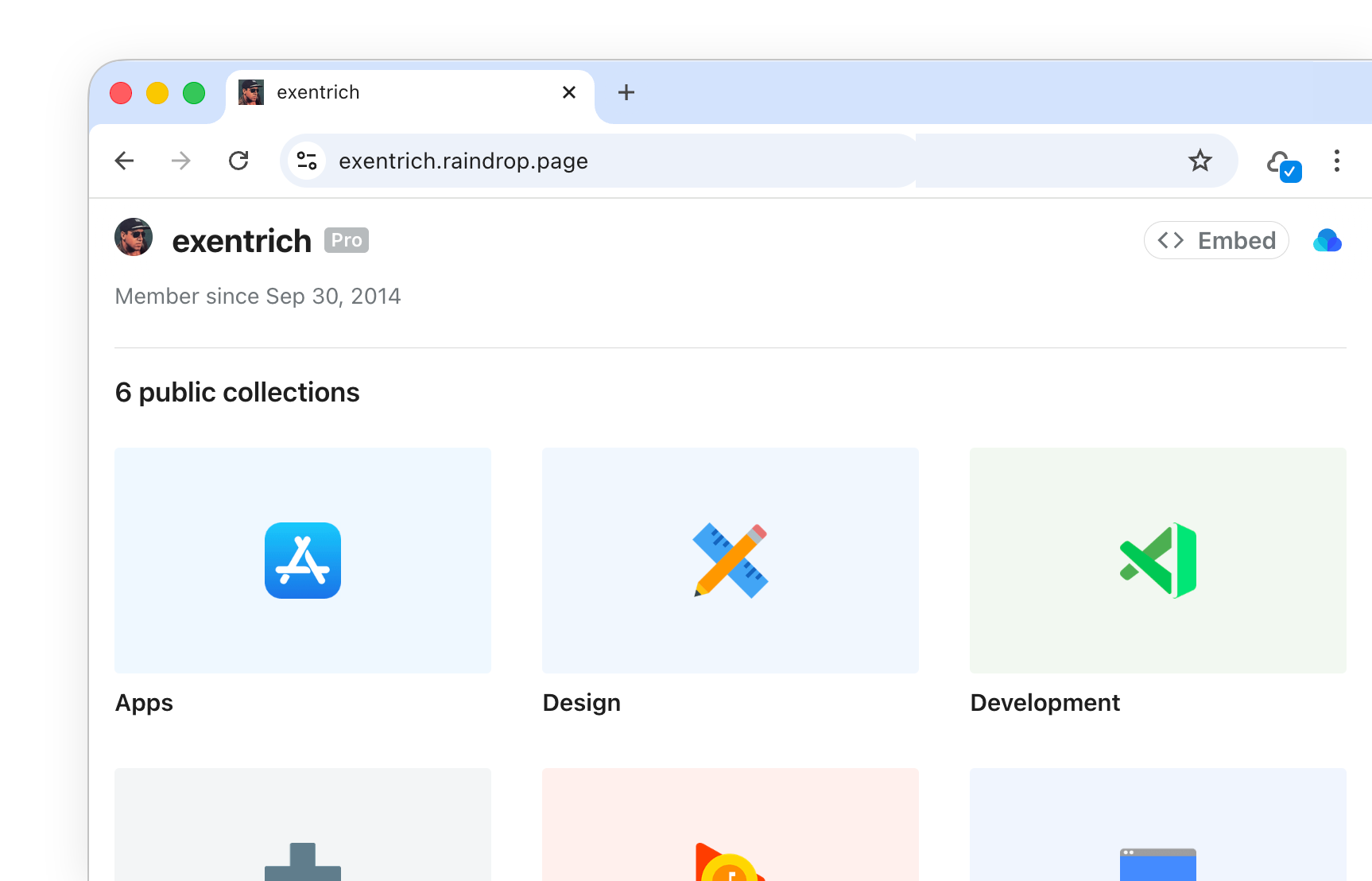 To change the username or avatar displayed on the page, go to [Account Settings](https://app.raindrop.io/settings/account).
## Customizing
You can control the appearance of any public page by appending `/view/` and parameters to the URL:
```
https://exentrich.raindrop.page/design-66/view/theme=dark&sort=-title&page=3
```
| Parameter | Values | Default | Description |
| --------- | ------------------------------------------------- | ------- | ------------------ |
| `sort` | `-created`, `created`, `-title`, `title`, `-sort` | `-sort` | Bookmark order |
| `search` | `#tag`, `apple`, etc. | — | Search query |
| `theme` | `light`, `dark`, `auto` | `light` | Color theme |
| `page` | `0`, `1`, `2`... | `0` | Page number |
| `perpage` | `1`–`50` | `30` | Bookmarks per page |
## FAQ
Yes. Tags assigned to bookmarks in a public collection are visible to anyone viewing the page.
Yes. Public pages are accessible to search engine crawlers and may appear in search results.
No. You publish each collection individually. Nested collections within a published collection are included automatically.
Not at the moment — every public collection appears on your personal page.
No. Anyone with the link can view it. If you need restricted access, use [collaboration](/collaboration) to invite specific people.
Your email must be verified before public pages work. If you haven't confirmed it yet, go to [Account Settings](https://app.raindrop.io/settings/account) to resend the verification link.
## Related
Place bookmarks as a widget directly on your website
Add people to a collection with view or edit access
To change the username or avatar displayed on the page, go to [Account Settings](https://app.raindrop.io/settings/account).
## Customizing
You can control the appearance of any public page by appending `/view/` and parameters to the URL:
```
https://exentrich.raindrop.page/design-66/view/theme=dark&sort=-title&page=3
```
| Parameter | Values | Default | Description |
| --------- | ------------------------------------------------- | ------- | ------------------ |
| `sort` | `-created`, `created`, `-title`, `title`, `-sort` | `-sort` | Bookmark order |
| `search` | `#tag`, `apple`, etc. | — | Search query |
| `theme` | `light`, `dark`, `auto` | `light` | Color theme |
| `page` | `0`, `1`, `2`... | `0` | Page number |
| `perpage` | `1`–`50` | `30` | Bookmarks per page |
## FAQ
Yes. Tags assigned to bookmarks in a public collection are visible to anyone viewing the page.
Yes. Public pages are accessible to search engine crawlers and may appear in search results.
No. You publish each collection individually. Nested collections within a published collection are included automatically.
Not at the moment — every public collection appears on your personal page.
No. Anyone with the link can view it. If you need restricted access, use [collaboration](/collaboration) to invite specific people.
Your email must be verified before public pages work. If you haven't confirmed it yet, go to [Account Settings](https://app.raindrop.io/settings/account) to resend the verification link.
## Related
Place bookmarks as a widget directly on your website
Add people to a collection with view or edit access