> ## Documentation Index
> Fetch the complete documentation index at: https://help.raindrop.io/llms.txt
> Use this file to discover all available pages before exploring further.
# Quickstart
> Learn the basics and get comfortable with Raindrop.io in a few minutes.
### Install the browser extension
First things first — [install the browser extension](/install-extension).
It's the fastest way to save anything you find online.
Once installed, pin it to your toolbar so it's always one click away.
### Save your first bookmark
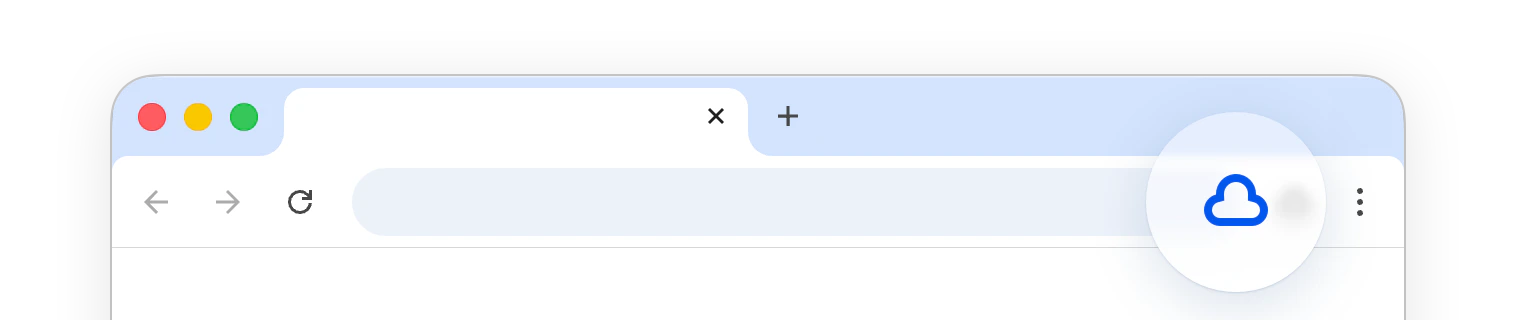
Try it out — click icon on any page to save it. That's it, your first bookmark is in Raindrop.io.
 There are many other ways to [add bookmarks](/bookmarks) (including on mobile), you can even [upload your own files](/files).
### Organize
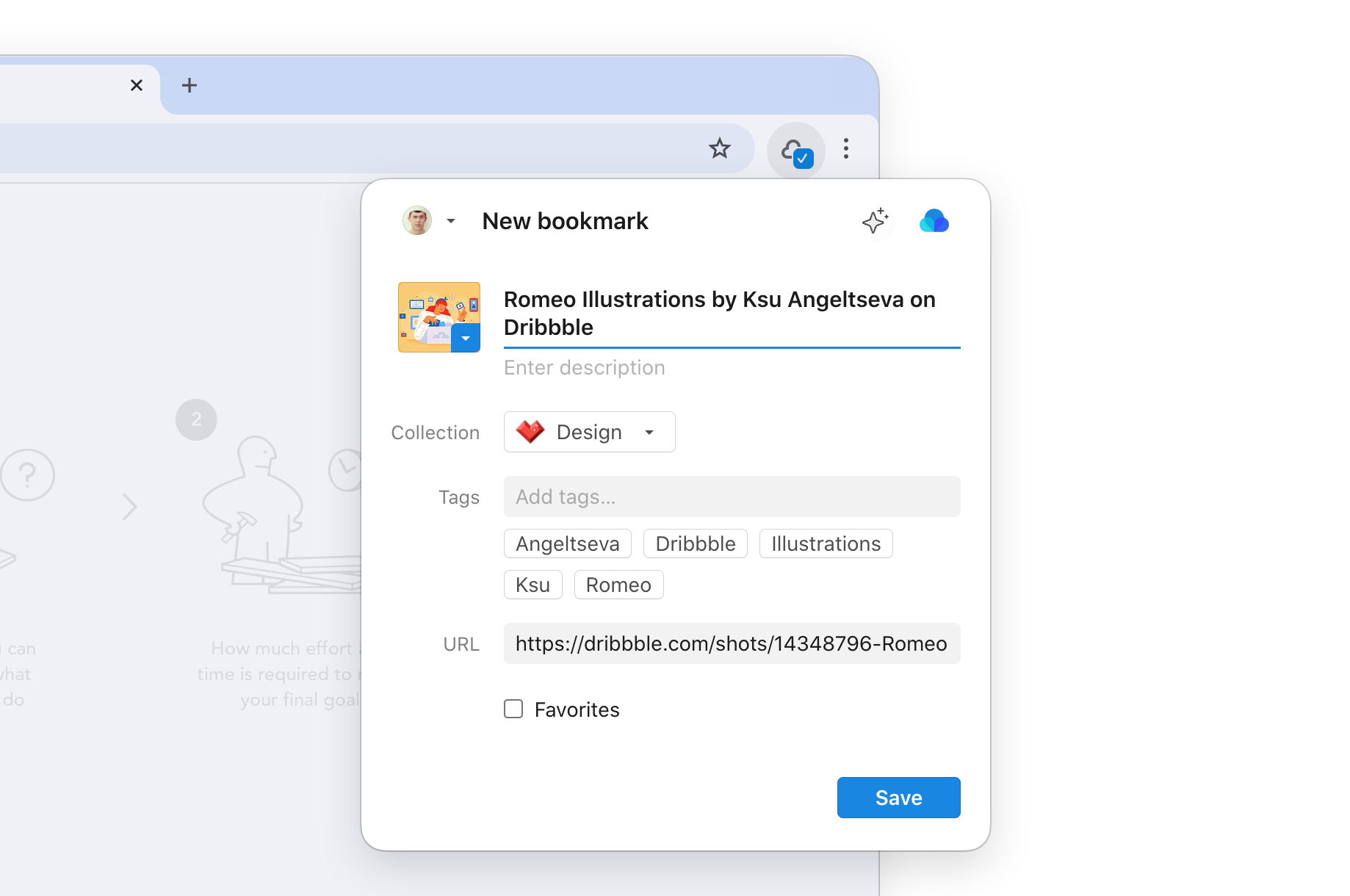
When saving you can pick a [collection](/collections) and add [tags](/tags). Think of collections as folders, and tags as labels like `to-read`, `important`, or `gift`.
There are many other ways to [add bookmarks](/bookmarks) (including on mobile), you can even [upload your own files](/files).
### Organize
When saving you can pick a [collection](/collections) and add [tags](/tags). Think of collections as folders, and tags as labels like `to-read`, `important`, or `gift`.
 **Pro tip**: want to come back to something later? [Set a reminder](/reminders) — we'll notify you when it's time.
### Highlight what matters
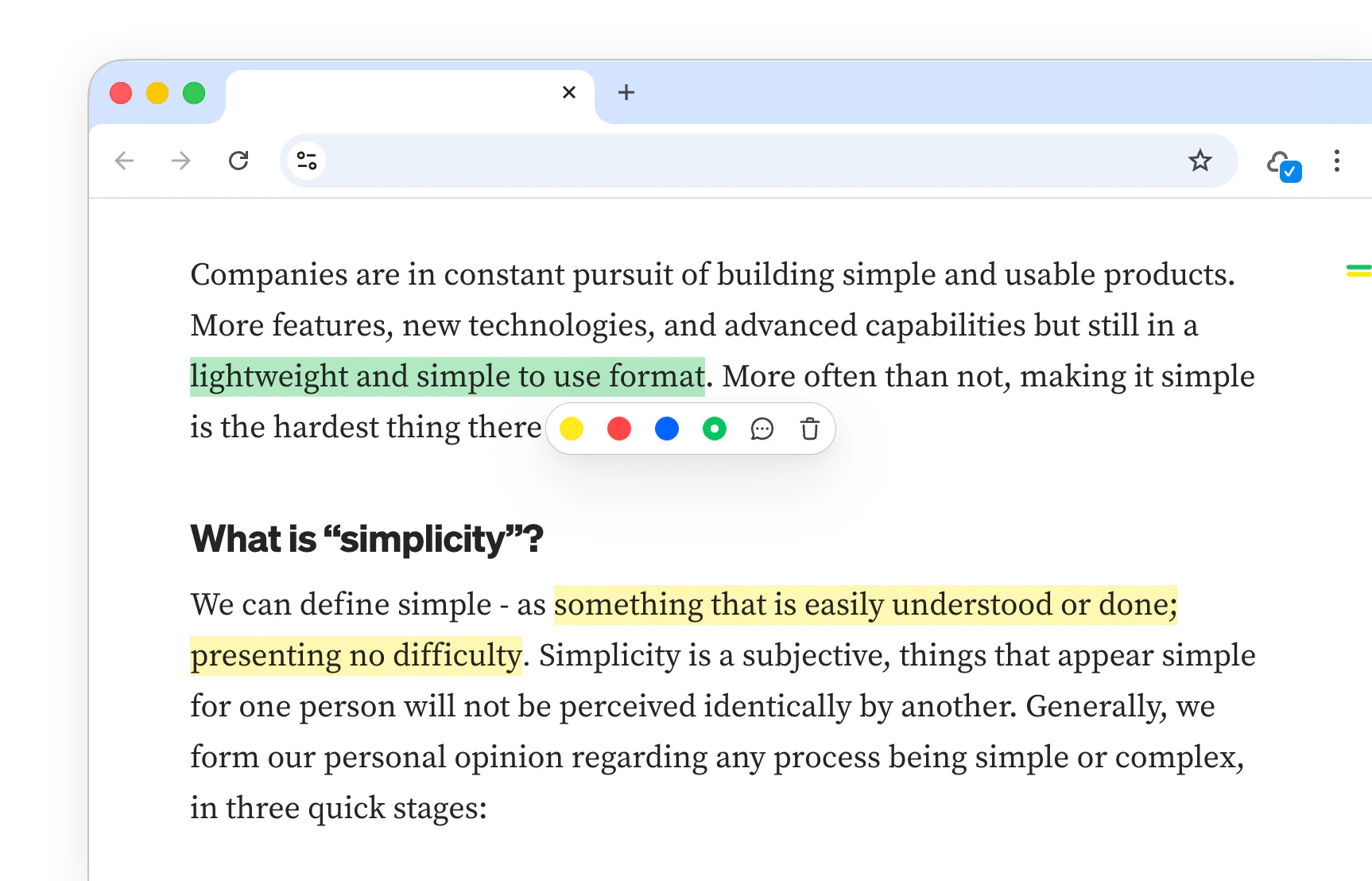
You've saved a page, but what about the key parts? Select any text, right-click and choose **Save highlight** — next time you open that bookmark, your highlights are right there, across all your devices.
**Pro tip**: want to come back to something later? [Set a reminder](/reminders) — we'll notify you when it's time.
### Highlight what matters
You've saved a page, but what about the key parts? Select any text, right-click and choose **Save highlight** — next time you open that bookmark, your highlights are right there, across all your devices.
 ### Find what you've saved
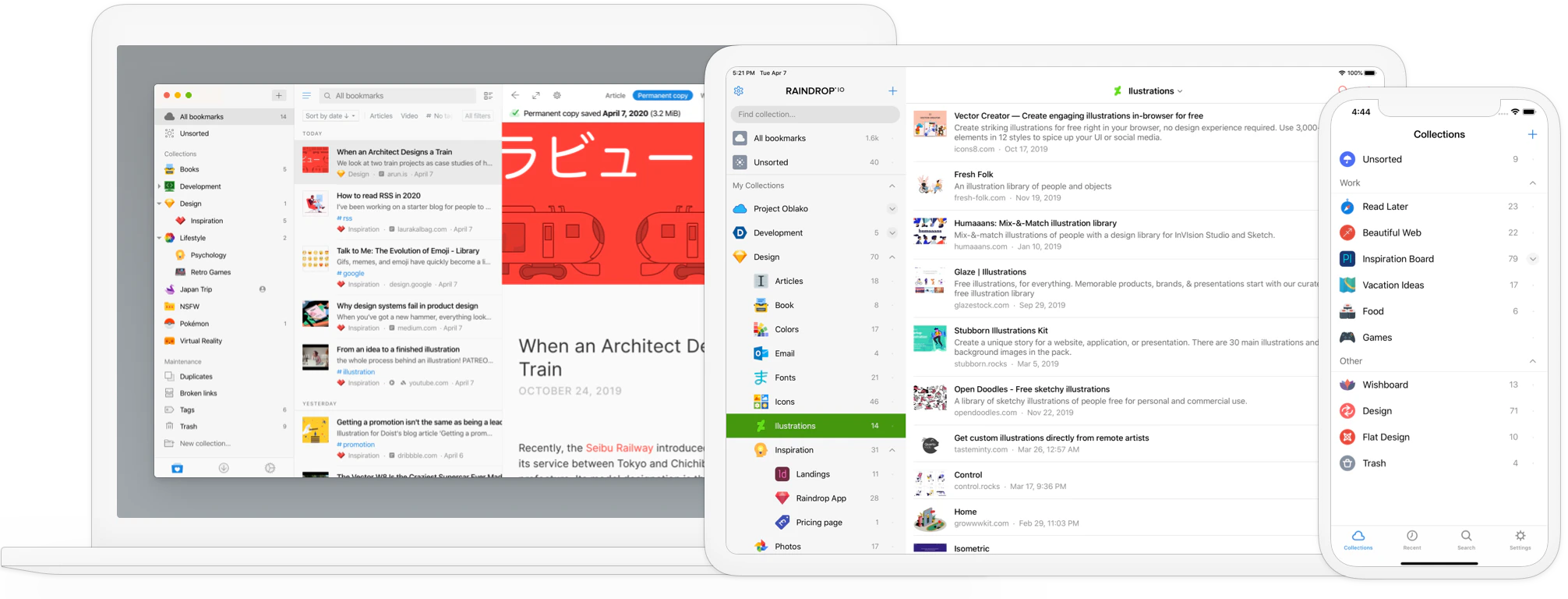
Access your bookmarks and highlights from anywhere — pick the [web app](https://app.raindrop.io), [desktop app](https://raindrop.io/download), or [mobile app](/mobile-app), whichever suits you best. Everything stays in sync automatically.
### Find what you've saved
Access your bookmarks and highlights from anywhere — pick the [web app](https://app.raindrop.io), [desktop app](https://raindrop.io/download), or [mobile app](/mobile-app), whichever suits you best. Everything stays in sync automatically.
 ### Install the app
Download Raindrop.io for [iOS](https://raindrop.io/r/app/ios) or [Android](https://raindrop.io/r/app/android) and sign in to your account.
### Install the app
Download Raindrop.io for [iOS](https://raindrop.io/r/app/ios) or [Android](https://raindrop.io/r/app/android) and sign in to your account.
 ### Save your first bookmark
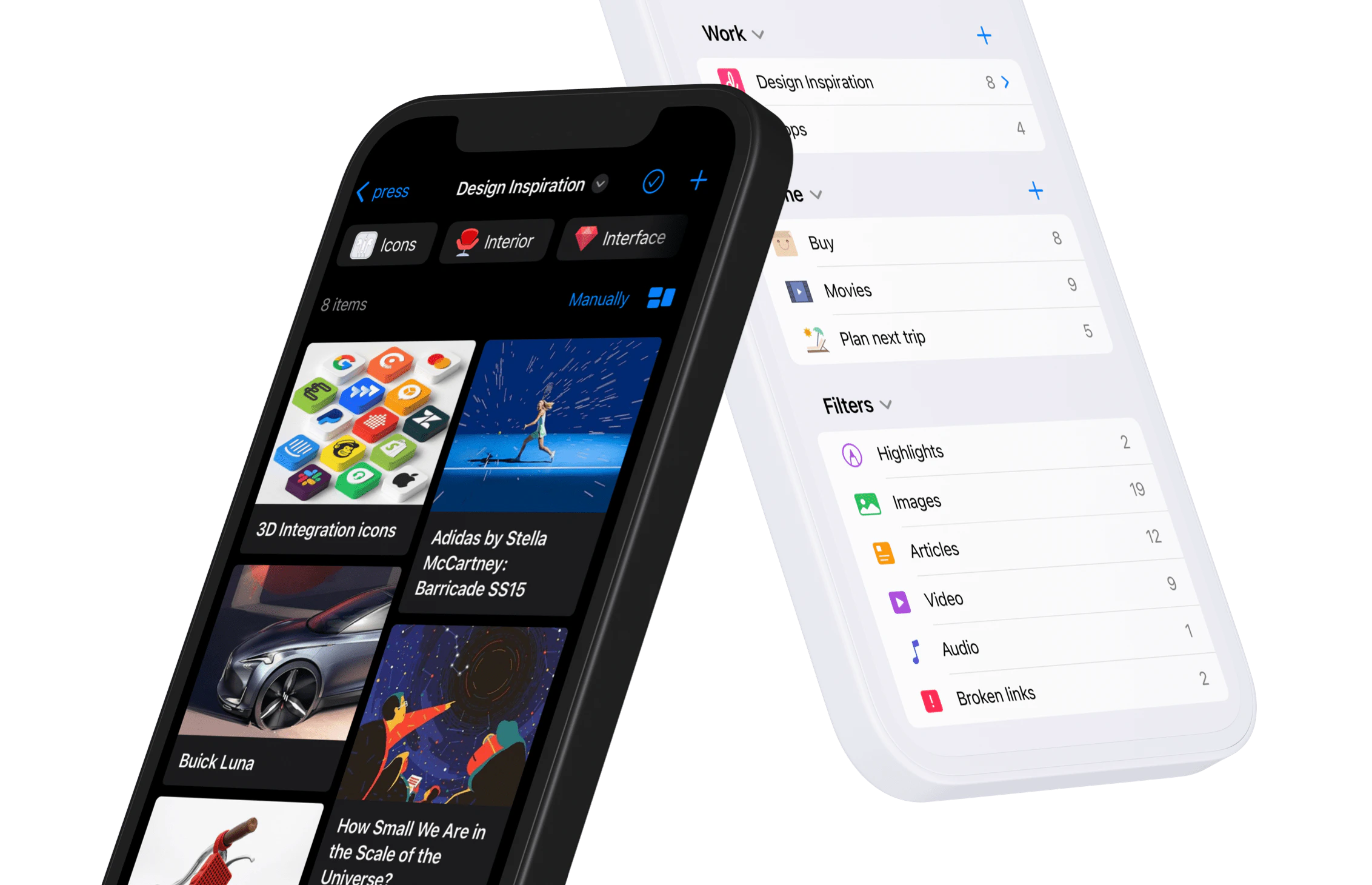
Open any page in your browser or app, tap **Share**, and choose **Raindrop.io** from the list. That's it — your first bookmark is saved.
On Android it works right away.\
On iOS you may need to [enable the share extension](/mobile-app) first.
### Save your first bookmark
Open any page in your browser or app, tap **Share**, and choose **Raindrop.io** from the list. That's it — your first bookmark is saved.
On Android it works right away.\
On iOS you may need to [enable the share extension](/mobile-app) first.
 ### Organize
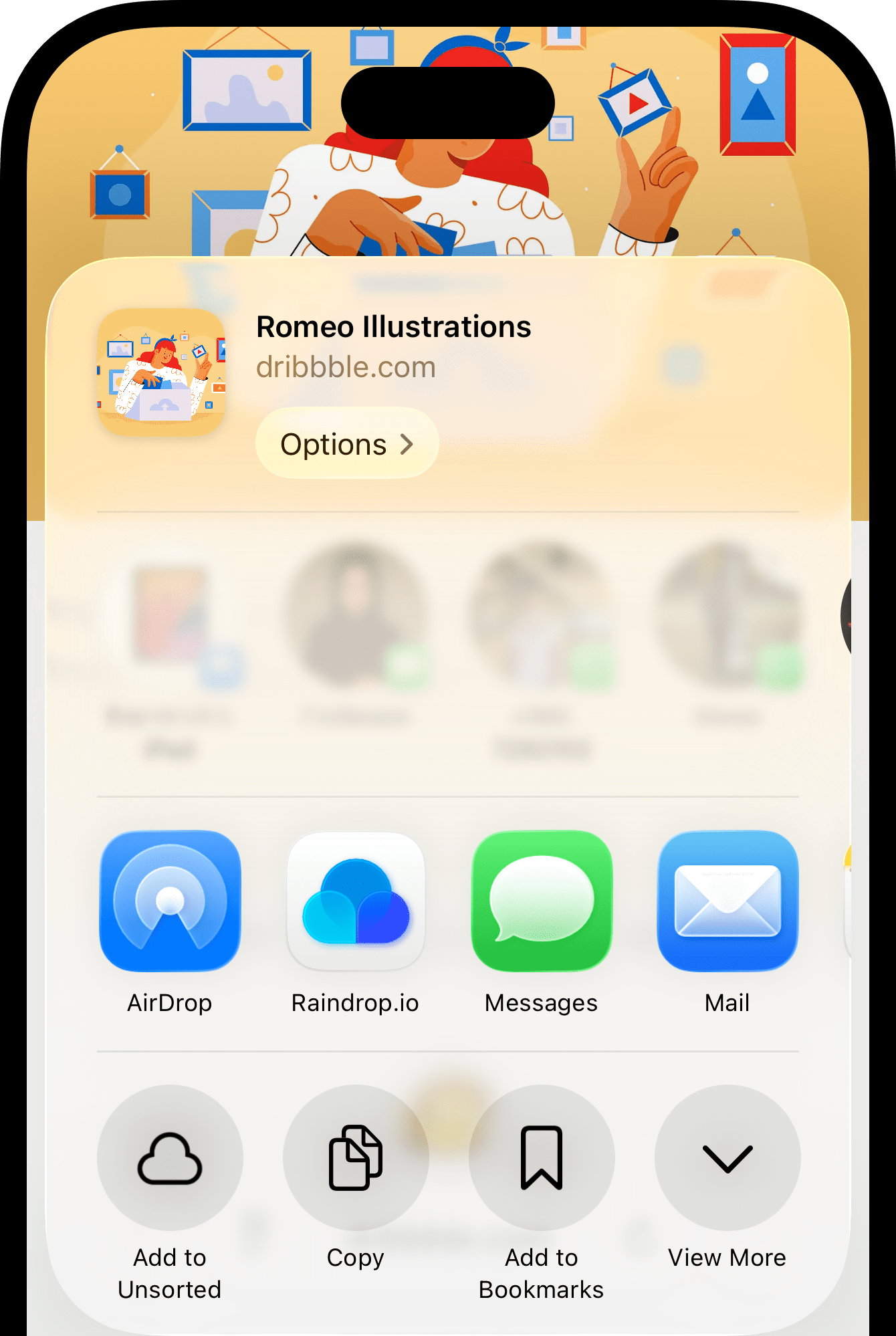
When saving you can pick a [collection](/collections) and add [tags](/tags). Think of collections as folders, and tags as labels like `to-read`, `important`, or `gift`.
**Pro tip**: want to come back to something later? [Set a reminder](/reminders) — we'll notify you when it's time.
### Organize
When saving you can pick a [collection](/collections) and add [tags](/tags). Think of collections as folders, and tags as labels like `to-read`, `important`, or `gift`.
**Pro tip**: want to come back to something later? [Set a reminder](/reminders) — we'll notify you when it's time.
 ### Highlight what matters
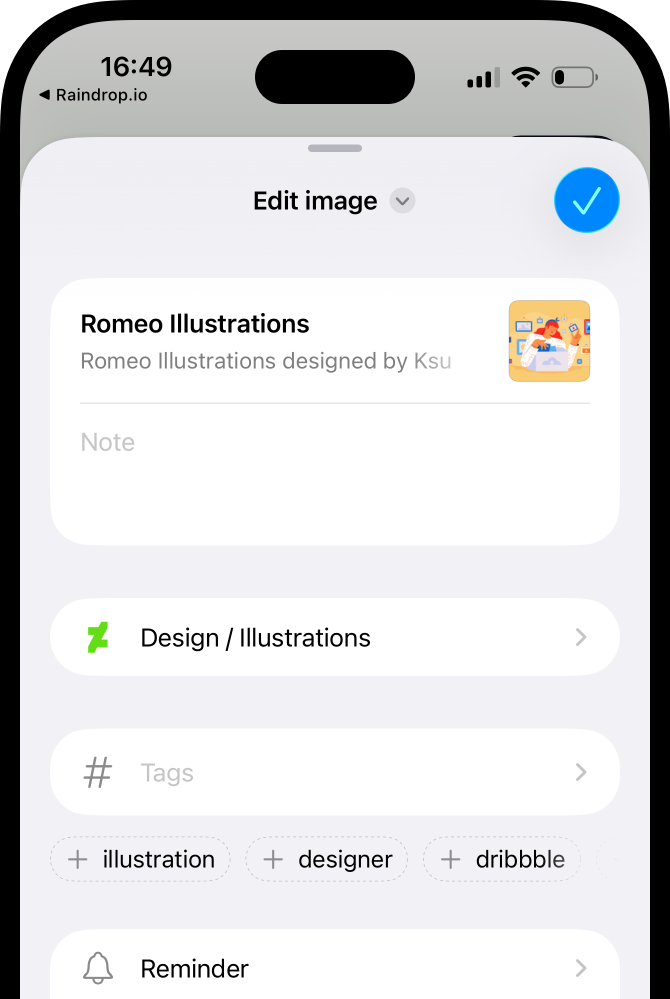
Open any saved page in the app and select text to save it as a [highlight](/highlights). Your highlights sync across all your devices automatically.
### Highlight what matters
Open any saved page in the app and select text to save it as a [highlight](/highlights). Your highlights sync across all your devices automatically.
 ### Find what you've saved
Head to the Raindrop.io app — everything you've saved through Share is here. Your library also syncs with the [web](https://app.raindrop.io) and [desktop](https://raindrop.io/download) apps automatically.
### Chat with your library
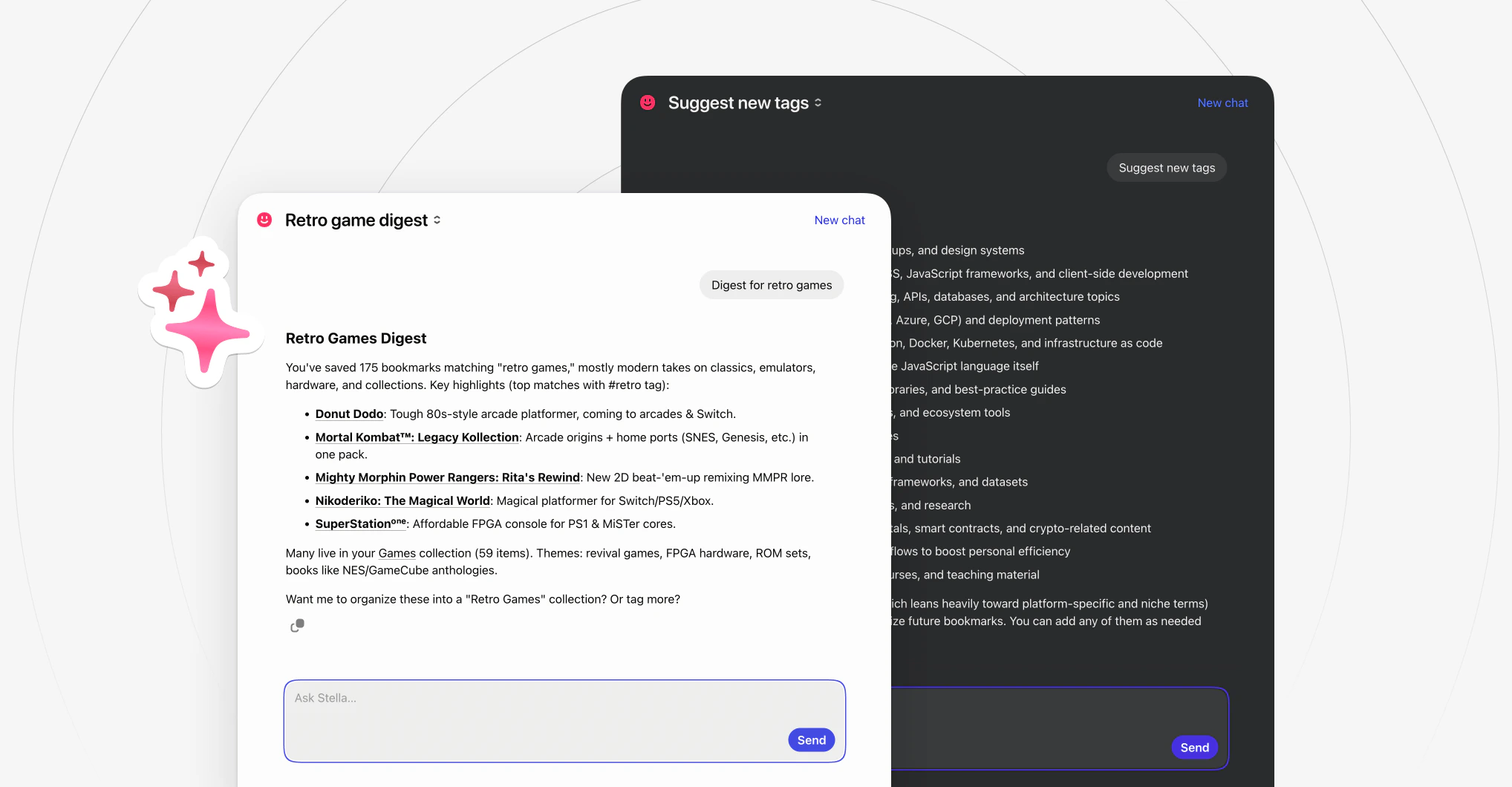
Over time your library becomes your personal knowledge base. [Stella](/stella) lets you chat with it — ask questions, get summaries, find things you vaguely remember, or have it organize your collections for you.
### Find what you've saved
Head to the Raindrop.io app — everything you've saved through Share is here. Your library also syncs with the [web](https://app.raindrop.io) and [desktop](https://raindrop.io/download) apps automatically.
### Chat with your library
Over time your library becomes your personal knowledge base. [Stella](/stella) lets you chat with it — ask questions, get summaries, find things you vaguely remember, or have it organize your collections for you.
 ### Next steps
You've got the basics down. Raindrop.io is much more than a bookmark manager — it can become your personal knowledge hub. Here are some things to explore next.
Bring existing bookmarks from your browser or other apps
Add documents, videos, images, and books to your library
Sync with other apps and build powerful automations
Publish collections publicly or invite a team to collaborate
Have questions or need help? Reach out at [info@raindrop.io](mailto:info@raindrop.io) — we're always happy to help.
### Next steps
You've got the basics down. Raindrop.io is much more than a bookmark manager — it can become your personal knowledge hub. Here are some things to explore next.
Bring existing bookmarks from your browser or other apps
Add documents, videos, images, and books to your library
Sync with other apps and build powerful automations
Publish collections publicly or invite a team to collaborate
Have questions or need help? Reach out at [info@raindrop.io](mailto:info@raindrop.io) — we're always happy to help.