> ## Documentation Index
> Fetch the complete documentation index at: https://help.raindrop.io/llms.txt
> Use this file to discover all available pages before exploring further.

# Reminders

> Get notified about saved bookmarks at the right time

<Frame style={{backgroundColor: '#E3EAFD', padding: '48px'}}>
  <Icon icon="bell-on" iconType="duotone" size={80} color="#133A9A" />
</Frame>

You save an article to read later, a link to check before a deadline, or a page to revisit after an event — and then forget about it. Reminders bring bookmarks back to your attention at the right time via **push notification** or **email**.

<Note>
  Reminders are a [premium feature](/premium-features).
</Note>

## Setting a reminder

<Tabs borderBottom>
  <Tab title="Web & Desktop">
    <Steps>
      <Step>
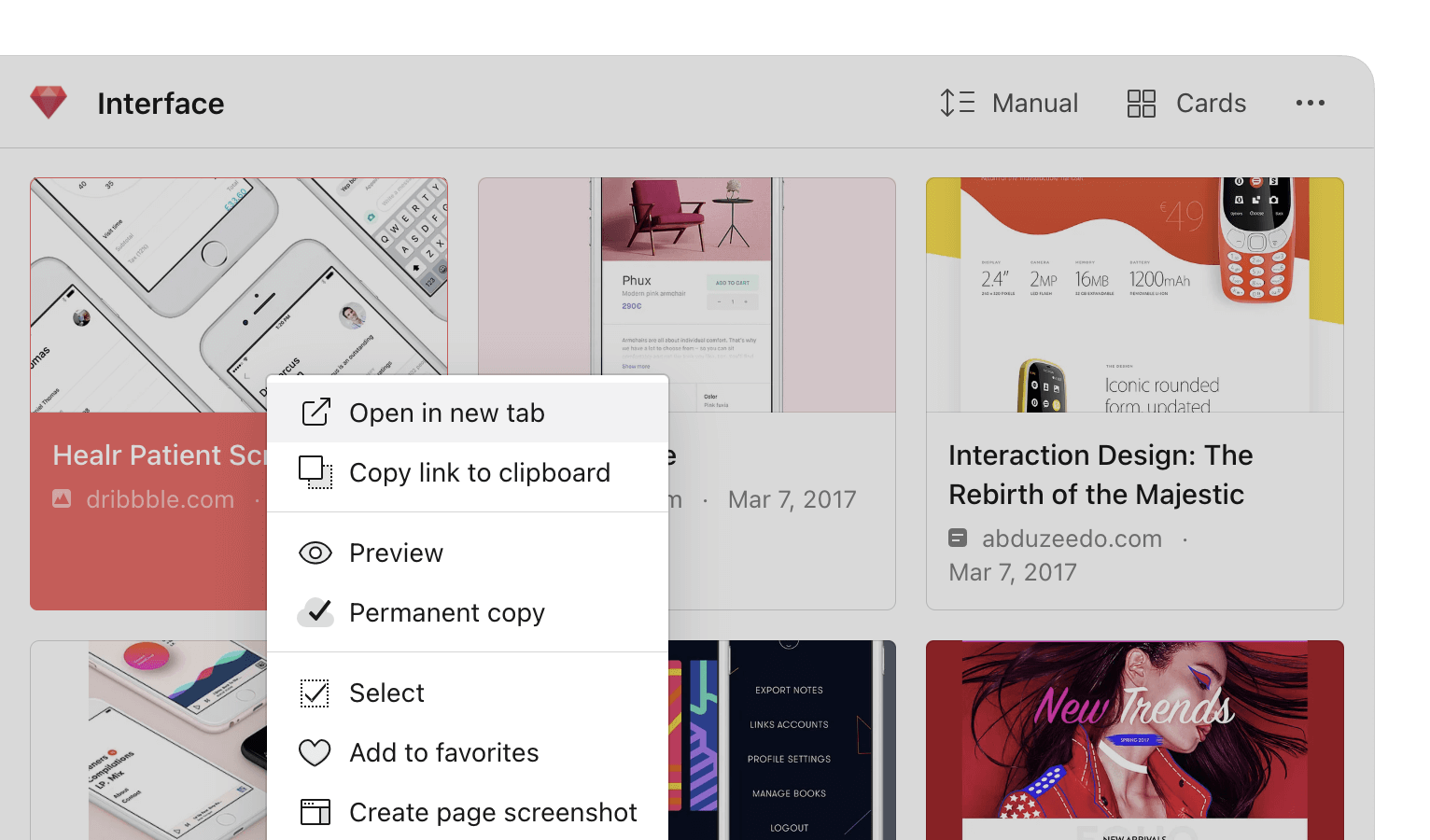
        Right-click a bookmark to open the context menu and select **Edit**.
        <Frame style={{padding:0}}>
          <img src="https://mintcdn.com/raindropio-0c6b7ca1/g7d24I8ROfahz7TM/assets/bookmark-context-menu.png?fit=max&auto=format&n=g7d24I8ROfahz7TM&q=85&s=af2d0739441529895703976445816c40" alt="Web archive of a saved page" width="1532" height="900" data-path="assets/bookmark-context-menu.png" />
        </Frame>
      </Step>

      <Step>
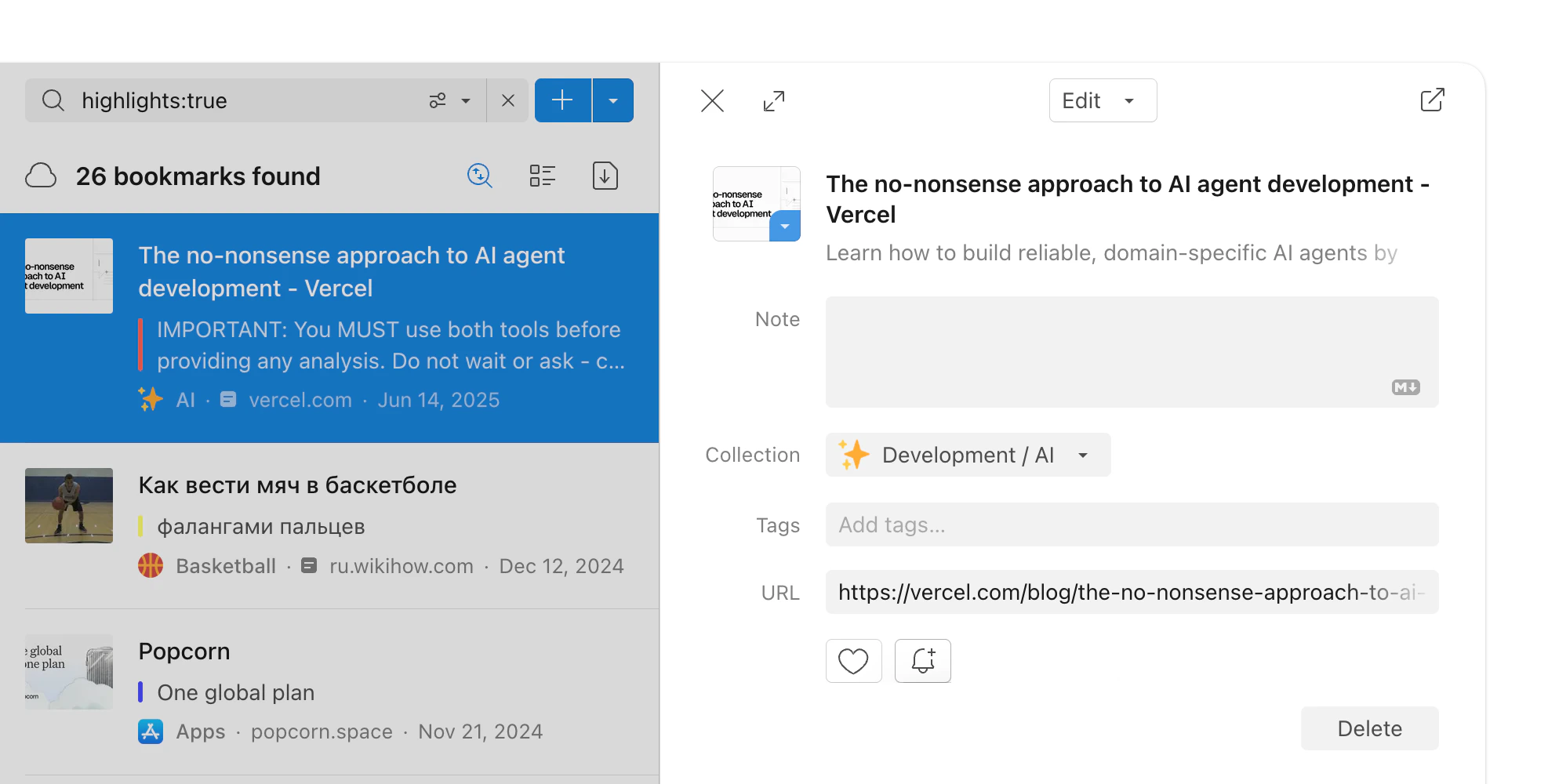
        Click the **Reminder** bell icon and pick a date and time
        <Frame style={{padding:0}}>
          <img src="https://mintcdn.com/raindropio-0c6b7ca1/g7d24I8ROfahz7TM/assets/bookmark-edit.png?fit=max&auto=format&n=g7d24I8ROfahz7TM&q=85&s=77926c38089445e00ba85db17372bd2c" width="1974" height="1000" data-path="assets/bookmark-edit.png" />
        </Frame>
      </Step>
    </Steps>
  </Tab>

  <Tab title="Browser extension">
    <Steps>
      <Step>
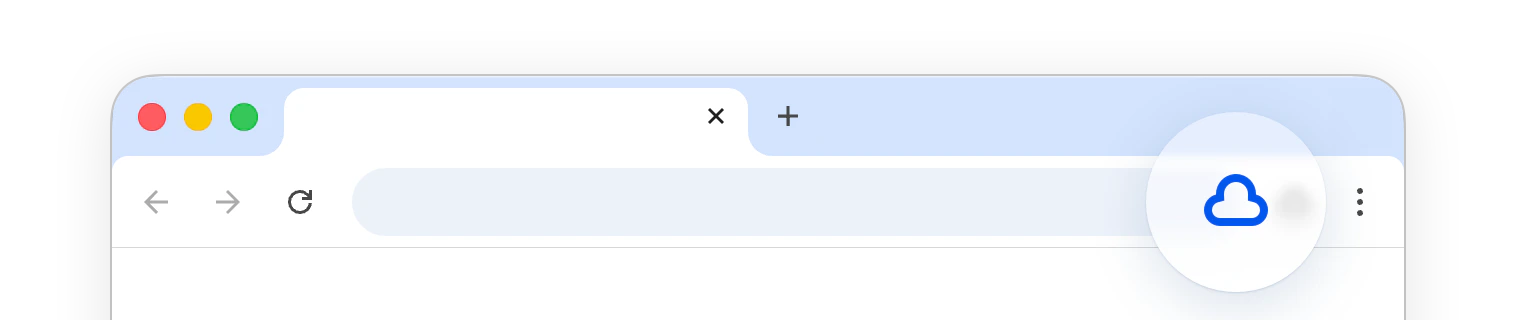
        Click the Raindrop.io extension icon.

        <Frame style={{padding: 0}}>
          <img src="https://mintcdn.com/raindropio-0c6b7ca1/g7d24I8ROfahz7TM/assets/extension-button.png?fit=max&auto=format&n=g7d24I8ROfahz7TM&q=85&s=661c11225776658e9a713b1fbe354094" alt="" width="1516" height="320" data-path="assets/extension-button.png" />
        </Frame>
      </Step>

      <Step>
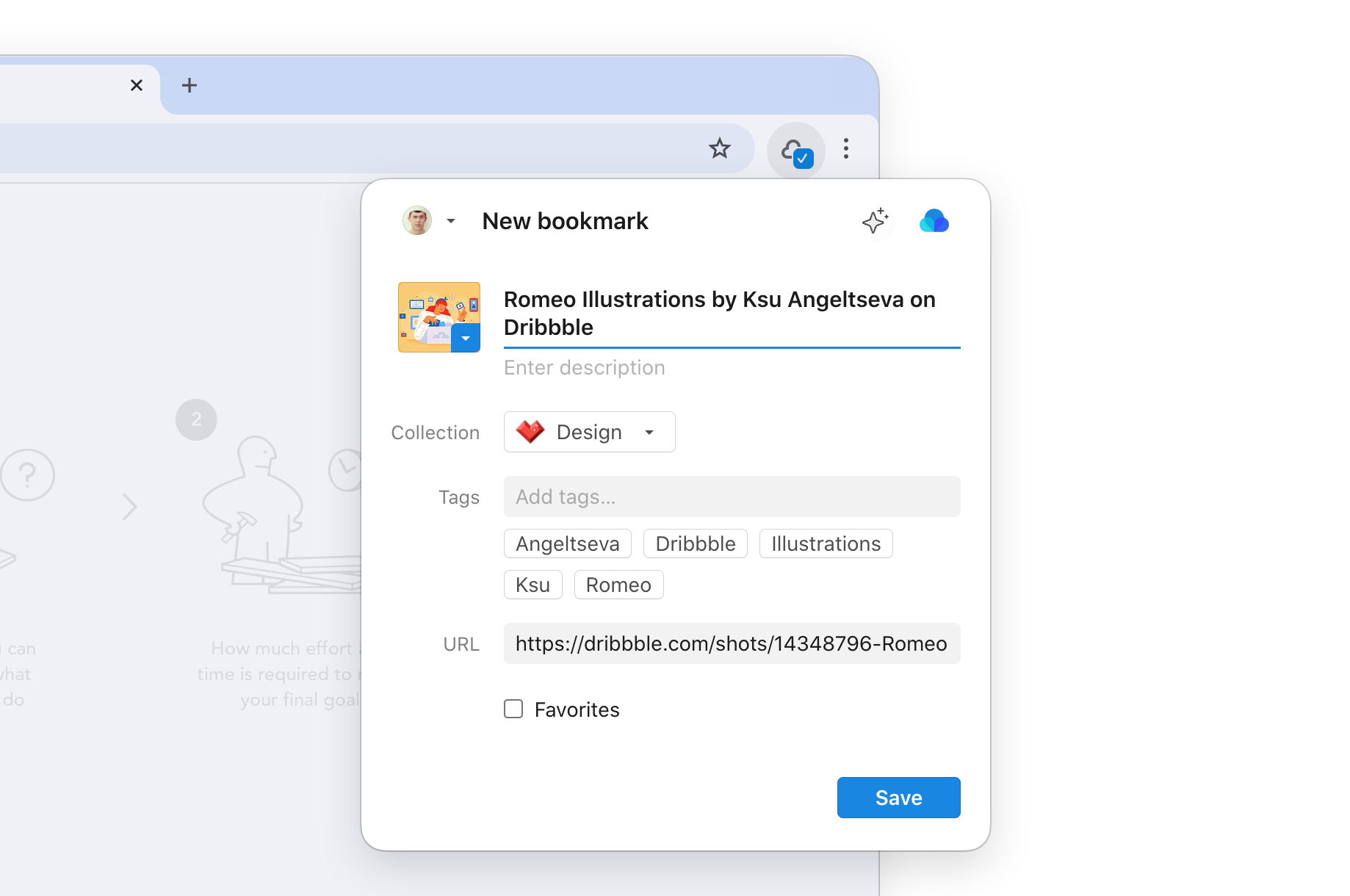
        Click the **Reminder** bell icon and pick a date and time
        <Frame style={{padding: 0}}>
          <img src="https://mintcdn.com/raindropio-0c6b7ca1/g7d24I8ROfahz7TM/assets/extension-intro.png?fit=max&auto=format&n=g7d24I8ROfahz7TM&q=85&s=e8fd769360ca62fb9a428168ba2714dc" alt="" width="1838" height="1220" data-path="assets/extension-intro.png" />
        </Frame>
      </Step>

      <Step>
        Click **Save** for a new bookmark, or just close the extension window
      </Step>
    </Steps>
  </Tab>

  <Tab title="iOS">
    <Steps>
      <Step>
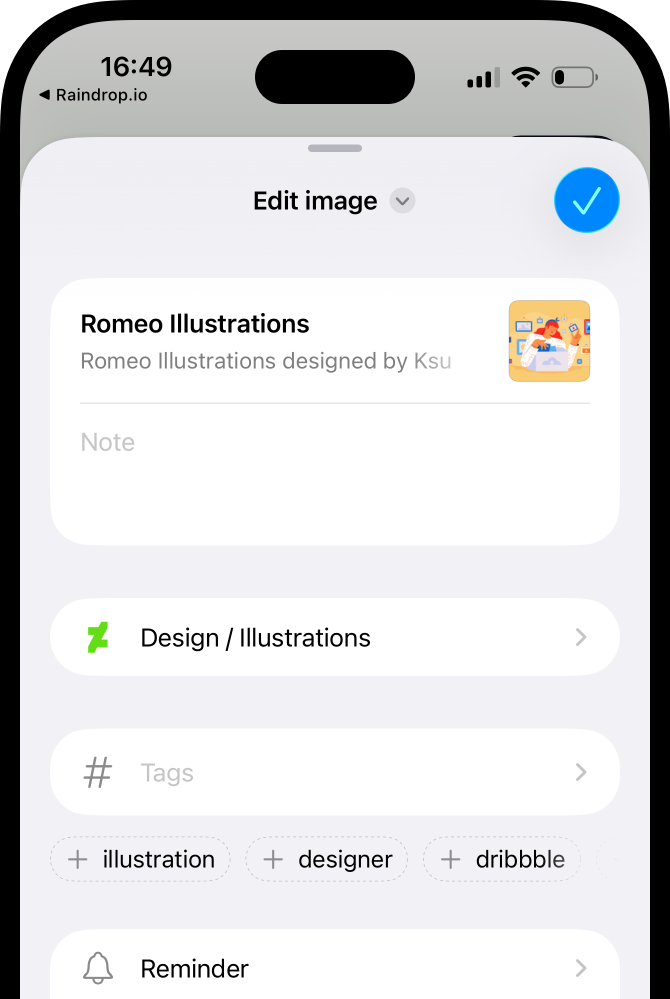
        Long-press a bookmark and choose **Edit**.
        <Frame style={{padding: '20px 0 0 0'}}>
          <img src="https://mintcdn.com/raindropio-0c6b7ca1/g7d24I8ROfahz7TM/assets/ios-edit-bookmark.png?fit=max&auto=format&n=g7d24I8ROfahz7TM&q=85&s=120b06aa24f6c6de9872cce2ce11bafb" style={{maxHeight: '333px'}} width="670" height="999" data-path="assets/ios-edit-bookmark.png" />
        </Frame>
      </Step>

      <Step>
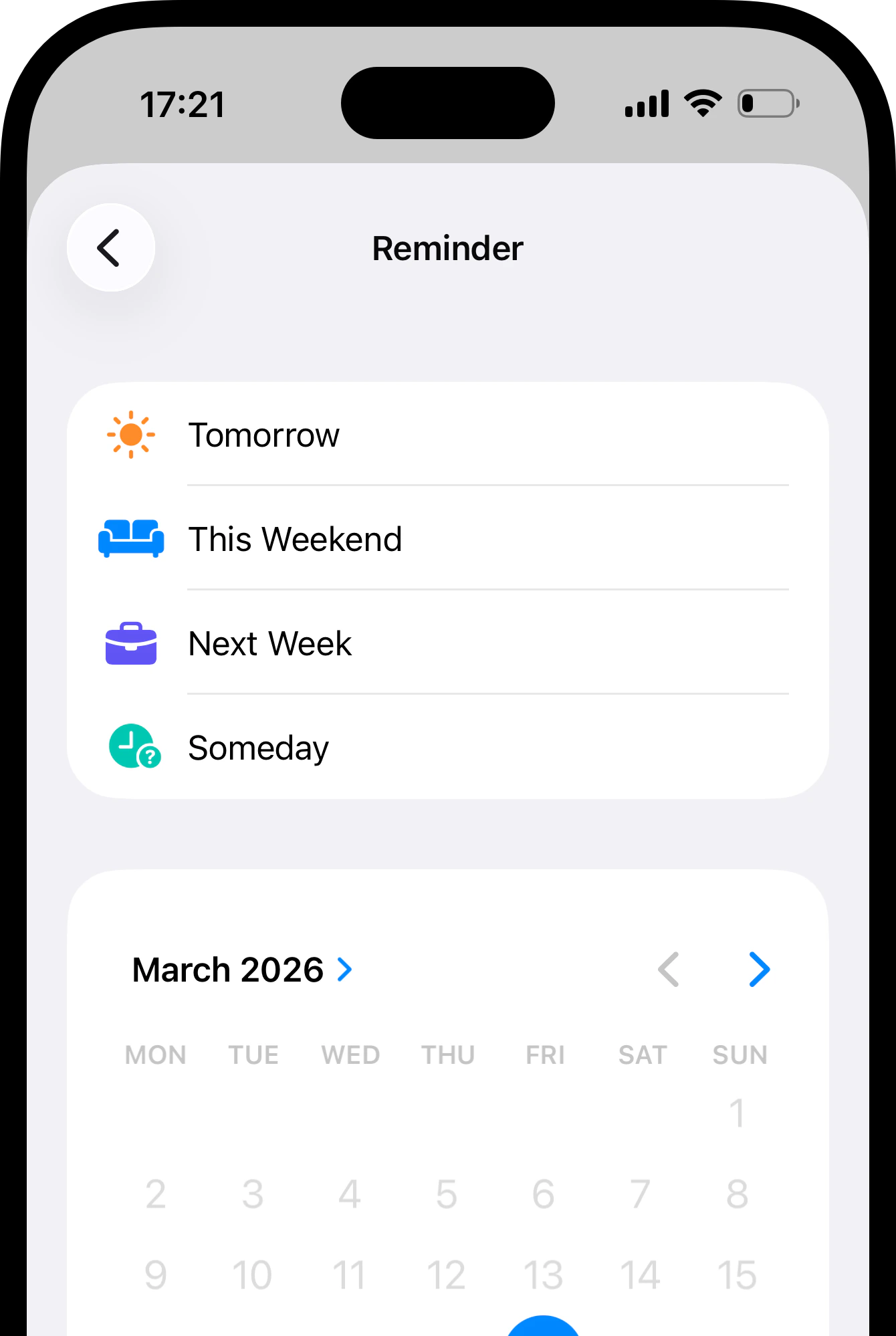
        Tap **Add reminder** and pick a date and time
        <Frame style={{padding: '20px 0 0 0'}}>
          <img src="https://mintcdn.com/raindropio-0c6b7ca1/g7d24I8ROfahz7TM/assets/ios-add-reminder.png?fit=max&auto=format&n=g7d24I8ROfahz7TM&q=85&s=29a98868b83738f099d6bd9e666a1ec7" style={{maxHeight: '333px'}} width="1340" height="1998" data-path="assets/ios-add-reminder.png" />
        </Frame>
      </Step>
    </Steps>
  </Tab>

  <Tab title="Android">
    <Steps>
      <Step>
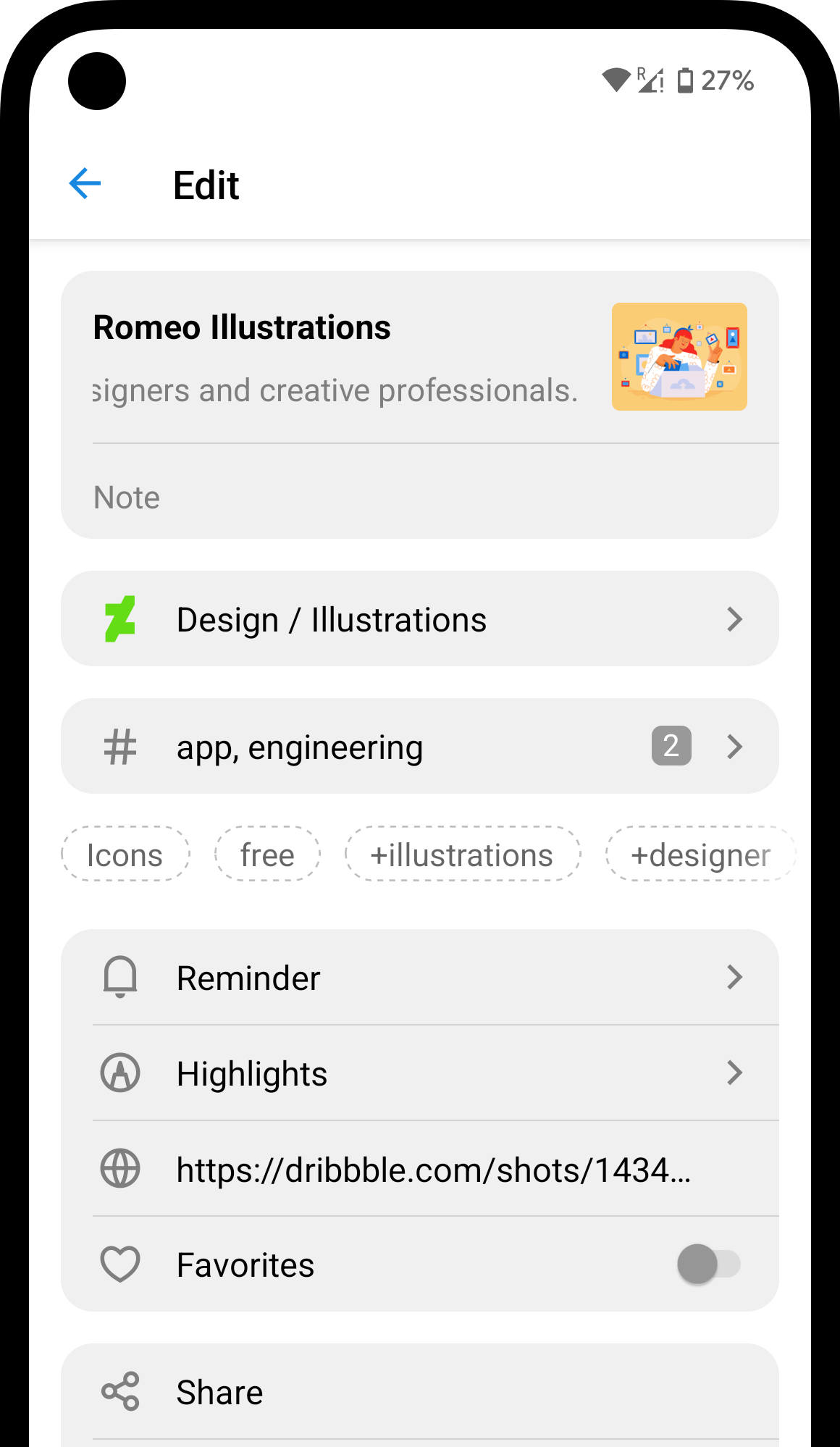
        Tap the <Icon icon="ellipsis" size={16} /> icon next to a bookmark to open the edit screen.
        <Frame style={{padding: '20px 0 0 0'}}>
          <img src="https://mintcdn.com/raindropio-0c6b7ca1/g7d24I8ROfahz7TM/assets/android-edit-bookmark.png?fit=max&auto=format&n=g7d24I8ROfahz7TM&q=85&s=5d60571673f3fe5b1d3117b2c26fa5ee" style={{maxHeight: '333px'}} width="1160" height="1998" data-path="assets/android-edit-bookmark.png" />
        </Frame>
      </Step>

      <Step>
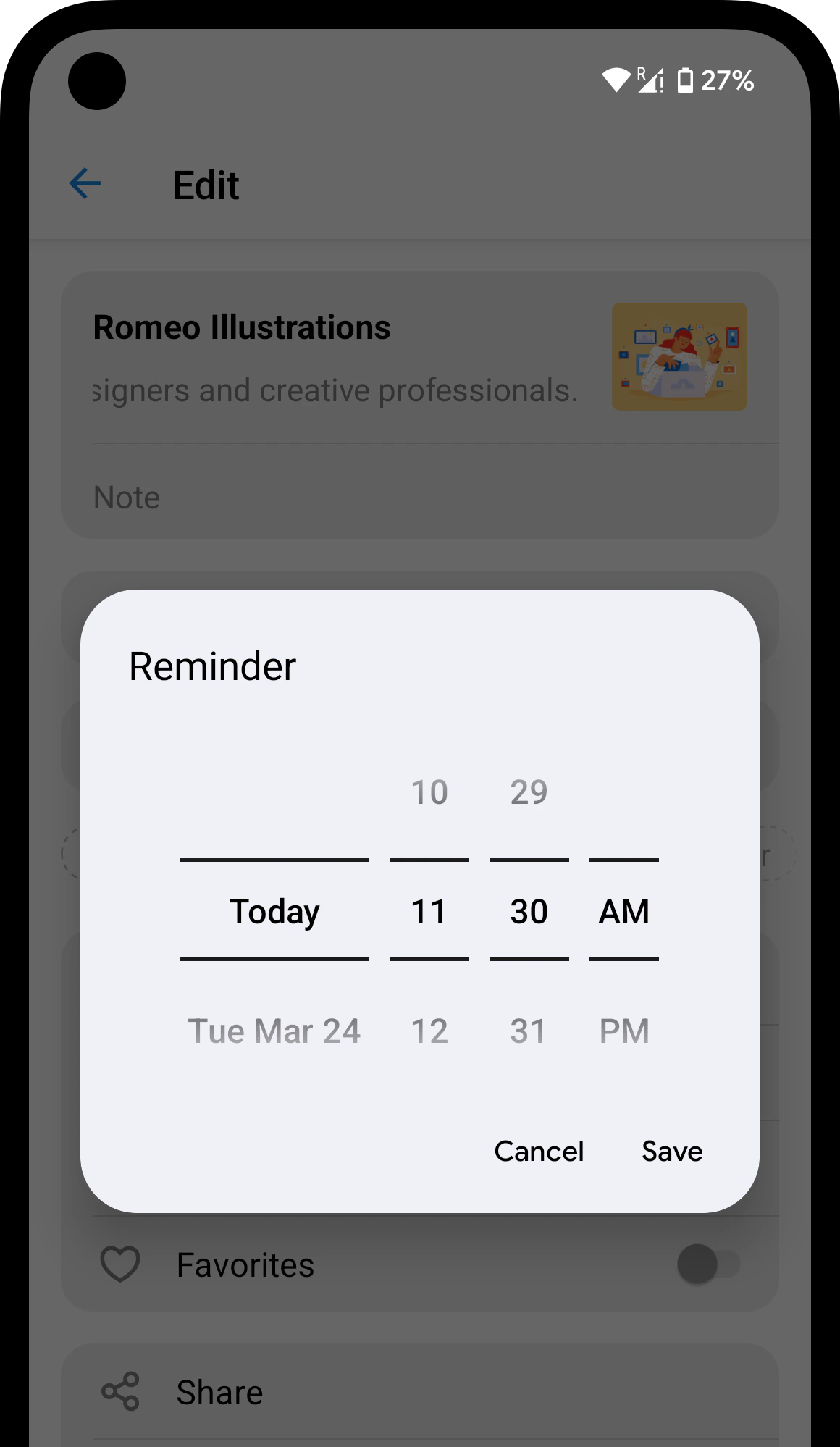
        Tap **Reminder** and pick a date and time
        <Frame style={{padding: '20px 0 0 0'}}>
          <img src="https://mintcdn.com/raindropio-0c6b7ca1/g7d24I8ROfahz7TM/assets/android-reminder.png?fit=max&auto=format&n=g7d24I8ROfahz7TM&q=85&s=0a8cea2e705216706e5b2fcd23d45551" style={{maxHeight: '333px'}} width="1160" height="1998" data-path="assets/android-reminder.png" />
        </Frame>
      </Step>
    </Steps>
  </Tab>
</Tabs>

## Finding bookmarks with active reminders

<Tabs>
  <Tab title="Web & Desktop">
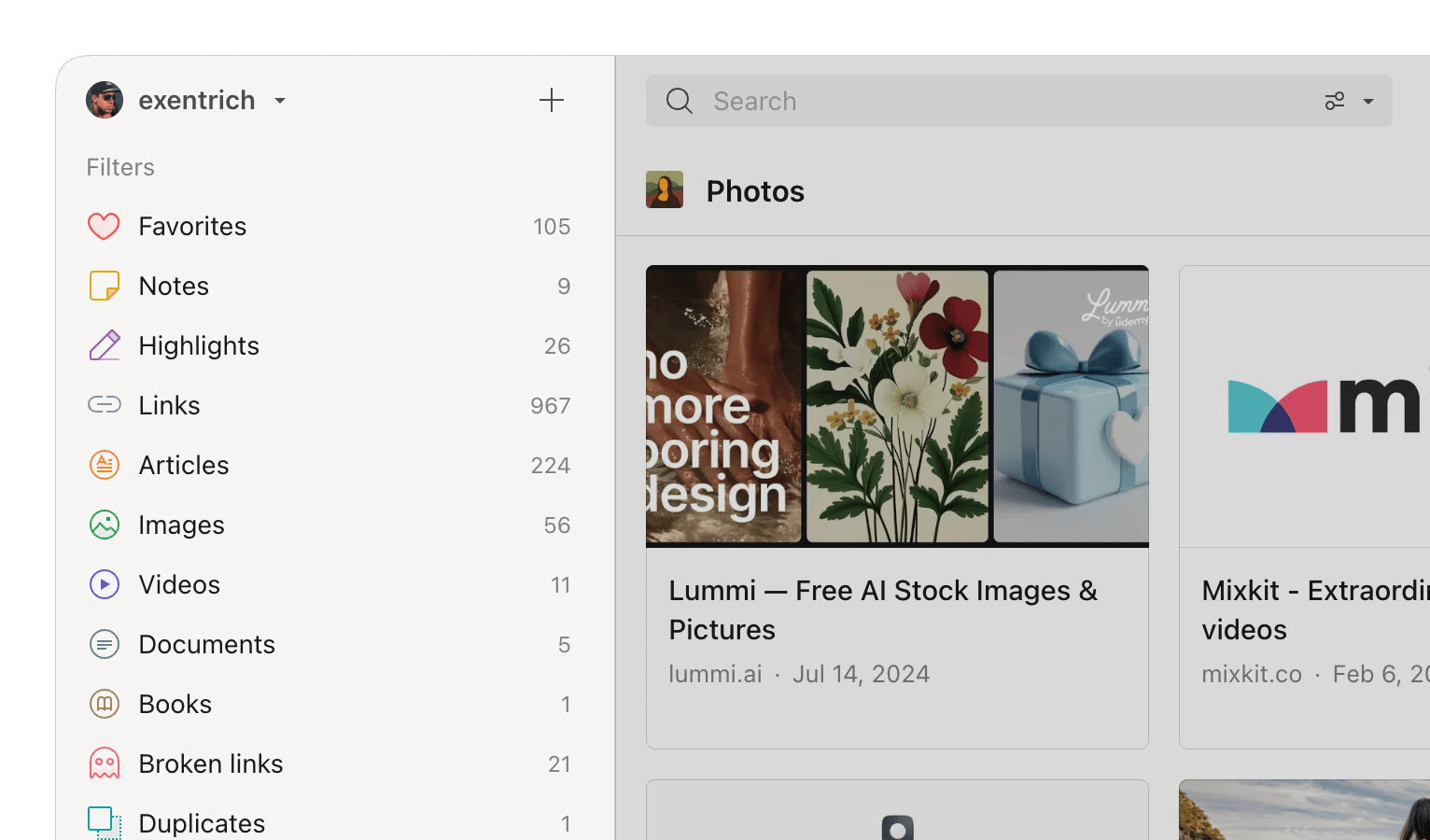
    Click the **Reminder** filter in sidebar.
    <Frame style={{padding:0}}>
      <img src="https://mintcdn.com/raindropio-0c6b7ca1/g7d24I8ROfahz7TM/assets/filters.png?fit=max&auto=format&n=g7d24I8ROfahz7TM&q=85&s=92d3063f7f646bdba61ebf0b4b03572a" alt="" width="1532" height="900" data-path="assets/filters.png" />
    </Frame>
  </Tab>

  <Tab title="iOS">
    <Steps>
      <Step>
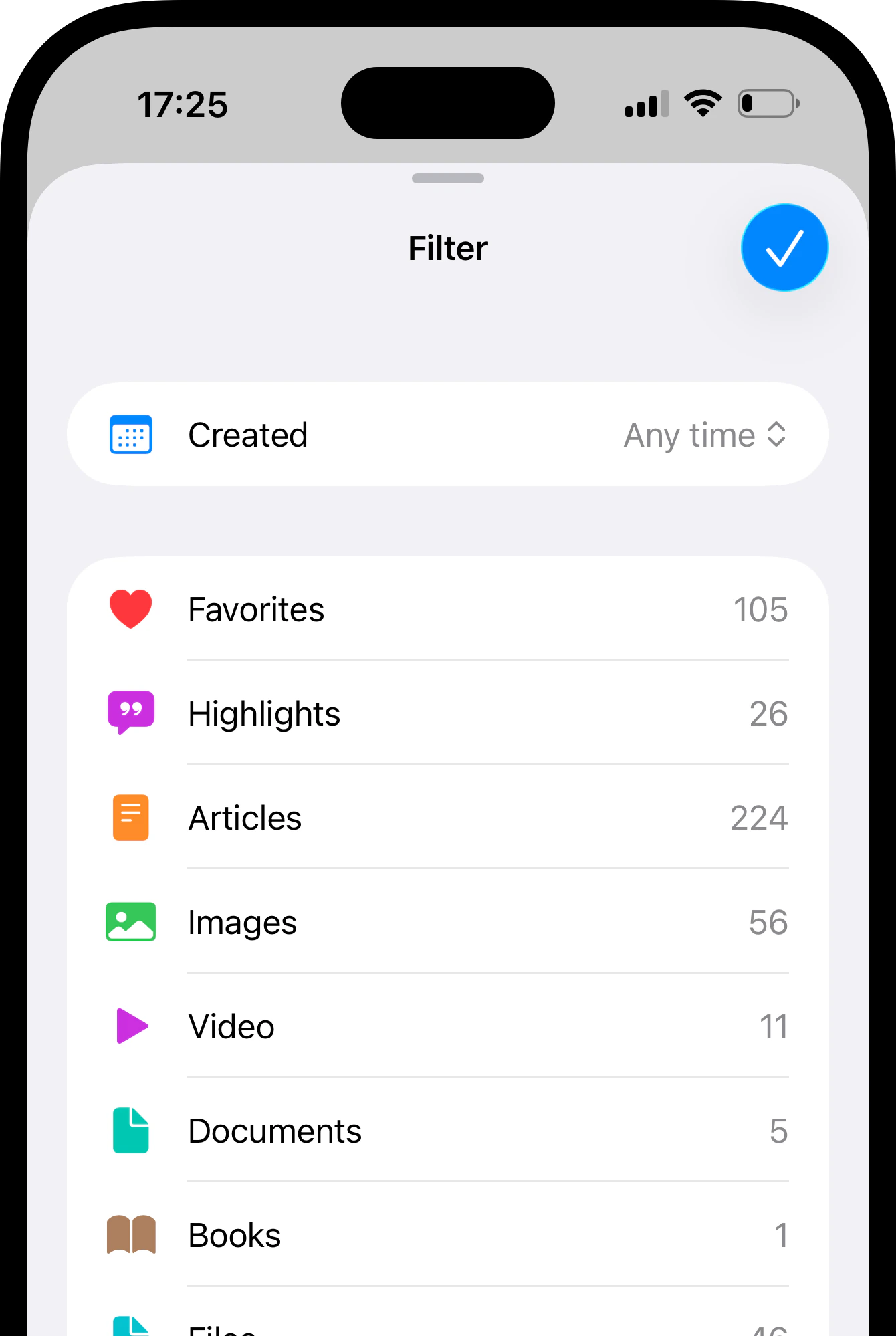
        Tap <Icon icon="ellipsis" /> in top right corner and then **Filter**.
      </Step>

      <Step>
        Select the **Reminder** filter from the list.
        <Frame style={{padding: '20px 0 0 0'}}>
          <img src="https://mintcdn.com/raindropio-0c6b7ca1/g7d24I8ROfahz7TM/assets/ios-filter.png?fit=max&auto=format&n=g7d24I8ROfahz7TM&q=85&s=70962dd3800d2a24a660fb90b2fd55d6" style={{maxHeight: '333px'}} width="1340" height="1998" data-path="assets/ios-filter.png" />
        </Frame>
      </Step>
    </Steps>
  </Tab>

  <Tab title="Android">
    <Steps>
      <Step>
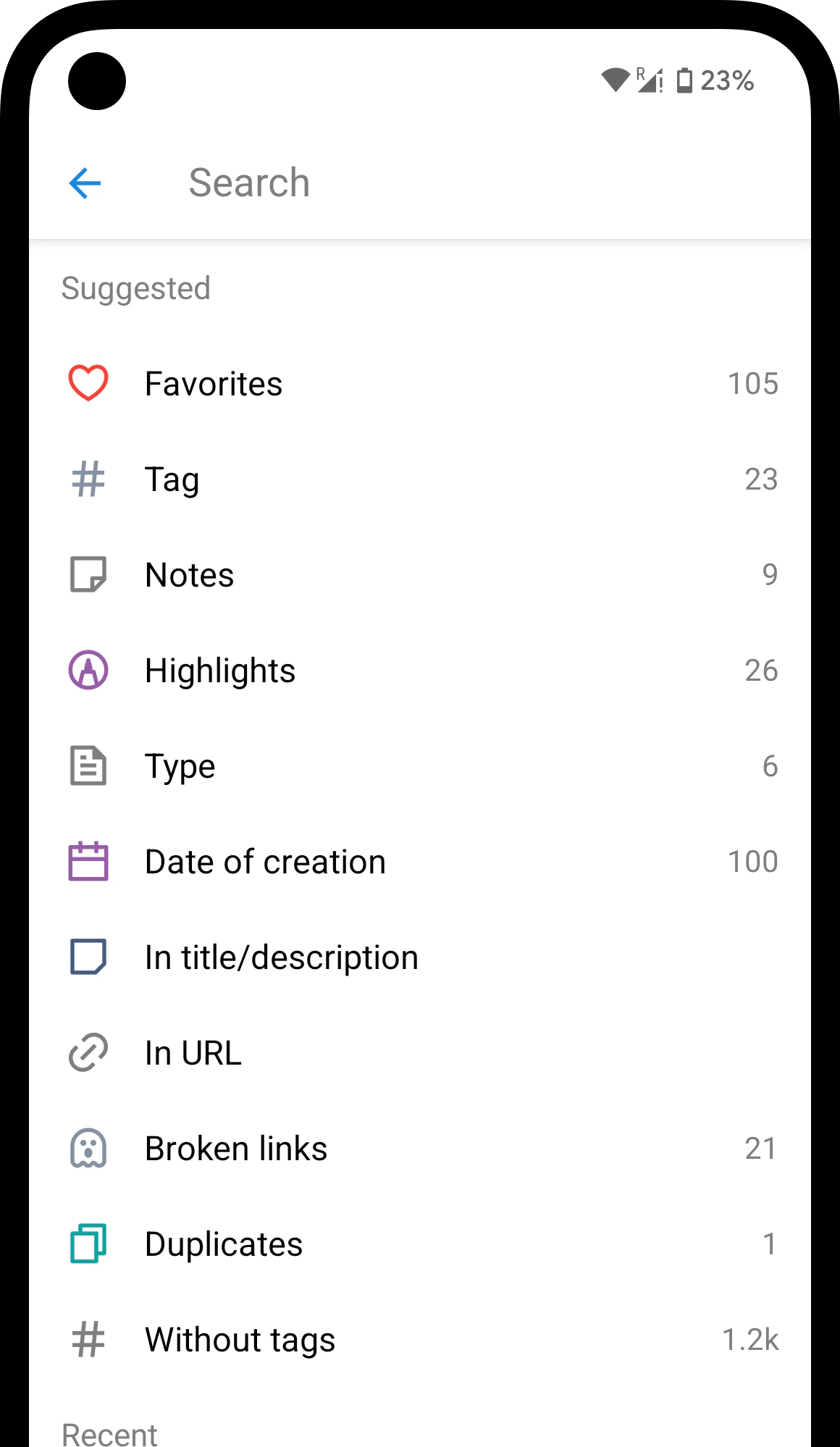
        Tap on the search field.
      </Step>

      <Step>
        Select the **Reminder** filter from the suggestions.
        <Frame style={{padding: '20px 0 0 0'}}>
          <img src="https://mintcdn.com/raindropio-0c6b7ca1/g7d24I8ROfahz7TM/assets/android-filter.png?fit=max&auto=format&n=g7d24I8ROfahz7TM&q=85&s=fc0c93cc9baa5e901710fd1741f40499" style={{maxHeight: '333px'}} width="1160" height="1998" data-path="assets/android-filter.png" />
        </Frame>
      </Step>
    </Steps>
  </Tab>
</Tabs>

## FAQ

<AccordionGroup>
  <Accordion title="How will I be notified?">
    You'll receive a push notification (if the mobile app is installed) or an email at the scheduled time.
  </Accordion>

  <Accordion title="What timezone is used?">
    Your local timezone. The reminder fires at the date and time you see in the picker.
  </Accordion>

  <Accordion title="Can I set recurring reminders?">
    Not yet. Each reminder is a one-time notification.
  </Accordion>
</AccordionGroup>

## Related

<CardGroup cols={2}>
  <Card title="Filters" icon="filter" iconType="duotone" href="/filters">
    Narrow down bookmarks by type, tag, date, and more
  </Card>
</CardGroup>