> ## Documentation Index
> Fetch the complete documentation index at: https://help.raindrop.io/llms.txt
> Use this file to discover all available pages before exploring further.
# Tabs
> Save all open browser tabs to a collection in one click
Too many open tabs piling up? Save them all as bookmarks and come back to them when you're ready.
Each saved session is automatically tagged with today's date, so you can tell one apart from another.
## Saving tabs
Right-click the Raindrop.io extension icon and choose **Save tabs**.
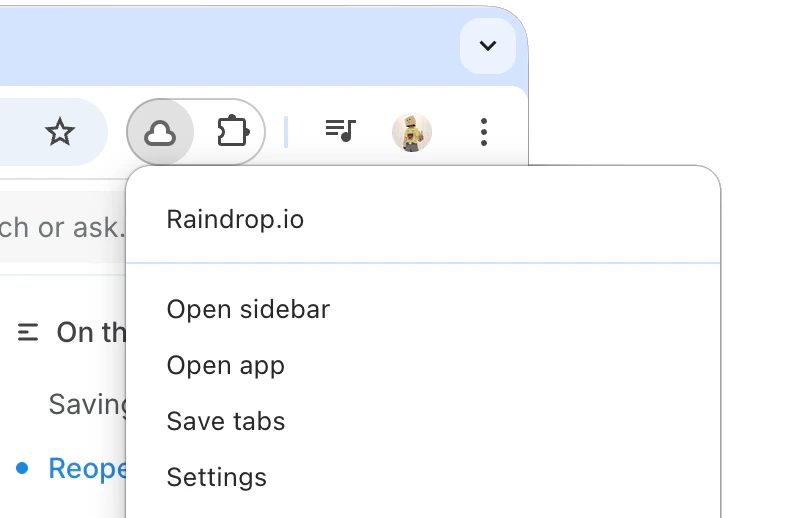 Make sure you have the [browser extension](/install-extension) installed.
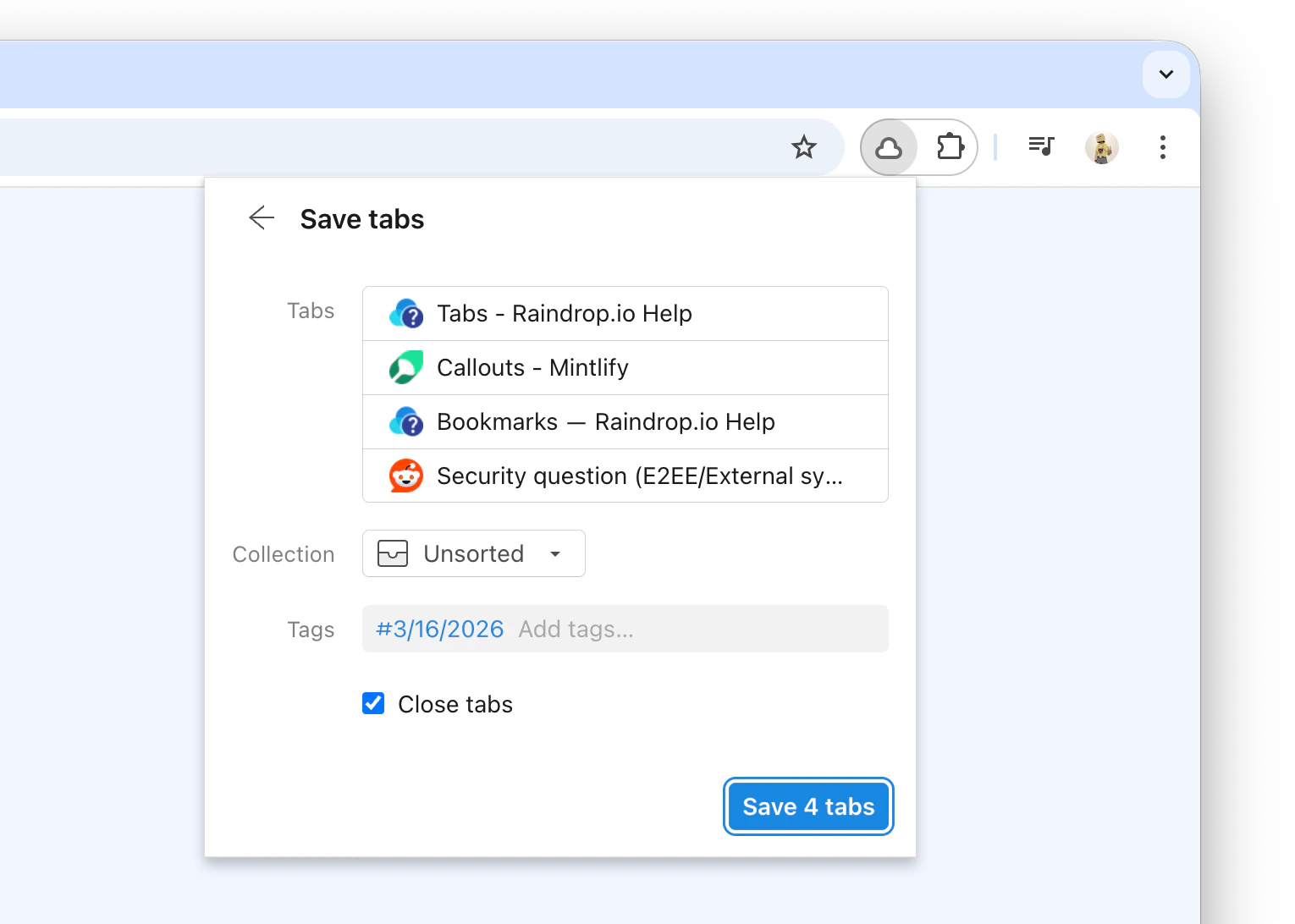
Pick a collection or leave the default, then click **Save tabs**.
Make sure you have the [browser extension](/install-extension) installed.
Pick a collection or leave the default, then click **Save tabs**.
 Install the [Raindrop.io mobile app](/mobile-app) if you haven't already.
Enable the Safari extension: go to iOS **Settings** → **Safari** → **Extensions** → **Raindrop.io** and turn it on.
In Safari, tap the **puzzle** icon in the address bar, then tap **Raindrop.io**.
Tap **Tabs**. Pick a collection or leave the default, then tap **Save tabs**.
Not available. Chrome on Android doesn't support extensions, which are required for this feature.
## Reopening saved tabs
You can open all bookmarks in a collection at once, or select specific ones.
**Open entire collection:**\
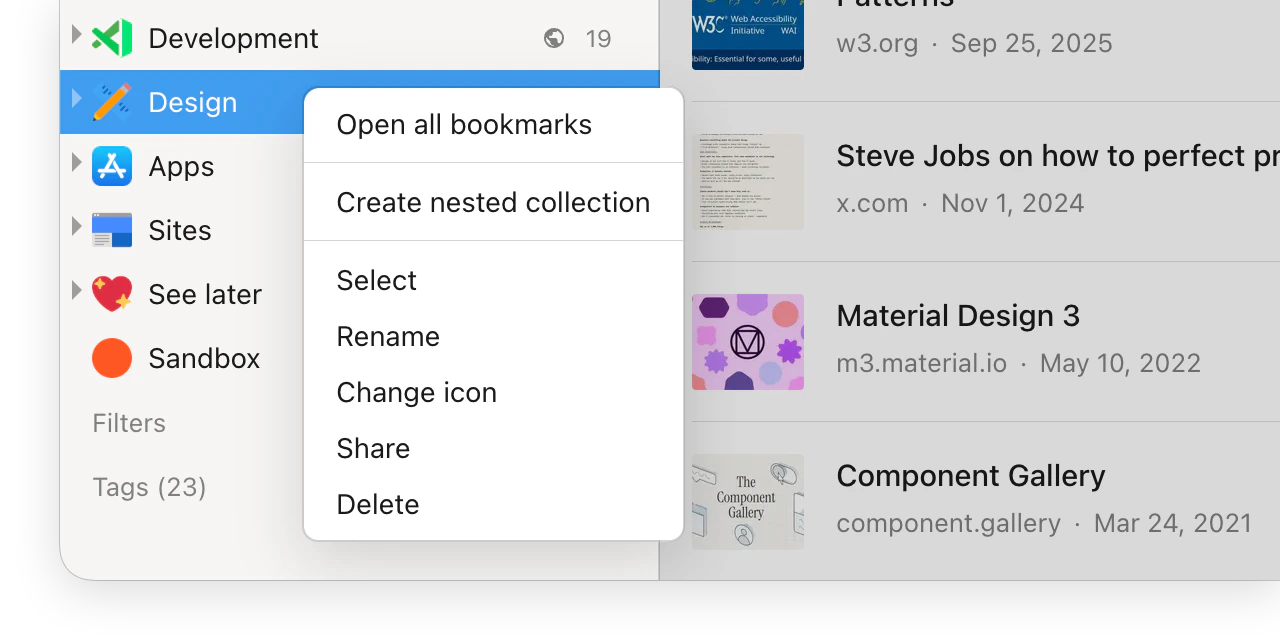
Right-click a collection in the sidebar and choose **Open all bookmarks**.
Install the [Raindrop.io mobile app](/mobile-app) if you haven't already.
Enable the Safari extension: go to iOS **Settings** → **Safari** → **Extensions** → **Raindrop.io** and turn it on.
In Safari, tap the **puzzle** icon in the address bar, then tap **Raindrop.io**.
Tap **Tabs**. Pick a collection or leave the default, then tap **Save tabs**.
Not available. Chrome on Android doesn't support extensions, which are required for this feature.
## Reopening saved tabs
You can open all bookmarks in a collection at once, or select specific ones.
**Open entire collection:**\
Right-click a collection in the sidebar and choose **Open all bookmarks**.
 **Open specific bookmarks:**
Hover over a bookmark and click the tick mark in the top-left corner. Repeat for each bookmark you want to open.
**Open specific bookmarks:**
Hover over a bookmark and click the tick mark in the top-left corner. Repeat for each bookmark you want to open.
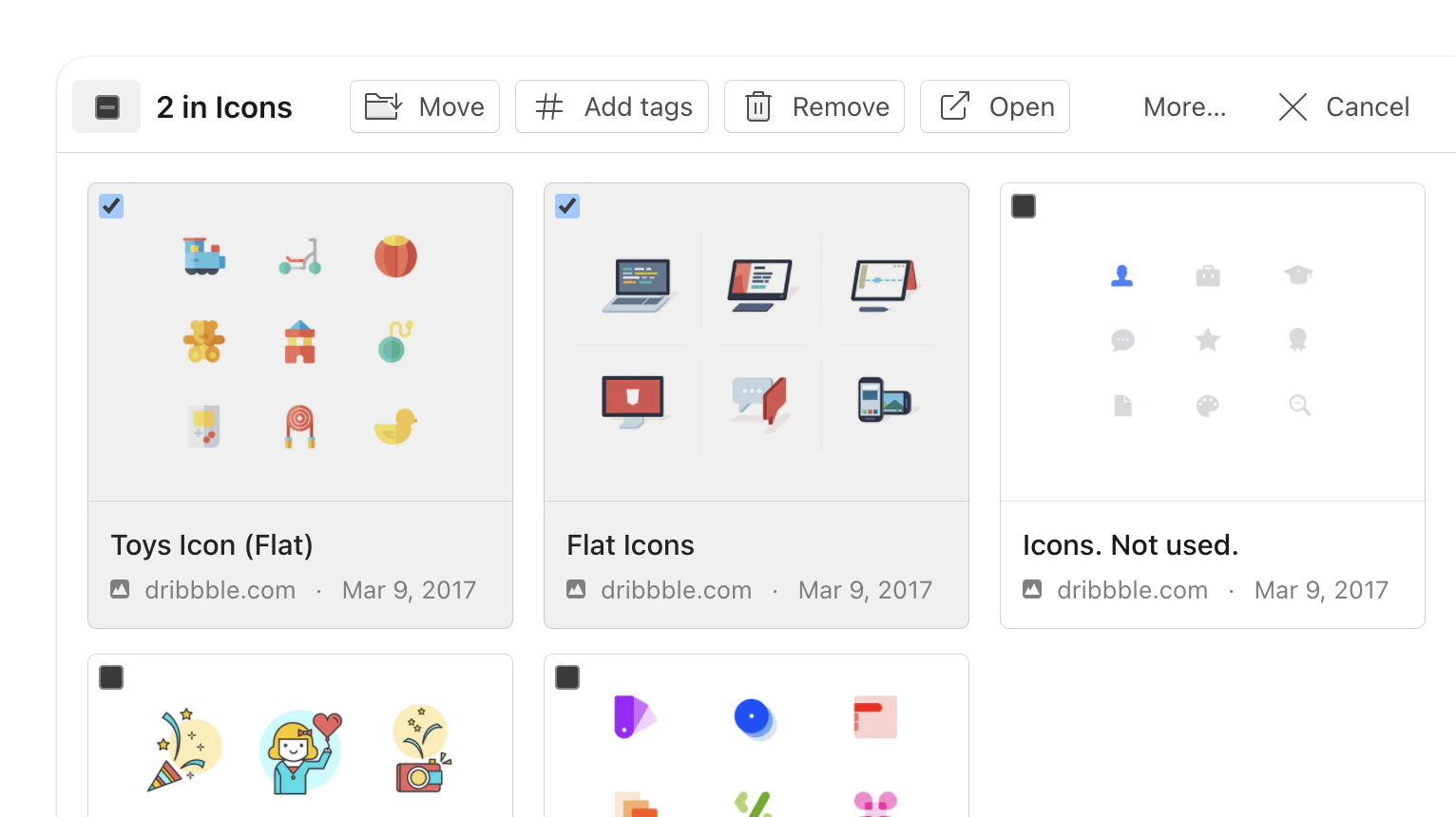 Click **Open** in the toolbar that appears at the top.
Opening all bookmarks at once is not yet supported. Saved tabs are regular bookmarks — you can open them one by one from the collection.
Opening all bookmarks at once is not yet supported. Saved tabs are regular bookmarks — you can open them one by one from the collection.
## FAQ
By default all tabs in the current window are included. To exclude a tab, hover over it in the list and click the **trash** icon.
A new set of bookmarks is created each time. You can use the [duplicates](/duplicates) tool to find and merge them.
Click **Open** in the toolbar that appears at the top.
Opening all bookmarks at once is not yet supported. Saved tabs are regular bookmarks — you can open them one by one from the collection.
Opening all bookmarks at once is not yet supported. Saved tabs are regular bookmarks — you can open them one by one from the collection.
## FAQ
By default all tabs in the current window are included. To exclude a tab, hover over it in the list and click the **trash** icon.
A new set of bookmarks is created each time. You can use the [duplicates](/duplicates) tool to find and merge them.