> ## Documentation Index
> Fetch the complete documentation index at: https://help.raindrop.io/llms.txt
> Use this file to discover all available pages before exploring further.
# Tags
> Classify bookmarks with keywords
A bookmark lives in one collection, but tags let you label it with multiple keywords — `to-read`, `important`, `Q2` — so you can find it from different angles later. Any characters, any language, spaces included.
## Adding tags
You can add tags when you [save a bookmark](/bookmarks) or at any time later by editing it. Type tags separated by commas in the **Tags** field.
Right-click a bookmark to open the context menu and select **Edit**.
Find the **Tags** field and type your tags.
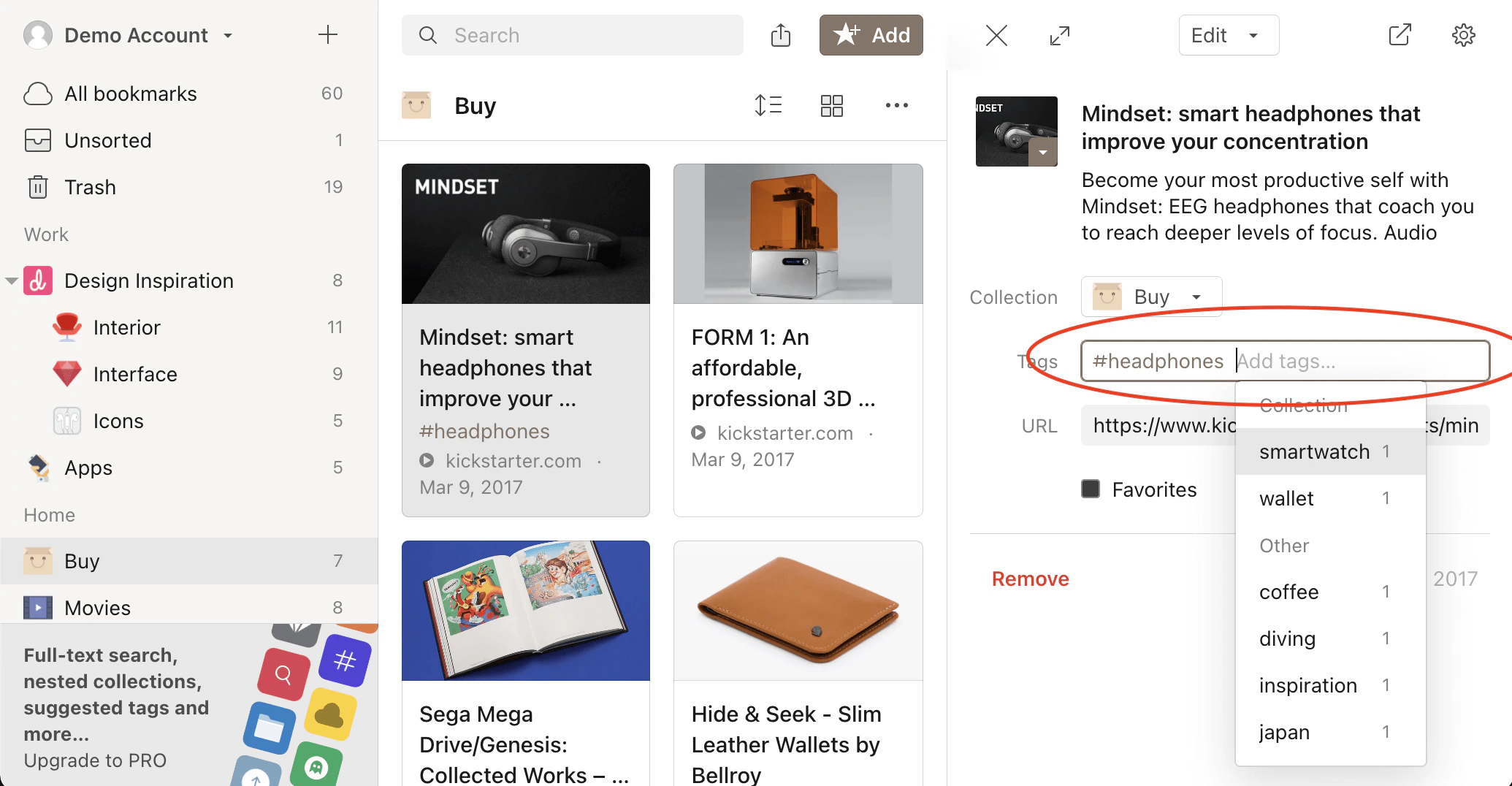 *Optionally*, pick from ✦ AI suggested tags based on the page content.
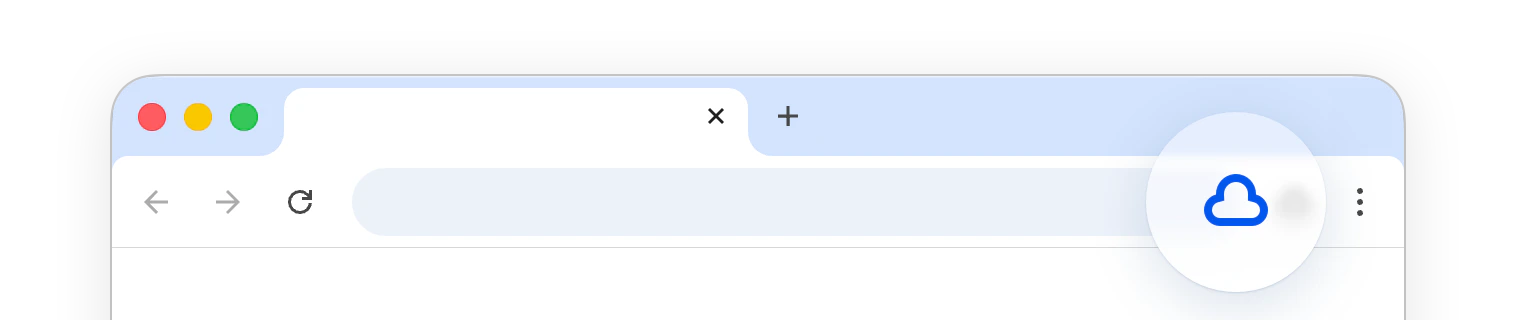
Click the Raindrop.io extension icon.
*Optionally*, pick from ✦ AI suggested tags based on the page content.
Click the Raindrop.io extension icon.
 Type tags in the **Tags** field.
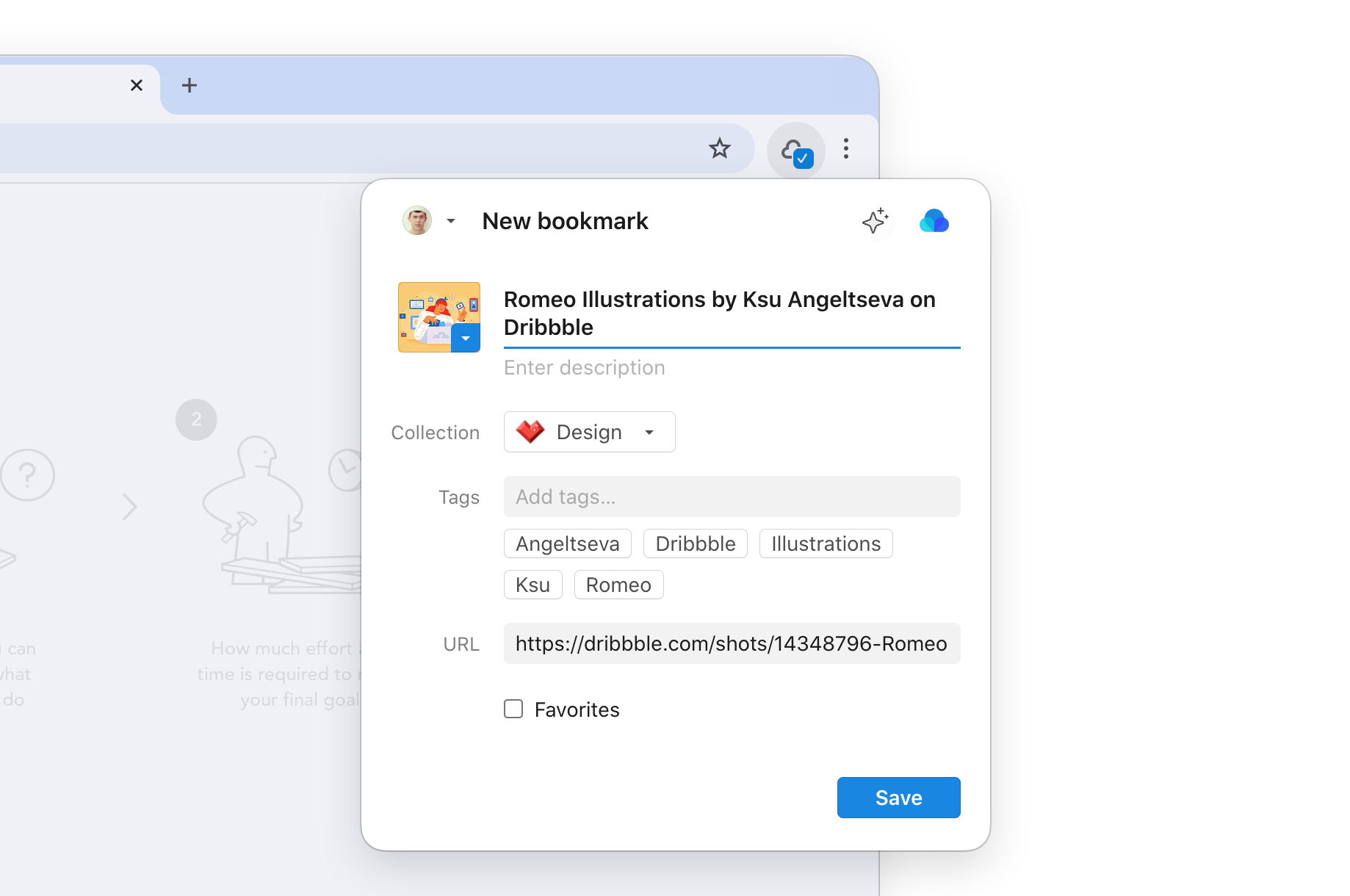 *Optionally*, pick from ✦ AI suggested tags based on the page content.
Long-press a bookmark and choose **Edit**.
*Optionally*, pick from ✦ AI suggested tags based on the page content.
Long-press a bookmark and choose **Edit**.
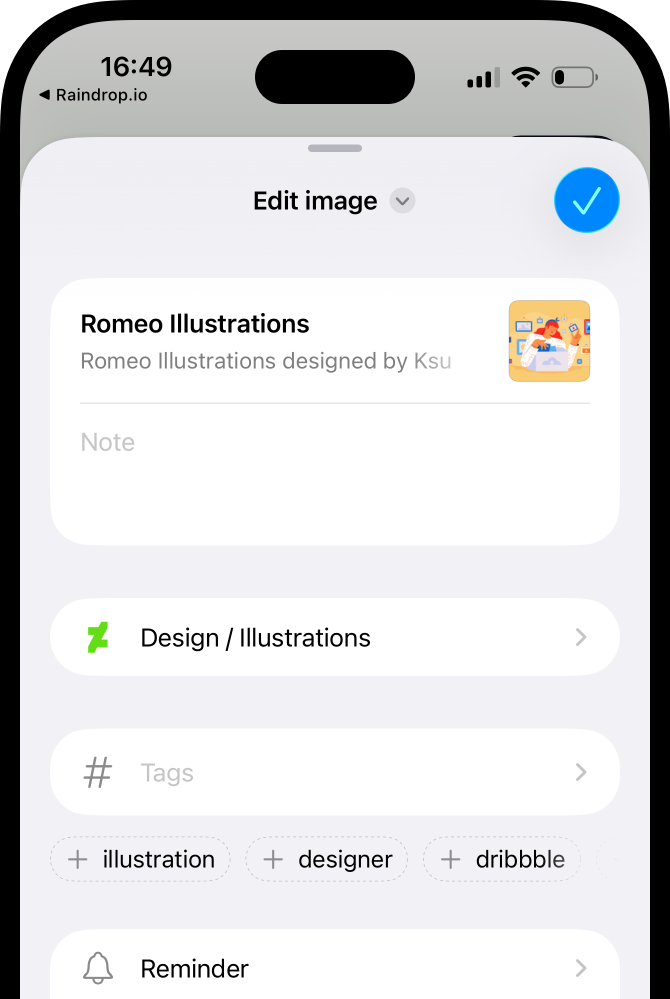 Tap the **Tags** field and type your tags.
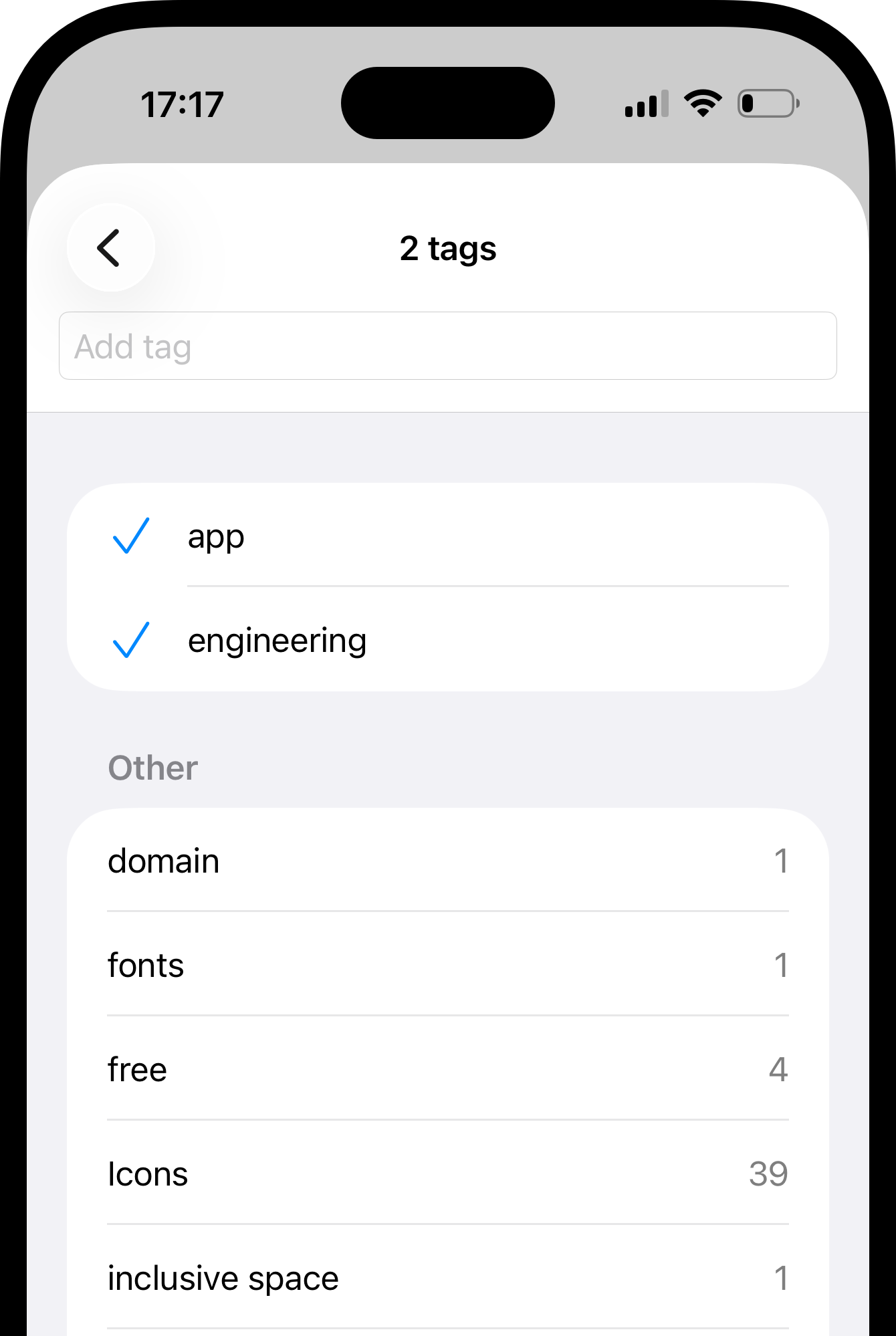 Tap the icon next to a bookmark to open the edit screen.
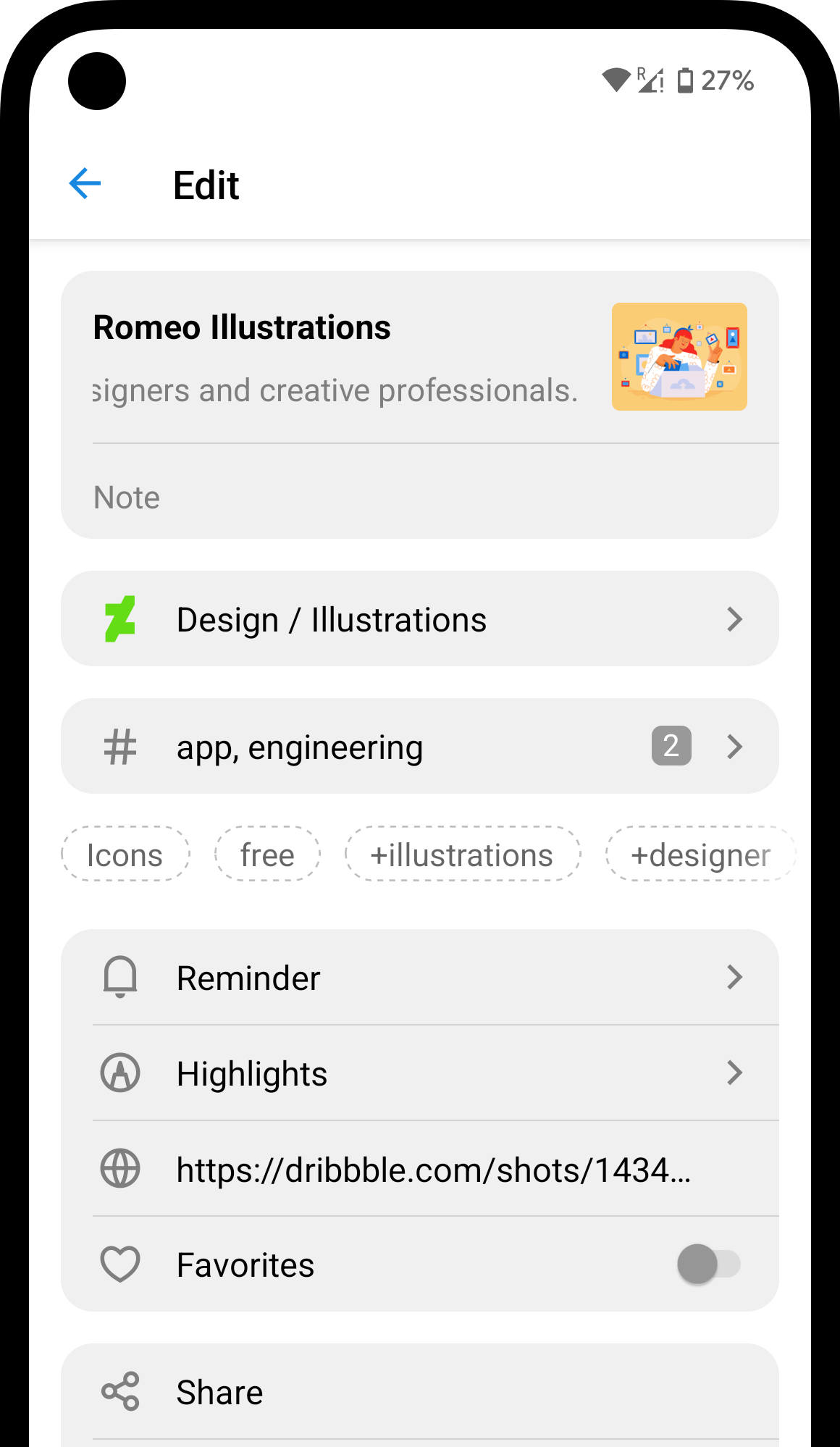 Tap the **Tags** field and type your tags.
Select items by hovering over them and clicking the checkbox that appears.
Tap the **Tags** field and type your tags.
Select items by hovering over them and clicking the checkbox that appears.
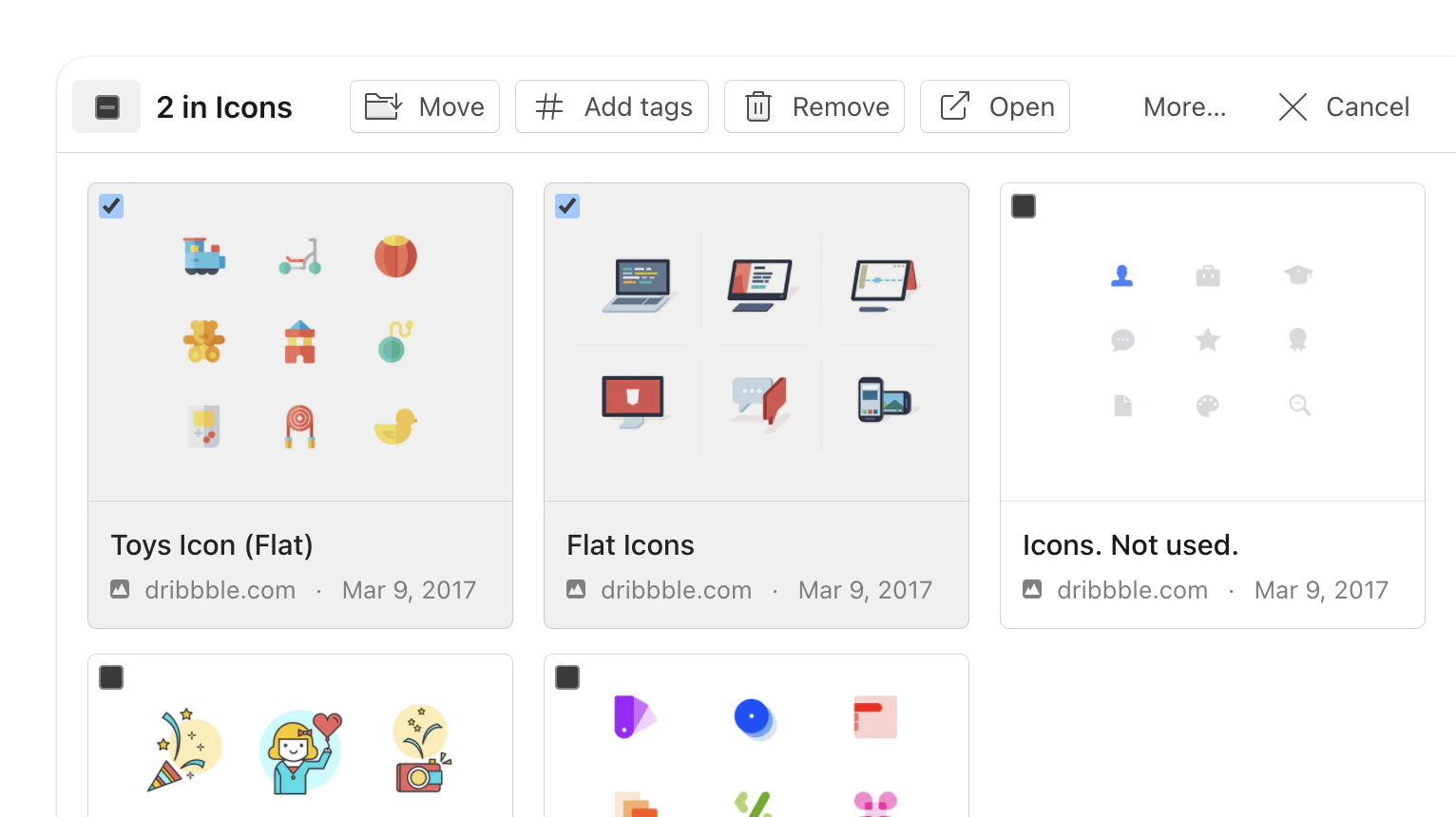 Click **Add tags** in the toolbar at the top, or **More…** → **Delete tags** to remove.
Tap the **Select** button in the top right corner to start selection mode.
Select as many bookmarks as you want.
Tap **Add tags** or **Remove tags**.
Click **Add tags** in the toolbar at the top, or **More…** → **Delete tags** to remove.
Tap the **Select** button in the top right corner to start selection mode.
Select as many bookmarks as you want.
Tap **Add tags** or **Remove tags**.
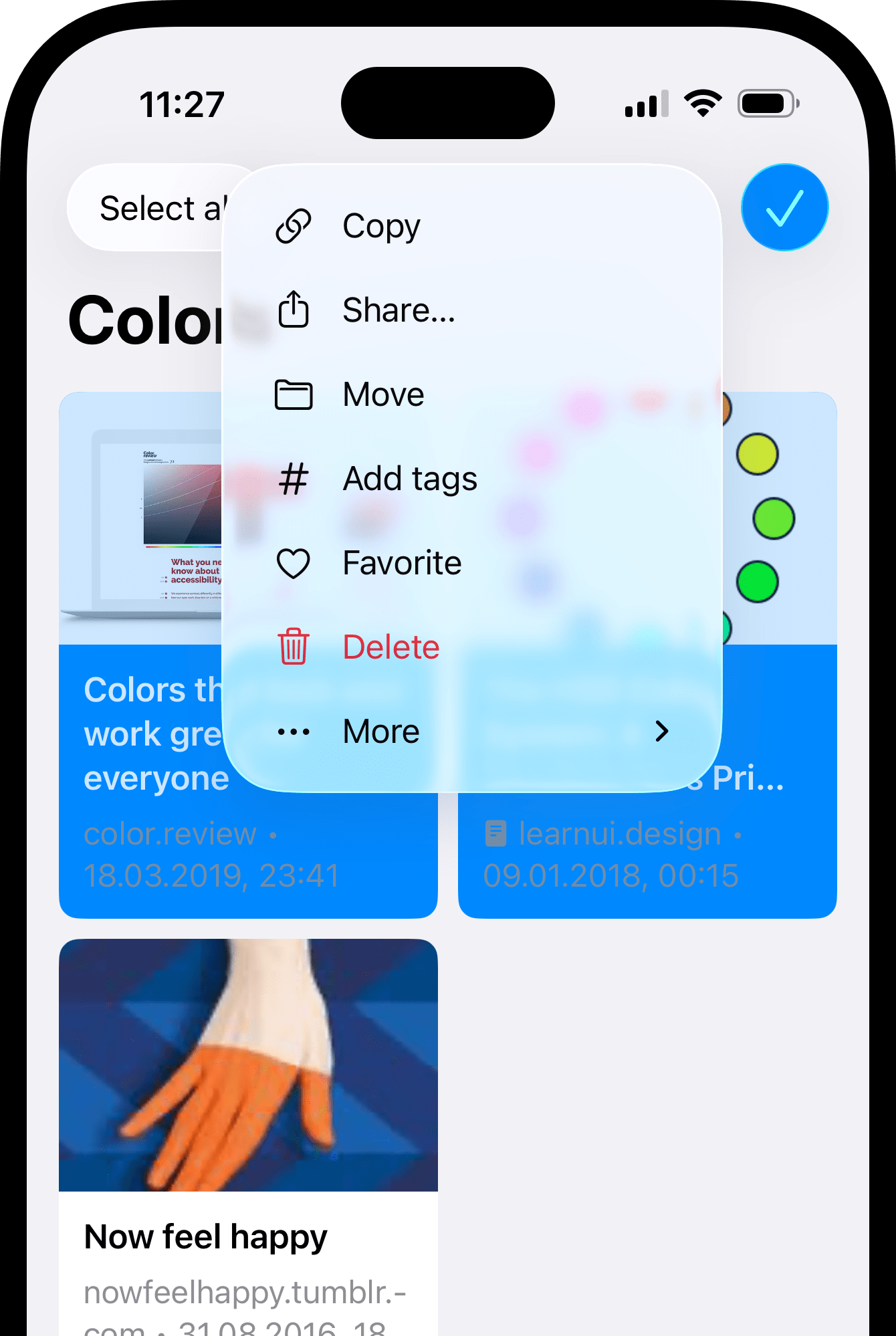 Long-press an item to enter selection mode. Tap more items to add them.
Tap **⋮** → **Add tags** or **Remove tags**.
## Managing tags
Rename or delete a tag itself — the change applies to every bookmark that uses it.
**Pro tip**: need to tag, rename, or merge tags across your library? Ask [Stella](/stella) — just describe what you need in plain language.
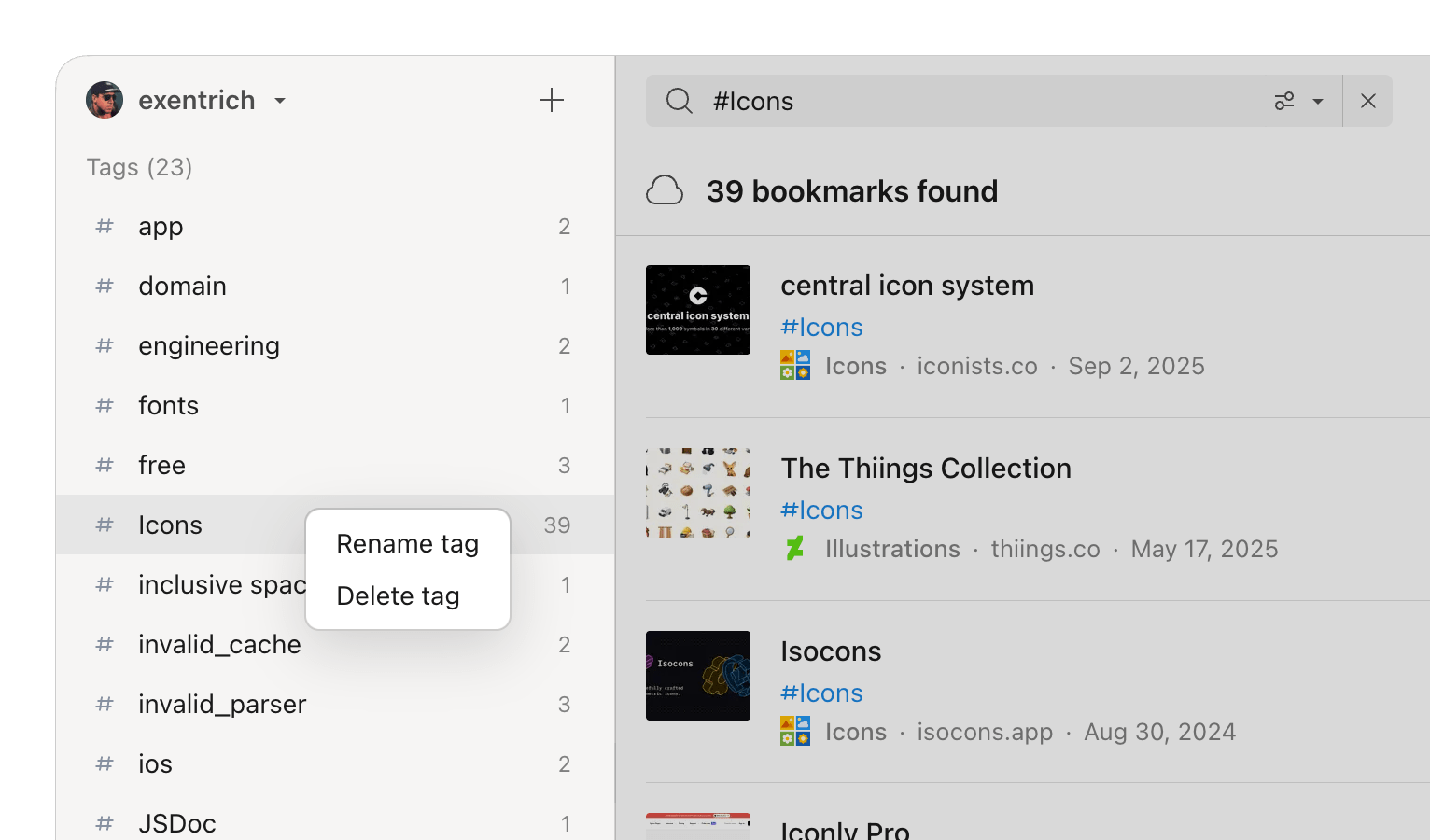
Right-click any tag in the sidebar and choose **Rename tag** or **Delete tag**.
Long-press an item to enter selection mode. Tap more items to add them.
Tap **⋮** → **Add tags** or **Remove tags**.
## Managing tags
Rename or delete a tag itself — the change applies to every bookmark that uses it.
**Pro tip**: need to tag, rename, or merge tags across your library? Ask [Stella](/stella) — just describe what you need in plain language.
Right-click any tag in the sidebar and choose **Rename tag** or **Delete tag**.
 On the main screen, scroll to the tag list at the bottom. Swipe a tag to the left — tap **Rename** or **Delete**.
## Finding tagged bookmarks
Each tag appears as a clickable [filter](/filters) — select it to see all bookmarks with that tag. There's also a **Without tags** filter to find bookmarks that have no tags yet.
Click any tag in the sidebar filter list.
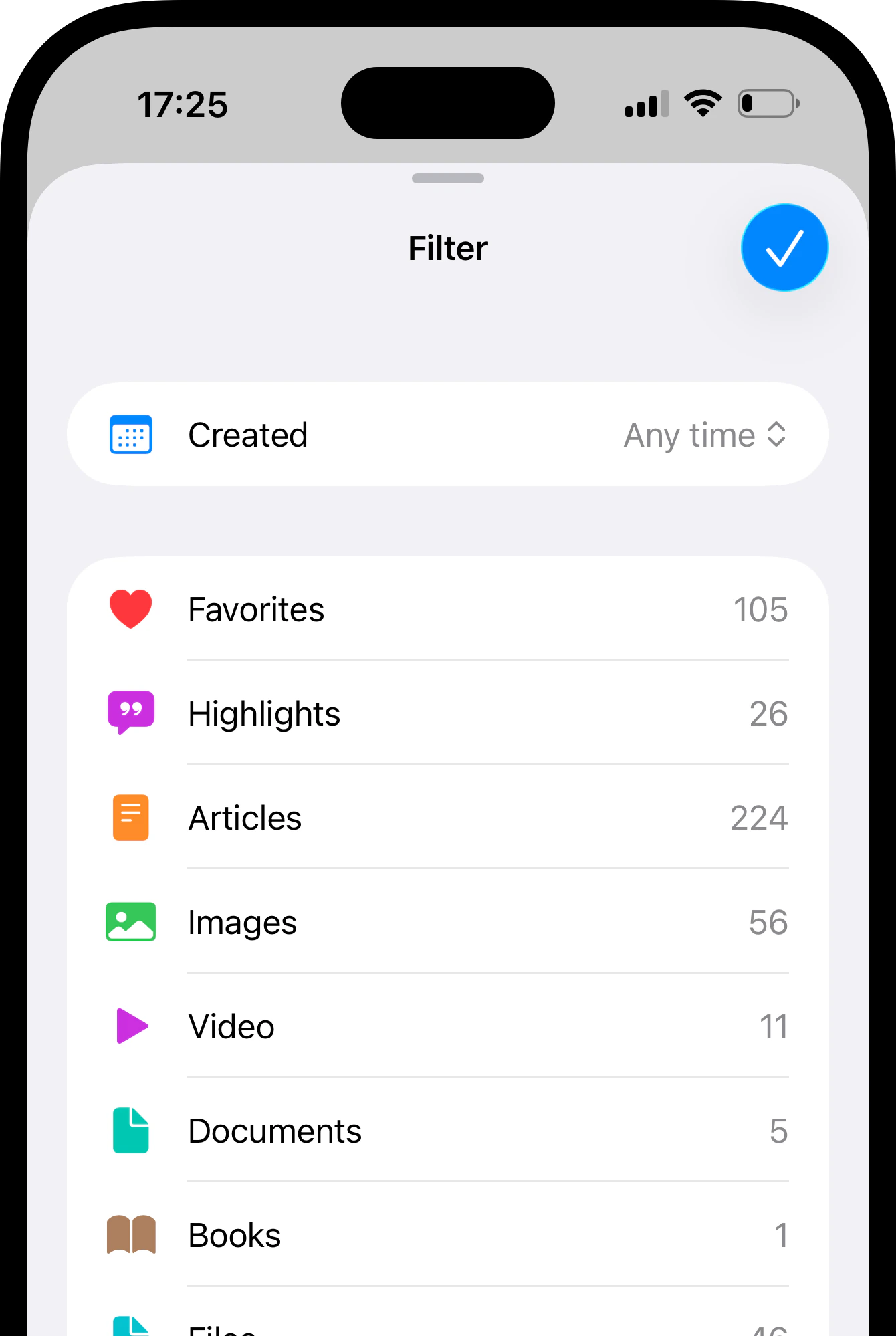
Tap in top right corner and then **Filter**.
Select a tag from the list.
On the main screen, scroll to the tag list at the bottom. Swipe a tag to the left — tap **Rename** or **Delete**.
On the main screen, scroll to the tag list at the bottom. Swipe a tag to the left — tap **Rename** or **Delete**.
## Finding tagged bookmarks
Each tag appears as a clickable [filter](/filters) — select it to see all bookmarks with that tag. There's also a **Without tags** filter to find bookmarks that have no tags yet.
Click any tag in the sidebar filter list.
Tap in top right corner and then **Filter**.
Select a tag from the list.
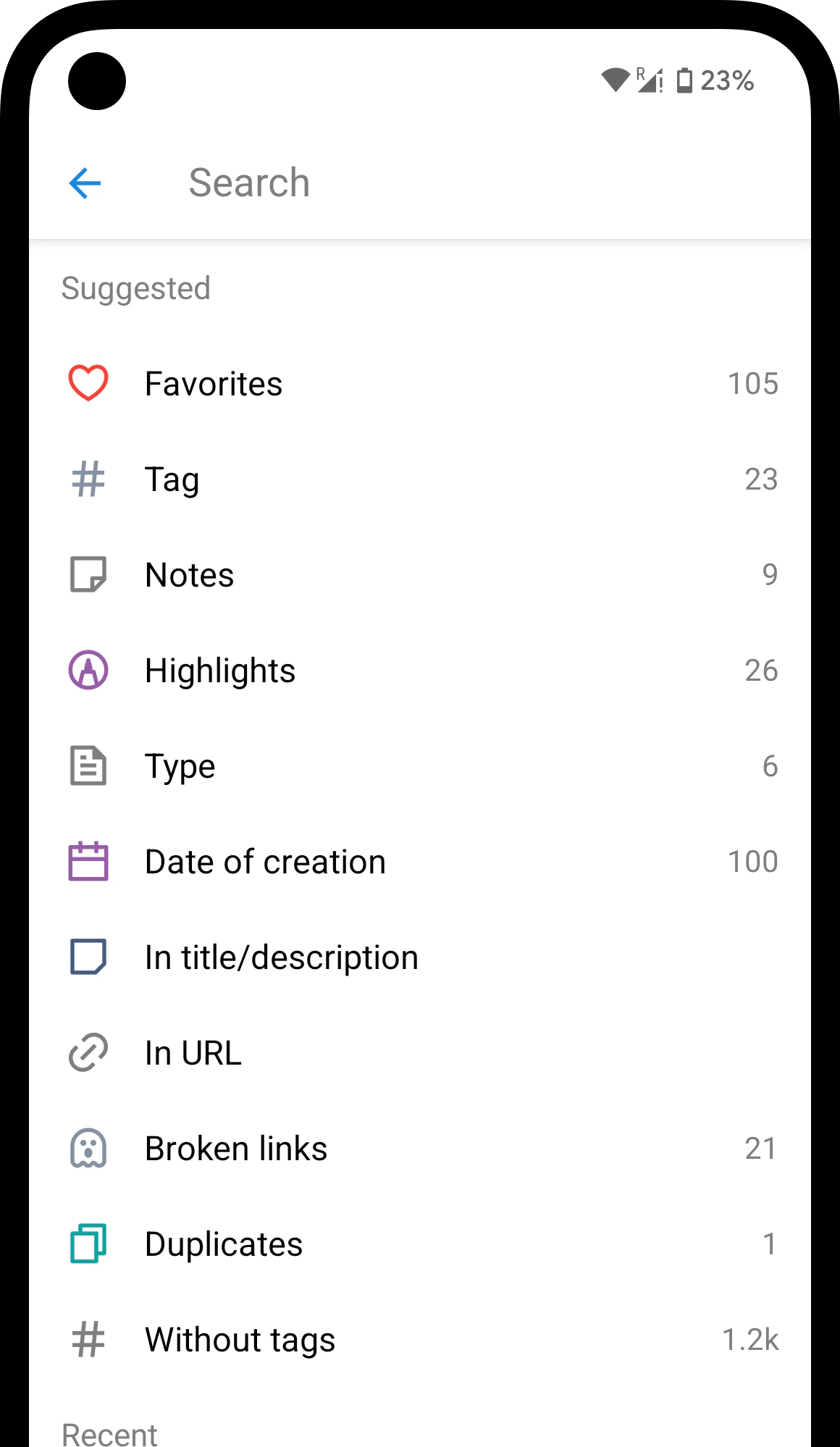
 Tap on the search field.
Select a tag from the suggestions.
Tap on the search field.
Select a tag from the suggestions.
 ## Related
Narrow down bookmarks by type, tag, date, and more
## Related
Narrow down bookmarks by type, tag, date, and more