
Requires a Pro plan.
Finding broken links
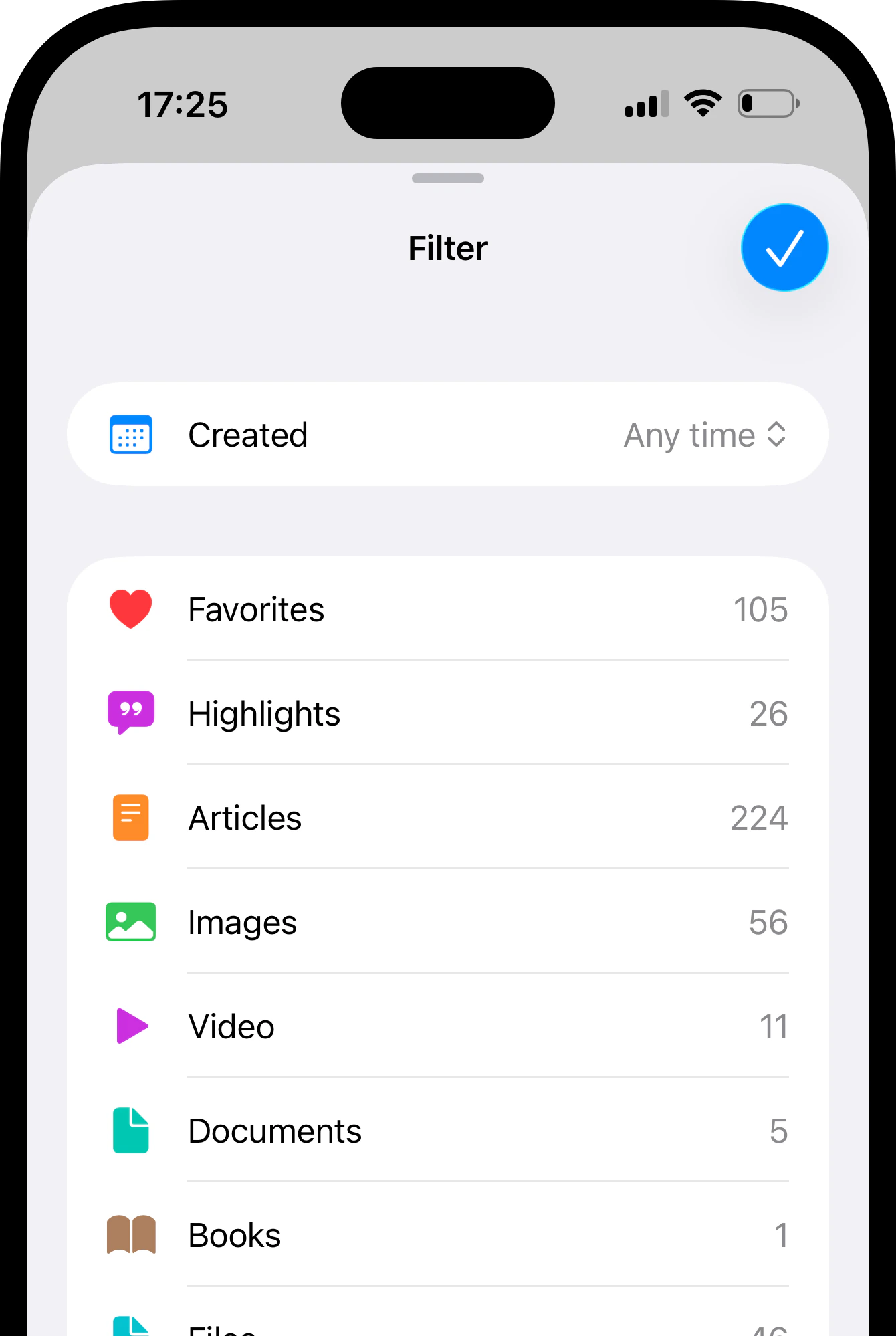
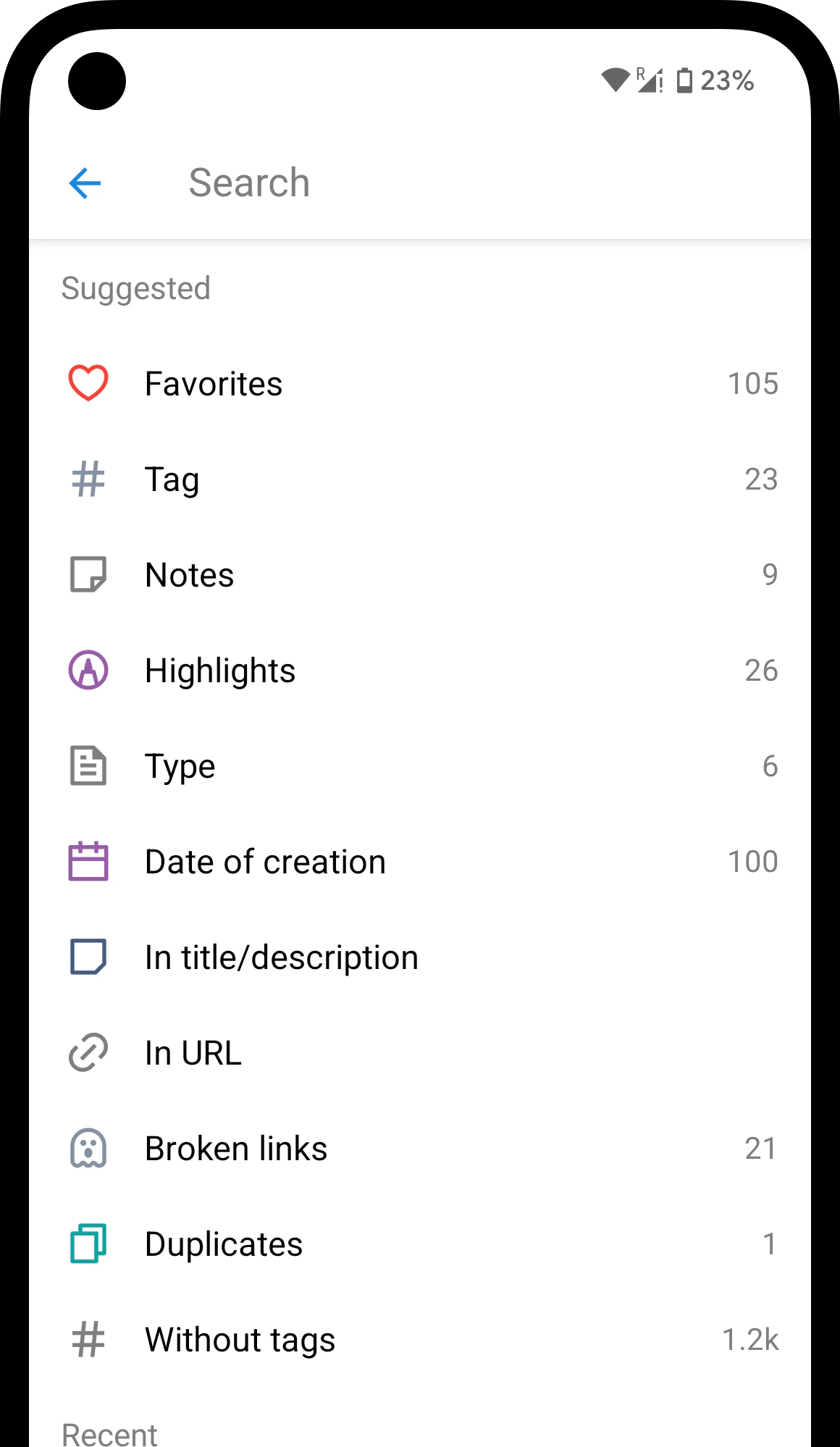
Bookmarks flagged as broken show a ghost icon next to the domain name. To see all of them at once:- Web & Desktop
- iOS
- Android
Click the Broken links filter in sidebar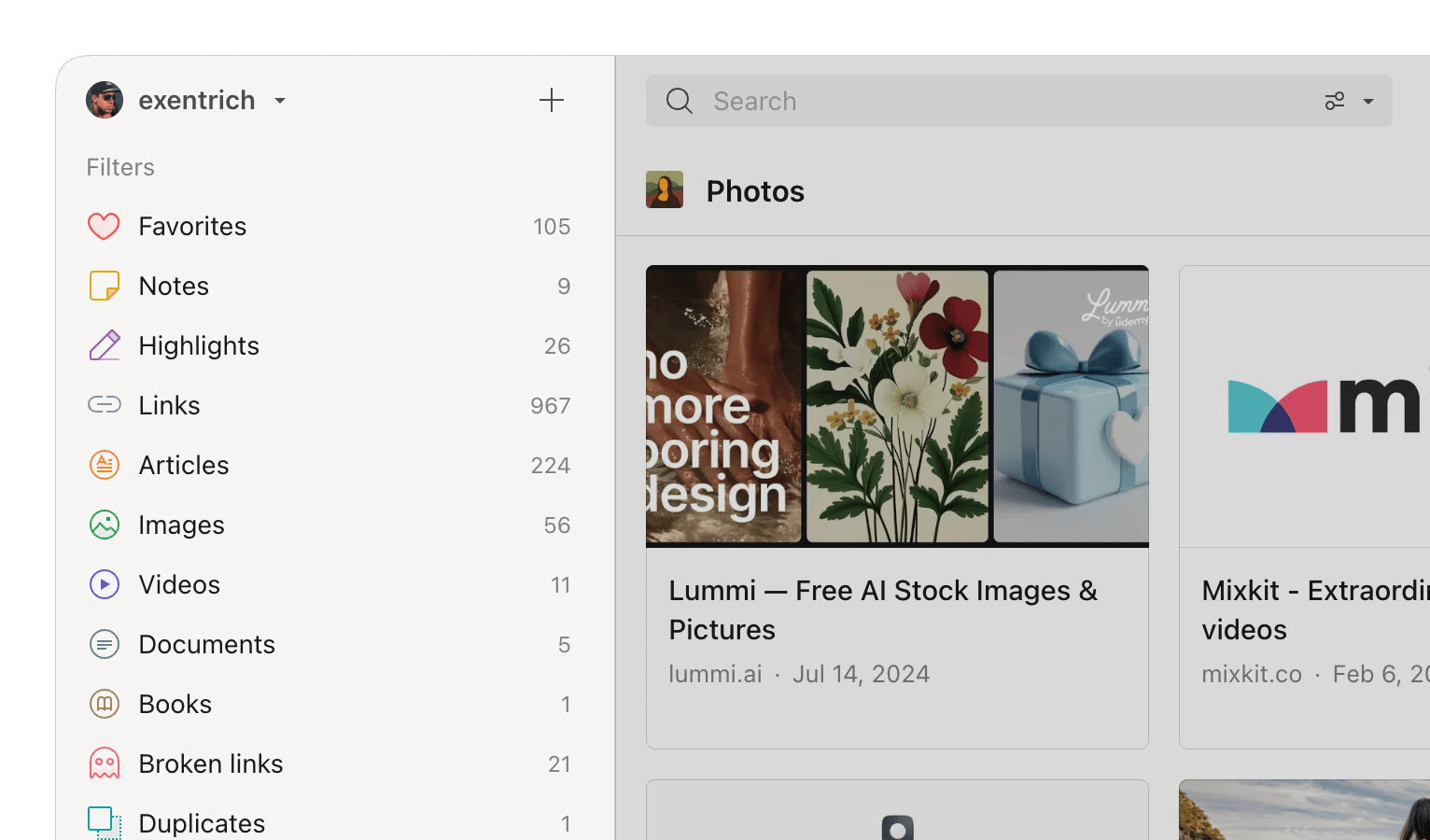
What to do with a broken link
A broken-link flag is a hint, not a verdict — the page may be temporarily down or simply moved. You have several options:- Do nothing. If you have a web archive copy, the content is safe even if the original page is gone.
- Fix the URL. If the page moved to a new address, update the URL in the bookmark editor. The broken flag clears automatically within a few hours.
- Delete. If the bookmark is no longer relevant, select it and press Delete.
Reducing false positives
Some pages appear broken even though they work fine — for example, local network resources, sites behind aggressive firewalls, or slow servers. You can adjust how strictly Raindrop.io checks links in Settings → App under the Broken links dropdown.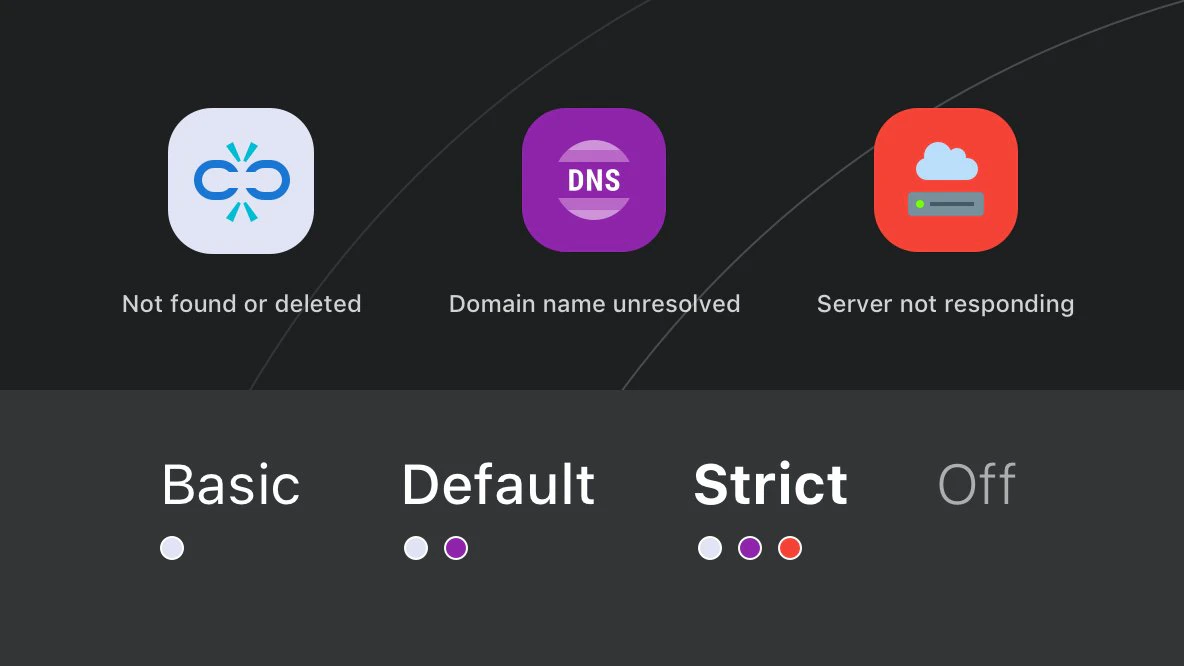
To turn off checking entirely, set the mode to Off.
FAQ
How often are bookmarks scanned?
How often are bookmarks scanned?
Scans run automatically on a regular schedule. After you change a URL or switch detection mode, allow a few hours for results to update.
Why is a working page marked as broken?
Why is a working page marked as broken?
Some sites block automated requests, causing a false positive. This also applies to local network resources that Raindrop.io servers cannot reach. Switch to Basic mode in Settings → App to reduce these cases.
Is the content lost when a link breaks?
Is the content lost when a link breaks?
Not if you have a Pro plan. Raindrop.io automatically saves a web archive copy of every bookmark. Even if the original page disappears, you can open the archived version.
Can I turn off broken-link checking entirely?
Can I turn off broken-link checking entirely?
Yes. Set the detection mode to Off in Settings → App.
Related
Filters
Narrow down bookmarks by type, tag, date, and more
Web Archive
Automatic saved copies of every web page
Duplicates
Find and remove duplicate bookmarks