
Saving tabs
- Browser extension
- iOS
- Android
1
Right-click the Raindrop.io extension icon and choose Save tabs.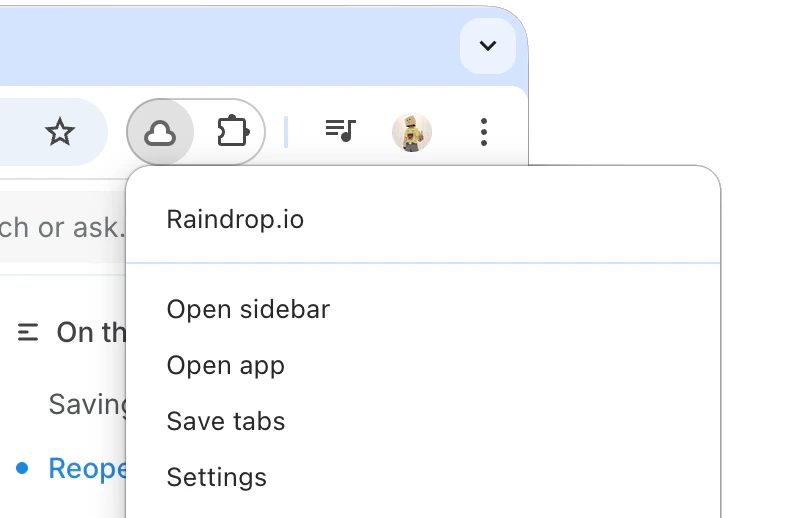
Make sure you have the browser extension installed.
2
Pick a collection or leave the default, then click Save tabs.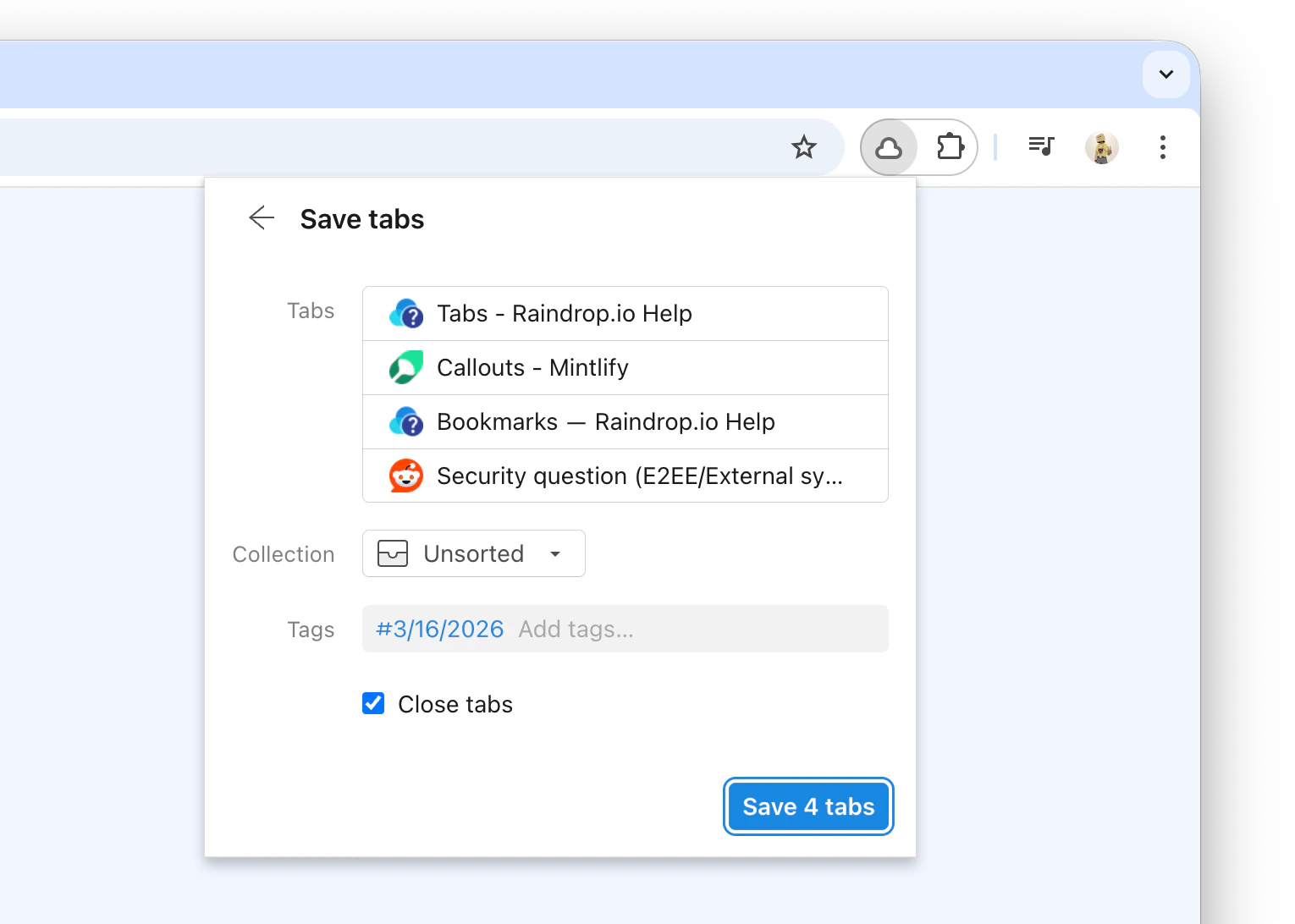
Reopening saved tabs
- Web & Desktop
- iOS
- Android
You can open all bookmarks in a collection at once, or select specific ones.Open entire collection:
Right-click a collection in the sidebar and choose Open all bookmarks.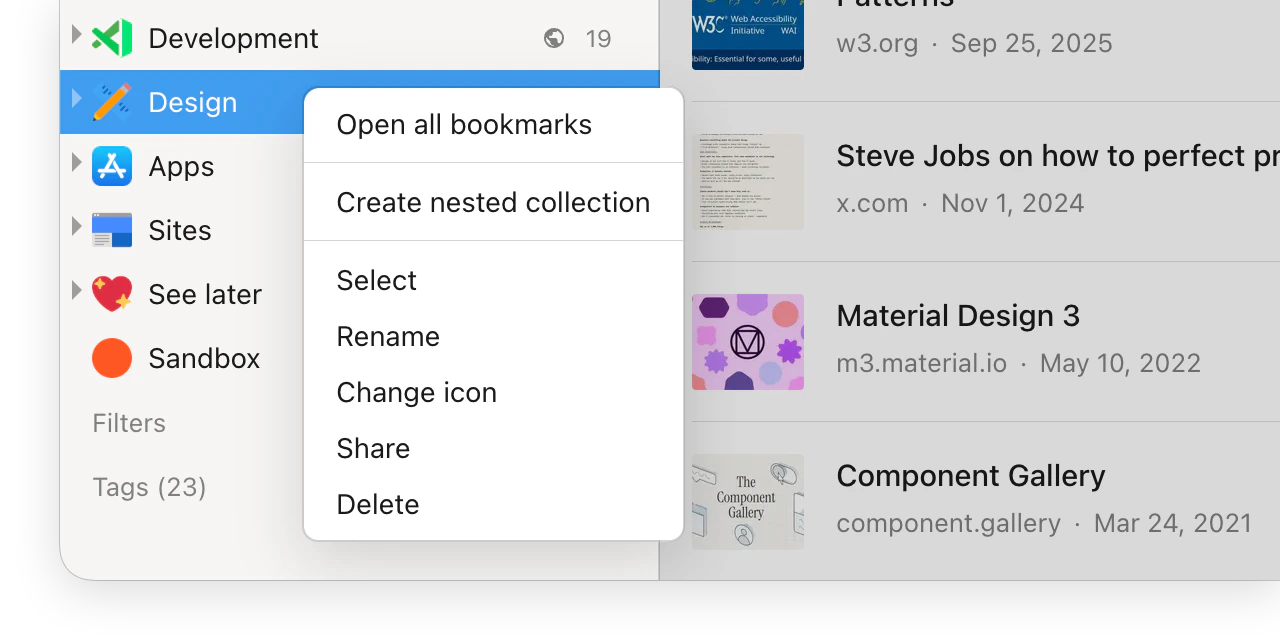
Right-click a collection in the sidebar and choose Open all bookmarks.
1
Hover over a bookmark and click the tick mark in the top-left corner. Repeat for each bookmark you want to open.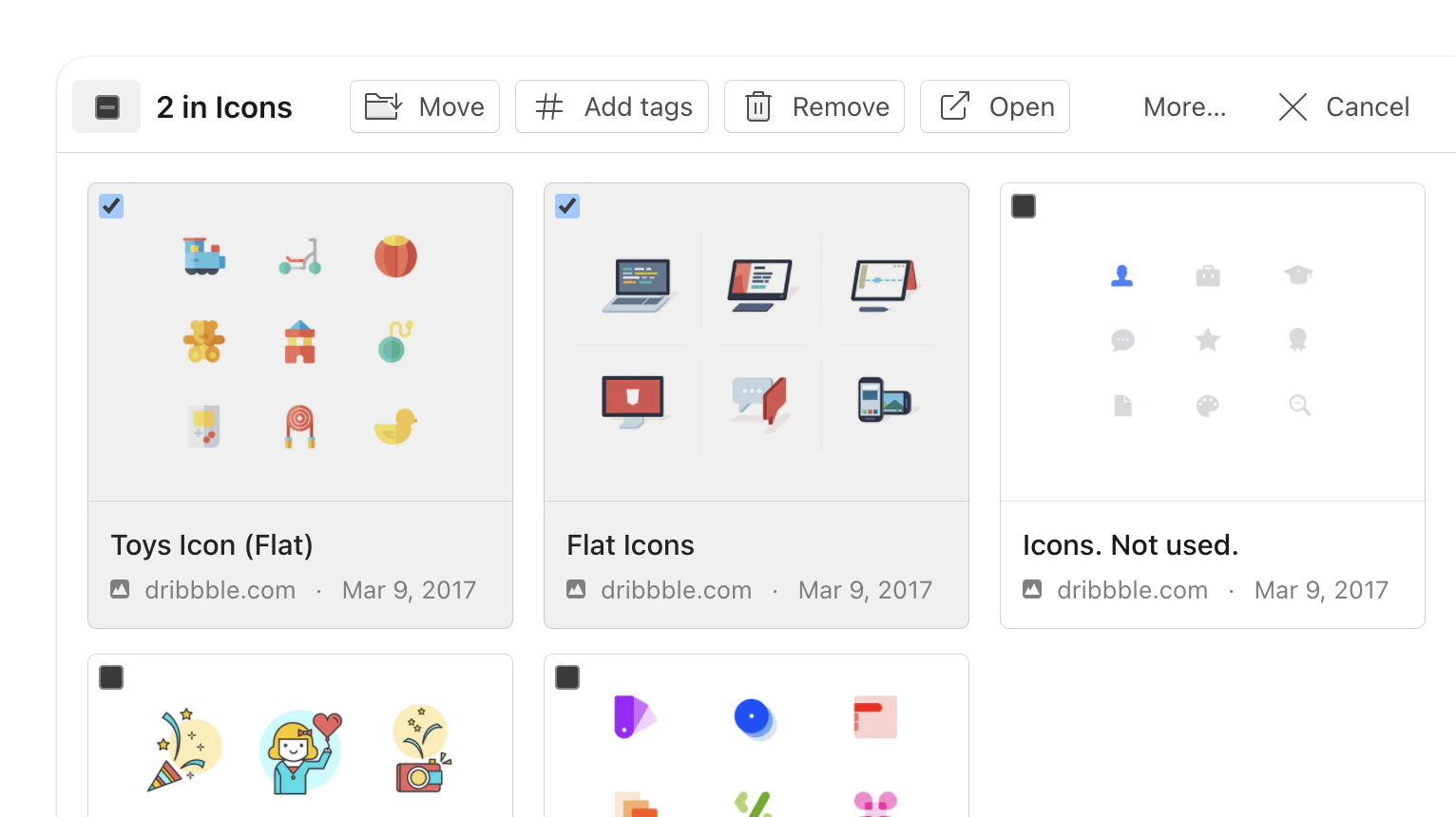
2
Click Open in the toolbar that appears at the top.
FAQ
Can I choose which tabs to save?
Can I choose which tabs to save?
By default all tabs in the current window are included. To exclude a tab, hover over it in the list and click the trash icon.
What happens if I save tabs twice?
What happens if I save tabs twice?
A new set of bookmarks is created each time. You can use the duplicates tool to find and merge them.