
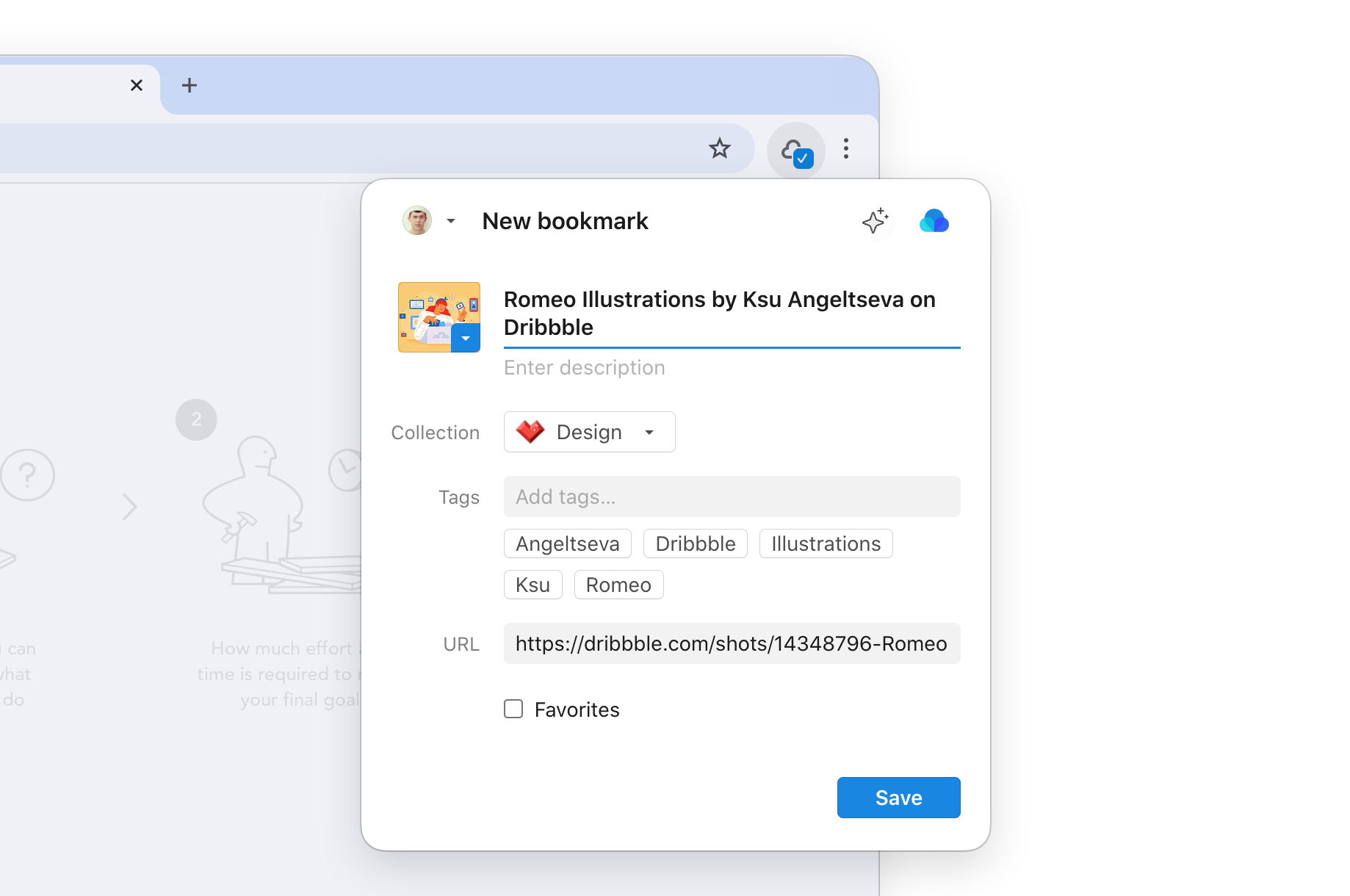
Installing

Chrome

Safari

Edge

Firefox
Pinning toolbar icon
After installing, pin the Raindrop.io icon to your browser toolbar so it’s always one click away.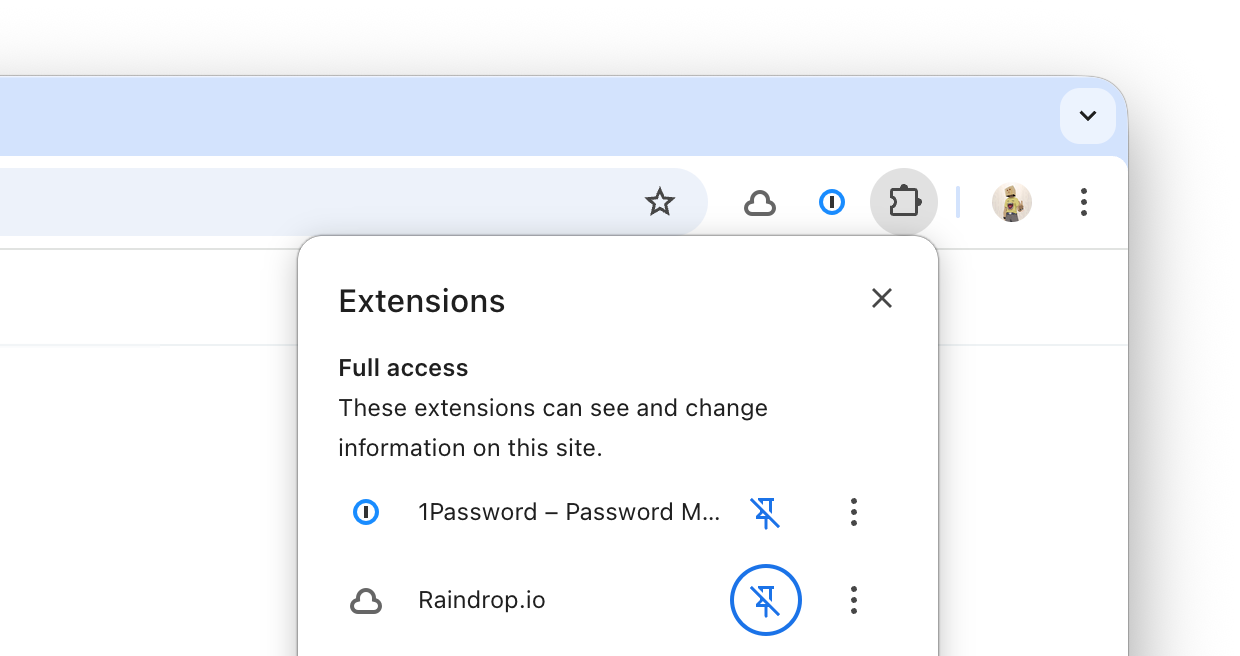
1
Click the puzzle piece (extensions) icon in the toolbar
2
Find Raindrop.io in the list and click the pin button
Enabling saved page indicator
Enable the saved page indicator to see a small badge on the extension icon whenever you visit a page that’s already in your bookmarks.
1
Right-click the Raindrop.io extension icon and select Settings
2
Turn on Saved page indicator in the Permissions section
Next steps
You’re all set! Now explore what you can do with the extension:Save bookmark
Save the current page or any link
Add highlights
Select and save text on any page
Save tabs
Save all open browser tabs at once
Ask AI
Ask questions about the web page
Advanced features
Once you’re comfortable with the basics, try these features to get more out of the extension:Keep the full Raindrop.io app open as a persistent sidebar alongside your current page — browse collections, search, and drag links or images directly into it.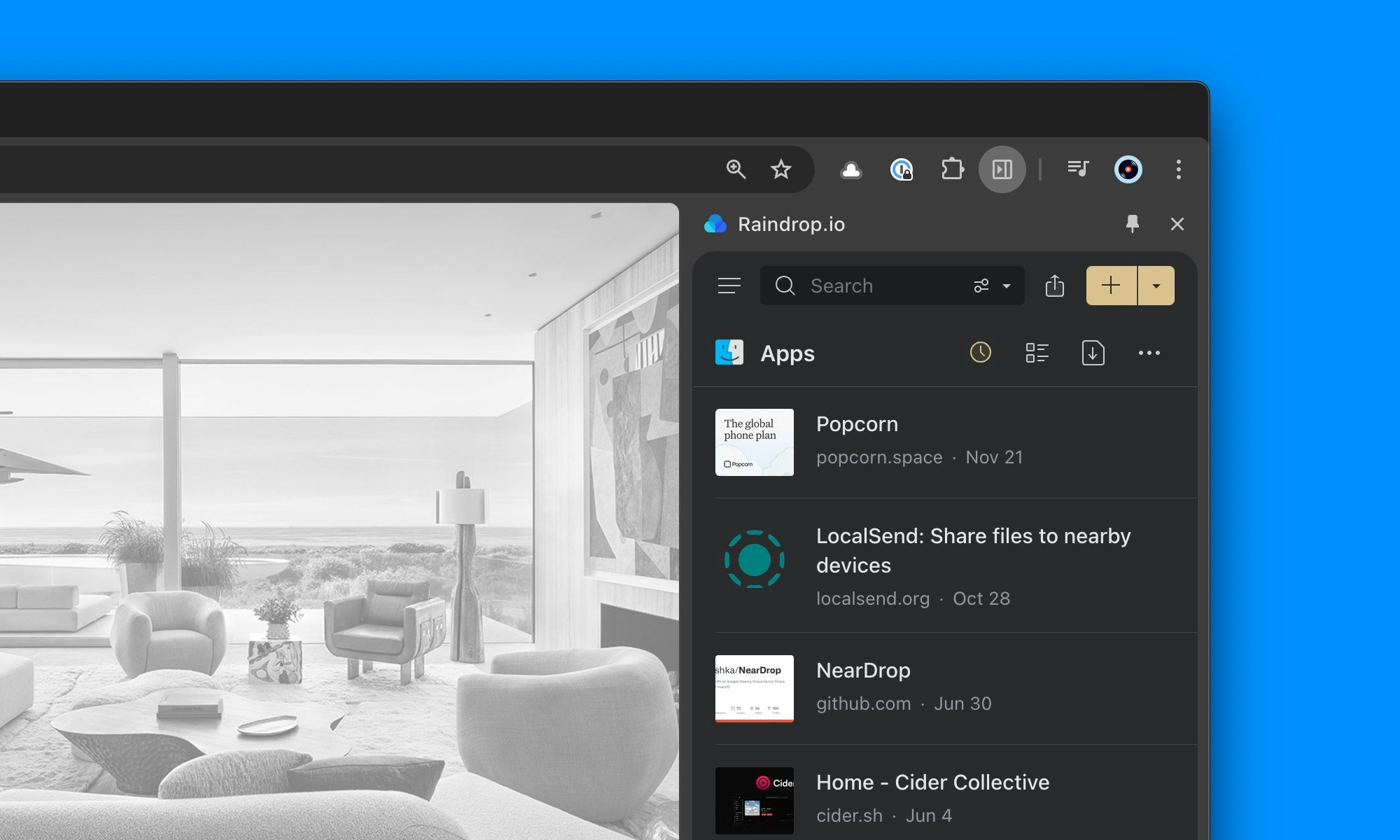
- Chrome / Edge
- Firefox
- Other browsers
Press 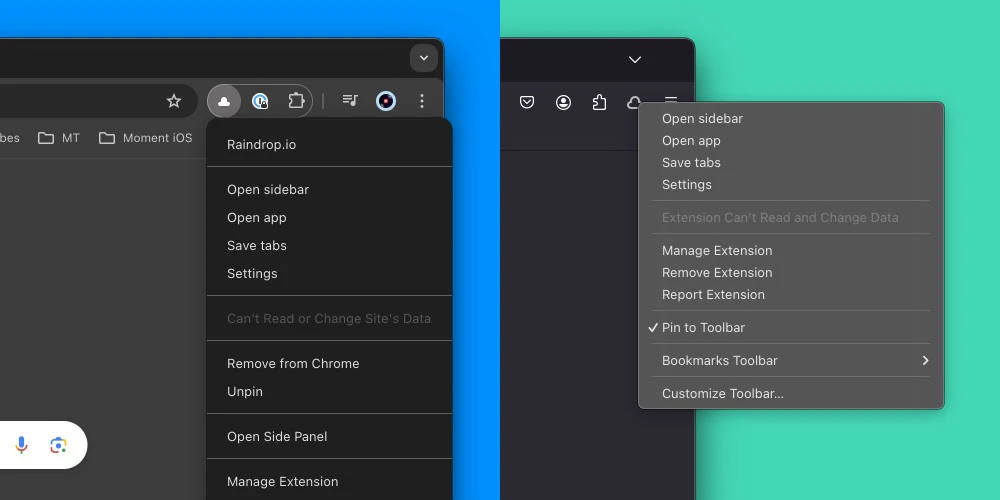
Ctrl+. (Windows/Linux) or Cmd+. (Mac). Or right-click the Raindrop.io toolbar icon and select Open Sidebar.Search from the address bar
Search from the address bar
Type 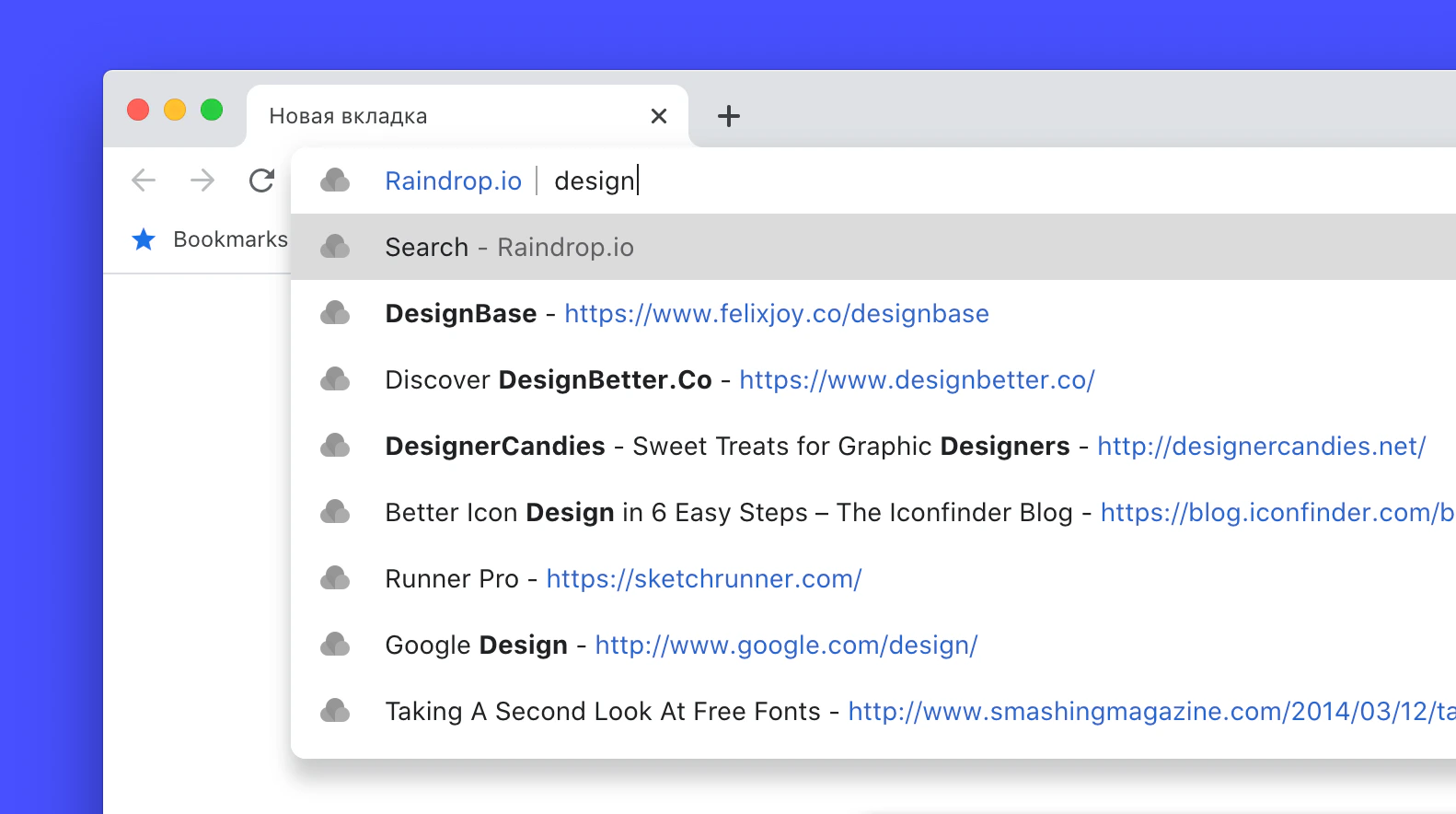
rd in the address bar, press Tab, and search your bookmarks without opening Raindrop.io. See Search for details.FAQ
Can I save bookmarks with one click?
Can I save bookmarks with one click?
Yes. Right-click the extension icon → Settings → Appearance → Clipper, then enable Save automatically. New bookmarks are saved to Unsorted (or the last used collection) with a single click.
Can I save pages without installing an extension?
Can I save pages without installing an extension?
Yes — you can add bookmarks directly in the Raindrop.io app by pasting a URL or using the built-in browser share menu.Alternatively, you can use a bookmarklet — it opens a small save dialog for the current page, no permissions required, works in any browser.
1
Create a new bookmark in your browser and name it Save to Raindrop.io
2
Paste the following code as the bookmark URL:
3
Click the bookmark on any page to save it to Raindrop.io
Does the extension work on mobile browsers?
Does the extension work on mobile browsers?
Only in Safari on iOS and iPadOS. To enable it, install the Raindrop.io mobile app first — the Safari extension is included.Other mobile browsers (Chrome, Firefox, etc.) don’t support extensions. Use the Raindrop.io app with the browser share menu instead.
What permissions does the extension need?
What permissions does the extension need?
By default, only minimal permissions — the extension can access the current tab only when you click it. No data is collected or sent in the background.Additional permissions are requested only if you enable features like the saved page indicator or highlights, which need the Access data on websites permission to check URLs against your bookmarks and display highlights on revisited pages.