
Reading an article
- Web & Desktop
- iOS
- Android
1
Right-click a bookmark and select Preview.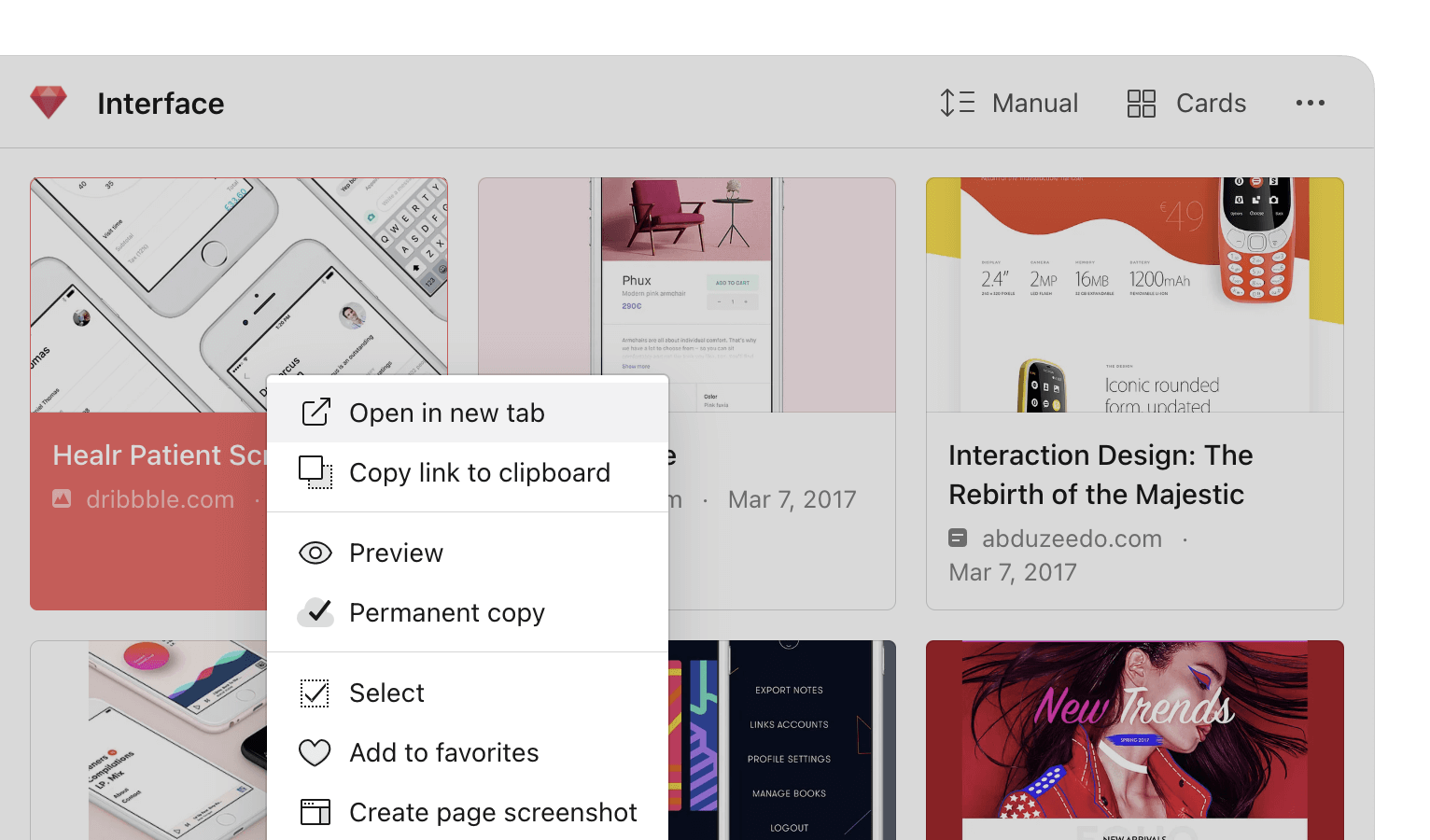
2
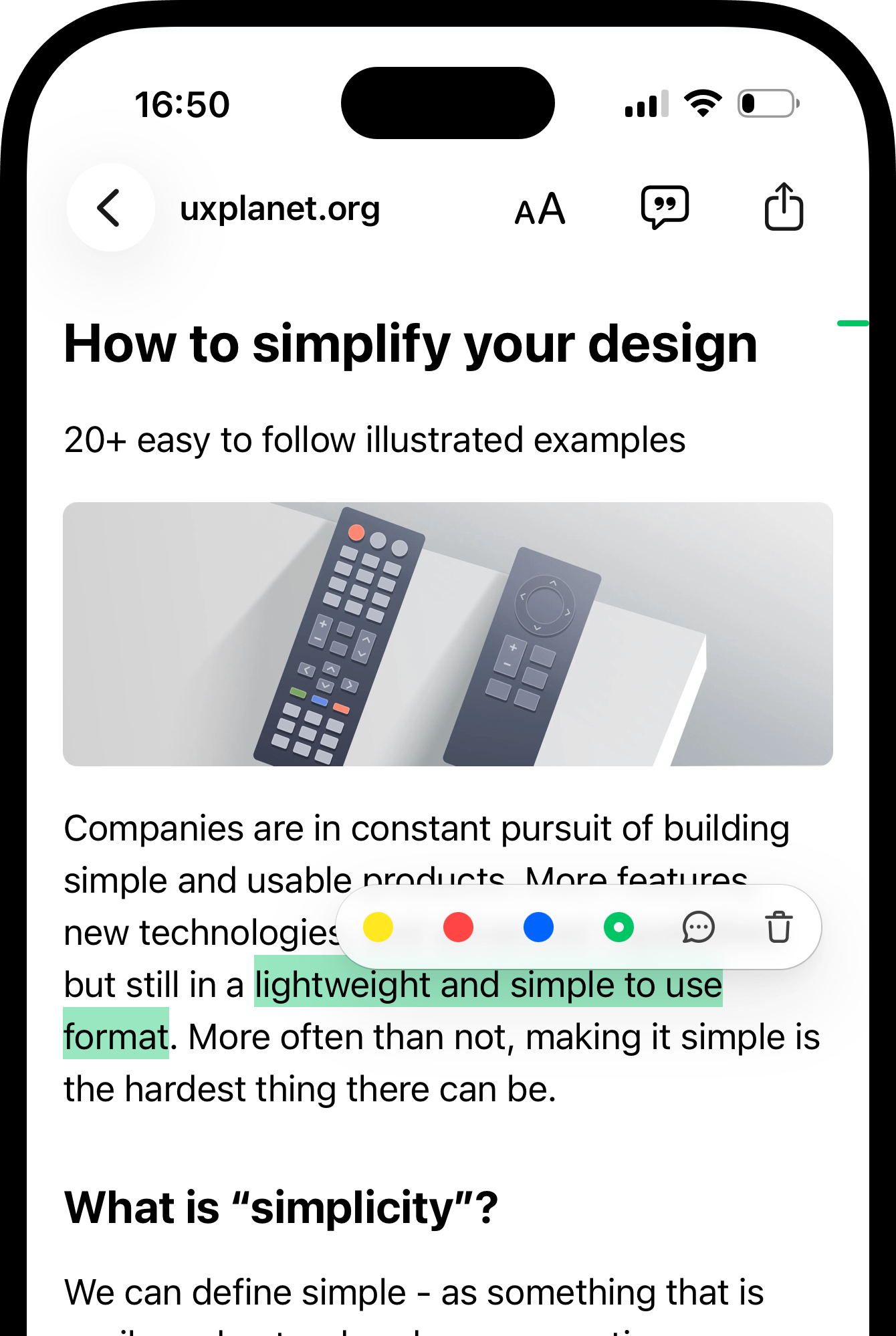
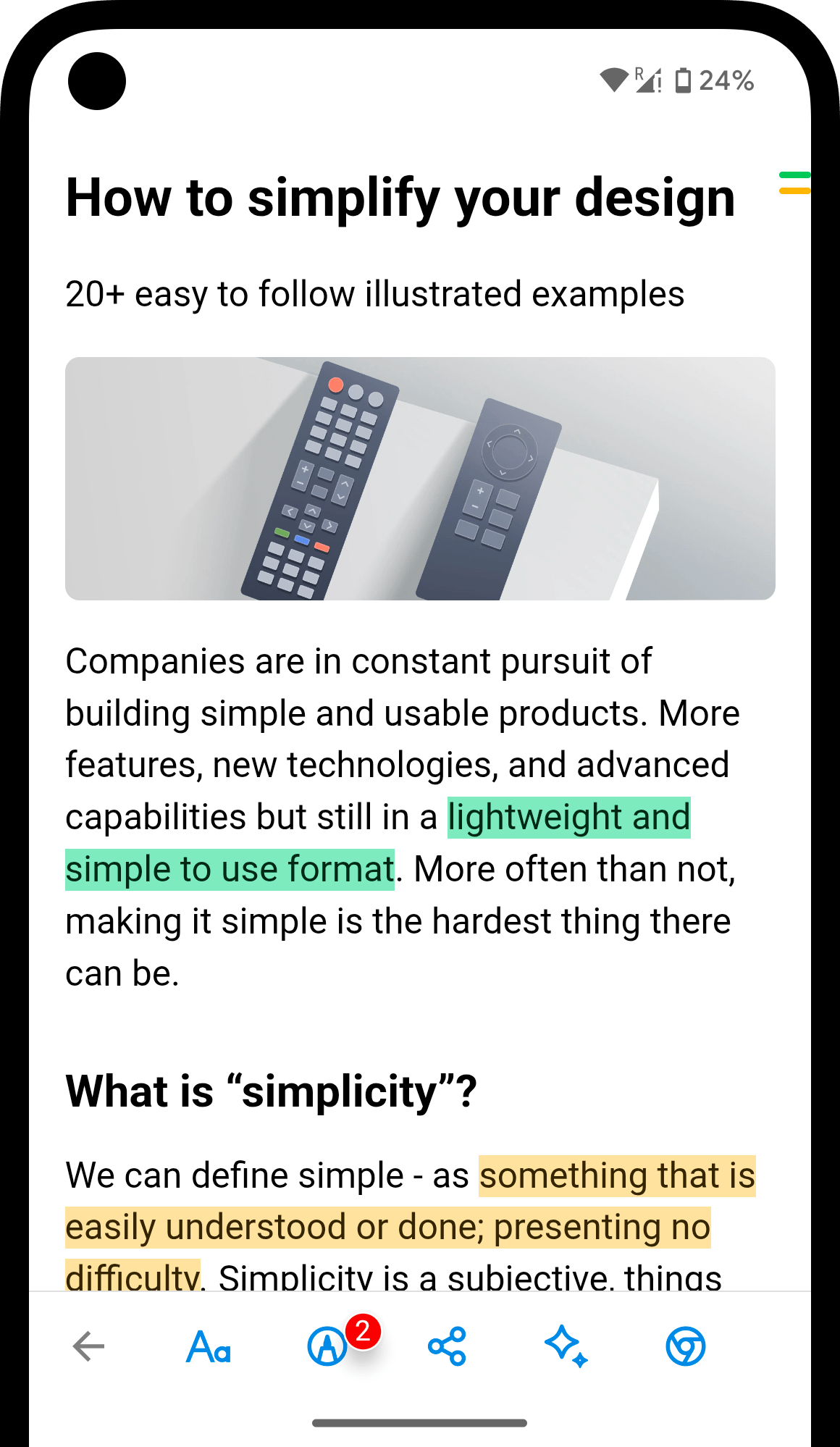
Adjust the theme, font, and text size to make reading comfortable.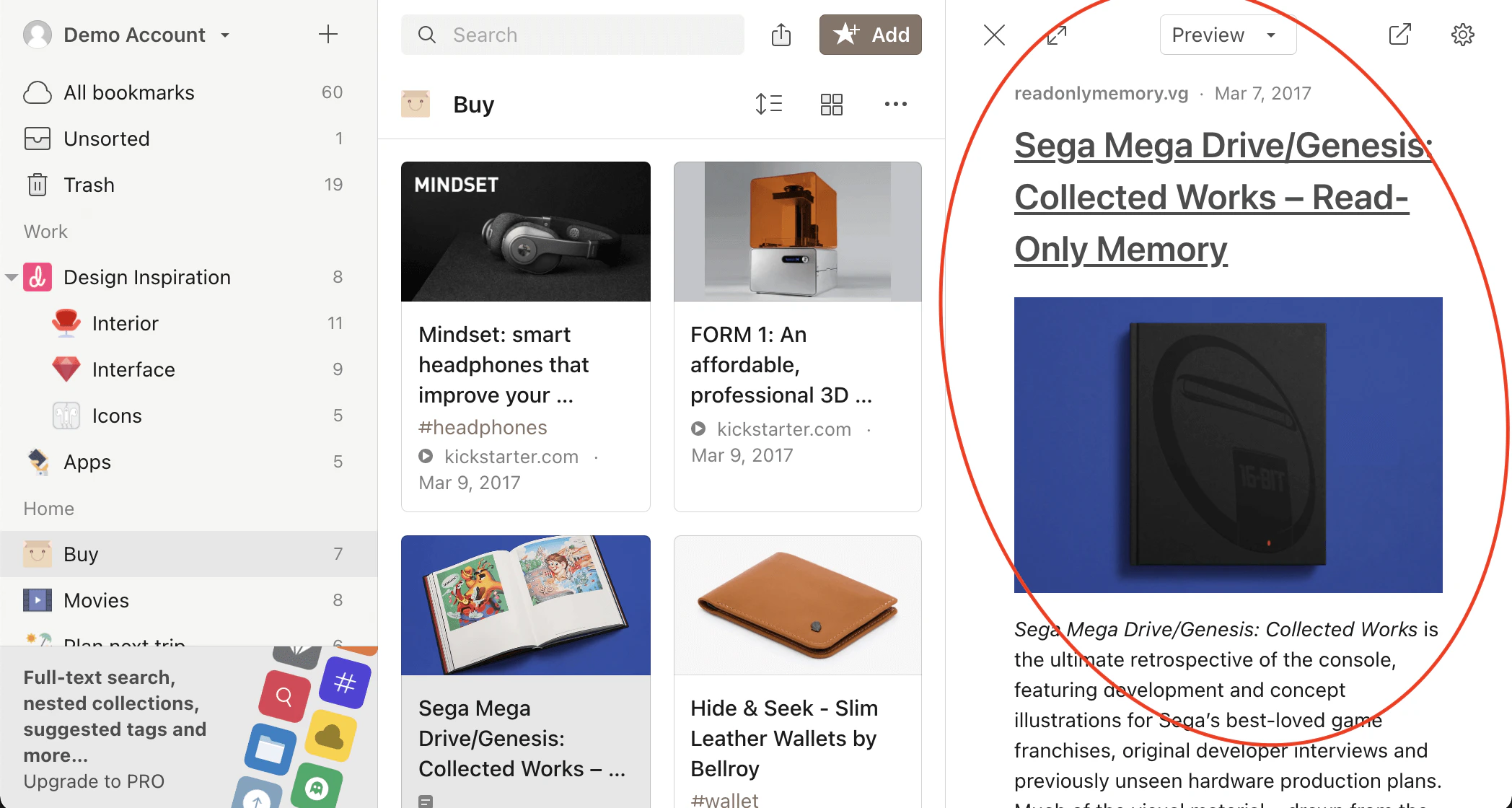
Optionally, add highlights to important passages.
Chatting with an article
Not sure what the article is about? Stella can summarize it, extract key points, translate into another language, or answer your questions about the content.- Web & Desktop
- Browser extension
- iOS
- Android
Switch to the Ask tab in the preview panel.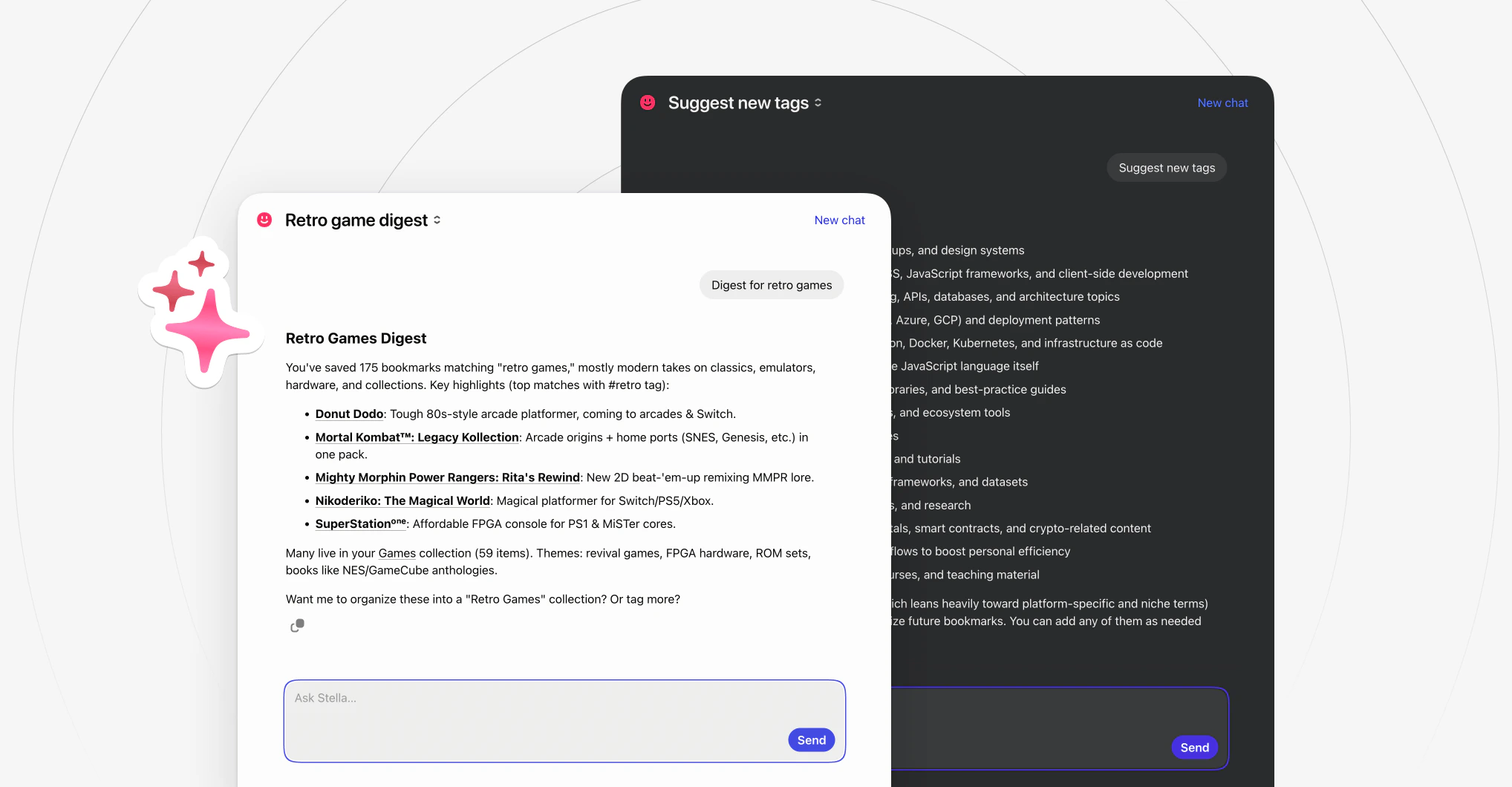
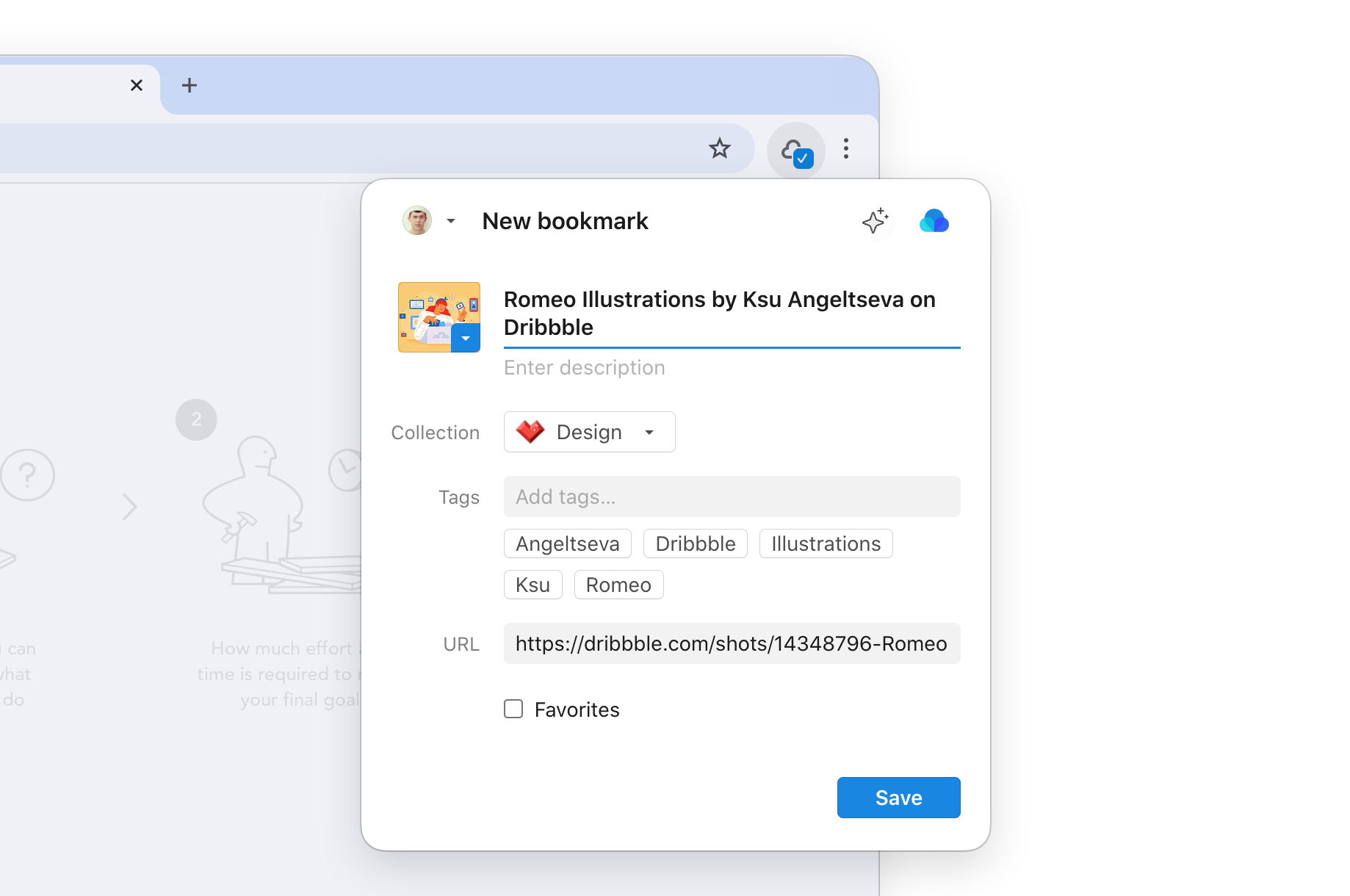
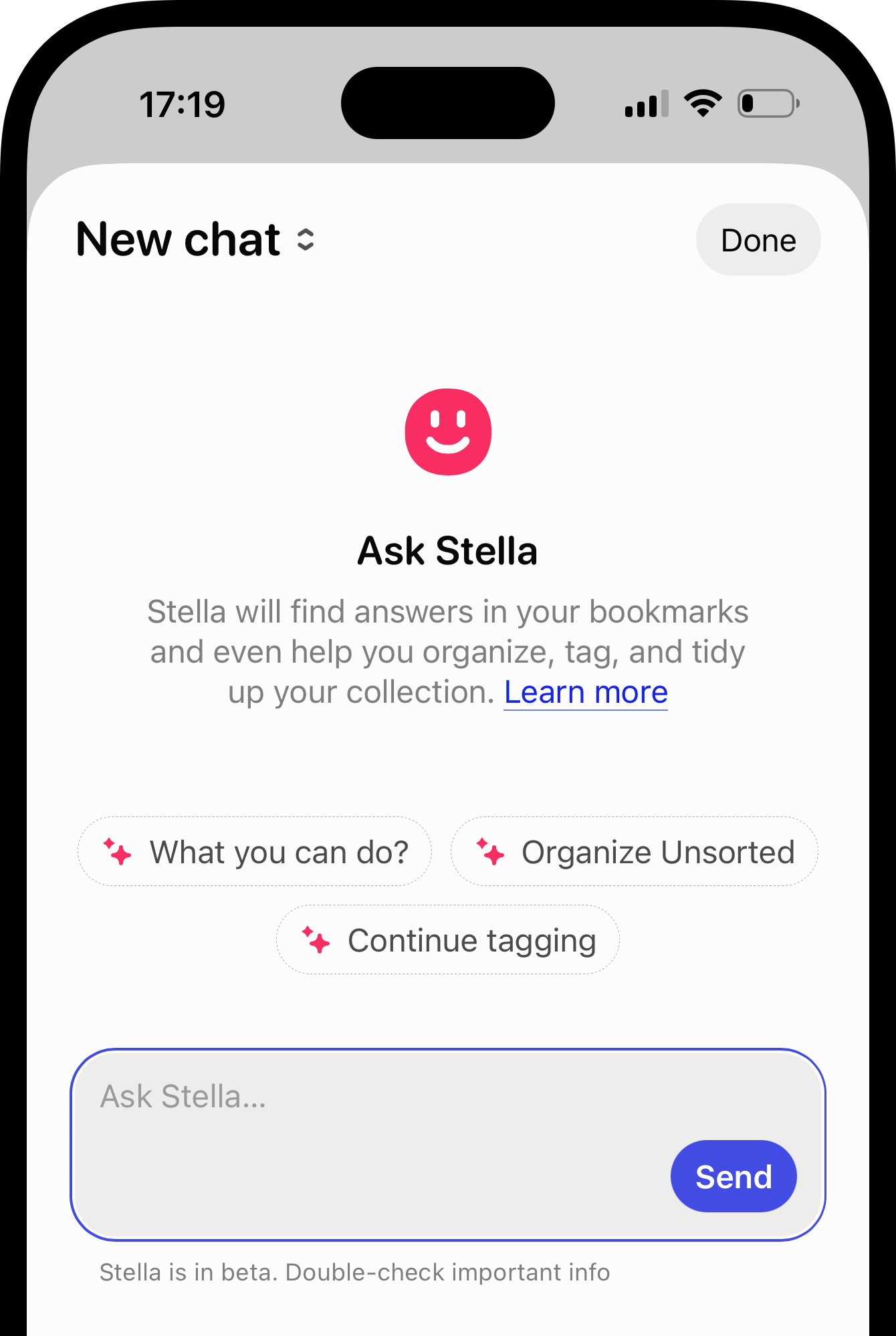
Finding articles
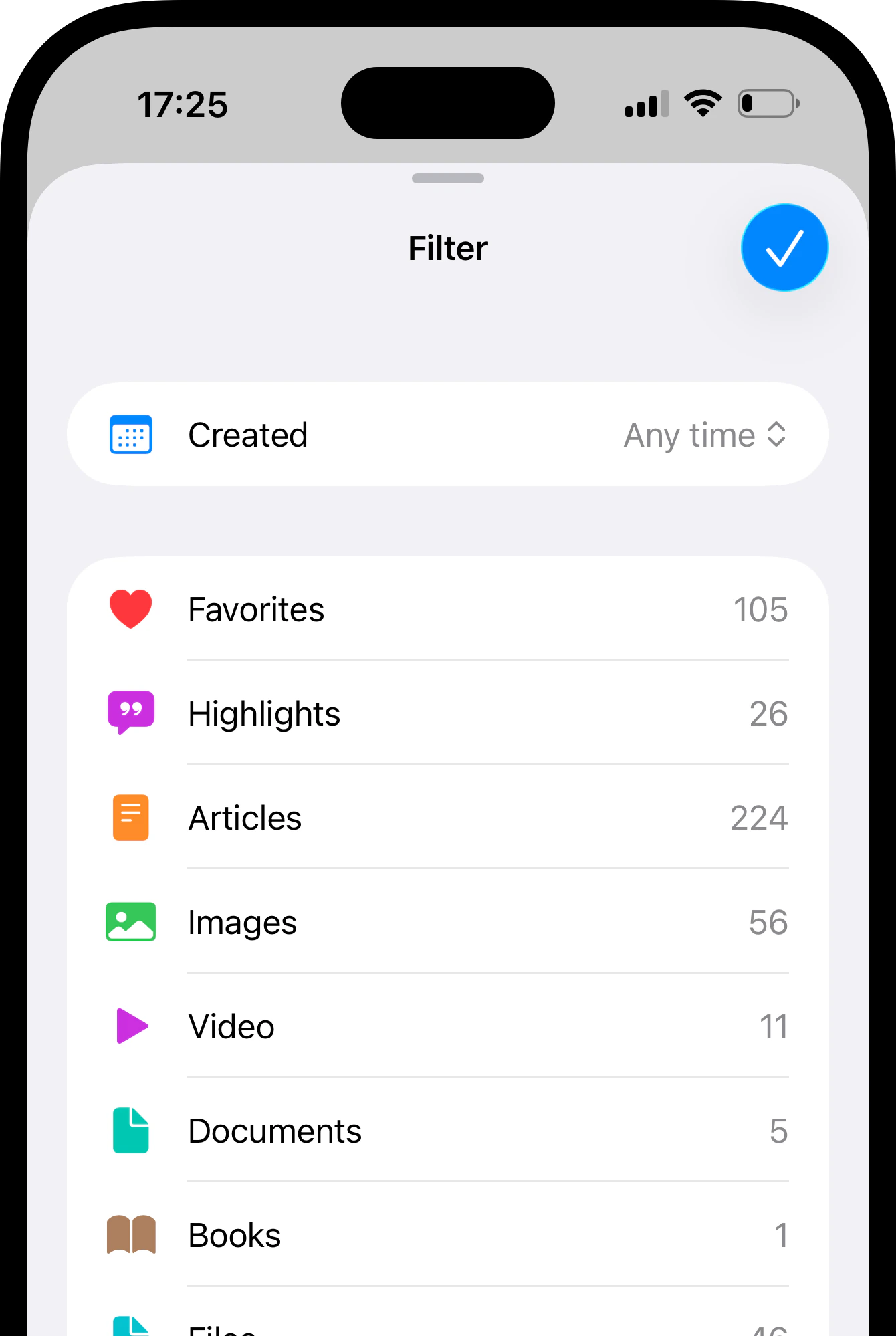
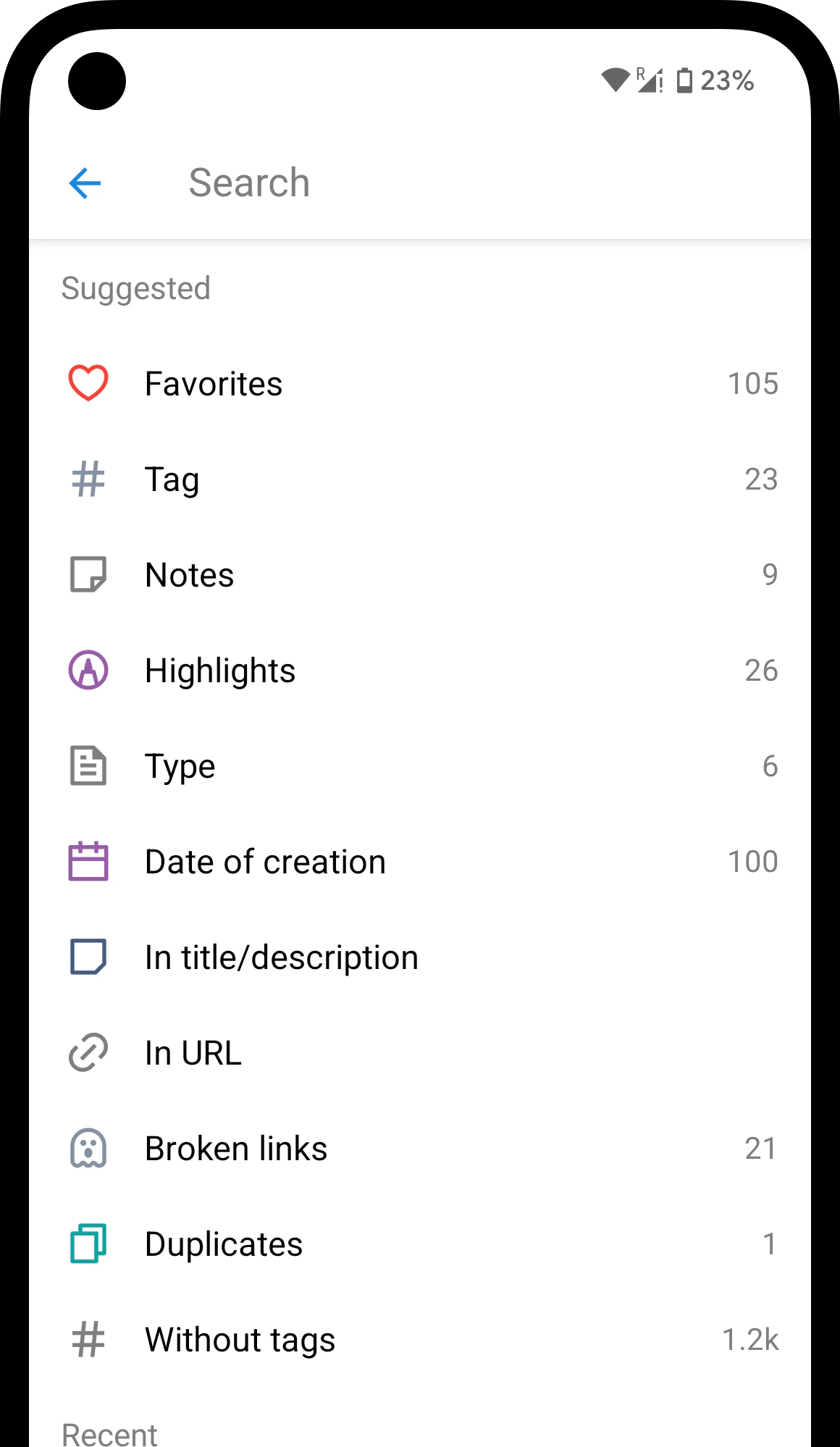
Over time you’ll save dozens of articles alongside other bookmarks. Filter to see just your articles, search through their text — whatever helps you find what you need.- Web & Desktop
- iOS
- Android
Click the Articles filter in the sidebar.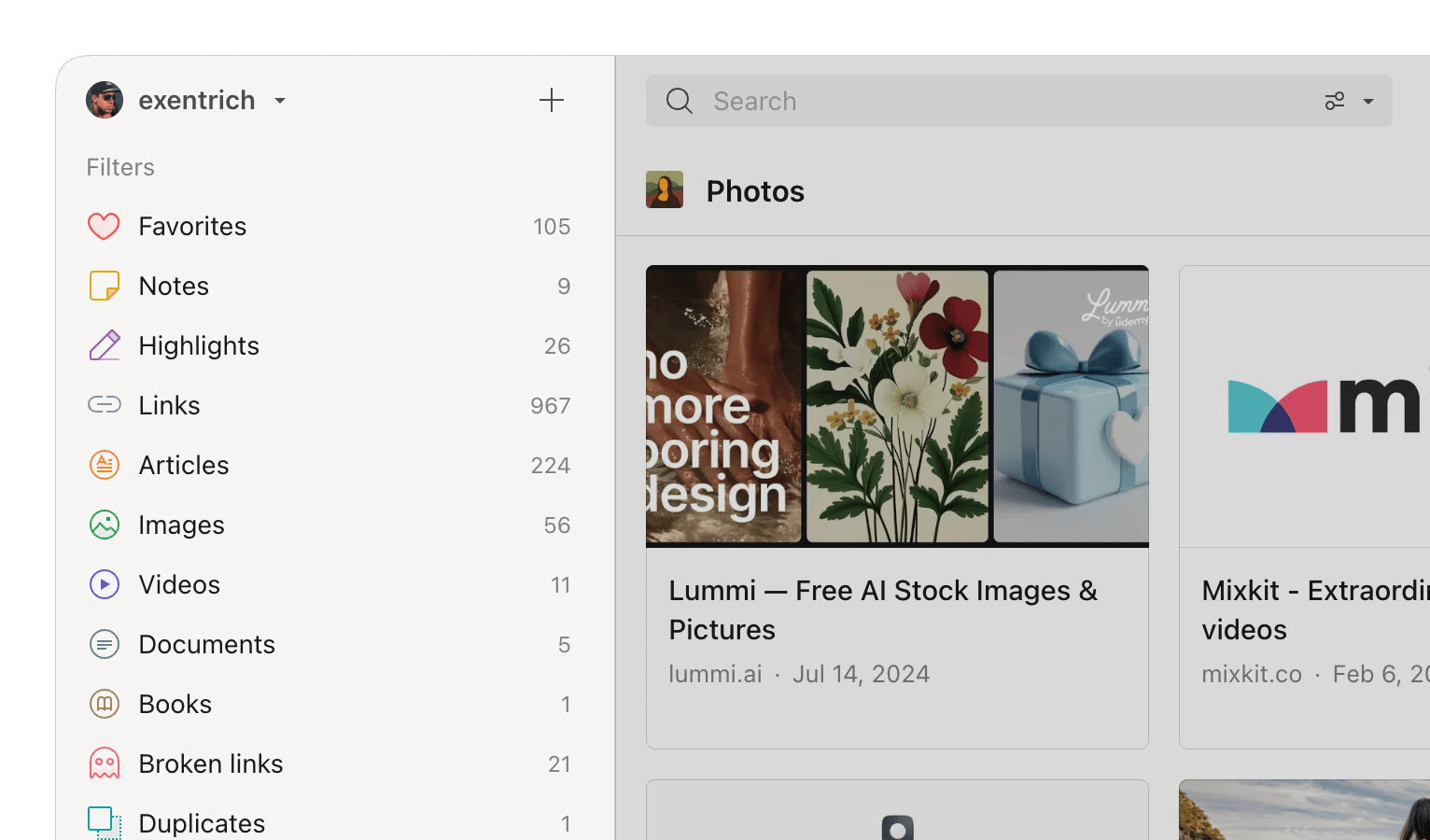
Related
Highlights
Save key passages from articles, PDFs, and EPUBs
Search
Find articles by content across your library
Stella
Summarize, translate, and ask questions about articles
Web archive
A saved copy of every page in case the original disappears
FAQ
How does Raindrop know it's an article?
How does Raindrop know it's an article?
It analyzes the page when you save it and detects the content type automatically — no manual action needed.
What if the original page gets deleted?
What if the original page gets deleted?
You can still read it. The article text is saved in Raindrop at the time the bookmark is created.
What if the article doesn't open in preview?
What if the article doesn't open in preview?
Right-click the bookmark → Refresh preview. If the problem persists, contact support at info@raindrop.io.
Does it work with paywalled content?
Does it work with paywalled content?
No. Only publicly accessible pages can be parsed.
Can I highlight text in preview?
Can I highlight text in preview?
Yes — in articles, PDFs, and EPUBs. See Highlights.