
Using filters
- Web & Desktop
- iOS
- Android
Filters live in the sidebar and apply across your entire library. Click any filter to apply it — the bookmark list updates instantly.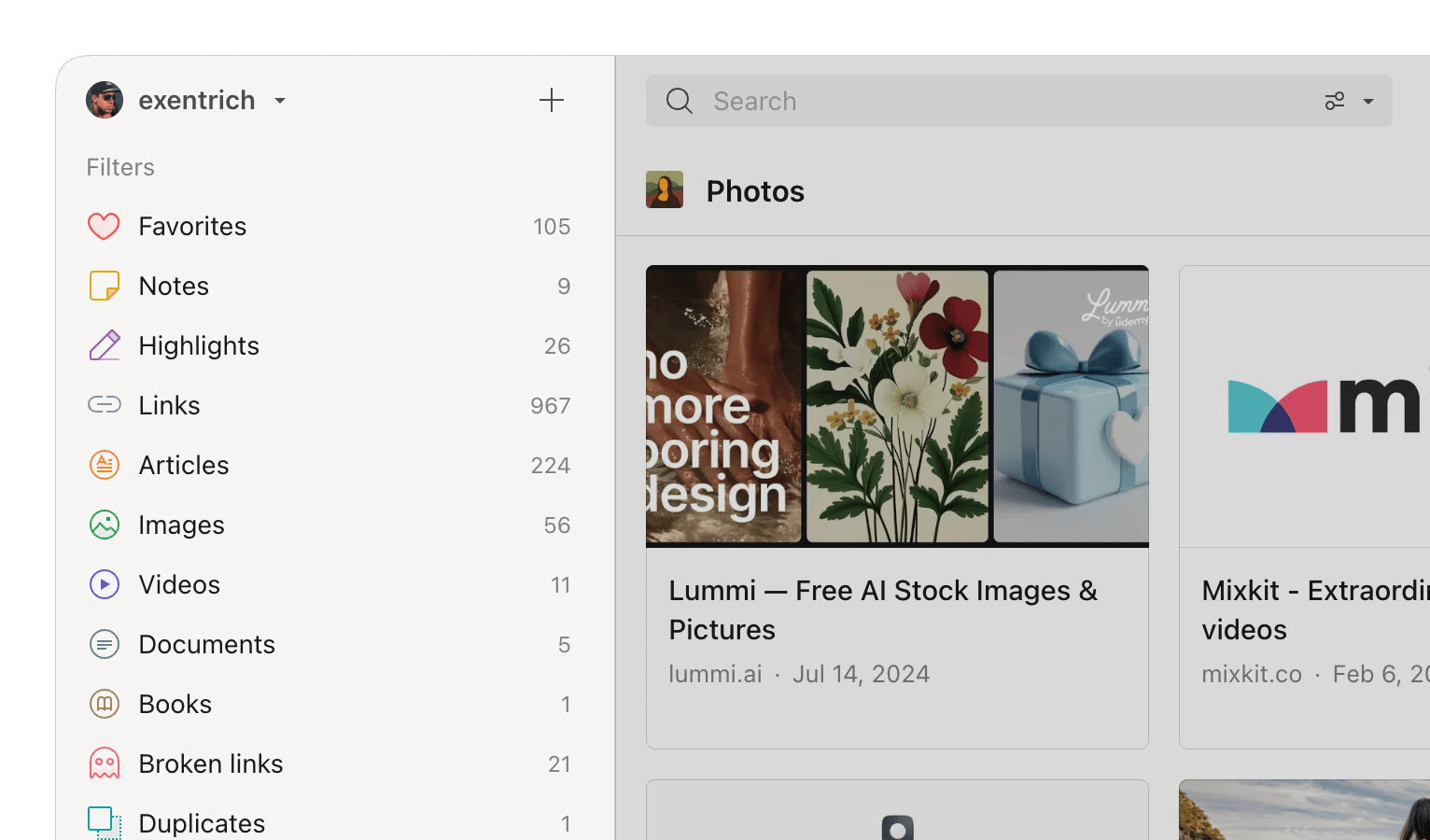
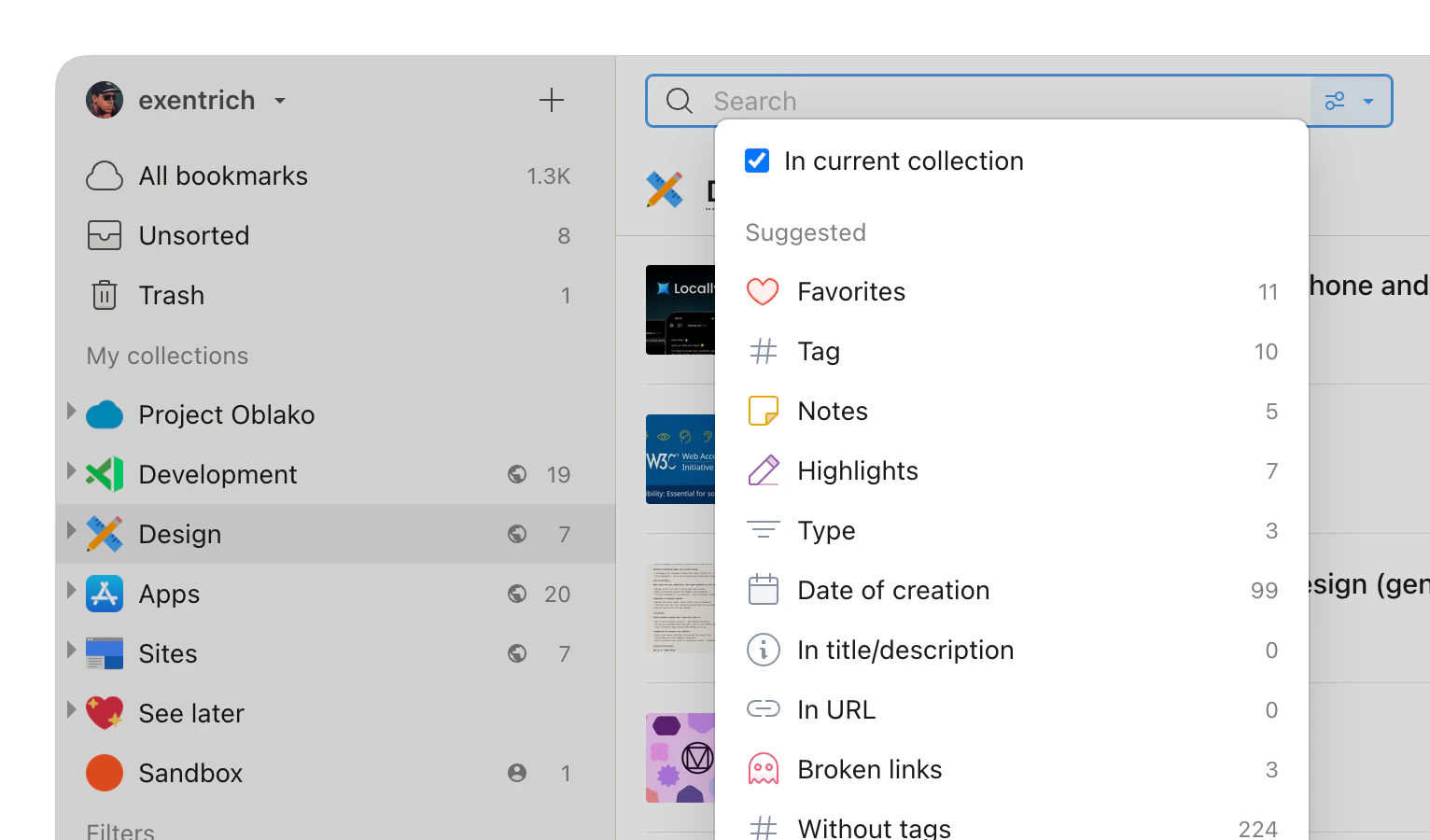
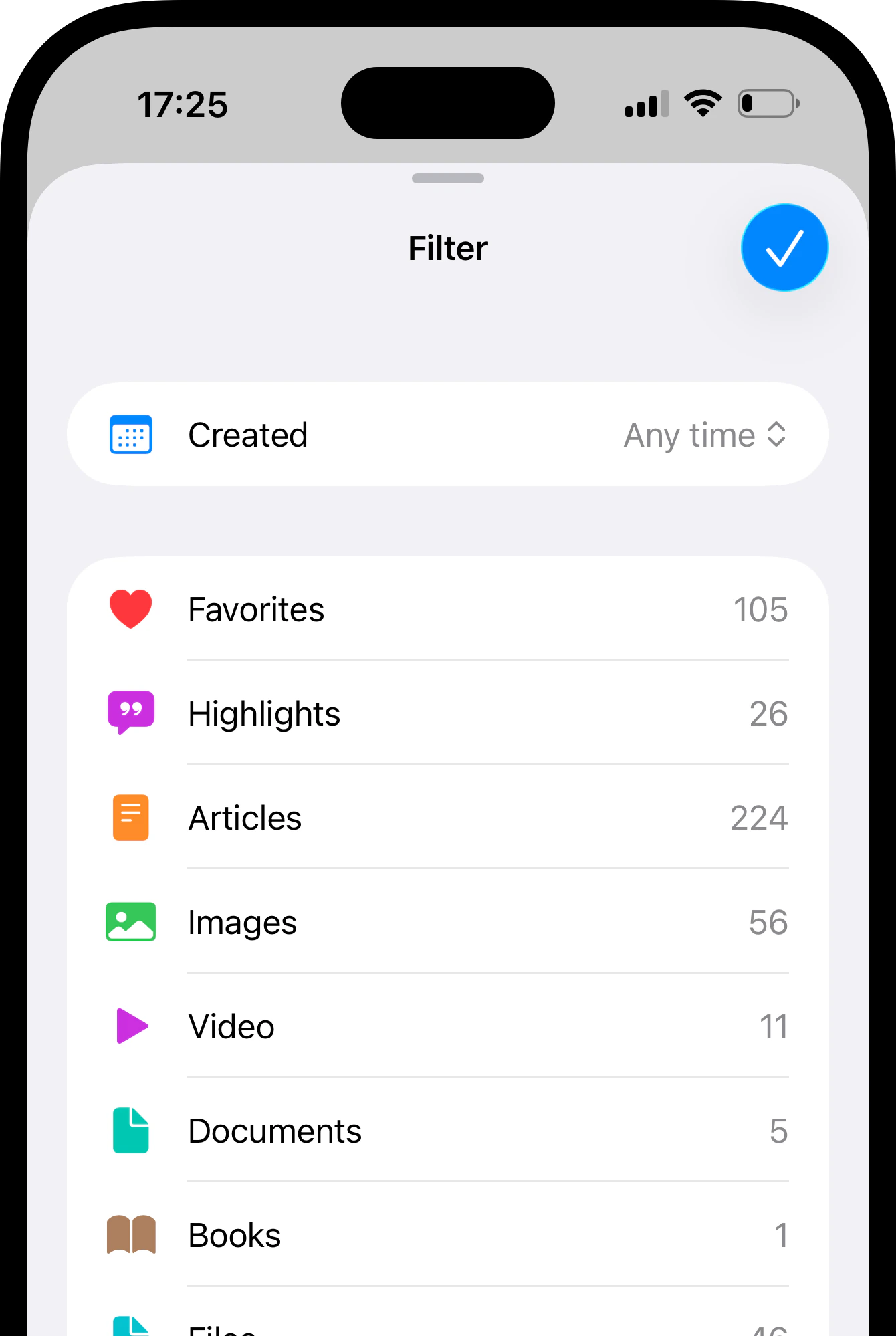
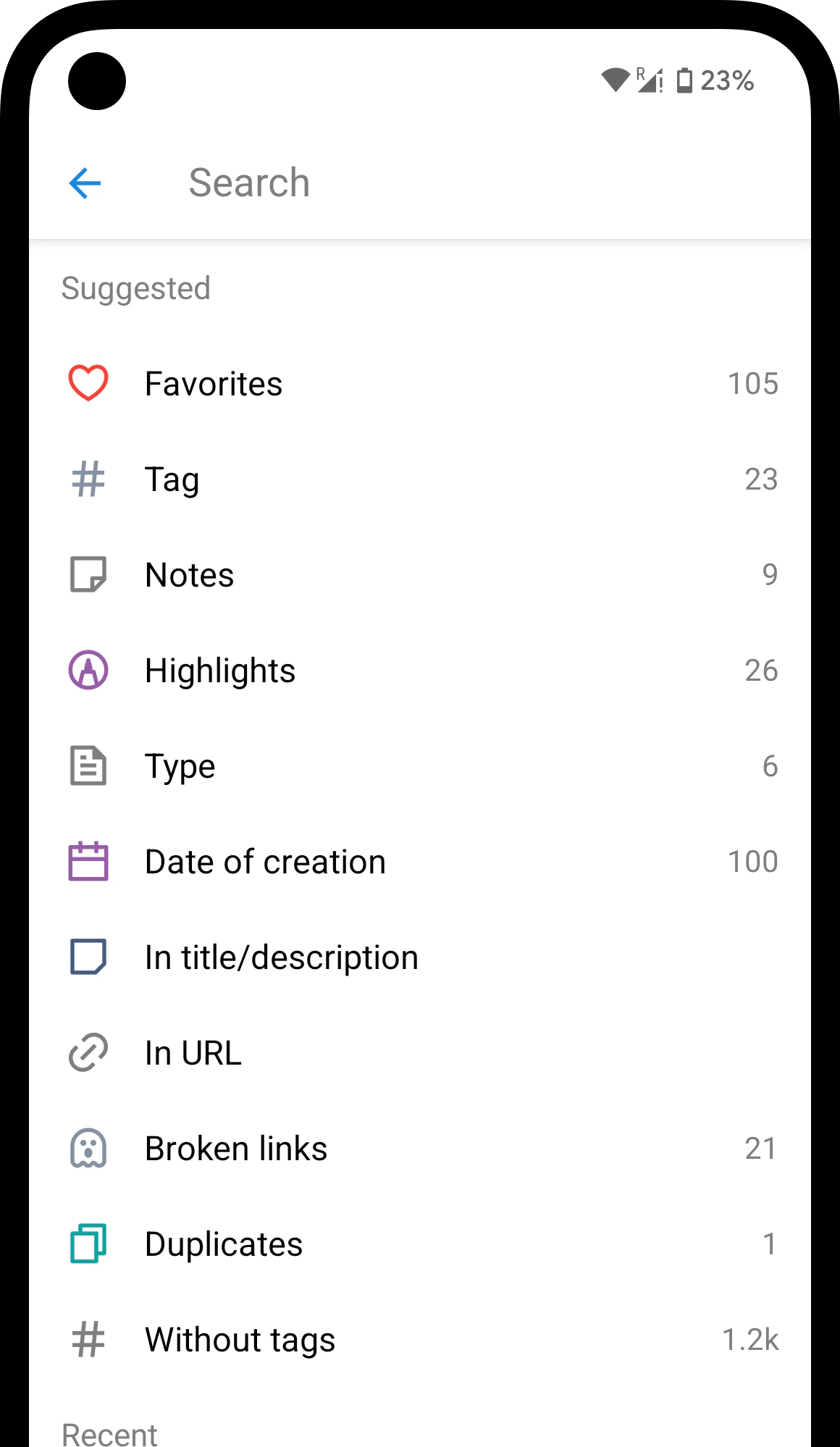
Available filters
Tags
Your tags show up as filters — each tag you use becomes a clickable filter. There’s also a Without tags filter to find bookmarks that have no tags yet.Attributes
- Favorites — bookmarks you marked as favorite
- Reminder — bookmarks with an active reminder
- Note — bookmarks that have a note attached
- Highlights — bookmarks with saved highlights
Content type
Raindrop.io detects what kind of content each bookmark holds and creates filters automatically — Article, Image, Video, Audio, Document, and Book. No setup needed: save a YouTube link, and the Video filter appears on its own.Creation date
Narrow bookmarks to a specific month by selecting the date range in the filter list.Library health
- Broken links — bookmarks pointing to pages that may no longer work
- Duplicates — the same URL saved more than once
Broken links and Duplicates require a Pro plan.
Combining and excluding filters
Pick a filter, then open the filter list again to add another one. By default, all selected filters apply together — so picking two tags shows only bookmarks that have both. Once you have more than one filter selected, a match:OR option appears in the list; turn it on to show bookmarks matching any of them instead. To exclude a specific filter, select it first, then add- (minus) before it in the search field — for example, -type:video hides all videos from the results. You can also type keywords in the search field while filters are active to narrow things down even further.
Need more precise filtering?
Need more precise filtering?
Every filter is a search operator under the hood — you can type them in the search field directly for extra flexibility, like searching within a specific field, using date ranges, or matching either of two terms.
Related
Search
Combine text search with filters for precise results
Tags
Label bookmarks with keywords — each tag becomes a filter
FAQ
Can I combine filters with text search?
Can I combine filters with text search?
Yes. Type in the search field while one or more filters are active. The results show only bookmarks that match both your search query and every selected filter.
Why do I see fewer filters than expected?
Why do I see fewer filters than expected?
A filter only shows up when at least one bookmark matches it. If you don’t have any video bookmarks, for example, the Video filter won’t appear. Inside a collection the list narrows even further. Open All bookmarks to see every filter available across your whole library.